> ## Documentation Index
> Fetch the complete documentation index at: https://docs.omni.co/llms.txt
> Use this file to discover all available pages before exploring further.
# Defining custom dashboard error and empty results messages
> Customize the messages that display on dashboards when queries encounter errors or don't return results.
Adding your own custom messages to dashboards allows you to not only apply your own branding, but to make the experience more friendly and intuitive for your users.
By default, Omni displays messages when a query encounters an error or doesn't return results:
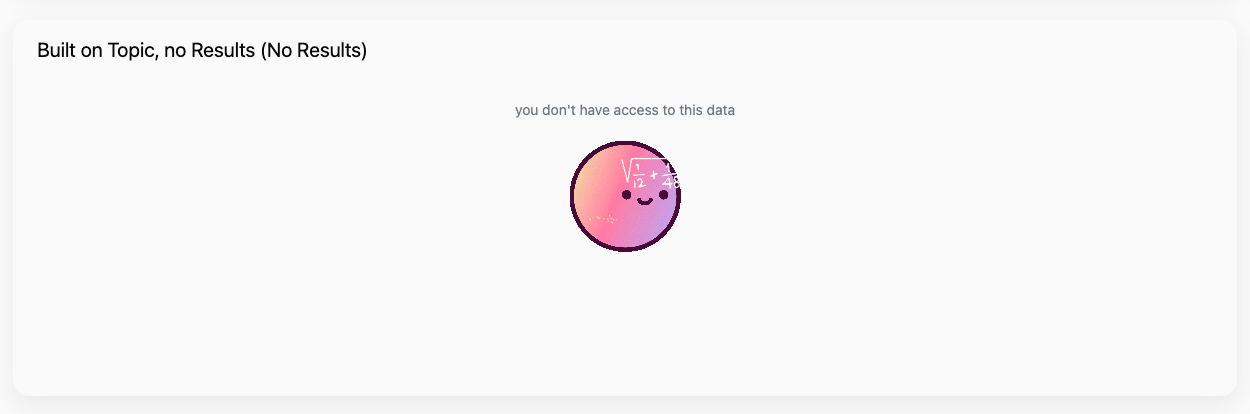
Default state for a query with no results returned
Default state for a query in an error state
## Requirements
To follow the steps in this guide, you need **Editor** or **Manager** permissions on the document you want to modify.
## Steps
If a query has No Results and an Error state, No Results will take precedent with or without customization.
1. Navigate to the dashboard you want to modify.
2. Click the **Edit** button in the upper right corner of the page to enter draft mode.
3. Click **Edit > Dashboard settings**.
4. Locate the **Custom messages** section:
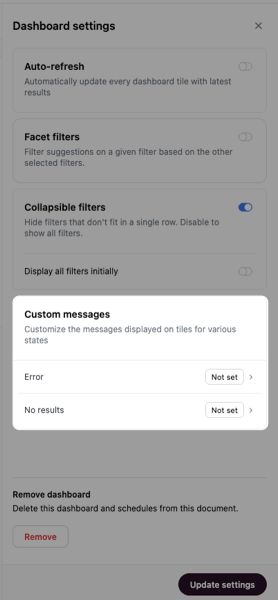 5. Click one of the message types to customize it.
6. Click the **Customize** toggle, which enables the Markdown editor. You can use [custom Markdown](/visualize-present/visualizations/types/markdown#using-the-markdown-editor) like the following to add and style your message:
```html wrap title="Example of custom Markdown No results message" theme={null}
5. Click one of the message types to customize it.
6. Click the **Customize** toggle, which enables the Markdown editor. You can use [custom Markdown](/visualize-present/visualizations/types/markdown#using-the-markdown-editor) like the following to add and style your message:
```html wrap title="Example of custom Markdown No results message" theme={null}
you don't have access to this data

```
7. The preview of the message will update as you work. For example, this is the preview for the custom Markdown from the previous step:
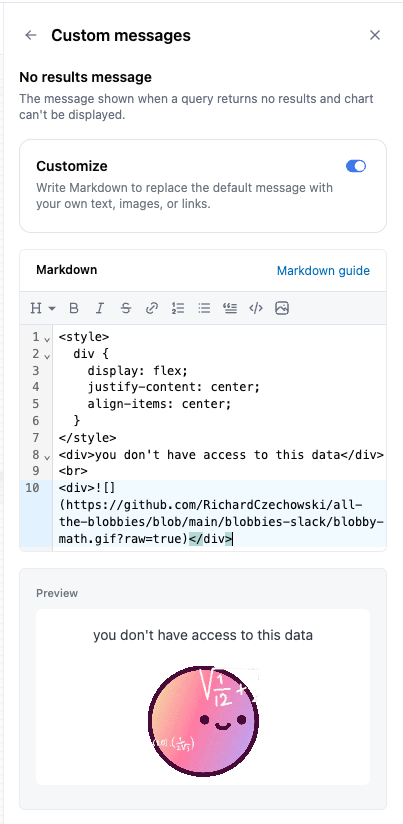 8. When finished, click **Update** to save your changes.
Now when a query on this example dashboard doesn't return results, this custom message will display:
8. When finished, click **Update** to save your changes.
Now when a query on this example dashboard doesn't return results, this custom message will display: