> ## Documentation Index
> Fetch the complete documentation index at: https://docs.omni.co/llms.txt
> Use this file to discover all available pages before exploring further.
# Working with dashboard charts
> Add, edit, duplicate, hide, and configure chart tiles on Omni dashboards, including filter connections and background settings.
export const CheckIcon = ({label}) => {
return
{label && ` ${label}`}
;
};
export const XCircleIcon = ({label}) => {
return
{label && ` ${label}`}
;
};
export const MarkdownVariablesIcon = ({label}) => {
return ;
};
export const DashboardIcon = ({label}) => {
return
{label && ` ${label}`}
;
};
export const WorkbookIcon = ({label}) => {
return
{label && ` ${label}`}
;
};
export const WorkbookNumberFormatIcon = ({label}) => {
return ;
};
export const DashboardPreviewIcon = ({label}) => {
return ;
};
export const DashboardCatalogIcon = ({label}) => {
return
{label && ` ${label}`}
;
};
export const DashboardAddItemIcon = ({label}) => {
return
{label && ` ${label}`}
;
};
export const DashboardControlIcon = ({label}) => {
return
{label && ` ${label}`}
;
};
export const DashboardChartIcon = ({label}) => {
return
{label && ` ${label}`}
;
};
export const DashboardPlaceholderIcon = ({label}) => {
return
{label && ` ${label}`}
;
};
export const DashboardLayoutIcon = ({label}) => {
return
{label && ` ${label}`}
;
};
export const DashboardTextIcon = ({label}) => {
return
{label && ` ${label}`}
;
};
export const DashboardStackContainerIcon = ({label}) => {
return
{label && ` ${label}`}
;
};
export const DashboardPageNavIcon = ({label}) => {
return
{label && ` ${label}`}
;
};
export const IdeFileIcon = ({color = "#000000"}) => {
return ;
};
Chart tiles display the visualizations from your workbook queries on the dashboard. You can edit chart settings inline, hide tiles from viewers, copy them to other dashboards, and inspect the underlying queries.
## Editing charts
How you edit charts on a dashboard depends on the type of dashboard you're using:
When you select a chart item on a dashboard, the [properties panel](/visualize-present/dashboards/containers-items#accessing-the-properties-panel) will show chart settings inline, allowing you to edit visualization configuration without leaving the layout editor.
In the properties panel, you can edit the chart's:
* Title, subtitle, and description
* Visualization type
* Visualization settings such as colors, axes, stacking, and other display options
Changes are saved automatically as you work.
For more advanced editing capabilities, click the **Edit in workbook** button at the top of the properties panel. This opens the chart in the workbook where you have full configuration options for the visualization.
See [Upgrading classic dashboards](/visualize-present/dashboards/create#classic-dashboards) to learn how to upgrade your classic dashboard.
To edit a chart on a classic dashboard, click the icon in the right corner of the tile. Then, click **Edit chart** to edit the chart on the dashboard or **Edit in workbook** to edit the chart in the workbook.
If your dashboard has filters and you're editing a chart in a workbook, note that workbook results may differ from what's on the dashboard. This is because dashboard filters aren't applied to workbook queries.
### Adding chart subtitles and descriptions
Editing a chart on the dashboard allows you to add an optional subtitle and description to the chart.
To have Omni's AI write the subtitle or description, click the icon and toggle **Let AI write the subtitle/description** to on.
You can also provide additional context to the AI to guide the results.
## Inserting query text items
Query text items display your query's name, subtitle, description, or AI-generated summary as dashboard content that maintains a live binding to the source query. Unlike static text tiles, query text items automatically update when you change the query's metadata in the workbook.
This is useful when you want dashboard titles, descriptions, or context to stay synchronized with query changes without manual updates.
To insert query text:
1. Right-click a chart tile in a container.
2. Select an option:
* **Insert query text** - Insert the query's **title**, **subtitle**, **description**, or **All available**
* **Insert AI summary** - Insert an inline or tooltip AI summary of the query. Use the properties panel to add additional context to the summary.
* **Insert results** - Insert a table of the query's results
The insert behavior varies based on [container type](/visualize-present/dashboards/containers-items#containers):
| Type | Description |
| ----------------------------------------- | ------------------------------------------------------------------------------------------------------------------------------------------------------------ |
| **Grid** | The new item is inserted above the target item at the same horizontal position and width. Any overlapping items are automatically pushed down to make space. |
| **Stack** | The new item is inserted before (above or to the left of) the target item in the stack's flow direction. |
Converting metadata to editable text
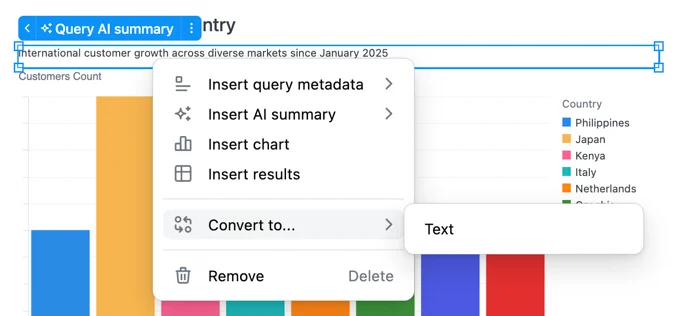
Convert metadata items and AI summaries to editable text (or vice versa) by right-clicking on the chart and selecting **Convert to**:
Then, select the target:
* **Markdown text** - Converts the metadata item to a text tile with a [Mustache template](/visualize-present/dynamic-content) (e.g., `{{queries..name}}`) that preserves live binding to the query
* **AI summary** - Converts an editable text item to an AI-generated summary
Converting to editable text allows you to customize the presentation while maintaining the connection to the source query through template variables.
## Hiding charts
In some cases, you may not want charts to be visible on the dashboard. The underlying data may be important for the workbook, but you don't want viewers to interact with the data. Other dashboard queries, however, can still access hidden tiles (with `XLOOKUP`).
Charts that are excluded from the dashboard will not run on the dashboard unless they are invoked by another query (i.e. XLOOKUP, alert, or used in a filter).
Click the chart on the dashboard to open the properties panel. Then click the icon to remove it from the dashboard.
Removing the chart in this way doesn't delete the underlying workbook query - it only removes the chart from the dashboard.
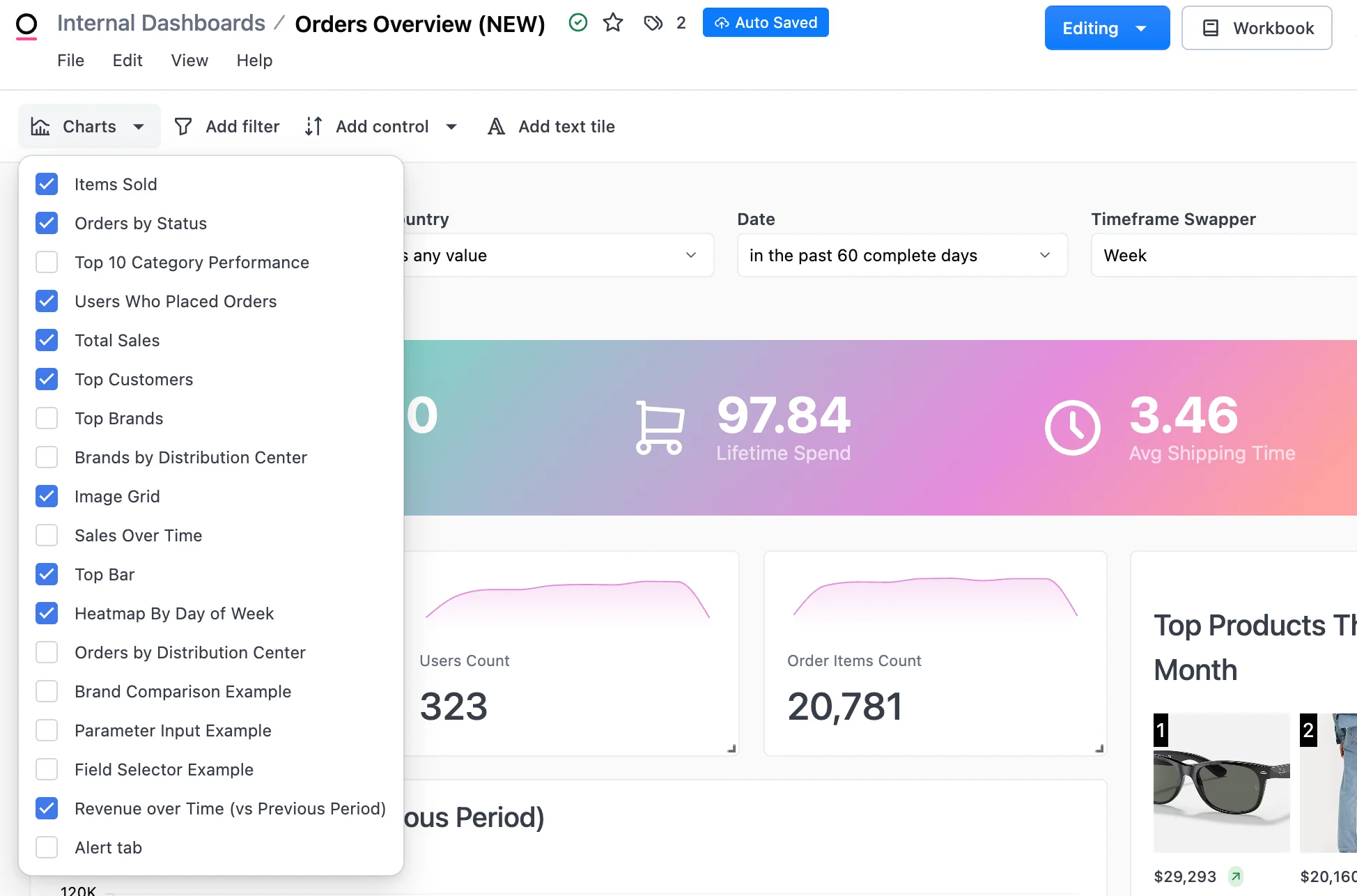
To hide a chart on a classic dashboard, click the **Charts** button near the top left corner of the page. This opens a panel on the left where you can manage the visibility of charts on the dashboard. Deselect a chart to exclude it from the dashboard:
## Copying charts and links
On a chart, click the icon that displays. Then, select **Copy** to view options for copying charts and links:
* **To another dashboard or workbook**: Copy the tile to a different dashboard or workbook. This works similarly to [copying a workbook tab to an existing workbook](/analyze-explore/workbook-basics#copy-a-tab-to-an-existing-workbook).
* **Link to workbook tab**: Copy a direct link to the tile's underlying workbook tab to your clipboard
## Interacting with table tiles
Dashboard tiles containing table visualizations support spreadsheet-style selection, copying, and cell interaction. Dashboard tables are read-only — editing, column reordering, and calculation features are only available in [workbook tables](/analyze-explore/point-click-queries#interacting-with-tables).
For a full list of keyboard shortcuts, see [Table shortcuts](/getting-started/keyboard-shortcuts#table-shortcuts).
### Selecting cells
* **Click** a cell to select it
* **Click and drag** across cells to select a rectangular region
* **Shift+click** a cell to select a range from the anchor to the clicked cell
* **Command+click** (Mac) or **Ctrl+click** (Windows) a cell to add or remove it from your selection
* **Click a row number** to select an entire row. Combine with **Shift** to extend the selection or **Command/Ctrl** to toggle the row.
* **Click a column header** to select an entire column. Combine with **Shift** to extend the selection or **Command/Ctrl** to toggle the column.
* **Arrow keys** to move the focused cell. Hold **Shift** to extend the selection.
* **Command+A** (Mac) or **Ctrl+A** (Windows) to select all cells
* **Escape** or **click outside** the table to clear the selection
### Copying cells
Select one or more cells, then press **Command+C** (Mac) or **Ctrl+C** (Windows) to copy the selected values to your clipboard. Copied data uses a tab-separated format, so pasting into Excel or Google Sheets automatically places values into the correct cells.
When all cells are selected with `Command` + `A` / `Ctrl` + `A`, column headers are included in the copied output.
### Context menu
Right-click a cell to open a context menu with options to drill, filter, copy, or expand the cell value.
## Inspecting chart queries
You can quickly access SQL debugging information for a chart by using the **Inspect** option. This opens the underlying workbook with the [Inspector panel](/analyze-explore/workbook-inspector) pre-opened, allowing you to view query SQL, cache status, and execution details.
To inspect a chart, click the (three dots icon) in the right corner of the tile, then click **Inspect**.
This feature requires the necessary permissions to analyze data and query SQL. For more information about viewing generated SQL, see [Inspecting query SQL](/analyze-explore/sql/generation#inspecting-query-sql).
 Then, select the target:
* **Markdown text** - Converts the metadata item to a text tile with a [Mustache template](/visualize-present/dynamic-content) (e.g., `{{queries.
Then, select the target:
* **Markdown text** - Converts the metadata item to a text tile with a [Mustache template](/visualize-present/dynamic-content) (e.g., `{{queries.