> ## Documentation Index
> Fetch the complete documentation index at: https://docs.omni.co/llms.txt
> Use this file to discover all available pages before exploring further.
# Inspecting App elements
> Select elements in draft apps and send them to the Omni Agent as context.
Apps are currently in beta.
The app inspector allows you to select elements in a draft app and send them as annotated images to the Omni Agent as context. This can be useful for focusing the agent on specific elements and resolving issues.
## Requirements
To use the inspector, you'll need:
* To be editing a draft app
* Access to the Omni Agent
* To have your organization's [**File uploads** AI setting](/ai/settings/features#file-uploads) enabled
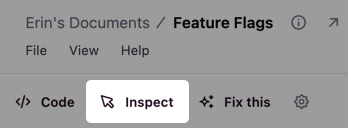
When all of these conditions are met, an **Inspect** option will display in the app toolbar:
 ## Inspecting app elements
To inspect an element:
1. Click the **Inspect** button in the toolbar to enter select mode
2. Click an element in the app to select
3. Enter a note about what you want the Agent to do
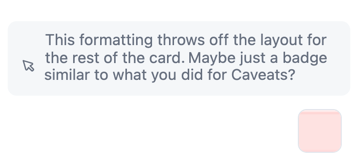
The annotated element is sent as an image to the Omni Agent, where you can ask questions or request changes:
## Inspecting app elements
To inspect an element:
1. Click the **Inspect** button in the toolbar to enter select mode
2. Click an element in the app to select
3. Enter a note about what you want the Agent to do
The annotated element is sent as an image to the Omni Agent, where you can ask questions or request changes:
 ## Closing the inspector
Click the **Inspect** button again to leave select mode or to close an open annotation.
## Related
* [App overview](/visualize-present/apps)
* [Styling apps](/visualize-present/apps/styling)
* [App settings](/visualize-present/apps)
## Closing the inspector
Click the **Inspect** button again to leave select mode or to close an open annotation.
## Related
* [App overview](/visualize-present/apps)
* [Styling apps](/visualize-present/apps/styling)
* [App settings](/visualize-present/apps)