> ## Documentation Index
> Fetch the complete documentation index at: https://docs.omni.co/llms.txt
> Use this file to discover all available pages before exploring further.
# Apps
> Build bespoke, fully custom data experiences — backed by live, governed data.
Apps are currently in beta.
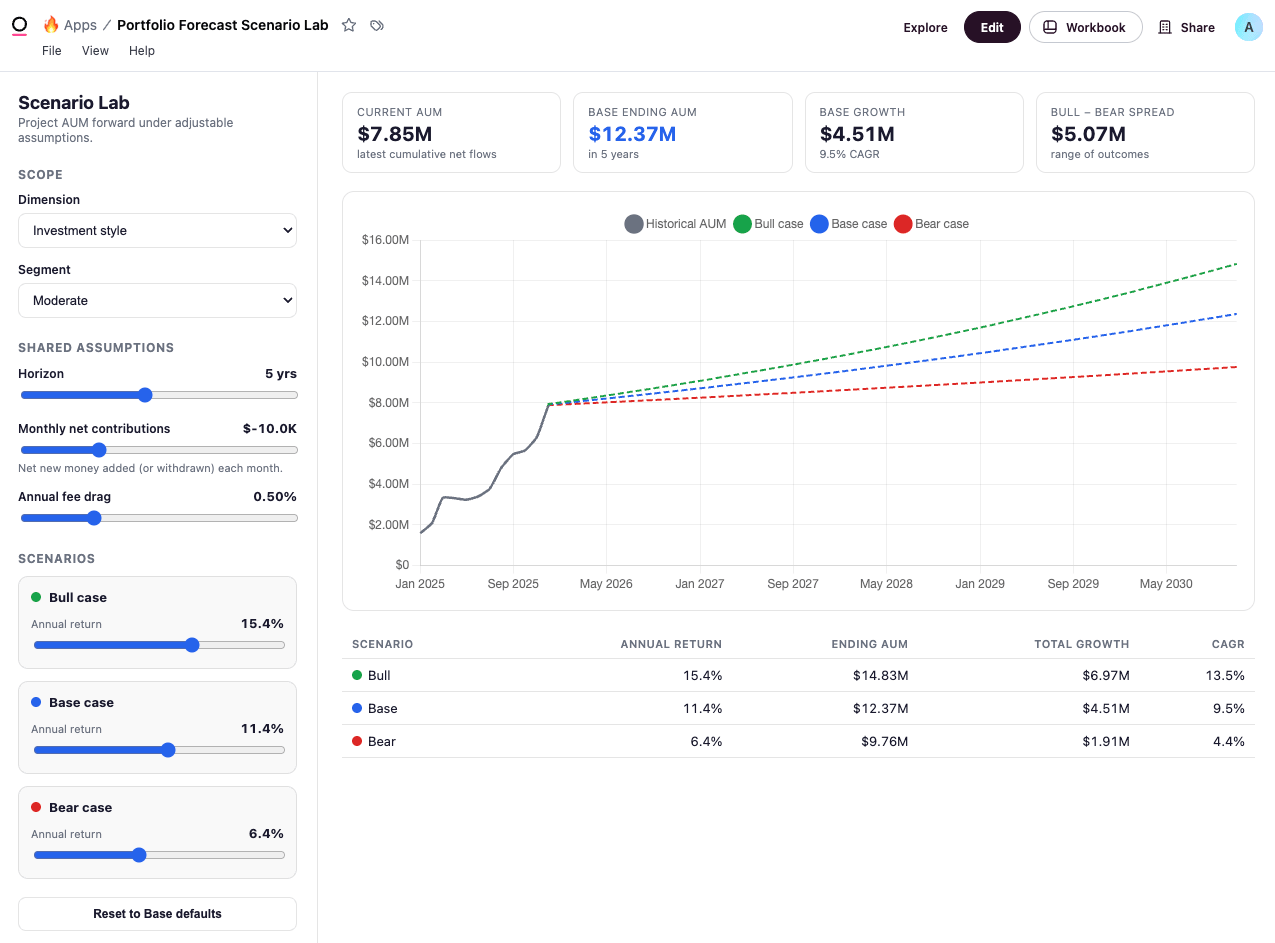
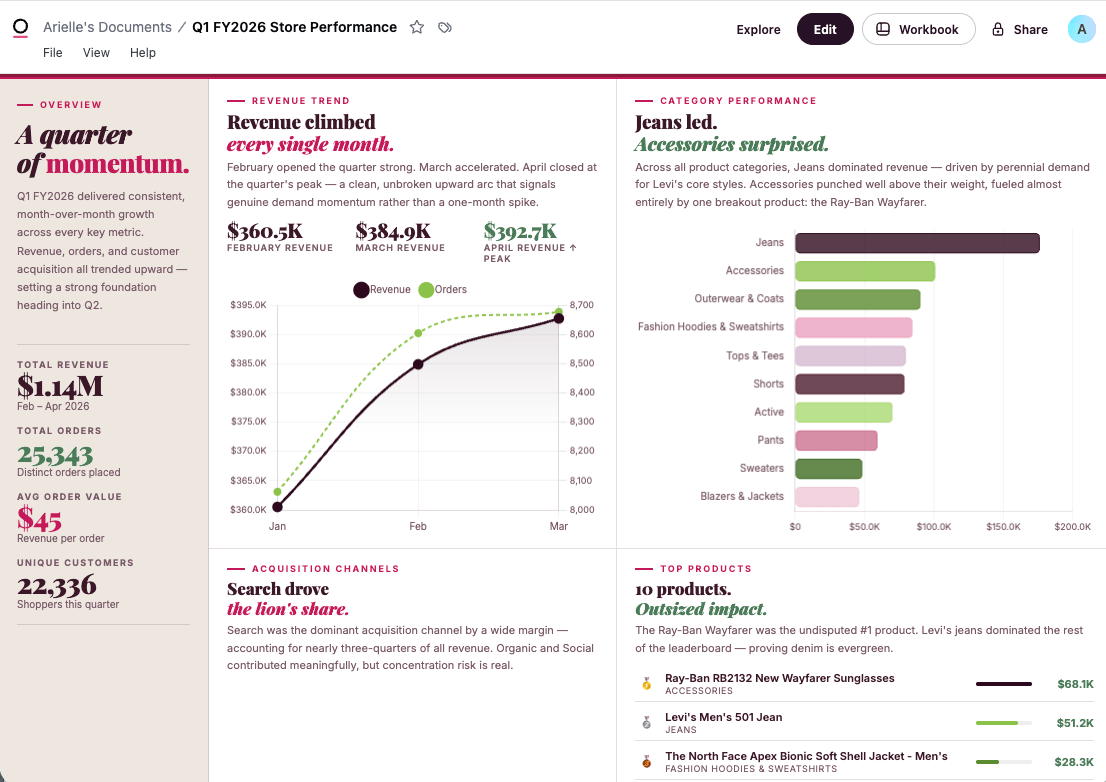
Apps let you go beyond dashboards. Where a dashboard arranges charts on a grid, an app is a fully custom HTML and JavaScript interface — with its own layout, components, and interactivity — powered by live queries from your workbook.
The data behind an app is the same governed data that powers everything else in Omni. Each query the app reads lives in the workbook, where anyone with access can open it, inspect the SQL and semantic model behind it, and tune it. The app is a new way to present and interact with those results: all the flexibility of an AI-generated artifact, hosted, shareable, and governed in Omni.
## Enabling Apps
Apps are enabled by default. An **Organization Admin** can toggle the **Apps** setting in [**Settings > General**](/administration/settings) to disable them if needed.
## When to use an app
Reach for an app when a dashboard's grid of tiles isn't expressive enough — when you want a custom layout, a guided interface, a calculator or tool, or a presentation that doesn't fit a standard chart.
 ## Create an app
The **Apps** setting in [**Settings > General**](/administration/settings) must be enabled to create apps.
Every app is paired with a workbook. The workbook holds the queries and the app is the custom interface on top of them.
There are two ways to create apps, which are described in the following sections.
### With the Omni Agent
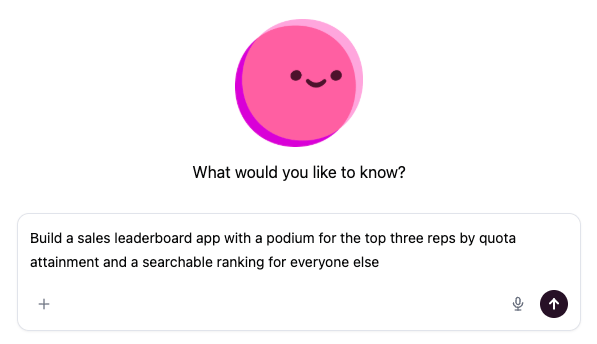
The fastest way to build an app is to describe what you want in the [Omni Agent](/ai/chat). Describe the interface and the data it should show — for example, *"Build a sales leaderboard with a podium for the top three reps by quota attainment and a searchable ranking for everyone else."* The agent generates each query the app needs against your model, writes the HTML, and wires it to the data. When it's done, the app opens in the editor, where you can keep iterating in chat or by hand.
## Create an app
The **Apps** setting in [**Settings > General**](/administration/settings) must be enabled to create apps.
Every app is paired with a workbook. The workbook holds the queries and the app is the custom interface on top of them.
There are two ways to create apps, which are described in the following sections.
### With the Omni Agent
The fastest way to build an app is to describe what you want in the [Omni Agent](/ai/chat). Describe the interface and the data it should show — for example, *"Build a sales leaderboard with a podium for the top three reps by quota attainment and a searchable ranking for everyone else."* The agent generates each query the app needs against your model, writes the HTML, and wires it to the data. When it's done, the app opens in the editor, where you can keep iterating in chat or by hand.
 ### Manually
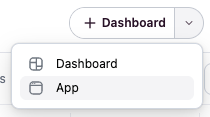
To start from scratch, open the dropdown next to the **+ Dashboard** button in a draft workbook and choose **App**. Omni creates the app with a starter template you can build on in the editor.
### Manually
To start from scratch, open the dropdown next to the **+ Dashboard** button in a draft workbook and choose **App**. Omni creates the app with a starter template you can build on in the editor.
 ## Edit an app
Open an app and click **Edit** in the top right corner of the workbook to enter a draft.
The editor has two panels: a live preview of your app running against real data, and a code editor for the HTML (click **Code** in the toolbar to show or hide it). If you have access to the agent, the chat split-view opens alongside the editor so you can iterate with AI as you go.
When you ask the agent to change an app, it will make targeted edits by locating the exact snippet in the code and only modifying the relevant portions. Each edit appears in chat as a diff preview showing precisely what changed.
If a partial edit can't be applied — for example, if the target code has changed — the agent will retry with more context or, as a last resort, rewrite the affected section of HTML.
### Styling apps
Apps automatically have access to Omni's design system CSS variables and your organization's custom theme styles. This allows you to build interfaces that match Omni's look and feel and your organization's branding, with automatic support for light and dark mode. See [Styling apps](/visualize-present/apps/styling) for details.
### Access Warnings
When editing a draft app, an **Access Warnings** button may appear in the edit toolbar. This button shows which tiles will be restricted for Viewer and Restricted Querier users, helping you identify accessibility issues before publishing. When clicked, a popover lists the specific tiles that will be restricted and explains why users with limited permissions won't be able to see them.
The Access Warnings button only appears when all of the following conditions are met:
* You are editing a draft app
* Restricted Queriers or Viewers have access to the underlying model
* One or more tiles in the app are restricted
See [Access Warnings](/share#access-warnings) for more information about Access Warnings and how to resolve them.
## Settings
Apps run in a sandboxed iframe with [strict security controls](#security) by default. App-level settings let you enable specific features on a per-app basis, giving you fine-grained control over what each app can do. For example, enabling app settings can allow you to:
* Load resources like images and fonts from a list of allowed domains
* Render map tiles using keyless providers such as Carto
See [App settings](/visualize-present/apps/settings) for more information.
## Limitations
The following capabilities are not yet supported for apps:
* Scheduling and deliveries
* Downloads
* Embedding
## Security
Each app runs inside a sandboxed iframe that blocks outbound network requests. App code can't call third-party services or open its own connection to your data — it only works with what Omni passes in, so there's no route for it to send your data anywhere.
Specific features that require widening the iframe's security policy (such as loading map tiles or displaying externally-hosted images) can be enabled on a per-app basis through [app settings](/visualize-present/apps/settings). These settings are off by default and must be explicitly enabled by an editor.
However, inline images can be displayed without configuring a [Safe domain allowlist](/visualize-present/apps/settings#configure-safe-domains). This includes inline base64 images (`data:` URIs) and canvas-generated images (`blob:` URIs), as they are both rendered within the iframe without making network requests.
An app can't query your warehouse directly. The only data it sees is the results of its workbook's queries, which Omni passes into the iframe. Every app inherits the access rules already in place — connection permissions, the semantic model and data permissions, and content sharing all carry over.
Apps can load charting, styling, and font libraries from a short list of trusted CDNs, but nothing else. App editors can optionally configure [Safe domains](/visualize-present/apps/settings#safe-domains) to load resources from additional trusted hosts beyond the default CDNs.
## Edit an app
Open an app and click **Edit** in the top right corner of the workbook to enter a draft.
The editor has two panels: a live preview of your app running against real data, and a code editor for the HTML (click **Code** in the toolbar to show or hide it). If you have access to the agent, the chat split-view opens alongside the editor so you can iterate with AI as you go.
When you ask the agent to change an app, it will make targeted edits by locating the exact snippet in the code and only modifying the relevant portions. Each edit appears in chat as a diff preview showing precisely what changed.
If a partial edit can't be applied — for example, if the target code has changed — the agent will retry with more context or, as a last resort, rewrite the affected section of HTML.
### Styling apps
Apps automatically have access to Omni's design system CSS variables and your organization's custom theme styles. This allows you to build interfaces that match Omni's look and feel and your organization's branding, with automatic support for light and dark mode. See [Styling apps](/visualize-present/apps/styling) for details.
### Access Warnings
When editing a draft app, an **Access Warnings** button may appear in the edit toolbar. This button shows which tiles will be restricted for Viewer and Restricted Querier users, helping you identify accessibility issues before publishing. When clicked, a popover lists the specific tiles that will be restricted and explains why users with limited permissions won't be able to see them.
The Access Warnings button only appears when all of the following conditions are met:
* You are editing a draft app
* Restricted Queriers or Viewers have access to the underlying model
* One or more tiles in the app are restricted
See [Access Warnings](/share#access-warnings) for more information about Access Warnings and how to resolve them.
## Settings
Apps run in a sandboxed iframe with [strict security controls](#security) by default. App-level settings let you enable specific features on a per-app basis, giving you fine-grained control over what each app can do. For example, enabling app settings can allow you to:
* Load resources like images and fonts from a list of allowed domains
* Render map tiles using keyless providers such as Carto
See [App settings](/visualize-present/apps/settings) for more information.
## Limitations
The following capabilities are not yet supported for apps:
* Scheduling and deliveries
* Downloads
* Embedding
## Security
Each app runs inside a sandboxed iframe that blocks outbound network requests. App code can't call third-party services or open its own connection to your data — it only works with what Omni passes in, so there's no route for it to send your data anywhere.
Specific features that require widening the iframe's security policy (such as loading map tiles or displaying externally-hosted images) can be enabled on a per-app basis through [app settings](/visualize-present/apps/settings). These settings are off by default and must be explicitly enabled by an editor.
However, inline images can be displayed without configuring a [Safe domain allowlist](/visualize-present/apps/settings#configure-safe-domains). This includes inline base64 images (`data:` URIs) and canvas-generated images (`blob:` URIs), as they are both rendered within the iframe without making network requests.
An app can't query your warehouse directly. The only data it sees is the results of its workbook's queries, which Omni passes into the iframe. Every app inherits the access rules already in place — connection permissions, the semantic model and data permissions, and content sharing all carry over.
Apps can load charting, styling, and font libraries from a short list of trusted CDNs, but nothing else. App editors can optionally configure [Safe domains](/visualize-present/apps/settings#safe-domains) to load resources from additional trusted hosts beyond the default CDNs.