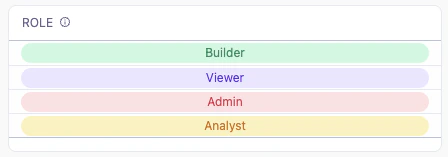
` so that the matching CSS rule controls its appearance. Add one CSS class for each possible value in your data—in this example, `Builder`, `Viewer`, `Analyst`, and `Admin`. The class names must match the values exactly, so this pattern works best for fields with a small, fixed set of values that don't contain spaces or special characters.
This example references the `role` field from the `saas__users_detailed` view using [Mustache syntax](/visualize-present/mustache-reference). Replace these references with your own field.
## Example code
**Markdown template**:
```handlebars wrap theme={null}
{{saas__users_detailed.role.value}}
```
**CSS styles**:
```css expandable theme={null}
.Viewer {
background-color: #ede9fe;
color: #6d28d9;
border-radius: 20px;
text-align: center;
}
.Builder {
background-color: #d1fae5;
color: #059669;
border-radius: 20px;
text-align: center;
}
.Analyst {
background-color: #fef3c7;
color: #d97706;
border-radius: 20px;
text-align: center;
}
.Admin {
background-color: #ffe4e6;
color: #e11d48;
border-radius: 20px;
text-align: center;
}
```
 ## Setup
In the table visualization, select the column you want to format and set **Display as** to **Markdown**. Then add the Markdown template and CSS below.
The template sets the field's value as the `class` of a `
## Setup
In the table visualization, select the column you want to format and set **Display as** to **Markdown**. Then add the Markdown template and CSS below.
The template sets the field's value as the `class` of a `