> ## Documentation Index
> Fetch the complete documentation index at: https://docs.omni.co/llms.txt
> Use this file to discover all available pages before exploring further.
# Dashboard tile anchors (table of contents)
> This example can be used in the Markdown visualization to create a linked table of contents.
[Markdown visualizations](/visualize-present/visualizations/types/markdown) and [dashboard Markdown text tiles](/visualize-present/dashboards/text-markdown) can include links to other tiles within the dashboard. This is a nice way to create a table of contents or "back to the top" links or buttons to help users move around a longer dashboard.
## Linking to existing charts
Any HTML element with an `id` on the page can be referenced as an anchor point to jump to. Every chart tile on the dashboard has a unique ID that is based on the title of the tile. For example, if the title of your tile is `Top Performing Brands` the corresponding ID is `top-performing-brands` and you can reference that anchor point with a markdown link like this:
```markdown theme={null}
[Jump to brand analysis](#top-performing-brands)
```
or if you are writing HTML in the markdown editor, like this:
```html theme={null}
Jump to brand analysis
```
## Creating your own anchors
If you are making more complex HTML-based markdown tiles, you can also include IDs in your element tags. It's a bit more complex to reference these IDs in other markdown tiles. Because we sanitize the HTML and markdown for security, we replace all user-generated IDs with a `user-content-` prepended to the provided ID. For example, if you write this HTML:
```html theme={null}
We sell lots of stuff!
```
then you will need to reference it like this:
```html theme={null}
Jump to brand analysis
```
If you need help getting the ID for any element, you can also use your browser's code inspector to locate the element.
## Example code
The following example references the video at the top of the page.
### Anchor/header tiles
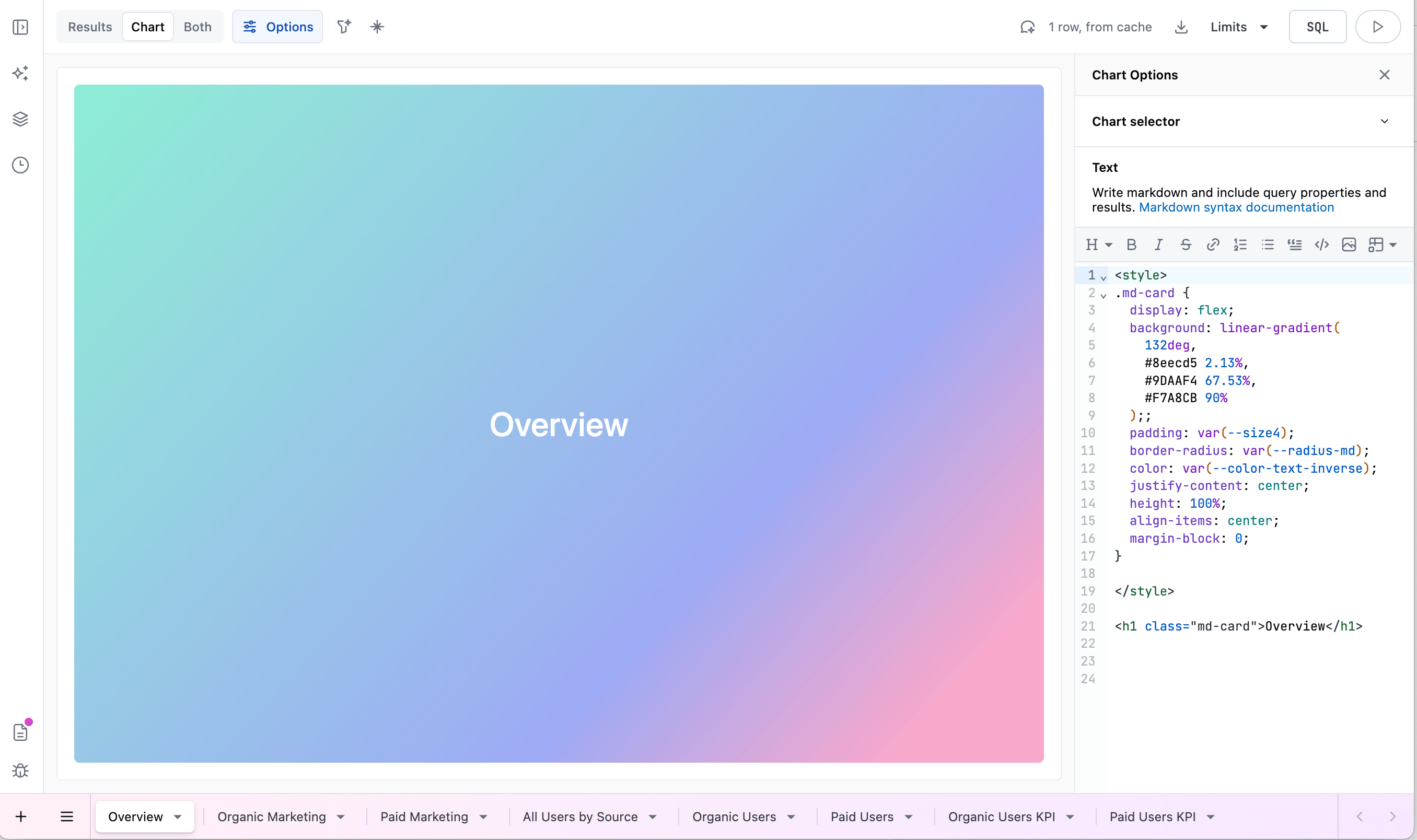
Each of the 3 colorful headers in the above example serve as anchor destinations to navigate to. For this example, each hading has been created using a separate markdown visualization in the workbook, each titled to match the text inside the heading.
```html expandable title="Example code for the 'Overview' heading" theme={null}
Overview
```
### Table of contents
Use a dashboard Markdown text tile to create the table of contents:
```html expandable theme={null}
```
 ```html expandable title="Example code for the 'Overview' heading" theme={null}