> ## Documentation Index
> Fetch the complete documentation index at: https://docs.omni.co/llms.txt
> Use this file to discover all available pages before exploring further.
# Editing database views
> Update metadata and edit fields for database views from either the workbook or the modeling IDE.
**Looking for query views?** See [Editing query views](/modeling/query-views/edit).
You can update a database view's metadata and edit its fields from either a workbook or the modeling IDE. For an overview of how views fit into the model, see [Working with views](/modeling/views).
## Requirements
To edit views, you'll need:
* **Querier, Modeler,** or **Connection Admin** permissions
* **Connection Admin** or **Modeler** permissions to promote the changes to the shared model
## Editing metadata
You can update a view's label, description, tags, visibility, and AI context from the workbook or the model IDE. Note that some view metadata — such as [`aliases`](/modeling/views/parameters/aliases) — may only be editable from the IDE.
1. In a workbook query, hover over a view in the field browser.
2. Click the ** icon** next to the view name.
3. Select **Edit** from the context menu.
The **Edit view** drawer opens with the following editable properties:
* **View label** — The display name for the view
* **Description** — A description of the view's purpose or contents
* **Tags** — Tags to organize and categorize the view
* **Hidden** — Toggle to hide or show the view in the field browser
* **AI context** — Additional context to help Omni AI understand and work with the view
Make your changes and click **Update** to save. The **Update** button is disabled until you change a field.
1. Navigate to the model IDE.
2. In the **Schemas** section, locate the view you want to work with.
3. Click the file to open it and then edit the corresponding parameters:
* [`label`](/modeling/views/parameters/label)
* [`description`](/modeling/views/parameters/description)
* [`ai_context`](/modeling/views/parameters/ai-context)
* [`tags`](/modeling/views/parameters/tags)
* [`hidden`](/modeling/views/parameters/hidden)
You can also add or edit any of the other supported [view parameters](/modeling/views/parameters).
4. Click **Save changes** in the IDE to apply your changes.
## Editing fields
You can edit field properties — label, description, AI context, visibility, and more — from either the workbook or the model IDE.
Open the [Edit view drawer](#editing-metadata). The drawer lists every field in the view, including hidden ones:
* **Visible fields** — Click a field row to open the **Edit field** panel, or click the icon for additional options.
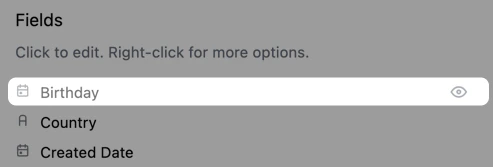
* **Hidden fields** — Appear greyed out. Click the icon next to a hidden field to unhide it, then click it to edit its properties:
 Open the view file and locate the field under `dimensions` or `measures`. From there, you can update any of the field's parameters.
For example, hide a field from the workbook field browser by setting `hidden: true`:
```yaml theme={null}
dimensions:
internal_notes:
sql: '"INTERNAL_NOTES"'
hidden: true
```
Click **Save changes** when you're done. See the [Dimension](/modeling/dimensions) and [Measure](/modeling/measures) references for all available parameters.
## Promoting changes
If you want your changes to be accessible in new and existing workbooks built on the underlying model, you'll need to promote them. See [Promoting changes to the shared model](/modeling/develop/promotion) for more information.
## Limitations
[Join-aliased views](/modeling/views/alias#duplicating-views-with-aliases) and topic-scoped views can only be edited in the model IDE.
## Next steps
* [View parameter reference](/modeling/views/parameters)
* [Aliasing views](/modeling/views/alias)
* [Editing query views](/modeling/query-views/edit)
* [Promoting changes to the shared model](/modeling/develop/promotion)
Open the view file and locate the field under `dimensions` or `measures`. From there, you can update any of the field's parameters.
For example, hide a field from the workbook field browser by setting `hidden: true`:
```yaml theme={null}
dimensions:
internal_notes:
sql: '"INTERNAL_NOTES"'
hidden: true
```
Click **Save changes** when you're done. See the [Dimension](/modeling/dimensions) and [Measure](/modeling/measures) references for all available parameters.
## Promoting changes
If you want your changes to be accessible in new and existing workbooks built on the underlying model, you'll need to promote them. See [Promoting changes to the shared model](/modeling/develop/promotion) for more information.
## Limitations
[Join-aliased views](/modeling/views/alias#duplicating-views-with-aliases) and topic-scoped views can only be edited in the model IDE.
## Next steps
* [View parameter reference](/modeling/views/parameters)
* [Aliasing views](/modeling/views/alias)
* [Editing query views](/modeling/query-views/edit)
* [Promoting changes to the shared model](/modeling/develop/promotion)