> ## Documentation Index
> Fetch the complete documentation index at: https://docs.omni.co/llms.txt
> Use this file to discover all available pages before exploring further.
# Relationships and joins
> Define relationships between views in your Omni model to enable automatic SQL joins, cross-table exploration, and data analysis.
Relationships define how different datasets connect to each other in your model. They describe how one table (or view) can be joined to another, making it possible to query and explore data across multiple sources in Omni.
Once defined, Omni uses these relationships to automatically generate SQL `JOINS` when users explore data. This allows for exploration without the need to write SQL.
## Relationship definitions
Global relationships are defined in your model's `relationships` file and look similar to the following:
```yaml title="Example joins in relationships.yml file" theme={null}
- join_from_view: users
join_from_view_as: buyers
join_from_view_as_label: Buyers
join_to_view: user_facts
join_type: always_left
on_sql: ${users.id} = ${user_facts.id}
relationship_type: one_to_one
- join_from_view: users
join_to_view: orders
join_type: always_left
on_sql: ${users.id} = ${orders.id}
relationship_type: many_to_one
reversible: true
```
Joins defined in this way can be reused across the [topics](/modeling/topics) in the model, allowing you to create a consistent, central definition of how tables relate to each other. This ensures that your model is:
* Consistent, accurate, and free from duplication
* Easy to navigate
* Aligned with your business logic
For example, you might define how `orders` connect to `users` or how `sessions` link to `users`, so that anyone exploring data in Omni can seamlessly combine those sources without writing SQL.
Refer to the [Relationship parameters reference](/modeling/relationships/parameters/parameters) for more information and examples.
### Auto-inferred relationships
When a new model is created, Omni auto-infers relationships based on the schema metadata. You can control how Omni infers relationships during schema refresh using the **Auto-generate relationships** connection setting.
Omni supports two inference strategies:
* **Column name matching** - Omni checks each table and looks for comparable field names and types, using this metadata to infer relationships
* **Foreign key constraints** - For databases that support foreign keys (Postgres, Snowflake), Omni can use constraint metadata to infer relationships
For example, consider an `orders` table and a `users` table like the following:
```mermaid actions={false} theme={null}
classDiagram
direction LR
class USERS {
id
email
...
}
class ORDERS {
id
user_id
...
}
USERS --> ORDERS : has
```
The `users` table contains an `id`, and `orders` has a `user_id`. With column name inference enabled, Omni would infer that `users.id = orders.user_id` and create a relationship between the tables. Omni-inferred relationships will have [`relationship_type: assumed_many_to_one`](/modeling/relationships/parameters/relationship-type) in their definition.
#### Configuring relationship auto-generation
The **Auto-generate relationships** setting controls how Omni infers relationships during schema refreshes. The setting is configured per connection on the connection's settings page (**Settings > Connections >** your connection).
For databases that support foreign key constraints (Postgres, Snowflake), the setting provides four modes:
* **Both** - Infer relationships from foreign key constraints and column name matching (default)
* **Foreign keys only** - Infer relationships only from foreign key constraints
* **Column names only** - Infer relationships only from column name matching
* **None** - Skip auto-generation entirely
For other databases (BigQuery, MySQL, etc.), the setting is a simple toggle that controls whether Omni infers relationships from column name matching. By default, column name inference is enabled.
For large warehouses, disabling auto-generation or limiting it to a single strategy can help reduce the number of auto-generated joins. Refer to the [Postgres](/connect-data/setup/postgres) or [Snowflake](/connect-data/setup/snowflake) connection guides for more details.
### Topic-scoped relationships
If you want a join to only be accessible in a specific topic, you can create a topic-scoped relationship. This type of relationship is defined directly in a [topic file](/modeling/topics) using the [`joins`](modeling/topics/parameters/joins) parameter.
For example, the joins in the following `Transactions` topic would only be available to users when they're in that specific topic:
```yaml title="Transactions topic" theme={null}
label: "Transactions"
base_view: "orders"
joins:
inventory_items: # Includes inventory_items in the topic
products: # Joins products to inventory_items
distribution_centers: {} # Joins distribution_centers to products
users: {} # Includes users in the topic
```
Topic-scoped joins are ideal when you want to control how data sources connect for a specific topic or when the same tables might join differently across topics. For example, a `users` view might join to `sessions` by `user_id` in one topic, but by `account_id` in another.
In practice, you might start with global relationships for shared connections like `orders → customers`, and then define topic relationships when a topic requires a customized join or additional context. Omni automatically merges topic and global relationships when generating SQL, giving you the flexibility to tailor joins while keeping your model consistent.
Topic-specific views offer a similar trade-off, where even views and fields can be customized at the topic level. This is a common pattern when using topic-specific joins. For example, you may want to extend an aliased view inside a topic to customize fields for a specific use case.
Refer to the [Topic documentation](/modeling/topics) for more information and examples.
Reversible relationships
Omni curates the workbook experience to prevent unexpected join results. When exploring in **All Views and Fields,** Omni hides joins that would fan out the base dataset unless the relationship explicitly allows it with [`reversible: true`](/modeling/relationships/parameters/reversible).
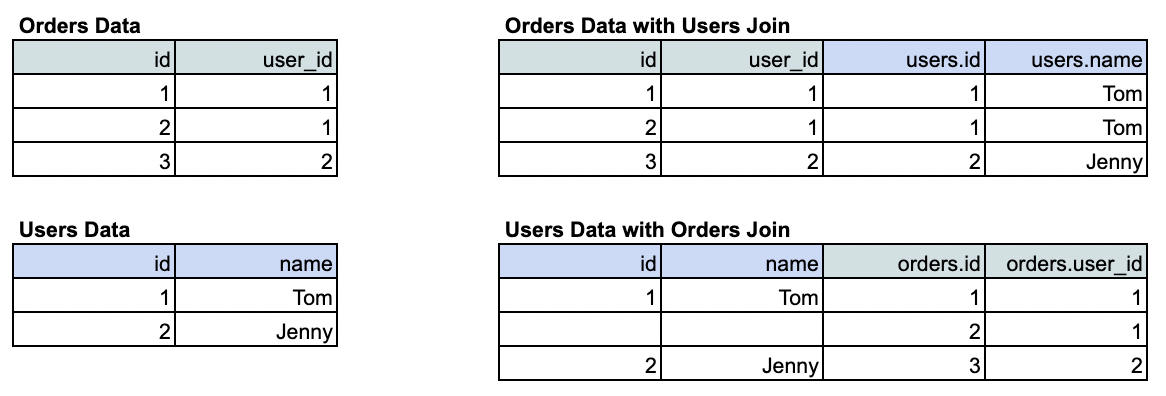 In the above example, `users` is joined into `orders`. This join doesn’t change the number of rows — each `order` simply gains descriptive information about the `user` who placed it. This is a `many_to_one` relationship and represents the default join direction Omni includes in the workbook.
In contrast, the bottom example shows `orders` joined into `users`. Here, the base table’s shape changes because each `user` now appears multiple times, once for every `order` they’ve placed. This is a `one_to_many` relationship that fans out the data.
By default, Omni surfaces only joins like the first example (`many_to_one`) to keep workbook results intuitive and prevent duplicate rows. **To make a join usable in both directions**, you can explicitly flag it as bi-directional by setting [`reversible: true`](/modeling/relationships/parameters/reversible) in the relationship's definition.
## Building joins
Joins can be built in Omni workbooks or in the model IDE. Refer to the [Building joins guide](/modeling/relationships/build) for a detailed walkthrough.
In the above example, `users` is joined into `orders`. This join doesn’t change the number of rows — each `order` simply gains descriptive information about the `user` who placed it. This is a `many_to_one` relationship and represents the default join direction Omni includes in the workbook.
In contrast, the bottom example shows `orders` joined into `users`. Here, the base table’s shape changes because each `user` now appears multiple times, once for every `order` they’ve placed. This is a `one_to_many` relationship that fans out the data.
By default, Omni surfaces only joins like the first example (`many_to_one`) to keep workbook results intuitive and prevent duplicate rows. **To make a join usable in both directions**, you can explicitly flag it as bi-directional by setting [`reversible: true`](/modeling/relationships/parameters/reversible) in the relationship's definition.
## Building joins
Joins can be built in Omni workbooks or in the model IDE. Refer to the [Building joins guide](/modeling/relationships/build) for a detailed walkthrough.