> ## Documentation Index
> Fetch the complete documentation index at: https://docs.omni.co/llms.txt
> Use this file to discover all available pages before exploring further.
# Table migration
> Use table migration to update table references in Omni when table names change in your database, without breaking downstream content.
The table migration tool in the model IDE allows you to update table references within your Omni model when table names change on the database end, without breaking workbook queries, dashboards, or other model references that depend on the original table. This is ideal for situations where you are creating new versions of existing tables in your database.
## Requirements
To follow the steps in this guide, you'll need **Modeler** or **Connection Admin** permissions on the model you want to work with.
## Migrating tables
In Omni, click **Develop** in the left navigation.
Click the model you want to work with.
In the model IDE, click **Model > Branch** to [create a new branch](/content/develop/branch-mode).
In the model IDE, click **Model > Migrate tables**. The **Table migration** modal will display the tables you can migrate.
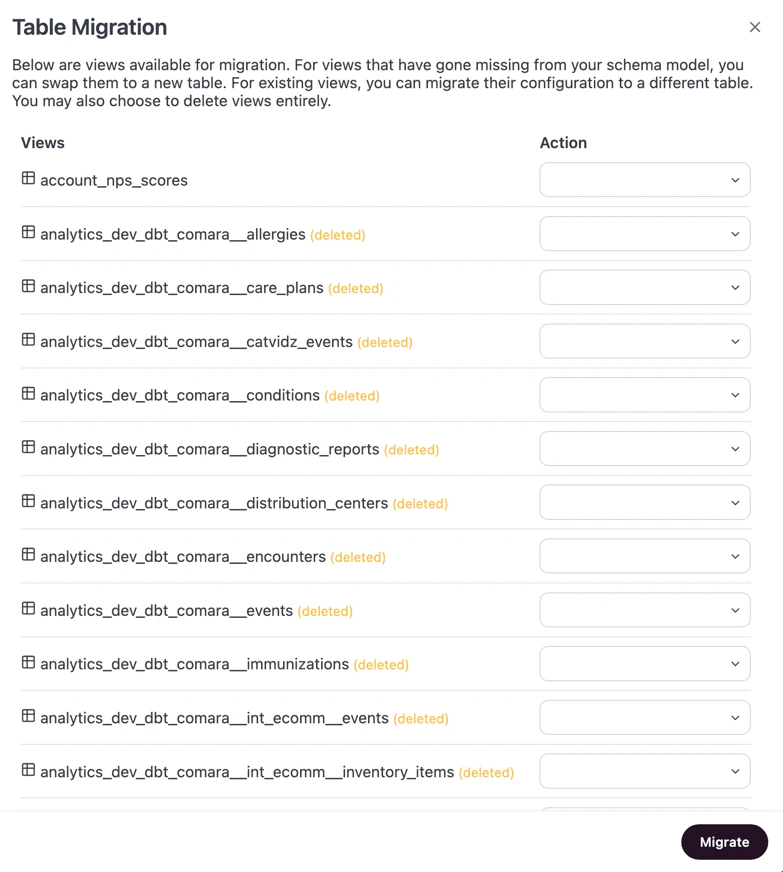 Locate the table you want to work with and click the **Action** dropdown to display the options.
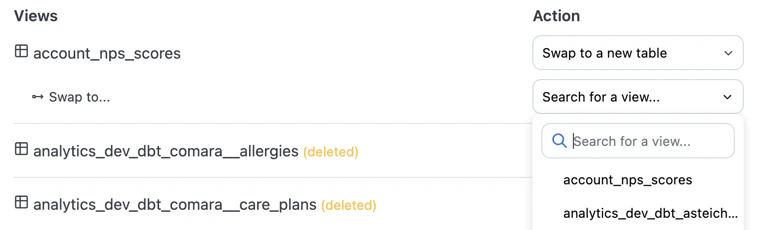
* **Swap to a new table** - **Use when you have a replacement table ready to go.** Updates references to this table throughout the model. When selected, a second dropdown will display. Use this field to select the table Omni should use as the replacement:
Locate the table you want to work with and click the **Action** dropdown to display the options.
* **Swap to a new table** - **Use when you have a replacement table ready to go.** Updates references to this table throughout the model. When selected, a second dropdown will display. Use this field to select the table Omni should use as the replacement:
 Swapping to a new table adds a `renamed_from` parameter to the table's underlying view file, which helps prevent downstream references from breaking. In a view file, this will look like the following:
```yaml title="View file with renamed_from parameter" highlight={2} theme={null}
table_name: blob_sales
renamed_from: old_blob_sales
```
* **Delete this view** - **Use when a table is no longer needed.** Soft-deletes the table by adding [`ignored: true`](/modeling/views/parameters/ignored) to the table's underlying view file. If needed, you can recover the table by reverting the change in the **Staged** panel of the model IDE before merging your branch.
If needed, select actions for more tables in the modal.
When finished, click **Migrate**. This will apply the changes you made in the **Table migration** modal to your Omni branch.
Merge the Omni branch to promote the changes to the shared model. If the [git integration](/integrations/git) is enabled for the model, you may need to open a pull request first.
## After migrating
After merging your branch, use the [Content Validator](/modeling/develop/content-validator) to verify that no downstream references were broken by the migration.
If your database schema has changed more broadly — such as new or removed tables and columns — use a [schema refresh](/modeling/develop/schema-refreshes) instead of or in addition to table migration.
Swapping to a new table adds a `renamed_from` parameter to the table's underlying view file, which helps prevent downstream references from breaking. In a view file, this will look like the following:
```yaml title="View file with renamed_from parameter" highlight={2} theme={null}
table_name: blob_sales
renamed_from: old_blob_sales
```
* **Delete this view** - **Use when a table is no longer needed.** Soft-deletes the table by adding [`ignored: true`](/modeling/views/parameters/ignored) to the table's underlying view file. If needed, you can recover the table by reverting the change in the **Staged** panel of the model IDE before merging your branch.
If needed, select actions for more tables in the modal.
When finished, click **Migrate**. This will apply the changes you made in the **Table migration** modal to your Omni branch.
Merge the Omni branch to promote the changes to the shared model. If the [git integration](/integrations/git) is enabled for the model, you may need to open a pull request first.
## After migrating
After merging your branch, use the [Content Validator](/modeling/develop/content-validator) to verify that no downstream references were broken by the migration.
If your database schema has changed more broadly — such as new or removed tables and columns — use a [schema refresh](/modeling/develop/schema-refreshes) instead of or in addition to table migration.