> ## Documentation Index
> Fetch the complete documentation index at: https://docs.omni.co/llms.txt
> Use this file to discover all available pages before exploring further.
# Promoting workbook changes to the shared model
> Shared model promotion pushes changes made in the workbook layer into the model layer so the changes are reusable and available in all workbooks.
**Connection Admin** or **Modeler** permissions are required to promote workbook changes to the shared model.
Depending on your workflow preferences, you can promote changes to the shared model from a workbook or by editing the model directly in the model IDE.
## Reviewing and promoting workbook changes
Working in Branch Mode? See the [Branch mode guide](/content/develop/branch-mode) for information about promoting changes using branches.
Promoting workbook changes to the shared model requires that you are in the **published** version of the workbook. Then, to view and promote changes, you can:
* Click **Model > View & promote changes**
* Click the icon in the left navigation panel of the workbook
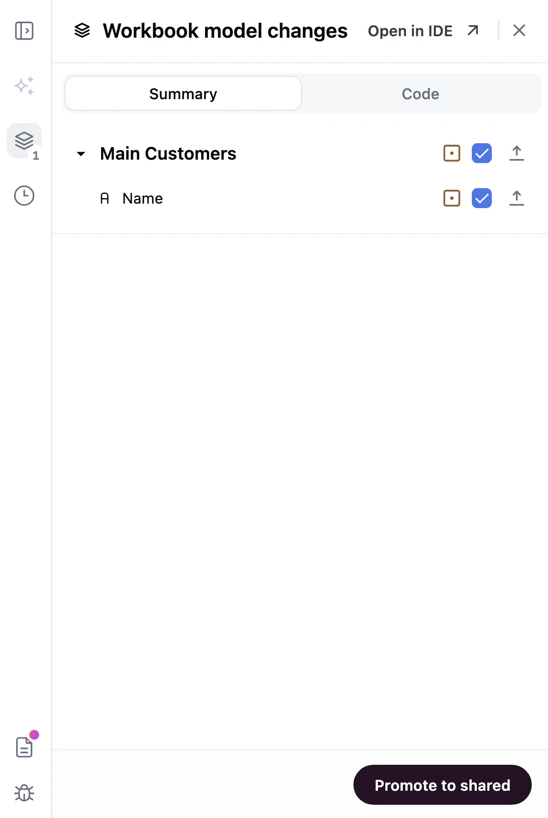
Either option will open the workbook model changes drawer, where you can review changes before promoting them. This drawer shows all changes made in the current workbook layer, including added, modified, and removed model items:
 ### Reviewing changes
To quickly understand what changed without opening the IDE, click the **Code** tab to view the "diff" of the underlying model YAML:
### Reviewing changes
To quickly understand what changed without opening the IDE, click the **Code** tab to view the "diff" of the underlying model YAML:
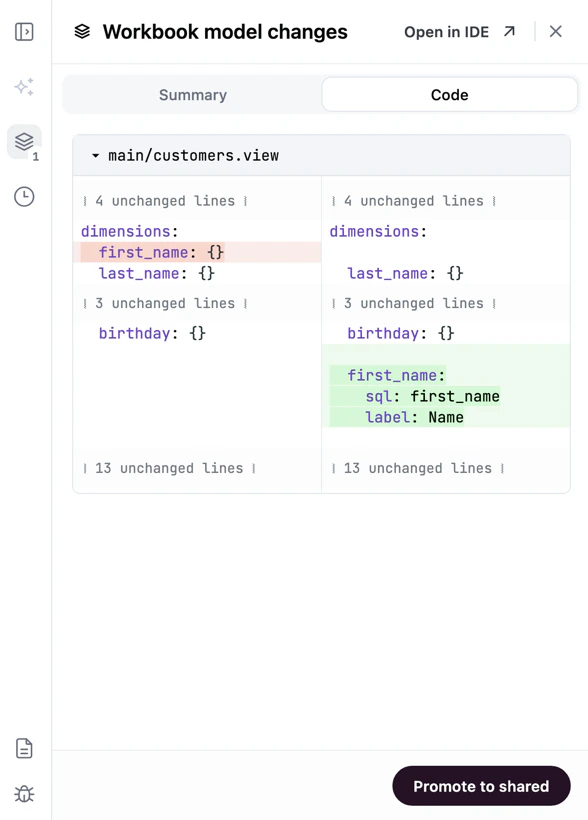 The **Code** tab includes:
* The change type (added, modified, or removed) with color-coded styling
* A YAML snippet of the model item showing relevant properties
* For modified items, a side-by-side comparison of the shared model version and workbook version
### Selecting and promoting changes
In the **Summary** tab of the workbook model changes drawer, use the checkboxes to select changes to include in the promotion to the shared model.
When ready, click the **Promote to shared** button to promote the changes.
## Removing unused objects from the workbook
If you've created fields, views, topics, or relationships in your workbook that are no longer referenced by any queries, you can use the **Remove unused** button to clean up the workbook layer. This will not affect the shared model.
While in edit mode, the **Remove unused** button appears in the workbook model changes drawer alongside the **Revert** and **Promote** buttons.
When you click **Remove unused**:
A confirmation dialog appears showing what will be removed
After confirmation, Omni identifies all model objects (fields, views, topics, and relationships) that aren't referenced by any query in the workbook
These unreferenced objects are removed from the workbook layer
Dependencies between fields are preserved. For example, if field A is used by a query and depends on field B, and B depends on C, then B and C are both preserved — even though no query references them directly. Views with non-field metadata changes (such as label or description updates) are also preserved even if their fields are unused.
The **Remove unused** button is disabled when incremental promotion changes are selected, similar to the **Revert** button behavior.
## Directly editing the model
Edits made directly in the model IDE will be promoted to the shared model as soon as the file is saved.
For more structured development processes, explore the [Branch Mode](/content/develop/branch-mode) and [git integration](/integrations/git) options.
The **Code** tab includes:
* The change type (added, modified, or removed) with color-coded styling
* A YAML snippet of the model item showing relevant properties
* For modified items, a side-by-side comparison of the shared model version and workbook version
### Selecting and promoting changes
In the **Summary** tab of the workbook model changes drawer, use the checkboxes to select changes to include in the promotion to the shared model.
When ready, click the **Promote to shared** button to promote the changes.
## Removing unused objects from the workbook
If you've created fields, views, topics, or relationships in your workbook that are no longer referenced by any queries, you can use the **Remove unused** button to clean up the workbook layer. This will not affect the shared model.
While in edit mode, the **Remove unused** button appears in the workbook model changes drawer alongside the **Revert** and **Promote** buttons.
When you click **Remove unused**:
A confirmation dialog appears showing what will be removed
After confirmation, Omni identifies all model objects (fields, views, topics, and relationships) that aren't referenced by any query in the workbook
These unreferenced objects are removed from the workbook layer
Dependencies between fields are preserved. For example, if field A is used by a query and depends on field B, and B depends on C, then B and C are both preserved — even though no query references them directly. Views with non-field metadata changes (such as label or description updates) are also preserved even if their fields are unused.
The **Remove unused** button is disabled when incremental promotion changes are selected, similar to the **Revert** button behavior.
## Directly editing the model
Edits made directly in the model IDE will be promoted to the shared model as soon as the file is saved.
For more structured development processes, explore the [Branch Mode](/content/develop/branch-mode) and [git integration](/integrations/git) options.