> ## Documentation Index
> Fetch the complete documentation index at: https://docs.omni.co/llms.txt
> Use this file to discover all available pages before exploring further.

# Troubleshooting the Git integration

> Diagnose and resolve common issues with Omni's Git integration, including branches not appearing in Git, merges not reflecting, merged PRs reverting other changes, corrective commit overwrites, and follower mode problems.

Use this page to diagnose common issues with Omni's Git integration. Each scenario describes what you're seeing, why it happens, and how to fix it.

## Git authentication failed

<Steps>
  <Step title="What you're seeing" icon="eye">
    You receive a `"Git authentication failed"` error when Omni attempts to connect to your Git repository using HTTPS authentication.
  </Step>

  <Step title="Why it happens" icon="question">
    This error indicates an issue with your HTTPS access token, including:

    * Expired or revoked tokens
    * Insufficient permissions
    * Incorrect token format, including a partial token, extra characters, or whitespaces
  </Step>

  <Step title="How to fix it" icon="hammer">
    1. **Confirm your token is still valid.** If the token has expired or been revoked, generate a new one with the appropriate permissions.
    2. **Verify the token's permissions.** The following permissions are required:
       * **GitHub** - Contents (read and write), Metadata (read-only), and Pull requests (read and write)
       * **GitLab** - `api`, `read_repository`, and `write_repository` scopes
    3. **Check the token's formatting.** Ensure you've copied the entire token without any extra spaces or characters.

    If you created a new token, you'll also need to update the token in Omni:

    1. Open your model in the IDE.
    2. Navigate to **Model > Advanced > Git settings**.
    3. Click **Change token**.
    4. Enter the new token and save.
  </Step>
</Steps>

## Omni doesn't react to PRs

<Steps>
  <Step title="What you're seeing" icon="eye">
    Omni isn't reacting to PRs in your Git repository. This includes not creating branches in Omni when PRs are opened and not reflecting merged changes in the shared model.
  </Step>

  <Step title="Why it happens" icon="question">
    Omni relies entirely on PR webhooks from your Git provider. If the webhook isn't configured correctly, Omni never receives the events it needs. Common misconfiguration causes:

    * **Wrong content type:** The webhook content type must be set to `application/json`. This mainly affects GitHub, where new webhooks default to `application/x-www-form-urlencoded` — Omni can't parse payloads sent with that content type. Other providers send JSON payloads by default; see your provider's [setup guide](/integrations/git/setup) for the exact webhook configuration.
    * **Wrong event types:** The webhook must be configured to send pull request events only. Push events should be turned off — Omni doesn't react to them, and leaving push events enabled adds noise without benefit.
    * **Wrong payload URL:** The payload URL must reference your specific Omni model ID. If the model ID in the URL doesn't match the model you're trying to integrate, events will be ignored.
    * **Wrong or missing webhook secret:** The webhook secret in your Git provider must match the secret generated by Omni during setup. A mismatch causes Omni to reject incoming events.
  </Step>

  <Step title="How to fix it" icon="hammer">
    In Omni, open your model in the IDE, navigate to **Model > Advanced > Git settings**, and locate the Git configuration section. Cross-check each value against what's configured in your Git provider:

    <Steps>
      <Step title="Confirm the payload URL" noAnchor>
        Verify the payload URL contains the correct model ID.
      </Step>

      <Step title="Confirm the content type" noAnchor>
        The content type must be set to `application/json`.
      </Step>

      <Step title="Confirm the event types" noAnchor>
        Only **pull request events** should be selected. Disable **push events**.
      </Step>

      <Step title="Confirm the webhook secret" noAnchor>
        The webhook secret must match the value shown in Omni.
      </Step>
    </Steps>

    After updating your webhook, use the **Test Git connection** button in Omni's Git settings to verify connectivity.

    <Note>
      This button tests the deploy key connection; it does not validate the webhook configuration itself. To confirm whether webhooks are reaching Omni and see each sync's outcome, check Omni's [Webhook deliveries](/integrations/git/webhook-deliveries) page. For signature verification errors, you'll still need to check the **Recent Deliveries** log in your Git provider's webhook settings — that detail isn't shown in Omni's page. A failed delivery with a signature verification error indicates a webhook secret mismatch.
    </Note>
  </Step>
</Steps>

## 'Protect branch hook declined' error in Omni

<Steps>
  <Step title="What you're seeing" icon="eye">
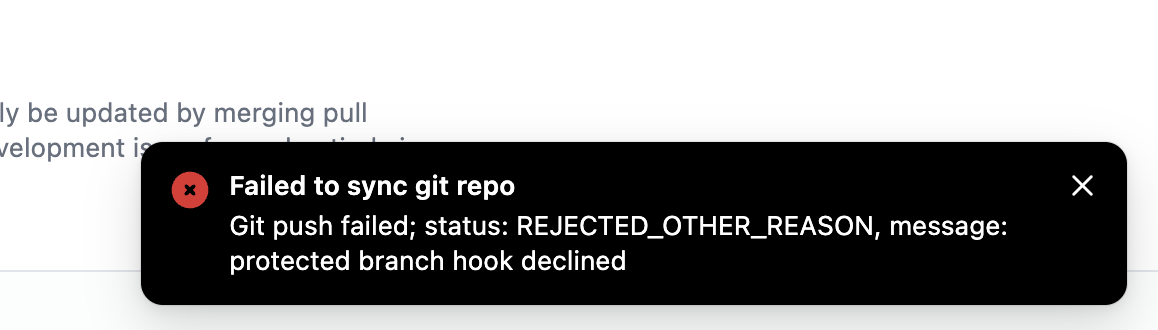
    You're receiving the following error when Omni tries to push to the repository:

    ```text wrap theme={null}
    Failed to sync Git repo — Git push failed; status: REJECTED_OTHER_REASON, message: protect branch hook declined
    ```
  </Step>

  <Step title="Why it happens" icon="question">
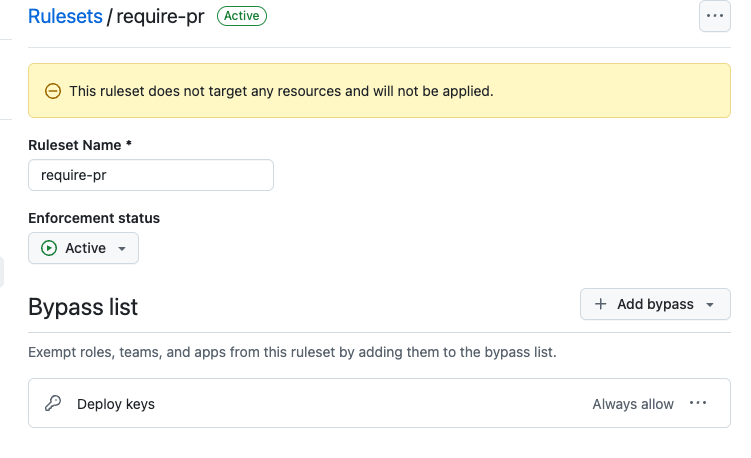
    This error occurs when Omni tries to commit directly to your base branch but your repository has branch protection rules that block direct pushes.
  </Step>

  <Step title="How to fix it" icon="hammer">
    See [Schema refresh commits on default branch](#schema-refresh-commits-on-default-branch) for the three options that resolve this conflict.
  </Step>
</Steps>

## 'No write access due to repository rule violation' error in Omni

<Steps>
  <Step title="What you're seeing" icon="eye">
    You're receiving the following error when Omni tries to push to the repository — for example, during a schema refresh, a model sync, or when creating or updating a pull request:

    ```text wrap theme={null}
    No write access due to repository rule violation.
    ```
  </Step>

  <Step title="Why it happens" icon="question">
    A repository rule in your Git provider rejected Omni's push. Omni's Git credentials are working — the push was blocked by a rule, not by missing permissions.

    The most common cause is a branch protection rule or ruleset that requires pull requests for all changes to your base branch. By default, Omni commits directly to the base branch for schema refreshes, API events, and model syncs, and a "require a pull request before merging" rule blocks those commits.

    Rules that target other branches can also trigger this error — for example, branch naming restrictions or push restrictions that apply to the branch Omni pushes when you create a pull request.
  </Step>

  <Step title="How to fix it" icon="hammer">
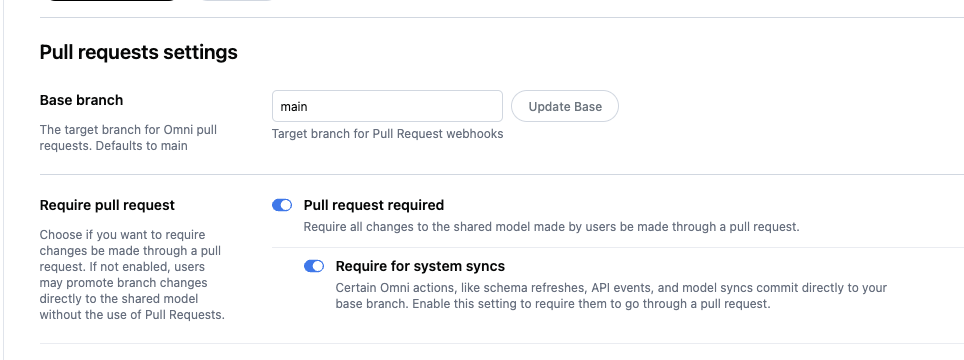
    **If your repository requires pull requests for changes to the base branch**, you can resolve this in Omni: in **Model > Advanced > Git settings**, enable the **Pull request required** toggle and its **Require for system syncs** sub-setting. This routes Omni's system-generated commits through the branch and PR workflow instead of pushing directly to the base branch.

    <Note>
      [**Branch-based schema refresh**](/modeling/develop/schema-refreshes#requiring-branches-for-schema-refreshes) must be enabled before you can enable **Require for system syncs**. See [Schema refresh commits on default branch](#schema-refresh-commits-on-default-branch) for details and for alternative setups, such as a machine user bypass or a dedicated Omni-owned base branch.
    </Note>

    **Otherwise**, review your repository's branch protection rules and rulesets in your Git provider to identify which rule is rejecting Omni's push — for example, a branch naming restriction — then adjust the rule or add a bypass so Omni's pushes are allowed. See [Options for protected branches](/integrations/git/best-practices#options-for-protected-branches) for recommended setups.
  </Step>
</Steps>

## Branch not appearing in Git

<Steps>
  <Step title="What you're seeing" icon="eye">
    You created a branch in Omni and made changes, but the branch doesn't exist in your Git repository.
  </Step>

  <Step title="Why it happens" icon="question">
    Omni's version control is separate from Git. When you create a branch in Omni, it exists only inside Omni until you explicitly trigger a sync with your Git repository. Omni only pushes a branch to Git when you click **Create pull request** in the model IDE or update the branch through the [Create or update YAML files API](/api/models/create-or-update-yaml-files).
  </Step>

  <Step title="How to fix it" icon="hammer">
    In the Omni model IDE, open your branch and click **Create pull request**. This triggers Omni's backend to sync the branch to your Git repository, at which point the branch will appear and you can open a pull request. If you're working through the API, use the [Create or update YAML files endpoint](/api/models/create-or-update-yaml-files) with a `branchId` — writing YAML to a branch syncs it to Git the same way clicking **Create pull request** does.

    <Note>
      The **Create pull request** button will be disabled until at least one model change is saved to the branch. Save a change before trying to sync.
    </Note>
  </Step>
</Steps>

<h2 id="push-fails">
  Pushing to Git from Omni fails
</h2>

<Steps>
  <Step title="What you're seeing" icon="eye">
    You're unable to open PRs, sync the repository in Omni, or push changes. You may receive messages similar to the following in Omni when this occurs:

    ```txt theme={null}
    No write access. Check deploy key or token configuration.

    Failed to sync git repo
    ```
  </Step>

  <Step title="Why it happens" icon="question">
    The deploy key or access token used to connect the repository to Omni doesn't have `write` access to the repository.
  </Step>

  <Step title="How to fix it" icon="hammer">
    1. In Omni, open your model in the IDE and navigate to **Model > Advanced > Git settings**.
    2. Copy the **Public key**.
    3. In your Git provider:
       1. Create a new deploy key, using the **Public key** you copied in the previous step. Make sure it has **write** access.
       2. Remove the old key.
  </Step>
</Steps>

## Omni is creating branches from PRs you didn't initiate

<Steps>
  <Step title="What you're seeing" icon="eye">
    Omni is creating branches automatically whenever a PR is opened in your Git repository, including PRs that weren't started from the model IDE or API.
  </Step>

  <Step title="Why it happens" icon="question">
    The **Always create branches** setting is enabled on your model (labeled **Create Omni Branches for all pull requests** in the IDE). When this is on, Omni creates a matching branch for every PR opened in Git, regardless of whether it was initiated from the Omni IDE or API. For PRs that don't include model changes, this creates empty Omni branches that can clutter your branch list.
  </Step>

  <Step title="How to fix it" icon="hammer">
    In Omni, open your model in the IDE and navigate to **Model > Advanced > Git settings**. Turn off **Always create branches**.

    Omni branches should always be initiated from the model IDE or API, not directly from Git. With the setting off, Omni will only create a branch when you explicitly click **Create pull request** in the IDE or call the equivalent API endpoint.
  </Step>
</Steps>

## 'Key already in use' message in your Git provider

<Steps>
  <Step title="What you're seeing" icon="eye">
    You receive a `Key already in use` error when trying to add a deploy key to your connected Git repository.
  </Step>

  <Step title="Why it happens" icon="question">
    Omni automatically shares a single deploy key and webhook configuration across all model and Git integrations connected to the same repository. This also includes dbt, if your dbt project lives in the same repository and you've connected it to Omni with the [dbt integration](/integrations/dbt). You only need to register one deploy key and one webhook in your Git provider — Omni handles the coordination internally.
  </Step>

  <Step title="How to fix it" icon="hammer">
    No action is required. Omni will use the repository's deploy key for all models connected to the repository, and a dbt connection if one exists.
  </Step>
</Steps>

## Merge not reflected in Omni

<Steps>
  <Step title="What you're seeing" icon="eye">
    You merged a PR in Git, but Omni doesn't show the updated model or Omni pushed its own model state back to your base branch, overwriting the changes you merged.
  </Step>

  <Step title="Why it happens" icon="question">
    Omni only reacts to pull request webhook events — opened, updated, and merged. It does not watch for direct pushes.

    Two things result in this scenario:

    * **The PR was created outside of Omni.** This happens when the PR was opened directly in Git rather than initiated from the model IDE or API, so the branch has no corresponding Omni branch. When the merge webhook arrives, Omni looks for its branch, finds nothing, and pushes its current model state back to your base branch instead. This resets the base branch to Omni's internal state and deletes any model YAML that was added only in Git.
    * **The change was pushed directly without a PR.** A direct push or fast-forward to the base branch generates no PR webhook, so Omni is never alerted to the change.
  </Step>

  <Step title="How to fix it" icon="hammer">
    For both cases, the fix is to make the change through an Omni branch:

    1. Create the branch in Omni
    2. Make your changes in the branch
    3. Click **Create PR** to sync the branch to Git,
    4. Open and merge the PR through your Git provider

    Omni will receive the merge webhook, find its branch, and apply the changes.

    If the change is already on your base branch in Git but not in Omni, re-create the change on an Omni branch and go through the PR workflow. Don't try to restore the state by pushing to Git directly, as Omni will overwrite it again on the next sync.

    <Warning>
      Omni treats its own model state as authoritative. If you push model YAML directly to your base branch, Omni will overwrite it the next time it syncs. See [Corrective commit overwrites changes](#corrective-commit-overwrites-changes) for the related scenario involving branches.
    </Warning>
  </Step>
</Steps>

## Corrective commit overwrites changes

<Steps>
  <Step title="What you're seeing" icon="eye">
    You made edits directly in the Git repository on a branch — during a PR review, through an automated script, or through an external tool — and those changes were overwritten by a commit from Omni.
  </Step>

  <Step title="Why it happens" icon="question">
    Every time Omni receives a PR webhook event, it pulls the branch from Git and validates the YAML. If any file fails validation — due to invalid syntax, an unrecognized parameter, or improper indentation — Omni rejects the change and makes a corrective commit that restores the branch to its last known good state. The corrective commit appears in history with the author `Omni Model Webhook Service`. Git history is preserved, but any changes bundled with the bad YAML are also reverted.

    **Omni rejects syntactically invalid YAML only.** It accepts semantically broken code — for example, a join that references a field that doesn't exist — but those problems will surface as model validator errors rather than triggering a corrective commit.
  </Step>

  <Step title="How to fix it" icon="hammer">
    Make model changes through Omni, either in the IDE or through the Omni API, rather than editing the Git repository directly. Omni validates changes at save time and gives you immediate feedback, so bad YAML never reaches the repository in the first place. If you need to make programmatic changes, use the [Omni CLI](/developers/cli) or model APIs rather than committing to Git.

    If you're reviewing a PR and want to suggest a change to the YAML, make the edit in Omni on the branch. Once you save a change, the **Update Pull request** button will become active — click it to sync the corrected state to Git.

    Non-model files committed to your repository are not affected by corrective commits or Omni's model syncs. For example, CI configuration, scripts, or root-level ownership files.

    However, nested metadata files placed inside model subdirectories (for example, `OWNERS.yaml` files under `omni/<model>/`) may be removed when Omni regenerates its projection. If you're using code ownership tooling, keep those files at the root of your `omni/` directory rather than nested inside model folders.

    <Note>
      If you're using automation or an AI agent that interacts with your Git repository, redirect it to use the Omni APIs instead. Agents that commit directly to Git will reliably trigger corrective commits whenever their output contains a YAML error. See [Omni agent skills](/developers/agent-skills) for more information.
    </Note>
  </Step>
</Steps>

<h2 id="merge-revert">
  Merging a PR reverts changes from another branch
</h2>

<Steps>
  <Step title="What you're seeing" icon="eye">
    You merged a pull request and changes that were previously merged from a different pull request disappeared from the shared model. In the model IDE's [model history](/modeling/develop/history), the **Webhook merge** entry for the PR shows a diff that changes files the PR didn't touch in Git — for example, a re-uploaded CSV reverting to older data or fields added by an earlier merge being removed.
  </Step>

  <Step title="Why it happens" icon="question">
    When a pull request merges, Omni doesn't apply Git's merge result to the shared model. Instead, it promotes the Omni branch associated with the PR: every model file stored on that branch is applied on top of the current shared model, replacing the shared version of those files. The most recently merged branch wins, file by file.

    An Omni branch only re-syncs from Git when new commits are pushed to its open PR. If a PR sits open while other PRs merge, its Omni branch keeps the older state of any files it carries. Merging it then overwrites the newer shared model state for those files, even if the PR's Git diff never touched them.

    Because Omni treats its own model state as authoritative, it also pushes the post-merge state back to your base branch. The revert lands in Git too, even though Git's own merge of the PR was correct.
  </Step>

  <Step title="How to fix it" icon="hammer">
    To recover the lost changes, re-apply them through Omni by either redoing them on a new branch or by restoring the affected files from a version prior to the merge. **Don't attempt recovery by pushing YAML directly to Git.** See [Model is in broken state](#broken-model-state) for the restoration steps.

    To prevent this from happening:

    1. **Update stale PRs before merging them.** Push a new commit to the PR branch or merge the base branch into it (for example, GitHub's **Update branch** button). This sends Omni a webhook that re-syncs the Omni branch against the current shared model. Alternatively, open the branch in the model IDE, save a change, and click **Update pull request**.
    2. **Keep branches short-lived.** The longer a PR stays open while other changes merge, the more likely its Omni branch is carrying stale copies of shared files.
    3. **Review the merge in model history.** After merging a long-lived PR, open the model history and check the **Webhook merge** entry's diff. If it changed files the PR shouldn't have touched, restore or re-apply promptly.
  </Step>
</Steps>

## Schema refresh commits on default branch

<Steps>
  <Step title="What you're seeing" icon="eye">
    Omni is committing directly to your base branch (for example, `main`) outside of the PR workflow. This may conflict with branch protection rules that require PRs for all changes to the base branch.
  </Step>

  <Step title="Why it happens" icon="question">
    By default, certain Omni actions — schema refreshes, API events, and model syncs — commit directly to your base branch without going through a pull request. Omni fetches the latest commit, then pushes the regenerated model directly on top using a normal commit, not a force push. If your repository has branch protection rules that require PRs for all changes to the base branch, this direct commit will conflict with those rules.

    Manual changes you make directly to model YAML on the base branch may also be overwritten the next time one of these syncs runs, since Omni regenerates the full model state when it writes. Non-model files in the repository are not affected.
  </Step>

  <Step title="How to fix it" icon="hammer">
    There are three approaches. Pick the one that fits your team's workflow:

    * Use **Option 1** if you need to satisfy strict branch protection rules with no bypass exceptions.
    * Use **Option 2** if you want schema refreshes to stay direct while keeping human developers gated behind pull requests.
    * Use **Option 3** if you want to keep Omni's writes off your protected `main` branch entirely.

    <AccordionGroup>
      <Accordion title="Option 1: Enable pull request required with system syncs">
        In **Model > Advanced > Git settings**, enable the **Pull request required** toggle, then enable its **Require for system syncs** sub-setting. This routes schema refreshes and other system-generated commits through the branch and PR workflow, satisfying strict branch protection requirements with no exceptions needed.

        <Note>
          [**Branch-based schema refresh**](/modeling/develop/schema-refreshes#requiring-branches-for-schema-refreshes) must be enabled before you can enable **Require for system syncs**.

          Branch-based schema refreshes can't be enabled for connections with more than one model. The tradeoff is that schema changes appear in PRs alongside model changes, which can make reviews less focused.
        </Note>
      </Accordion>

      <Accordion title="Option 2: Add a dedicated Omni machine user to your bypass list">
        Switch Omni's Git credentials from the default SSH deploy key to [HTTPS token authentication](/integrations/git/setup/github) using a token that belongs to a dedicated machine user, then add that machine user to your branch protection rule's bypass list. This keeps schema refreshes direct and low-friction while leaving all human developers gated behind pull requests.

        <Note>
          HTTPS token authentication is only available for GitHub and GitLab. If you're using Azure DevOps or Bitbucket, use Option 1 or Option 3 instead.
        </Note>
      </Accordion>

      <Accordion title="Option 3: Use a dedicated Omni-owned base branch">
        In **Model > Advanced > Git settings**, set the [**Base branch** field](/integrations/git/settings#base-branch) to a branch that isn't your protected `main` — for example, `omni-prod` — and leave that branch unprotected.

        Omni's pushes land there without issue and `main` is never touched.

        <Note>
          Omni never force-pushes your base branch. The applicable branch protection rule in this scenario is *"require a pull request before merging,"* not *"restrict force pushes."* Clarifying this with your platform team early can prevent the force-push concern from blocking setup.
        </Note>
      </Accordion>
    </AccordionGroup>
  </Step>
</Steps>

## Follower not picking up changes

This scenario applies to models configured with [Git follower mode](/integrations/git/follower-mode).

<Steps>
  <Step title="What you're seeing" icon="eye">
    You merged a change to your follower's watched branch in Git, but the follower's model hasn't updated.
  </Step>

  <Step title="Why it happens" icon="question">
    There are two potential causes:

    1. **Changes were made without going through a PR merge.** Like the leader, a follower only reacts to PR merge events on the branch it's configured to watch. If a change was pushed or committed directly to that branch without going through a PR merge, the follower won't detect it.

           <Note>
             If you're using a release branch as a validation step before merging to your follower's watched branch, make sure the PR targets the correct watched branch. A PR merged to `main` won't trigger a follower that's watching a `prod` branch.
           </Note>
    2. **Schema mismatches between the leader and follower schema model.** The follower reconciles the Git projection against its own schema model to determine what belongs in the shared layer. If the follower's database schema differs from the leader's, the follower may accept the change but surface errors when users query topics that reference fields missing from its schema. For example, tables are missing or are named differently.
  </Step>

  <Step title="How to fix it" icon="hammer">
    * **To resolve an event trigger issue**, confirm the change reached the follower's watched branch through a PR merge. If you pushed directly, open a PR from that branch to the watched branch and merge it.

    * **To resolve a schema mismatch issue**, verify that the database schemas on the leader and follower are identical. The follower needs to be able to account for every field referenced in the Git projection using its own schema model.

      If schemas have diverged, run a schema refresh on the follower after confirming the underlying database matches, then trigger the follower by merging a PR to its watched branch.
  </Step>
</Steps>

<h2 id="broken-model-state">
  Model is in a broken state
</h2>

<Steps>
  <Step title="What you're seeing" icon="eye">
    Your Omni model is in a broken state and you need to restore it to a known good state. For example, dashboards aren't loading, topics are missing, or a schema refresh has removed a large portion of your views.
  </Step>

  <Step title="Why it happens" icon="question">
    Omni is the source of truth and Git is a projection of Omni's state. This means you can't restore Omni by pushing the correct YAML to Git, as Omni will overwrite whatever you push the next time it syncs.
  </Step>

  <Step title="How to fix it" icon="hammer">
    <Warning>
      Don't attempt recovery by pushing or restoring YAML directly in Git. Omni regenerates its projection from its internal model state, so Git-only changes will be overwritten. The steps below are the only correct recovery path.
    </Warning>

    The correct recovery path is through Omni's own model history:

    1. In Omni, open your model in the IDE.
    2. Click the <Icon icon="clock" /> icon in the sidebar.
    3. Find the entry that represents the last known good state, then restore to that version.
    4. Once Omni's model state is correct, it will push that state to Git on the next sync, bringing the repository back into alignment.
  </Step>
</Steps>


This documentation is built and hosted on [Mintlify](https://mintlify.com), a developer documentation platform.