> ## Documentation Index
> Fetch the complete documentation index at: https://docs.omni.co/llms.txt
> Use this file to discover all available pages before exploring further.
# Working with dbt virtual schemas
> Unlock dbt environment switching with Virtual Schemas.
Virtual schemas are a powerful abstraction layer in Omni that decouple your modeling logic from specific physical database locations.
By using the `omni_dbt` prefix, you can build workbooks and topics once and dynamically swap the underlying data source between dbt environments - like `production` and a personal `dev` schema - without breaking your content.
Think of virtual schemas as a way to swap out the physical tables in your SQL queries for a variable that you can then use to switch in and out different dbt environments.
**We strongly recommend enabling virtual schemas before you begin building Omni**. You can enable them later, but doing so will require [migrating existing content](#migrate).
## Common questions
While dbt metadata like descriptions and primary keys automatically flows into Omni's standard schemas, virtual schemas unlock advanced environment management.
* **Environment swapping:** Toggle your Omni branch to point to a development schema (e.g., `dbt_blobby`) to test new logic before merging to production.
* **Stable references:** Dashboards built on virtual schemas use a stable reference (e.g., `omni_dbt__orders`). When you switch environments, Omni automatically adjusts to fetch data from your dev schema, but the dashboard itself will remain unchanged.
* **Safety:** You can validate dbt changes in an Omni branch before they hit production, ensuring dashboards don't break after a dbt deployment.
Yes. Virtual schemas prevent your content from being tied to a single physical database location, so you can switch between environments without rebuilding anything. Build once on the virtual layer and swap dynamically as needed.
No. You can still view the source SQL and dbt lineage directly in the Omni IDE to trace the exact database and schema a model originated from.
Only tables built and managed by dbt will have a corresponding virtual schema. Data that comes from other sources — CSV uploads, direct pipeline ingestion, and so on — won't have a virtual schema. You'll always use the physical schema for that data.
The raw SQL in the [SQL editor](/analyze-explore/sql) may show the virtual alias.
To see the physical path being queried, check the [Query Inspector](/analyze-explore/workbook-inspector). It displays the final, compiled SQL sent to your warehouse, including the specific dev or prod database and schema names.
You can use dynamic schemas and dbt environments to point Omni at your development or feature-branch schemas. This allows you to immediately validate changes in Omni without waiting for a production deployment.
* **Keep it if:** You plan to preview how dbt code changes will impact your dashboards before pushing them to production.
* **Turn it off if:** You only have one dbt environment and never plan to use Omni for development preview work.
Note that even if you turn off virtual schemas, dbt metadata like descriptions and primary keys will still flow into your standard schemas.
Virtual schemas use consistent aliases to keep references stable. To verify the query is hitting your dev schema, check the [Query Inspector](/analyze-explore/workbook-inspector) to see the final, compiled SQL sent to your warehouse.
Omni derives each virtual schema name from the [custom schema](https://docs.getdbt.com/docs/build/custom-schemas) configured on the dbt model. The custom schema is different from the target (or "default") schema — it's the `+schema:` config you set in `dbt_project.yml` or in a model's config block.
Where Omni places models depends on if the model has a custom schema:
* **No custom schema** - Placed in `omni_dbt`
* **Custom schema** - Placed in `omni_dbt_`
For example, given the following `dbt_project.yml`:
```yaml theme={null}
models:
my_project:
marketing:
+schema: marketing
finance:
+schema: finance
staging:
# no custom schema set
```
Omni generates these virtual schemas:
* Models under `marketing/` → `omni_dbt_marketing`
* Models under `finance/` → `omni_dbt_finance`
* Models under `staging/` (no custom schema) → `omni_dbt`
## Requirements
To set up or migrate to virtual schemas, you'll need:
* **Connection Admin** permissions on the Omni connection
* A [configured dbt integration](/integrations/dbt/setup)
Setting up virtual schemas
1. In Omni, click **Connections**.
2. Locate the connection you want to work with.
3. Click the **dbt** tab.
4. Toggle on **Enable Virtual Schemas**.
Omni will automatically generate a new version of your schemas prepended with `omni_dbt_`.
You will need to build your model from views in the `omni_dbt_` version of your schema for dbt virtual schemas to work.
It's recommended you only include these schemas going forward, by adding the following to your [model file](/modeling/models/included-schemas):
```yaml theme={null}
included_schemas: ["*omni_dbt*"]
```
To use the environment toggle, Omni needs to mirror your dbt runner configuration (e.g., dbt Cloud).
1. In the connection's **dbt** tab, scroll to the **Environments** section.
2. Verify that the **Production environment**'s **Default schema** and **Target name** settings match your production dbt job settings (e.g., target: `prod`).
3. Next, you'll configure a new development environment. Click **Add environment**.
4. Fill in the following:
* **Name** - Enter a name for the environment, such as `JDoe Dev`
* **Default schema** - Enter your personal dbt schema (e.g., `dbt_jdoe`). In dbt Cloud, you can find this under **Profile > Credentials > \[your project] > Development credentials > Schema**.
* **Target name** - Must exactly match the target name used when that developer runs dbt. In dbt Cloud, you can find this under **Profile > Credentials > \[your project] > Development credentials > Target name**. Common values are `default` or `dev`.
* **Environment variables** - If your dbt project uses variables for schema names (e.g., `{{ var('schema_override') }}`), add them here so Omni can resolve the paths correctly.
* **Enable deferral** - Check this box to automatically fall back to production builds for models not built in this dev environment. Useful when running partial builds.
5. Click **Save** to create the environment.
Each developer who wants to use environment switching needs their own environment entry — repeat steps 3–5 for every team member. A single working entry does not apply to others.
In the model IDE, confirm that all models Omni currently accesses are correctly mapped to their dbt sources.
If this does not pass automatically, refresh your schema and see the debugging steps in the [dbt health check guide](/integrations/dbt/health-check).
Migrating existing content
If you already have a model built on physical schemas, you'll need to migrate your logic to the virtual layer to unlock environment switching.
1. [**Audit dbt health:**](/integrations/dbt/health-check) Confirm that all models Omni currently accesses are correctly mapped to their dbt sources in the IDE.
2. **Enable virtual schemas in Omni:** Navigate to the **dbt** tab of the connection in Omni and toggle **Enable virtual schemas** to **on**.
3. **Run the migration:** Next, you'll use Omni's migration tool to copy the existing semantic logic from your physical schemas to the new virtual ones.
**Before beginning the migration**, note that:
* **Logic migrations can't be performed in branches, meaning production users could be impacted.** Run the migration during a low-traffic period to minimize disruption.
* **Existing dashboards and topics won't be updated**. You'll migrate content and topics in the next step.
* **If you skip this step**, any hardcoded schema references in existing content will remain pointed at physical schemas and the environment toggle will have no effect on them.
To start the migration, navigate to the connection's **dbt** tab and click the **Run migration** button:
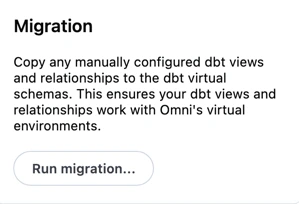 The migration scans all existing modeling layers and for every view file and relationship that existed under your physical dbt-managed schemas, it creates a one-to-one copy under the new omni\_dbt\_ prefixed virtual schema names. Specifically:
* View files — every view is recreated with the omni\_dbt\_ prefix
* Relationships/joins — any joins you previously built are duplicated onto the corresponding virtual schema views
* Shared model logic — things like custom field definitions, measures (e.g. sum of revenue), labels, etc. are carried over to the virtual schema version.
4. **Verify the setup**: Navigate to the model IDE and look for a **Virtual Schemas** section. Database views accessible by Omni but not mapped to a specific dbt model will fall under the generic `omni_dbt` virtual schema.
1. **Open an Omni branch:** This ensures that users won't be disrupted while you perform the content migration. See [Developing with Branch Mode](/content/develop/branch-mode) for more information.
2. **Repoint topics:** In the model IDE, update topic [`base_view`](/modeling/topics/parameters/base-view) references to use the `omni_dbt_` views.
3. **Bulk update content:** Use the [Content Validator](/modeling/develop/content-validator) to find and replace physical schema references with virtual ones across all dashboards and tiles.
4. **Test environment toggling:** Within your branch, point Omni to a dev schema to verify that changes in your dbt development branch are reflecting correctly. Then:
1. Open a workbook that uses a virtual schema
2. Open the [Query Inspector](/analyze-explore/workbook-inspector) by clicking the in the left navigation
3. Check that the underlying table name switches to the dev schema you selected in your branch header
1. **Finalize the model:** Once validated, hide the physical schemas to keep your model clean. Add the following to your [model file](/modeling/models/included-schemas):
```yaml theme={null}
included_schemas: ["*omni_dbt*"]
```
2. **Merge:** Merge your Omni branch.
The migration scans all existing modeling layers and for every view file and relationship that existed under your physical dbt-managed schemas, it creates a one-to-one copy under the new omni\_dbt\_ prefixed virtual schema names. Specifically:
* View files — every view is recreated with the omni\_dbt\_ prefix
* Relationships/joins — any joins you previously built are duplicated onto the corresponding virtual schema views
* Shared model logic — things like custom field definitions, measures (e.g. sum of revenue), labels, etc. are carried over to the virtual schema version.
4. **Verify the setup**: Navigate to the model IDE and look for a **Virtual Schemas** section. Database views accessible by Omni but not mapped to a specific dbt model will fall under the generic `omni_dbt` virtual schema.
1. **Open an Omni branch:** This ensures that users won't be disrupted while you perform the content migration. See [Developing with Branch Mode](/content/develop/branch-mode) for more information.
2. **Repoint topics:** In the model IDE, update topic [`base_view`](/modeling/topics/parameters/base-view) references to use the `omni_dbt_` views.
3. **Bulk update content:** Use the [Content Validator](/modeling/develop/content-validator) to find and replace physical schema references with virtual ones across all dashboards and tiles.
4. **Test environment toggling:** Within your branch, point Omni to a dev schema to verify that changes in your dbt development branch are reflecting correctly. Then:
1. Open a workbook that uses a virtual schema
2. Open the [Query Inspector](/analyze-explore/workbook-inspector) by clicking the in the left navigation
3. Check that the underlying table name switches to the dev schema you selected in your branch header
1. **Finalize the model:** Once validated, hide the physical schemas to keep your model clean. Add the following to your [model file](/modeling/models/included-schemas):
```yaml theme={null}
included_schemas: ["*omni_dbt*"]
```
2. **Merge:** Merge your Omni branch.
Testing new dbt models in Omni branches
Run `dbt build` in your local or cloud dev environment.
Push your dbt code to a branch (e.g., `git push origin new-feature`).
In Omni, create an Omni branch.
In the Omni branch header, switch to your dbt dev environment, then click **Model > Refresh schema**.
In the dbt editor of the Shared model, point to the dbt branch you want to align your Omni branch to.
When testing in a branch, use the [Query Inspector](/analyze-explore/workbook-inspector) to confirm that switching to your dev environment successfully re-points the query from `PROD.CORE` to `DEV_USER.CORE`.
Using virtual schemas with partial dbt builds
If you have a new dbt developer environment or are using deferrals already, you might be missing tables from your developer schema if you're seeing partial builds.
By default, Omni needs all tables in a model to exist in your physical schema to map them to virtual schemas. If you only build a few models in dev, the rest of the virtual schemas will disappear.
### Enable deferral (recommended)
The recommended approach is to enable the **Enable deferral** checkbox when configuring your dev environment in Omni. When enabled, Omni automatically falls back to production builds for models not built in your dev environment, so you can run partial builds without needing to create clones or build the full project.
See [Configure dbt environments](#setup) for instructions on enabling deferral.
### Using dbt clone for zero-copy clones
Alternatively, you can use `dbt clone` to create zero-copy clones of production objects in your development schema:
In dbt Cloud, ensure your IDE is set to **Defer to production**. This tells dbt to look at your production environment as a source of truth for any models you haven't built locally.
Run the `dbt clone` command in your development environment.
On warehouses that support it (like Snowflake), this creates zero-copy clones of all production objects in your development schema, creating the "stubs" or references Omni needs to see the entire project.
Once cloned, you can run `dbt build -s ` for just the specific models you are changing.
Omni will now see the entire schema - the cloned production tables and your specific dev changes - allowing you to validate your work without a full project run.
See the [Troubleshooting section](#missing-tables-dbt-clone) if tables are missing after going through the above steps.
## Troubleshooting
This is almost always a configuration issue with the environments that aren't working. Each developer needs their own separate environment entry in Omni; a working environment for one person doesn't carry over to others.
For each person, check the following:
* **Missing environment entry:** Every developer needs their own entry added under **Connections > dbt > Environments**. If an entry doesn't exist for a given developer, Omni has nothing to resolve to when they switch environments.
* **Incorrect default schema:** Each developer typically builds into their own personal schema in dbt (e.g., `dbt_blobby`). If the Omni connection's **Default schema** doesn't match where that developer's dbt builds, Omni will look in the wrong place.
* **Incorrect target name:** The **Target name** dbt setting in Omni must exactly match the target that developer uses when running dbt (e.g., `dev`, `default`, or a custom value). See the [Configure dbt environments](#setup) section for guidance on where to find this in dbt Cloud.
* **dbt hasn't been run for that developer yet:** If a developer has never run `dbt build` or `dbt run` in their personal schema, there will be nothing for Omni to find.
Once the environment is configured, navigate to **Connections > dbt > Environments** in Omni, open the health check for that environment, and click **Re-run dbt**.
* **Missing warehouse permissions:** The Omni service account must have access to each developer's personal database and schema. If it doesn't, you'll see a warning like `"Database 'DEV_BLOBBY' does not exist or not authorized"` in the health check.
To verify, open the SQL editor in an Omni workbook and run `SHOW DATABASES`. If the developer's database (e.g., `DEV_BLOBBY`) doesn't appear in the results, the service account hasn't been granted access to it. Confirm the service account has been granted the correct permissions on that developer's database and schema, then re-run the health check.
* **Missing environment variables:** If your dbt project uses custom environment variables to control schema names, those need to be added per environment in Omni.
To diagnose quickly, open the dbt health check for the failing environment, it will tell you whether the issue is a configuration mismatch or a permissions problem.
Virtual schemas may be empty for a few reasons:
* **Missing materialization:** Omni can only see models that have been physically built in your warehouse. Ensure you executed `dbt run` or `dbt build` in that specific environment.
* **Schema refresh needed:** If the data exists in your warehouse but isn't showing in Omni, trigger a schema refresh. See [Schema refreshes](/modeling/develop/schema-refreshes) for instructions.
* **Permissions:** The database user Omni uses must have `USAGE` and `SELECT` permissions on your personal development schema.
* **Inclusion filters:** If your model file has [`included_views`](/modeling/models/included-views) or [`included_schemas`](/modeling/models/included-schemas) defined, you must explicitly add `"omni_dbt*"` to that list.
The toggle only works for views built on the `omni_dbt_` (virtualized) layer. If your topic or SQL shows a hardcoded schema name that doesn't start with the virtual prefix, the environment switch will be ignored.
If dbt clone runs but certain tables still error out or don't appear in Omni:
* **Check the Omni user's permissions**. Ensure the database user Omni uses (or your individual OAuth user) has `SELECT` grants on the production schemas being cloned.
* **Check production health**: Verify that the models exist and have had a successful run in your production environment. If a model is missing from the production manifest, it cannot be deferred or cloned.
* **Check your environment settings**. If you have multiple environments (e.g., Staging and Prod) and are using dbt cloud, check that your dbt settings are deferring to the environment that actually contains your data before running the `dbt clone` command.
## Next steps
* [Schema refreshes](/modeling/develop/schema-refreshes) — Sync model changes after switching environments.
* [Content Validator](/modeling/develop/content-validator) — Find and bulk-replace schema references across content.