> ## Documentation Index
> Fetch the complete documentation index at: https://docs.omni.co/llms.txt
> Use this file to discover all available pages before exploring further.
# Integrate dbt's semantic layer with Omni
> Learn how Omni integrates with dbt's semantic layer to pull dimensions, measures, metrics, and entities into your Omni model.
Omni's integration with dbt's semantic layer reads metadata from your dbt semantic layer project and maps it into your Omni model. This includes dimensions, entities, measures, and metrics, so you can use your dbt semantic definitions directly in Omni without recreating them.
## Common questions
Yes. The dbt Semantic Layer is powered by [MetricFlow](https://docs.getdbt.com/docs/build/about-metricflow), dbt's open-source metric query engine. If you've defined metrics and semantic models using MetricFlow, this is the integration that brings them into Omni.
The most effective approach is a hybrid model that balances centralized governance with BI agility.
Use the dbt Semantic Layer for:
* **Cross-tool consistency**: Define "Tier 0" canonical metrics (like Gross Revenue or Churn Rate) that must be identical across multiple platforms (e.g., Hex, Salesforce, or custom apps).
* **Centralized governance**: Use dbt when you want the data engineering team to own the "source of truth" through a formal pull request (PR) process.
Use the Omni semantic layer for:
* **BI-specific metadata**: Use Omni for logic that only impacts the analysis experience, such as **color mapping**, **field grouping**, **drill paths**, and **friendly labels**.
* **AI and natural language**: Add **AI context** and synonyms in Omni to help users query data in plain English.
* **Speed and plasticity**: Use Omni to prototype new metrics or create complex join logic and workbook-level calculations on the fly without waiting for dbt deployments.
Think of the dbt Semantic Layer as a small set of slow-changing, universal gold metrics. Think of the Omni layer as the plastic workspace where you iterate quickly and provide the rich context users need for self-service.
The dbt Semantic Layer integration is a **one-way import**. Omni ingests metrics and semantic models defined in dbt, but it does not support exporting or pushing metrics authored in Omni back into dbt semantic files.
## Requirements
To follow this guide, you'll need:
* A dbt semantic layer project configured in your dbt repository
* To have the [dbt integration enabled](/integrations/dbt/setup) for an Omni database connection
* **Organization Admin** permissions or **Connection Admin** permissions for the connection where dbt is enabled
## Known differences and limitations
There are some behavioral differences between how dbt's semantic layer and Omni handle certain concepts:
The following are not currently supported:
* Cumulative and conversion metrics
* Null filling
Omni does not support the concept of an `agg_time_dimension`, so you must carefully pick the dimensions and grains at which you view various metrics. Omni will append a comment to the field's description to denote the default time field that should be used with the metric to help provide clarity.
Time spines exist in dbt's semantic layer, whereas Omni allows you to fill dates when desired to conduct more complete analyses over various time windows.
These can still be done in Omni via YAML configuration or the UI, depending on the specific goal.
When calculating ratio metrics, Omni joins the tables because its representation of metrics is still tied to a table.
This can differ from MetricFlow's approach of generating two separate metrics in subqueries, joining them, and then calculating the ratio. Omni's approach automatically leverages symmetric aggregation to avoid miscalculations caused by fan outs.
## Mapping dbt metadata into Omni
### Dimensions
Dimensions defined in your dbt semantic layer are pulled into Omni. Metadata for descriptions, expressions, and labels are mapped onto their respective [dimensions](/modeling/dimensions) in Omni.
### Entities
Entities are created as their own dimensions in Omni and are used to create joins between tables mapped to their respective semantic models.
Entities as a concept are mapped to [relationships](/modeling/relationships) in Omni.
### Measures
If your dbt semantic layer project uses measures, they are mapped to [measures](/modeling/measures) in Omni.
### Metrics
dbt metrics are mapped into Omni as measures, with their location dependent on their type:
| Metric type | How it maps in Omni |
| ----------------------------------------------------------- | ---------------------------------------------------------------------------------- |
| [Simple](https://docs.getdbt.com/docs/build/simple) | Mapped to the view in Omni that the table of the underlying expression is based on |
| [Ratio](https://docs.getdbt.com/docs/build/ratio) | Mapped to the view in Omni that the denominator is based on |
| [Derived](https://docs.getdbt.com/docs/build/derived) | Mapped to the view in Omni that the first metric is based on |
| [Cumulative](https://docs.getdbt.com/docs/build/cumulative) | **Not currently supported** |
| [Conversion](https://docs.getdbt.com/docs/build/conversion) | **Not currently supported** |
Metrics with filters will have dimensions created as those filters in Omni. These dimensions are automatically hidden and applied to the corresponding Omni measure for an equivalent calculation.
### Semantic view labels
The names of semantic view files in dbt are mapped to Omni as labels on the corresponding `dbt_models` table.
## Setup
1. Navigate to **Settings > Connections**.
2. Click the connection where dbt is enabled.
3. Click the **dbt** tab on the connection's settings page.
4. Check the **Enable semantic layer** box.
5. Click **Save**.
With the semantic layer sync enabled, the next step is to trigger a [schema refresh](/modeling/develop/schema-refreshes) to pull the metadata into Omni.
1. In the connection settings page, click the **Settings** tab.
2. Click the **Refresh now** button to trigger the refresh.
If you have branch-based schema refreshes enabled, the steps for triggering a refresh will be different than those listed here. Refer to the [Schema refreshes guide](/modeling/develop/schema-refreshes#requiring-branches-for-schema-refreshes) for more information.
## Troubleshooting
If Omni encounters issues while syncing semantic layer metadata, validation errors appear inline in the dbt IDE. Problems surface in three places:
* **File tree:** Files with issues display colored icons next to their names. Critical issues (most validation errors) show a red icon, while duplicate import errors show a yellow icon. Parent directories also inherit these icons to help you locate affected files.
* **Next to line numbers:** In files, markers display next to line numbers where issues occur. Hover over a marker to see the full error message in a tooltip.
* **Model validation panel:** Click any issue to navigate directly to the file and line where the problem occurs.
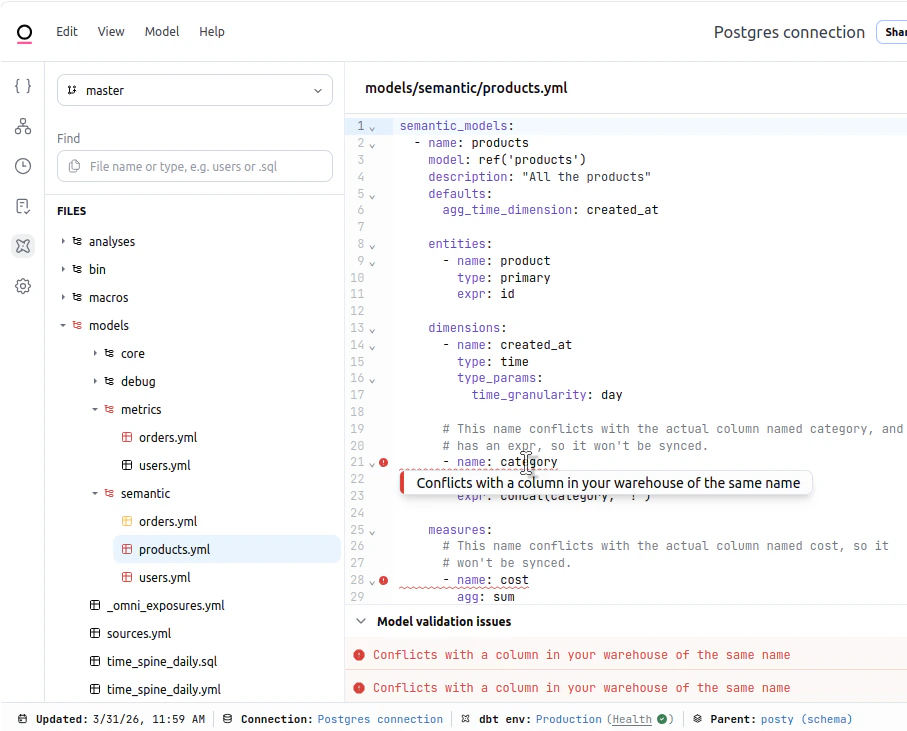 Click the following headings to view specific troubleshooting guidance.
This error occurs when a measure defined in your dbt semantic layer has the exact same name as an existing column in the underlying dbt model.
Because Omni maps your semantic layer measures directly onto the associated dbt model in the UI, a name collision acts like trying to have two columns with the same name in a single table.
To resolve this, rename the measure in your dbt semantic layer (e.g., prefixing it with `mtm_` or `semantic_`) so it is distinct from the raw row-level column.
## Next steps
* [Work with dbt models](/integrations/dbt/models) — Author and edit dbt models from Omni
* [Schema refreshes](/modeling/develop/schema-refreshes) — Sync dbt changes into your Omni model
Click the following headings to view specific troubleshooting guidance.
This error occurs when a measure defined in your dbt semantic layer has the exact same name as an existing column in the underlying dbt model.
Because Omni maps your semantic layer measures directly onto the associated dbt model in the UI, a name collision acts like trying to have two columns with the same name in a single table.
To resolve this, rename the measure in your dbt semantic layer (e.g., prefixing it with `mtm_` or `semantic_`) so it is distinct from the raw row-level column.
## Next steps
* [Work with dbt models](/integrations/dbt/models) — Author and edit dbt models from Omni
* [Schema refreshes](/modeling/develop/schema-refreshes) — Sync dbt changes into your Omni model