> ## Documentation Index
> Fetch the complete documentation index at: https://docs.omni.co/llms.txt
> Use this file to discover all available pages before exploring further.
## Submitting Feedback
If you encounter incorrect, outdated, or confusing documentation on this page, submit feedback:
POST https://docs.omni.co/feedback
```json
{
"path": "/integrations/dbt/index",
"feedback": "Description of the issue"
}
```
Only submit feedback when you have something specific and actionable to report.
# Integrating dbt
> Integrate dbt Core or dbt Cloud with Omni to sync metadata, author models, push exposures, and connect your semantic layer.
Omni's integration with dbt (both dbt Core and Cloud) embraces the idea that the semantic layer should live as close to the data as possible, and it should be easy to move between the BI layer and dbt.
These are the features the dbt integration supports (and more coming soon!):
* Schema refreshes to sync dbt changes
* Pull dbt context and metadata into Omni such as descriptions, as well as foreign key constraints
* Author dbt models from Omni queries
* Push exposures from Omni dashboards to dbt
* Dynamic schema switching
* dbt Semantic Layer integration for querying metrics and dimensions
## Common questions
Omni primarily relies on your `manifest.json` file. This acts as the roadmap for your project, allowing Omni to understand relationships between models, underlying SQL logic, and defined metadata.
When active, Omni pulls in column descriptions, tests, and tags, surfacing your repository structure directly within the Omni dbt IDE.
If you connect to tables as raw schemas rather than using the formal dbt integration, you lose:
* **Metadata sync**: dbt descriptions and column tags won't automatically populate.
* **Lineage and docs**: You cannot see upstream dbt dependencies within Omni.
* **Environment switching**: You cannot toggle between Dev and Prod for those specific models.
* **Virtual schemas**: You lose the ability to use Omni's "IDE-lite" features to edit dbt models directly.
While reading metadata from your database provides basic descriptions, you will lose access to "advanced" features:
* **Writeback to dbt**: You cannot push SQL changes or new fields created in Omni back to your repository.
* **Developer branch syncing**: You cannot sync personal development branches in Omni to your specific dbt environment.
* **Automated joins**: You lose the ability to automatically generate primary keys and relationships from dbt YAML constraints.
No. Currently, Omni supports one dbt repository per database connection. If your architecture relies on multiple interconnected projects in separate repositories, Omni cannot ingest all into a single connection at this time.
No. Omni does not currently support custom dbt plugins.
## Connecting dbt to Omni
Refer to the [dbt setup guide](/integrations/dbt/setup) to connect your dbt repository to Omni.
## dbt Semantic Layer
The dbt Semantic Layer integration allows Omni to query metrics and dimensions defined in your dbt project's semantic layer. When enabled in your connection settings, Omni can leverage the semantic definitions from dbt, providing a unified experience between your dbt metrics and Omni's analytics capabilities.
To enable the dbt Semantic Layer integration, check the **Enable dbt Semantic Layer** box in the dbt settings tab when [setting up your dbt connection](/integrations/dbt/setup). Refer to the [Integrating dbt's Semantic Layer with Omni guide](/integrations/dbt/semantic-layer) for more information.
## Working with dbt models
Refer to the [Working with dbt models](/integrations/dbt/models) guide for more information about working with your dbt models in Omni.
## Dynamic schemas
Dynamic schemas allow users to switch the environment that their dbt integration is pointing to within Omni. Users can easily switch between development and production environments to test changes made in the model and how they impact content. Users can...
* Run the [content validator](/modeling/develop/content-validator) while pointing at a dbt development schema to determine the possible impact ahead of merging changes.
* Create new queries or create visualizations against the dbt dev schema to validate the model changes work as expected.
To switch schemas, users must be in [branch mode](/content/develop/branch-mode). To switch schemas, modify the **Default Schema** in the branch.
## dbt Environments
dbt Environments are used in Omni to instruct which underlying schemas the `omni_dbt` schema should be pointed at. Additional environments beyond the production environment, which you get by default when enabling the integration, can be added on the dbt Settings page for the connection. Ensure that the box for `Enable Virtual Schemas` is checked in your dbt settings on the connection page in order to switch between environments. The connections will take in a few arguments:
* Name: UI name for the environment that will appear when in use in Omni
* Default Schema: The default schema where models will land if there are no overrides or customization to schema names for dbt models on the environment or profile
* Database (optional): Allows a user to point an environment to a different database than the default database for the connection
* Target Name (optional, often `prod` or `dev`): A variable often used to trigger decision trees in macros or other overrides in dbt based on the type of `dbt run` being executed. This should be left blank unless you know that your dbt code depends on it.
* Target Role (optional): Allows a user to specify a target role for the `dbt run`, often used when dynamically switching databases per dbt developer. This should be left blank unless you know that your dbt code depends on it.
* Variables: Used for pulling dbt dependencies or that are used to specify the database or schema where your models will be placed. Variable names must begin with DBT\_
### Getting Started with Dynamic Schemas and dbt Environments
When we hook up the dbt integration, Omni will create at least one `omni_dbt` schema. If you have schema overrides in place, are using custom schemas, or a `generate_schema_name dbt` macro, you can likely expect multiple `omni_dbt*` variants corresponding to the config schemas that you have set up in dbt.
The intended use of the dbt integration, is that you build all content and modeling in Omni on the `omni_dbt` schemas, while using the `ignored_schemas:` parameter in the model file to hide the physical schemas that the omni\_dbt schemas are referencing. The benefit of building on these omni\_dbt schemas is that we can point them to different dbt environments underneath the hood.
These should be configured in Omni to mirror dbt (e.g. Production environment with a target name of “prod”, a development environment for each developer schema, etc.). This allows you to point Omni to production tables and schemas when in production, while also easily swapping to a development environment view to see how tables look in that context and how your associated content may be impacted. This can be done in a branch within the model, and will then point the omni\_dbt schemas there.
The core difference here is that you build on just one set of tables (with the omni\_dbt prefix), rather than building two copies of a dashboard (one on public, the other on a development schema) and you can swap across the two seamlessly within a branch to see how things change and eliminate the duplication of work.
As a result, to use the environment switching you have to be built on something dynamic (the `omni_dbt*` schemas) to allow for that swapping under the hood rather than the static schemas in the db.
**NOTE** if you create Omni query views using raw sql you'll need to reference tables in Omni model syntax rather than directly referencing the database table in order to make the reference dynamic to the DBT environment you are using.
```text theme={null}
sql: | SELECT date, country, country_name, order_count FROM ${omni_dbt__analytics.order_facts}
```
### Migrating Existing Models to dbt Virtual Schemas
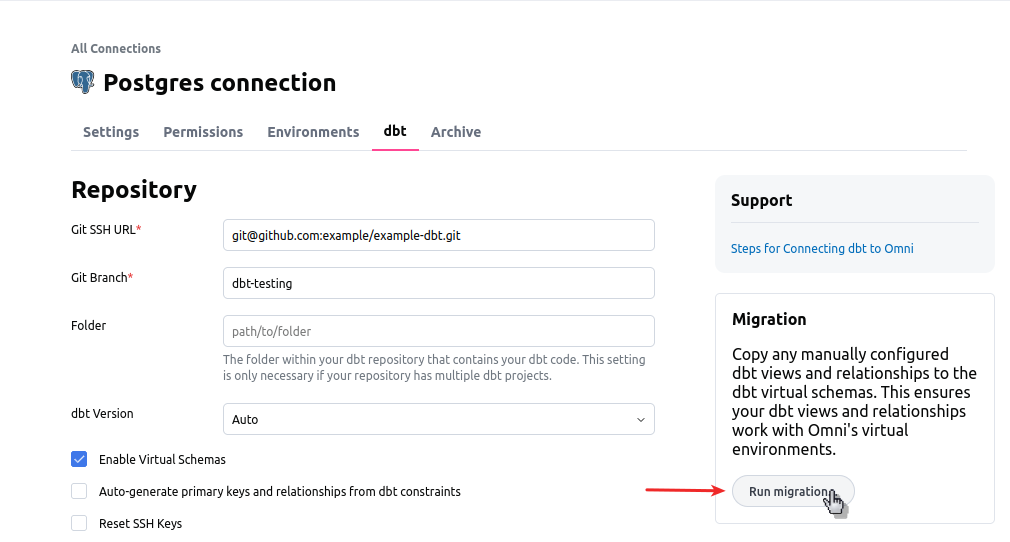
If you’ve already built a bit of content on your physical production schemas and you want to get started using the `omni_dbt` virtual schemas, you can run the dbt migrator. The dbt migrator will copy the existing logic from those physical schemas to the `omni_dbt` schemas, as well as replicate any relationships.
For example, if you have custom dimensions defined on top of a model such as `dbt__customers.view`, running the migrator will copy those dimensions into the `omni_dbt__customers.view` file.
You will still need to update your topics so they point to the new virtual schemas, as well as use the content validator to cut over any content that is referencing the raw table views.
The migrator can be found in the `dbt` tab within the connection's settings:
 ### Common Troubleshooting:
#### I connected to dbt, but I don’t see the omni\_dbt schemas / I see the omni\_dbt schemas, but they are empty
When in a branch for a given environment, go to Model > Refresh Schema. If the schema folders are still empty, you should go and add a `#` to a table in each schema and check again.
Additionally, you should check that on the database connection page as well as the shared model file that you are not explicitly excluding the schemas that the service account may have permissions to, but are otherwise not showing up in Omni.
#### I see tables in my dbt schemas, but no dbt metadata
This is typically due to your dbt environment either not having the proper default schema name that aligns to dbt, or the proper target name for the environment.
#### I have a schema that has some tables from dbt and others from a different source. Why are these non-dbt tables in omni\_dbt?
Essentially, since some parts of your schema are from dbt and others are not, we are picking up that dbt metadata exists in there, and then we are creating those `omni_dbt*` schemas for all tables within there.
The way that this works, is if there are config level schemas, they get dropped into `omni_dbt_`. If they don't have a config level schema, they just go into omni\_dbt.
So, in this case we see there is dbt metadata in public, we grab the tables where there's the override and put them in their new omni\_dbt\_public schema, and then when we go to get the other source tables we notice that their dbt metadata is blank. This makes sense, because they didn't come from dbt and have no concept of it. So, since they still need a home, they get plopped into omni\_dbt which is the default.
### Common Troubleshooting:
#### I connected to dbt, but I don’t see the omni\_dbt schemas / I see the omni\_dbt schemas, but they are empty
When in a branch for a given environment, go to Model > Refresh Schema. If the schema folders are still empty, you should go and add a `#` to a table in each schema and check again.
Additionally, you should check that on the database connection page as well as the shared model file that you are not explicitly excluding the schemas that the service account may have permissions to, but are otherwise not showing up in Omni.
#### I see tables in my dbt schemas, but no dbt metadata
This is typically due to your dbt environment either not having the proper default schema name that aligns to dbt, or the proper target name for the environment.
#### I have a schema that has some tables from dbt and others from a different source. Why are these non-dbt tables in omni\_dbt?
Essentially, since some parts of your schema are from dbt and others are not, we are picking up that dbt metadata exists in there, and then we are creating those `omni_dbt*` schemas for all tables within there.
The way that this works, is if there are config level schemas, they get dropped into `omni_dbt_`. If they don't have a config level schema, they just go into omni\_dbt.
So, in this case we see there is dbt metadata in public, we grab the tables where there's the override and put them in their new omni\_dbt\_public schema, and then when we go to get the other source tables we notice that their dbt metadata is blank. This makes sense, because they didn't come from dbt and have no concept of it. So, since they still need a home, they get plopped into omni\_dbt which is the default.