> ## Documentation Index
> Fetch the complete documentation index at: https://docs.omni.co/llms.txt
> Use this file to discover all available pages before exploring further.
# Debugging with Health Check
> Debug your missing dbt models with Omni's dbt health check.
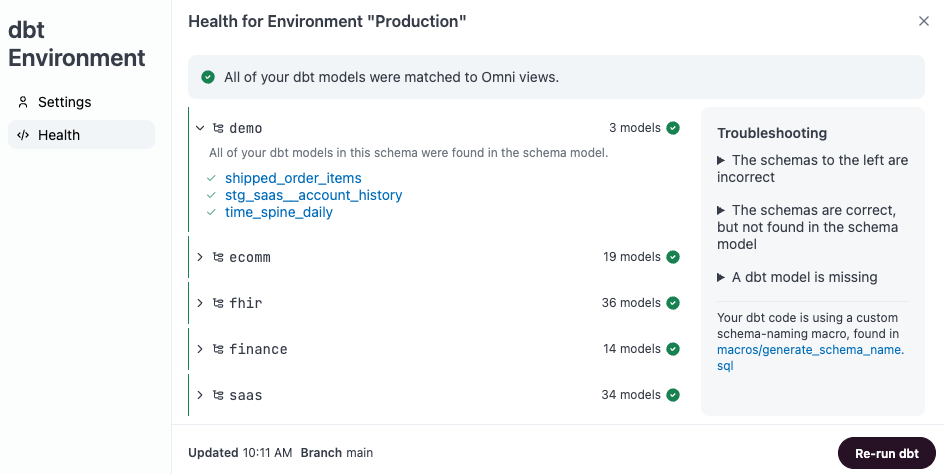
The dbt Health Check verifies that the models defined in your dbt project code exist in your warehouse and are accessible by the Omni service account. When your **code truth** (dbt manifest) and **database truth** (physical tables and views) are out of sync, Omni cannot accurately query or represent your data.
## Common questions
Omni needs read access to all databases and schemas used by your dbt project, including development schemas. See your database's [connection setup guide](/connect-data/setup/index) to verify the required permissions. If you're using dbt, make sure those grants also cover your dbt schemas — and where your database supports it, use future grants so new models are accessible after each build.
The Health Check window includes information about the status of all mapped models in Omni. See [Accessing the Health Check](#accessing-the-health-check) for step-by-step instructions.
## Limitations
**Ephemeral models won't appear in the health check.** Models materialized as `ephemeral` are processed as CTEs and don't exist as physical tables in your warehouse.
## Requirements
To use the dbt Health Check, you'll need:
* An Omni connection with a [configured dbt integration](/integrations/dbt/setup)
* **Querier**, **Modeler**, or **Connection Admin** permissions
## Accessing the health check
You have two options to check the status of your dbt environment: through the model IDE or in the connection's settings.
### Option 1: Use the model IDE
In Omni, click **Develop**.
Click the model you want to work with.
In the footer of the IDE, click the **Health** link (often accompanied by a status icon) to open the Health Check window.
 ### Option 2: Use the connection's settings
This option requires **Connection Admin** permissions.
In Omni, click **Settings**.
Click **Connections > dbt**.
Scroll down to environments, click the icon next to the environment, and click **Edit**.
Click **Health** on the left hand side of the modal to open the Health Check section.
## Understanding health symbols
The Health Check window uses icons to indicate the mapping status of your models:
| **Symbol** | **Meaning** |
| :--------------------------------------------------------------------------------------- | :-------------------------------------------------------------------------- |
| **Green check** | The model is correctly matched to a view or table in Omni. |
| **Yellow warning** | The model exists in dbt code but could not be found in the database schema. |
| **Red error** | Critical configuration or permission issues are preventing the check. |
### Option 2: Use the connection's settings
This option requires **Connection Admin** permissions.
In Omni, click **Settings**.
Click **Connections > dbt**.
Scroll down to environments, click the icon next to the environment, and click **Edit**.
Click **Health** on the left hand side of the modal to open the Health Check section.
## Understanding health symbols
The Health Check window uses icons to indicate the mapping status of your models:
| **Symbol** | **Meaning** |
| :--------------------------------------------------------------------------------------- | :-------------------------------------------------------------------------- |
| **Green check** | The model is correctly matched to a view or table in Omni. |
| **Yellow warning** | The model exists in dbt code but could not be found in the database schema. |
| **Red error** | Critical configuration or permission issues are preventing the check. |
 ## Troubleshooting checklist
If you're only missing ephemeral models, skip these steps. As noted in [Limitations](#limitations), dbt Health Check doesn't currently display this type of model.
If your dbt models are missing or failing the health check, follow this debugging sequence based on common failure points:
* **Check UI visibility.** Look for the tables in the **All views and fields** section of a workbook. If they're missing, they haven't been ingested into the Omni model layer yet.
* **Try querying the table with SQL**, specifically with its fully qualified name (FQN), for example `DATABASE.SCHEMA.TABLE`.
In a workbook query, open the [SQL editor](/analyze-explore/sql) and run a query:
* If the FQN works but the table is missing from the model IDE, it is likely a metadata or permission issue
* If the FQN fails with `"Object does not exist,"` Omni cannot access the table
For Omni to pull in dbt schemas, the user used to connect the database must have permissions to access and query those schemas. Use the [setup guide for your database](https://docs.omni.co/connect-data/setup/index) to verify that the database user has the required permissions. Make sure those grants cover your dbt schemas as well — both existing objects and, where supported, future objects so new models are accessible after each build.
Verify that the following settings are correctly defined for the underlying connection:
* **Included Schemas:** Check your [model file](/modeling/models) or connection settings for [`included_schemas`](/modeling/models/included-schemas).
If you filtered your connection (e.g., `included_schemas: [omni_dbt]`), Omni will hide all other schemas, including the development ones.
* **Other Databases:** Ensure the database containing your dev schema is listed in the **Other Databases** section of the connection settings. It must be listed here if it differs from the primary connection database.
* **Branch Refresh:** If testing in a branch, verify that [**Branch-based schema refresh**](/modeling/develop/schema-refreshes) is enabled. Updates will not sync to Omni otherwise.
If permissions are correct but models are still missing:
1. [**Refresh the schema**](/modeling/develop/schema-refreshes)**.** In the model IDE, click **Model > Refresh Schema**. You can scope this to your specific dev schema to save time.
2. **Rerun dbt Health.** In the Health Check window, click **Re-run dbt**. This pulls the latest Git manifest and recompiles the project.
3. **Sync dbt Metadata.** In the model IDE, click **Model > Sync dbt Metadata** to align your virtual schemas with the latest warehouse state.
Lastly, check the following in dbt:
* **Environment Variables.** If your project uses variables like `DBT_CLOUD_ENVIRONMENT_TYPE` to name schemas, ensure these are defined in Omni's **dbt environment settings**.
* **Run `dbt clone`.** Running `dbt clone` helps sync your dev environment with production, but remember that cloned objects still require the permissions mentioned in the previous step if future grants aren't active.
## Related
* [Set up the dbt integration](/integrations/dbt/setup)
* [Work with dbt models in Omni](/integrations/dbt/models)
* [Schema refreshes](/modeling/develop/schema-refreshes)
## Troubleshooting checklist
If you're only missing ephemeral models, skip these steps. As noted in [Limitations](#limitations), dbt Health Check doesn't currently display this type of model.
If your dbt models are missing or failing the health check, follow this debugging sequence based on common failure points:
* **Check UI visibility.** Look for the tables in the **All views and fields** section of a workbook. If they're missing, they haven't been ingested into the Omni model layer yet.
* **Try querying the table with SQL**, specifically with its fully qualified name (FQN), for example `DATABASE.SCHEMA.TABLE`.
In a workbook query, open the [SQL editor](/analyze-explore/sql) and run a query:
* If the FQN works but the table is missing from the model IDE, it is likely a metadata or permission issue
* If the FQN fails with `"Object does not exist,"` Omni cannot access the table
For Omni to pull in dbt schemas, the user used to connect the database must have permissions to access and query those schemas. Use the [setup guide for your database](https://docs.omni.co/connect-data/setup/index) to verify that the database user has the required permissions. Make sure those grants cover your dbt schemas as well — both existing objects and, where supported, future objects so new models are accessible after each build.
Verify that the following settings are correctly defined for the underlying connection:
* **Included Schemas:** Check your [model file](/modeling/models) or connection settings for [`included_schemas`](/modeling/models/included-schemas).
If you filtered your connection (e.g., `included_schemas: [omni_dbt]`), Omni will hide all other schemas, including the development ones.
* **Other Databases:** Ensure the database containing your dev schema is listed in the **Other Databases** section of the connection settings. It must be listed here if it differs from the primary connection database.
* **Branch Refresh:** If testing in a branch, verify that [**Branch-based schema refresh**](/modeling/develop/schema-refreshes) is enabled. Updates will not sync to Omni otherwise.
If permissions are correct but models are still missing:
1. [**Refresh the schema**](/modeling/develop/schema-refreshes)**.** In the model IDE, click **Model > Refresh Schema**. You can scope this to your specific dev schema to save time.
2. **Rerun dbt Health.** In the Health Check window, click **Re-run dbt**. This pulls the latest Git manifest and recompiles the project.
3. **Sync dbt Metadata.** In the model IDE, click **Model > Sync dbt Metadata** to align your virtual schemas with the latest warehouse state.
Lastly, check the following in dbt:
* **Environment Variables.** If your project uses variables like `DBT_CLOUD_ENVIRONMENT_TYPE` to name schemas, ensure these are defined in Omni's **dbt environment settings**.
* **Run `dbt clone`.** Running `dbt clone` helps sync your dev environment with production, but remember that cloned objects still require the permissions mentioned in the previous step if future grants aren't active.
## Related
* [Set up the dbt integration](/integrations/dbt/setup)
* [Work with dbt models in Omni](/integrations/dbt/models)
* [Schema refreshes](/modeling/develop/schema-refreshes)