> ## Documentation Index
> Fetch the complete documentation index at: https://docs.omni.co/llms.txt
> Use this file to discover all available pages before exploring further.

# Customize drill fields

> Curate the columns displayed to users when drilling.

export const categoryIcons = {
  'administration': 'lock',
  'api': 'terminal',
  'connections': 'database',
  'dashboards': 'table-columns',
  'embed': 'code',
  'errors': 'exclamation',
  'modeling': 'wrench',
  'patterns': 'plus',
  'schedules & alerts': 'envelope',
  'visualizations': 'chart-column',
  'workbooks': 'book'
};

export const GuideSidebar = ({category, relatedLinks, updatedDate}) => {
  const [progress, setProgress] = React.useState(0);
  React.useEffect(() => {
    const sidebar = document.querySelector('.guide-sidebar');
    if (!sidebar) return;
    let container = sidebar.parentElement;
    while (container && !container.querySelector('.guide-header')) {
      container = container.parentElement;
    }
    if (container && !container.classList.contains('guide-page-layout')) {
      container.classList.add('guide-page-layout');
    }
  }, []);
  React.useEffect(() => {
    const handleScroll = () => {
      const scrollTop = window.scrollY;
      const docHeight = document.documentElement.scrollHeight - window.innerHeight;
      const scrollPercent = docHeight > 0 ? scrollTop / docHeight * 100 : 0;
      setProgress(Math.min(100, Math.max(0, scrollPercent)));
    };
    window.addEventListener('scroll', handleScroll, {
      passive: true
    });
    handleScroll();
    return () => window.removeEventListener('scroll', handleScroll);
  }, []);
  const icon = category ? categoryIcons[category.toLowerCase()] || 'book' : 'book';
  return <aside className="guide-sidebar">
      <div className="guide-sidebar-content">
        <a href="/guides" className="guide-sidebar-back">
          <Icon icon="arrow-left" iconType="solid" size={14} />
          <span>All guides</span>
        </a>

        <div className="guide-sidebar-section">
          <div className="guide-sidebar-label">Progress</div>
          <div className="guide-sidebar-progress">
            <div className="guide-mascot">
              <svg viewBox="0 0 688 690" width="48" height="48">
                <defs>
                  <clipPath id="progressClip">
                    <rect x="0" y={0} width="688" height={progress * 6.9} />
                  </clipPath>
                </defs>

                {}
                <path d="M343.67 1.5C542.684 1.5 685.84 149.351 685.84 344.84C685.84 540.328 542.685 688.18 343.67 688.18C144.655 688.18 1.5 540.318 1.5 344.84C1.50007 149.361 144.655 1.50005 343.67 1.5Z" fill="#FCFCF7" stroke="#FF5FA2" strokeWidth="3" />

                {}
                <path d="M343.67 0C143.81 0 0 148.55 0 344.84C0 541.13 143.81 689.68 343.67 689.68C543.53 689.68 687.34 541.14 687.34 344.84C687.34 148.54 543.53 0 343.67 0Z" fill="#FF5FA2" clipPath="url(#progressClip)" />

                {}
                <path d="M337.89 319.29C337.89 336.75 322.49 350.14 302.81 349.83C286.18 349.57 273.89 337.29 274.37 321.45C274.88 304.82 290.91 290.88 309.98 290.44C325.69 290.09 337.88 302.69 337.88 319.29H337.89Z" fill="#4D122C" />
                <path d="M566.17 319.29C566.17 336.75 550.77 350.14 531.09 349.83C514.46 349.57 502.17 337.29 502.65 321.45C503.16 304.82 519.19 290.88 538.26 290.44C553.97 290.09 566.16 302.69 566.16 319.29H566.17Z" fill="#4D122C" />
                <path d="M367.74 342.07C360.22 346.32 359.4 354.9 370.62 366.4C381.85 377.9 399.76 389.56 420.81 389.18C441.88 389.1 460.67 377.72 472.47 363.53C473.83 361.93 478.84 356.88 478.51 351.07C478.32 348.35 476.17 341.19 467.83 341.38C463.46 341.44 461.21 343.68 456.69 347.36C445.2 356.14 432.7 361.21 420.56 361.27C408.43 361.43 395.68 356.17 385.39 347.22C380.32 342.81 375.25 337.82 367.74 342.07Z" fill="#4D122C" />
              </svg>
            </div>
            <span className="guide-sidebar-progress-text">{Math.round(progress)}%</span>
          </div>
        </div>

        {category && <div className="guide-sidebar-section">
            <div className="guide-sidebar-label">Category</div>
            <div className="guide-sidebar-category">
              <Icon icon={icon} iconType="solid" size={14} />
              <span>{category}</span>
            </div>
          </div>}

        {updatedDate && <div className="guide-sidebar-section">
            <div className="guide-sidebar-label">Last updated</div>
            <div className="guide-sidebar-date">{updatedDate}</div>
          </div>}

        {relatedLinks && relatedLinks.length > 0 && <div className="guide-sidebar-section">
            <div className="guide-sidebar-label">Related</div>
            <ul className="guide-sidebar-links">
              {relatedLinks.map((link, index) => <li key={index}>
                  <a href={link.href}>{link.title}</a>
                </li>)}
            </ul>
          </div>}
      </div>
    </aside>;
};

export const GuideTitle = ({title}) => {
  return <div className="guide-header">
      <h1 className="guide-title">{title}</h1>
    </div>;
};

<GuideSidebar
  categoryIcons={categoryIcons}
  category="workbooks"
  updatedDate="December 2025"
  relatedLinks={[
{ title: "Measure drill fields", href: "/modeling/measures/parameters/drill-fields" },
{ title: "Default drill fields for views", href: "/modeling/views/parameters/default-drill-fields" }
]}
/>

<GuideTitle title="Customize drill fields" />

Drilling is a great way to invite users to dig deeper into the data. For example, if you have a measure `Order Items Count` with a value of `10`, drilling lets you see more details on those 10 order items.

By default, when you drill, Omni will show the first 10 columns defined in your view. However, you can curate what columns are shown upon drilling in the workbook or the model IDE.

## Option 1: Workbook

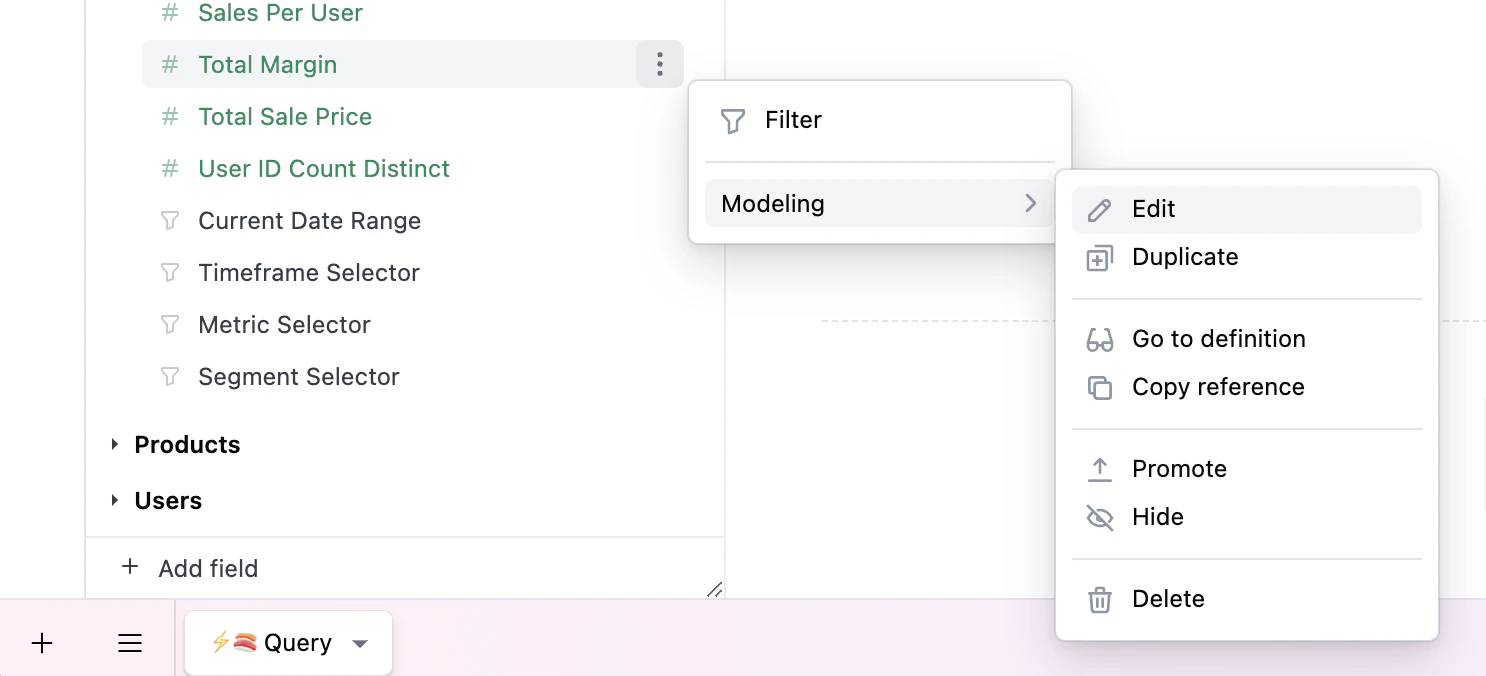
1. In a workbook query tab, click <Icon icon="ellipsis-vertical" iconType="solid" /> and select **Modeling > Edit**:
   <img src="https://mintcdn.com/omni-e7402367/Ueaby5Zd9SfduDZ-/guides/workbooks/images/custom-drill-fields-workbook.png?fit=max&auto=format&n=Ueaby5Zd9SfduDZ-&q=85&s=af4049143d018386eef8fe7b6f1066b2" alt="" width="1486" height="676" data-path="guides/workbooks/images/custom-drill-fields-workbook.png" />
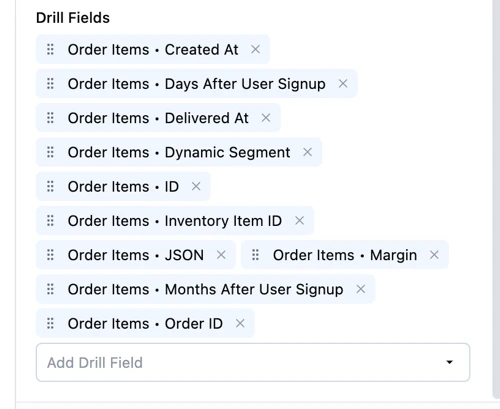
2. Use the **Drill fields** section to add, remove, and reorder the drill fields:
   <img src="https://mintcdn.com/omni-e7402367/Ueaby5Zd9SfduDZ-/guides/workbooks/images/custom-drill-field-order.png?fit=max&auto=format&n=Ueaby5Zd9SfduDZ-&q=85&s=d2f922c94389542eec33749a5bd3bcc5" alt="" width="500" height="409" data-path="guides/workbooks/images/custom-drill-field-order.png" />

<Note>
  These changes will only exist for this workbook unless you [promote them to the shared model](/modeling/develop/promotion).
</Note>

## Option 2: Model IDE

To customize the available drill fields on a measure, use the [`drill_fields` parameter](/modeling/measures/parameters/drill-fields):

```yaml title="Measure with specific drill fields" theme={null}
count:
  drill_fields:
    [
      users.id,
      users.full_name,
      users.email,
      users.age,
      users.state,
      users.country,
      "users.created_at[date]"
    ]
  aggregate_type: count
```

You can also specify a default set of drill fields for all measures in a view with the [`default_drill_fields` view parameter](/modeling/views/parameters/default-drill-fields):

```yaml title="Default drill fields for order_items view" theme={null}
default_drill_fields:
  [
    id,
    user_id,
    users.full_name,
    inventory_items.product_name,
    sale_price,
    margin,
    "order_items.created_at[date]",
    status
  ]
```