> ## Documentation Index
> Fetch the complete documentation index at: https://docs.omni.co/llms.txt
> Use this file to discover all available pages before exploring further.

<AgentInstructions>

## Submitting Feedback

If you encounter incorrect, outdated, or confusing documentation on this page, submit feedback:

POST https://docs.omni.co/feedback

```json
{
  "path": "/guides/patterns/simple-cohort-analysis-pivot",
  "feedback": "Description of the issue"
}
```

Only submit feedback when you have something specific and actionable to report.

</AgentInstructions>

# Building a basic cohort analysis with pivots

> Build a cohort analysis using pivots in Omni to track user retention, engagement, and behavior over time.

export const categoryIcons = {
  'administration': 'lock',
  'api': 'terminal',
  'connections': 'database',
  'dashboards': 'table-columns',
  'embed': 'code',
  'errors': 'exclamation',
  'modeling': 'wrench',
  'patterns': 'plus',
  'schedules & alerts': 'envelope',
  'visualizations': 'chart-column',
  'workbooks': 'book'
};

export const GuideSidebar = ({category, relatedLinks, updatedDate}) => {
  const [progress, setProgress] = React.useState(0);
  React.useEffect(() => {
    const sidebar = document.querySelector('.guide-sidebar');
    if (!sidebar) return;
    let container = sidebar.parentElement;
    while (container && !container.querySelector('.guide-header')) {
      container = container.parentElement;
    }
    if (container && !container.classList.contains('guide-page-layout')) {
      container.classList.add('guide-page-layout');
    }
  }, []);
  React.useEffect(() => {
    const handleScroll = () => {
      const scrollTop = window.scrollY;
      const docHeight = document.documentElement.scrollHeight - window.innerHeight;
      const scrollPercent = docHeight > 0 ? scrollTop / docHeight * 100 : 0;
      setProgress(Math.min(100, Math.max(0, scrollPercent)));
    };
    window.addEventListener('scroll', handleScroll, {
      passive: true
    });
    handleScroll();
    return () => window.removeEventListener('scroll', handleScroll);
  }, []);
  const icon = category ? categoryIcons[category.toLowerCase()] || 'book' : 'book';
  return <aside className="guide-sidebar">
      <div className="guide-sidebar-content">
        <a href="/guides" className="guide-sidebar-back">
          <Icon icon="arrow-left" iconType="solid" size={14} />
          <span>All guides</span>
        </a>

        <div className="guide-sidebar-section">
          <div className="guide-sidebar-label">Progress</div>
          <div className="guide-sidebar-progress">
            <div className="guide-mascot">
              <svg viewBox="0 0 450 450" width="48" height="48">
                <defs>
                  <clipPath id="progressClip">
                    <rect x="0" y={450 - progress * 4.5} width="450" height={progress * 4.5} />
                  </clipPath>
                  <linearGradient id="blobbyGradient" x1="55.9753" y1="0" x2="492.197" y2="169.724" gradientUnits="userSpaceOnUse">
                    <stop stopColor="#BCA2F3" />
                    <stop offset="0.572917" stopColor="#FF7AA2" />
                    <stop offset="1" stopColor="#F3D4A2" />
                  </linearGradient>
                </defs>

                {}
                <circle cx="223.901" cy="223.901" r="213.901" transform="matrix(-0.999988 -0.0049013 0.00491945 -0.999988 447.797 449.992)" fill="#FAFAFA" stroke="#480B38" strokeWidth="20" />

                {}
                <circle cx="223.901" cy="223.901" r="213.901" transform="matrix(-0.999988 -0.0049013 0.00491945 -0.999988 447.797 449.992)" fill="url(#blobbyGradient)" stroke="#480B38" strokeWidth="20" clipPath="url(#progressClip)" />

                {}
                <path d="M310.41 195.084C310.41 200.052 301.362 212.472 284.328 212.472C266.585 212.472 258.246 201.294 258.246 195.912" stroke="#480B38" strokeWidth="17.3883" strokeMiterlimit="1.33344" strokeLinecap="round" />
                <circle cx="21.168" cy="21.168" r="21.168" transform="matrix(-1 0 0 1 388.658 169.001)" fill="#480B38" />
                <circle cx="21.168" cy="21.168" r="21.168" transform="matrix(-1 0 0 1 223.467 169.001)" fill="#480B38" />
              </svg>
            </div>
            <span className="guide-sidebar-progress-text">{Math.round(progress)}%</span>
          </div>
        </div>

        {category && <div className="guide-sidebar-section">
            <div className="guide-sidebar-label">Category</div>
            <div className="guide-sidebar-category">
              <Icon icon={icon} iconType="solid" size={14} />
              <span>{category}</span>
            </div>
          </div>}

        {updatedDate && <div className="guide-sidebar-section">
            <div className="guide-sidebar-label">Last updated</div>
            <div className="guide-sidebar-date">{updatedDate}</div>
          </div>}

        {relatedLinks && relatedLinks.length > 0 && <div className="guide-sidebar-section">
            <div className="guide-sidebar-label">Related</div>
            <ul className="guide-sidebar-links">
              {relatedLinks.map((link, index) => <li key={index}>
                  <a href={link.href}>{link.title}</a>
                </li>)}
            </ul>
          </div>}
      </div>
    </aside>;
};

export const GuideTitle = ({title}) => {
  return <div className="guide-header">
      <h1 className="guide-title">{title}</h1>
    </div>;
};

<GuideSidebar
  categoryIcons={categoryIcons}
  category="patterns"
  updatedDate="March 2026"
  relatedLinks={[
{ title: "Cohort analysis using a thin spine", href: "/guides/patterns/spine-cohort-analysis" },
{ title: "Table visualizations", href: "/visualize-present/visualizations/types/table" },
{ title: "Querying data", href: "/analyze-explore/point-click-queries" }
]}
/>

<GuideTitle title="Building a basic cohort analysis with pivots" />

Create a cohort analysis to understand how specific groups of users behave over time. By comparing different cohorts, you can identify patterns in retention, engagement, or purchasing behavior.

<Steps>
  <Step title="Create the cohort grid" titleSize="h2">
    To build your initial cohort, follow these steps:

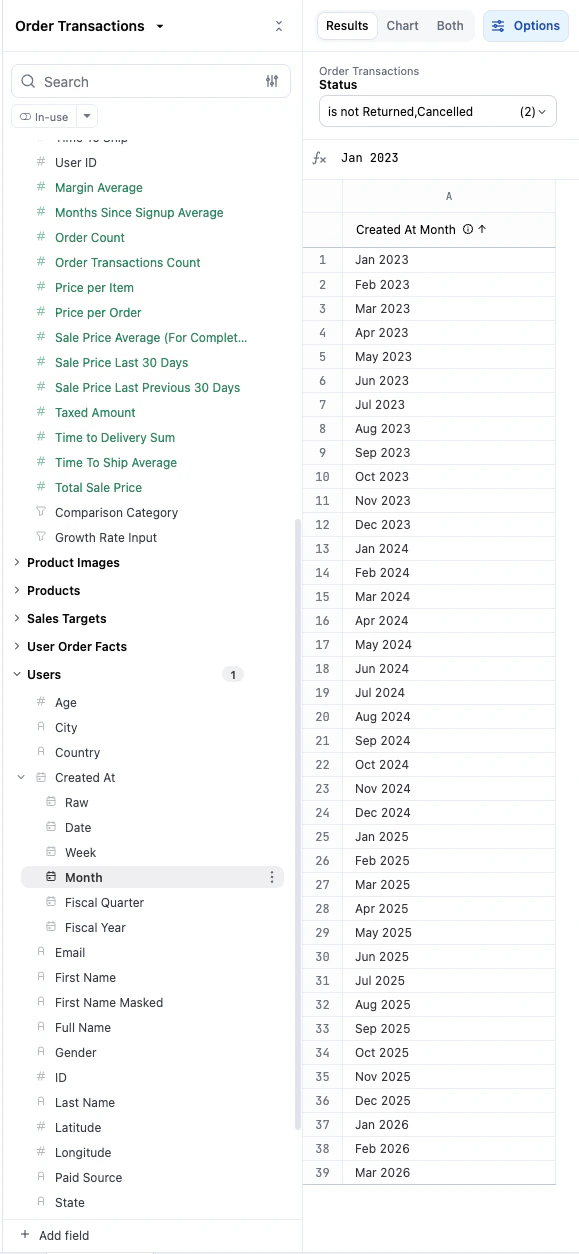
    1. Choose a fixed dimension, such as the date a user was created. This date acts as your cohort identifier and should be placed on the X-axis.

           <img src="https://mintcdn.com/omni-e7402367/5d5mAUkHGXUw8Nf5/guides/patterns/images/pivot-cohort-cohort-date.png?fit=max&auto=format&n=5d5mAUkHGXUw8Nf5&q=85&s=783544140a29a43bf22271ad47adce3a" alt="Cohort date field selected in the Omni query builder" width="579" height="1254" data-path="guides/patterns/images/pivot-cohort-cohort-date.png" />

    2. Choose the date representing the behavior or activity you want to track.

    3. [Pivot](/analyze-explore/point-click-queries) the activity date to see how activity changes over subsequent periods.
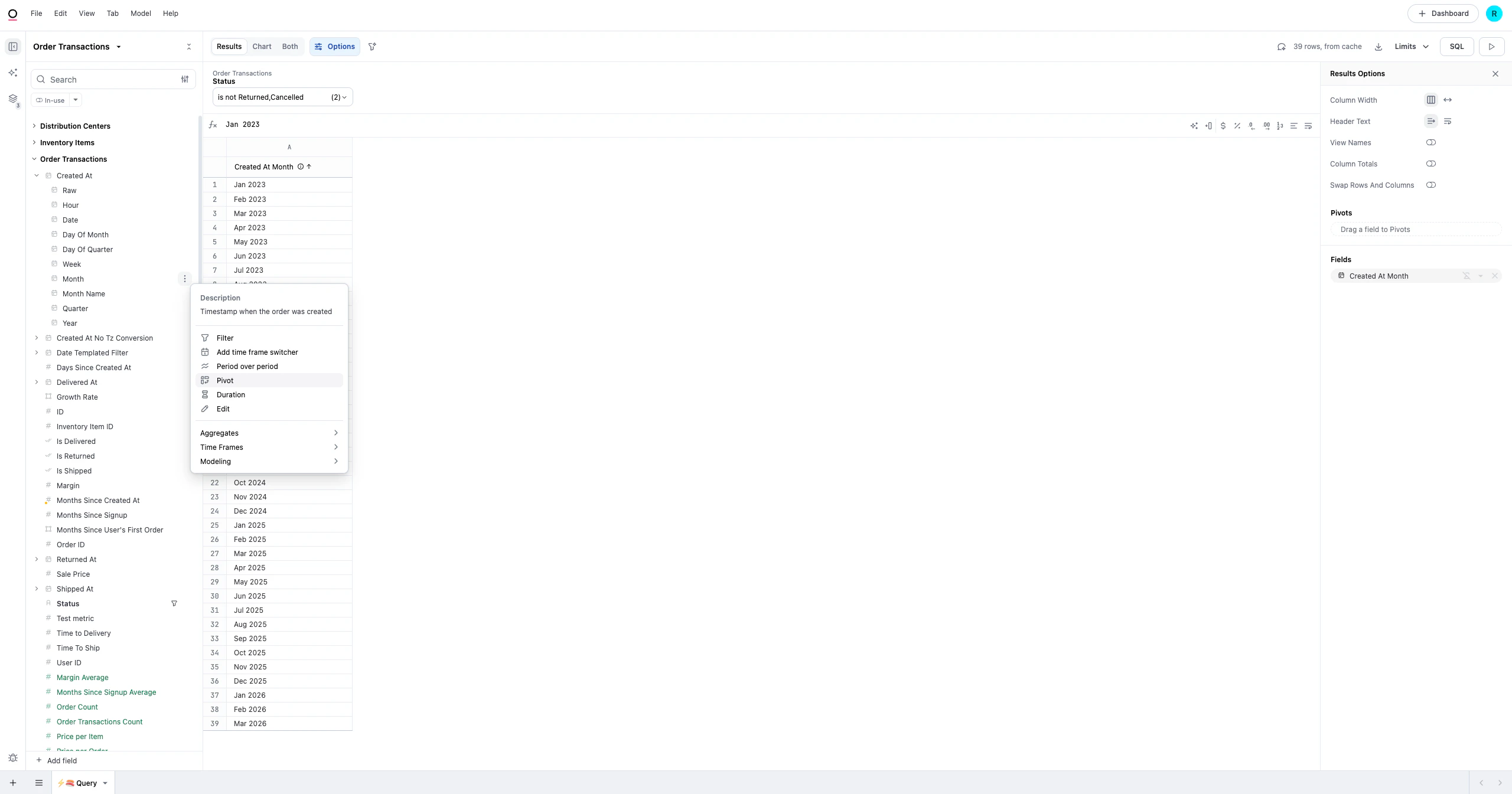
           <img src="https://mintcdn.com/omni-e7402367/5d5mAUkHGXUw8Nf5/guides/patterns/images/pivot-cohort-pivot-date.png?fit=max&auto=format&n=5d5mAUkHGXUw8Nf5&q=85&s=4cc8baec962905915e64f4b42fd3643c" alt="Activity date pivoted in the Omni query builder" width="2560" height="1345" data-path="guides/patterns/images/pivot-cohort-pivot-date.png" />

    4. Choose a measure that reflects the behavior you are analyzing, such as a **Count** or **Count Distinct** of a specific action.
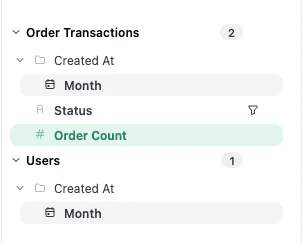
           <img src="https://mintcdn.com/omni-e7402367/5d5mAUkHGXUw8Nf5/guides/patterns/images/pivot-cohort-fields-selected.png?fit=max&auto=format&n=5d5mAUkHGXUw8Nf5&q=85&s=dcb547187b2f2332ee4cf86a713f2036" alt="Selected fields in the Omni query builder" width="302" height="243" data-path="guides/patterns/images/pivot-cohort-fields-selected.png" />

    5. Review the results. Omni automatically generates the "cohort triangle" visualization based on these selections.
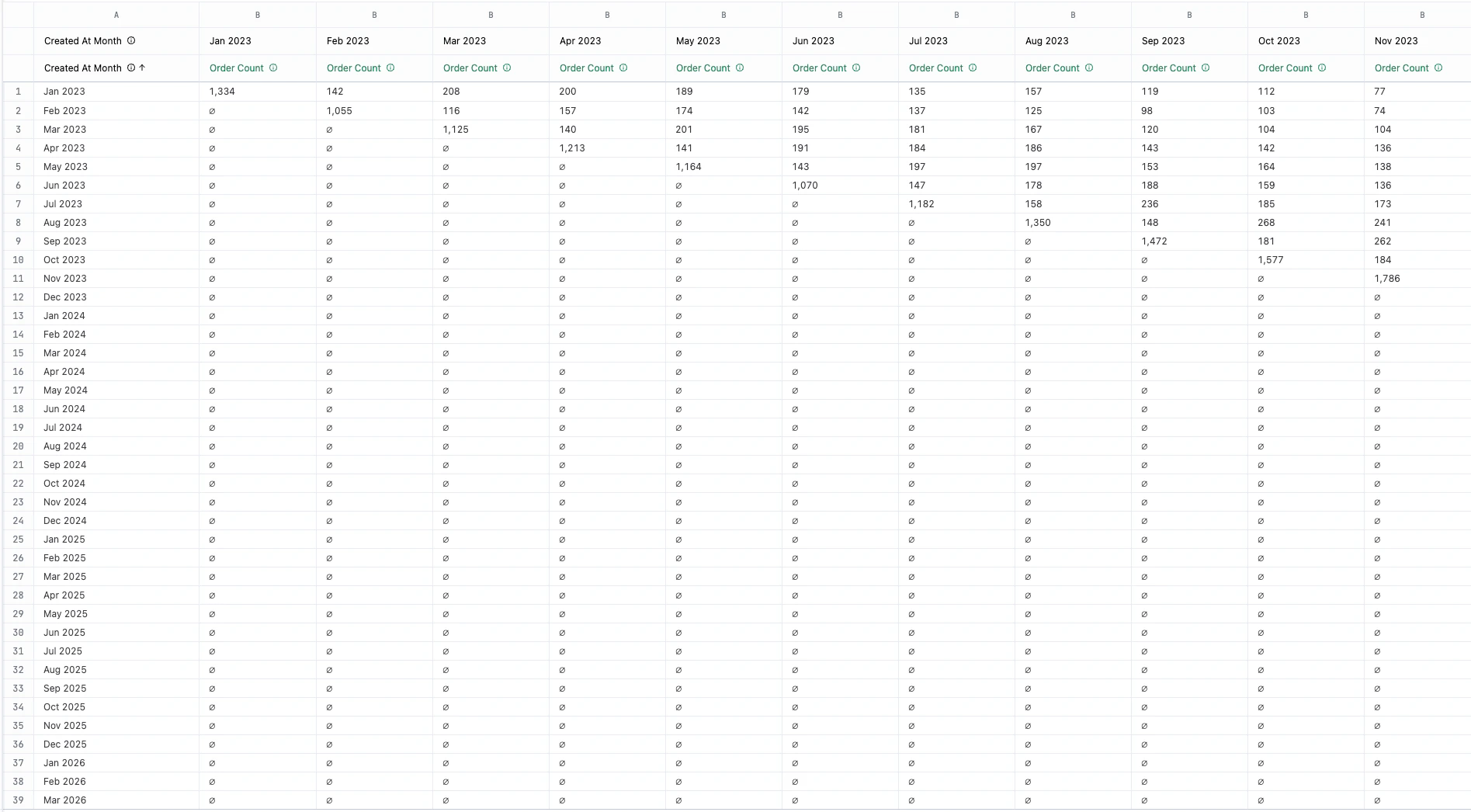
           <img src="https://mintcdn.com/omni-e7402367/5d5mAUkHGXUw8Nf5/guides/patterns/images/pivot-cohort-results.png?fit=max&auto=format&n=5d5mAUkHGXUw8Nf5&q=85&s=0e022a260d315a11aa6d5ba721d189f4" alt="Cohort triangle results in Omni" width="1895" height="1046" data-path="guides/patterns/images/pivot-cohort-results.png" />
  </Step>

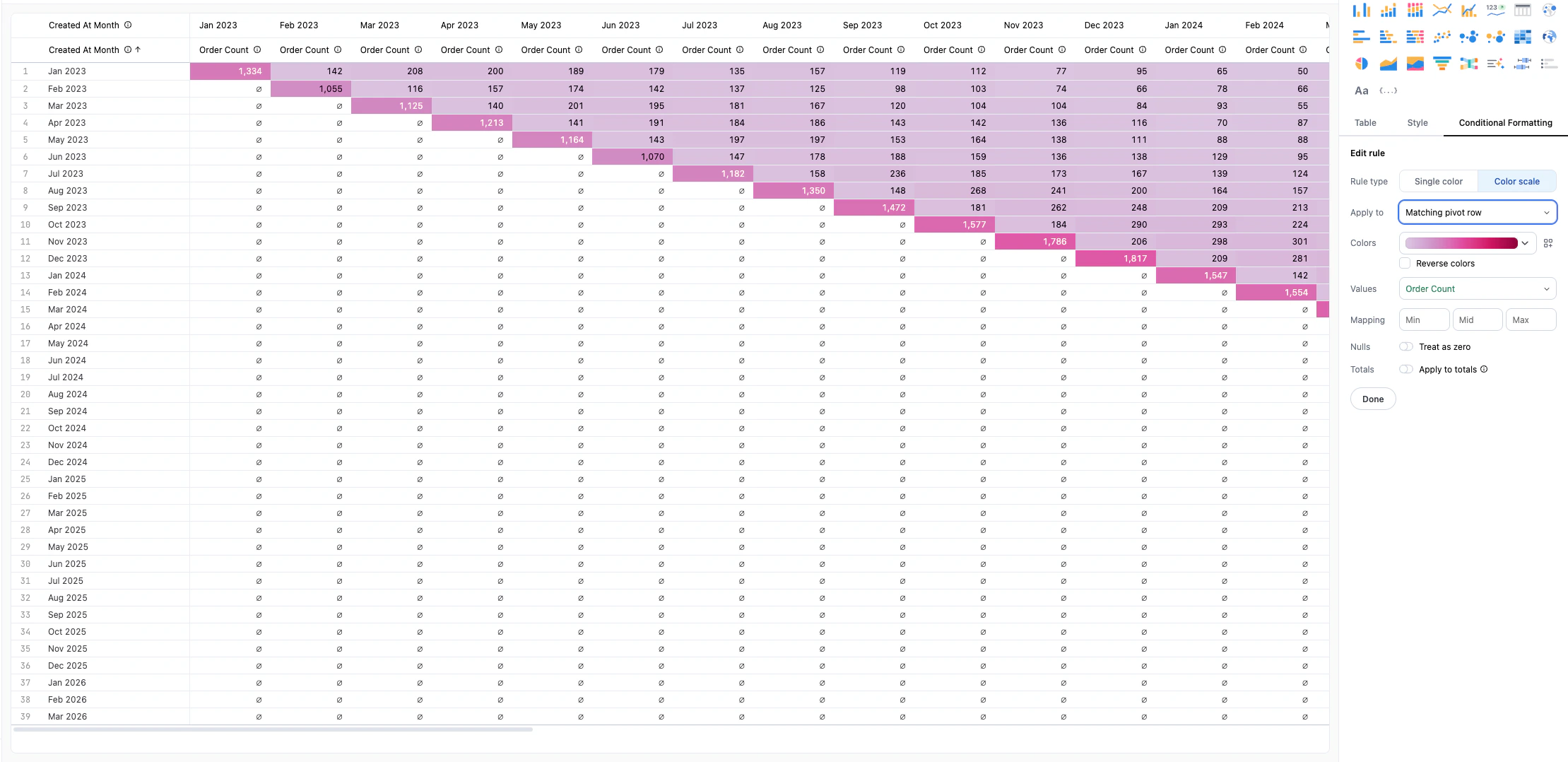
  <Step title="Visualize with conditional formatting" titleSize="h2">
    You can make your analysis more readable by applying a color scale to the table:

    1. In the **Visualizations** tab, select the **Table** visualization.
    2. Click the [**Conditional Formatting** tab](/visualize-present/visualizations/types/table#conditional-formatting-options) in the **Chart Options** panel.
    3. For **Rule type**, select **Color Scale**.
    4. In **Apply to**, select the measure to apply the scale against. This visually highlights how each cohort is performing relative to others.

           <img src="https://mintcdn.com/omni-e7402367/5d5mAUkHGXUw8Nf5/guides/patterns/images/pivot-cohort-visualization.png?fit=max&auto=format&n=5d5mAUkHGXUw8Nf5&q=85&s=5f5298587c231c8f396e1d8652d3faaa" alt="Table visualization with color scale applied to cohort data" width="2219" height="1078" data-path="guides/patterns/images/pivot-cohort-visualization.png" />

    <Tip>
      **Use a sequential color scale** (e.g., light to dark) to quickly identify where retention or engagement drops off across different time periods.
    </Tip>
  </Step>
</Steps>

## Video walkthrough

<iframe className="w-full aspect-video rounded-xl" src="https://www.loom.com/embed/37f0243c04724370a27d629ff18358cc" title="Building a simple cohort analysis with pivots" frameBorder="0" allow="accelerometer; autoplay; clipboard-write; encrypted-media; gyroscope; picture-in-picture" allowFullScreen />

## Next steps

* [Learn more about table visualizations](/visualize-present/visualizations/types/table) to further customize your view.
* [Explore advanced querying](/analyze-explore/point-click-queries) to add filters or custom calculations to your cohort.
