> ## Documentation Index
> Fetch the complete documentation index at: https://docs.omni.co/llms.txt
> Use this file to discover all available pages before exploring further.

# Deploying Omni at scale with shared model extensions

> Learn how to use Shared Model Extensions to manage large Omni deployments across multiple data teams.

export const categoryIcons = {
  'administration': 'lock',
  'api': 'terminal',
  'connections': 'database',
  'dashboards': 'table-columns',
  'embed': 'code',
  'errors': 'exclamation',
  'modeling': 'wrench',
  'patterns': 'plus',
  'schedules & alerts': 'envelope',
  'visualizations': 'chart-column',
  'workbooks': 'book'
};

export const GuideSidebar = ({category, relatedLinks, updatedDate}) => {
  const [progress, setProgress] = React.useState(0);
  React.useEffect(() => {
    const sidebar = document.querySelector('.guide-sidebar');
    if (!sidebar) return;
    let container = sidebar.parentElement;
    while (container && !container.querySelector('.guide-header')) {
      container = container.parentElement;
    }
    if (container && !container.classList.contains('guide-page-layout')) {
      container.classList.add('guide-page-layout');
    }
  }, []);
  React.useEffect(() => {
    const handleScroll = () => {
      const scrollTop = window.scrollY;
      const docHeight = document.documentElement.scrollHeight - window.innerHeight;
      const scrollPercent = docHeight > 0 ? scrollTop / docHeight * 100 : 0;
      setProgress(Math.min(100, Math.max(0, scrollPercent)));
    };
    window.addEventListener('scroll', handleScroll, {
      passive: true
    });
    handleScroll();
    return () => window.removeEventListener('scroll', handleScroll);
  }, []);
  const icon = category ? categoryIcons[category.toLowerCase()] || 'book' : 'book';
  return <aside className="guide-sidebar">
      <div className="guide-sidebar-content">
        <a href="/guides" className="guide-sidebar-back">
          <Icon icon="arrow-left" iconType="solid" size={14} />
          <span>All guides</span>
        </a>

        <div className="guide-sidebar-section">
          <div className="guide-sidebar-label">Progress</div>
          <div className="guide-sidebar-progress">
            <div className="guide-mascot">
              <svg viewBox="0 0 450 450" width="48" height="48">
                <defs>
                  <clipPath id="progressClip">
                    <rect x="0" y={450 - progress * 4.5} width="450" height={progress * 4.5} />
                  </clipPath>
                  <linearGradient id="blobbyGradient" x1="55.9753" y1="0" x2="492.197" y2="169.724" gradientUnits="userSpaceOnUse">
                    <stop stopColor="#BCA2F3" />
                    <stop offset="0.572917" stopColor="#FF7AA2" />
                    <stop offset="1" stopColor="#F3D4A2" />
                  </linearGradient>
                </defs>

                {}
                <circle cx="223.901" cy="223.901" r="213.901" transform="matrix(-0.999988 -0.0049013 0.00491945 -0.999988 447.797 449.992)" fill="#FAFAFA" stroke="#480B38" strokeWidth="20" />

                {}
                <circle cx="223.901" cy="223.901" r="213.901" transform="matrix(-0.999988 -0.0049013 0.00491945 -0.999988 447.797 449.992)" fill="url(#blobbyGradient)" stroke="#480B38" strokeWidth="20" clipPath="url(#progressClip)" />

                {}
                <path d="M310.41 195.084C310.41 200.052 301.362 212.472 284.328 212.472C266.585 212.472 258.246 201.294 258.246 195.912" stroke="#480B38" strokeWidth="17.3883" strokeMiterlimit="1.33344" strokeLinecap="round" />
                <circle cx="21.168" cy="21.168" r="21.168" transform="matrix(-1 0 0 1 388.658 169.001)" fill="#480B38" />
                <circle cx="21.168" cy="21.168" r="21.168" transform="matrix(-1 0 0 1 223.467 169.001)" fill="#480B38" />
              </svg>
            </div>
            <span className="guide-sidebar-progress-text">{Math.round(progress)}%</span>
          </div>
        </div>

        {category && <div className="guide-sidebar-section">
            <div className="guide-sidebar-label">Category</div>
            <div className="guide-sidebar-category">
              <Icon icon={icon} iconType="solid" size={14} />
              <span>{category}</span>
            </div>
          </div>}

        {updatedDate && <div className="guide-sidebar-section">
            <div className="guide-sidebar-label">Last updated</div>
            <div className="guide-sidebar-date">{updatedDate}</div>
          </div>}

        {relatedLinks && relatedLinks.length > 0 && <div className="guide-sidebar-section">
            <div className="guide-sidebar-label">Related</div>
            <ul className="guide-sidebar-links">
              {relatedLinks.map((link, index) => <li key={index}>
                  <a href={link.href}>{link.title}</a>
                </li>)}
            </ul>
          </div>}
      </div>
    </aside>;
};

export const GuideTitle = ({title}) => {
  return <div className="guide-header">
      <h1 className="guide-title">{title}</h1>
    </div>;
};

<GuideSidebar
  categoryIcons={categoryIcons}
  category="modeling"
  updatedDate="March 2026"
  relatedLinks={[
{ title: "Git integration overview", href: "/integrations/git" },
{ title: "Shared model extensions", href: "/modeling/develop/shared-extensions" },
{ title: "Folders and content sharing", href: "/content/organize#folders" }
]}
/>

<GuideTitle title="Deploying Omni at scale with shared model extensions" />

When you manage multiple departments or distributed data teams, a centralized modeling approach can become a bottleneck. By leveraging a layered system of connections and models, you can empower individual teams to own their data products while you preserve core governance.

This is especially relevant if:

* Your verticalized teams need to own their own data models
* Your central data team is overwhelmed by team-specific metric requests
* You provide custom metrics for external tenants
* You need region-specific localizations or cache policies without altering the core model

This guide walks through a layered architecture for scaling Omni across multiple teams — from choosing how to organize your database connections, to building a governed shared model as your foundation, to letting individual teams extend that model for their own needs. It also covers how to use folders and permissions to control who sees what.

## Structure connections for scale

The first layer of your architecture is the [database connection](/connect-data). Since each [model](/modeling) in Omni is tied to a single database connection, the way you organize your connections directly shapes how you'll structure your models.

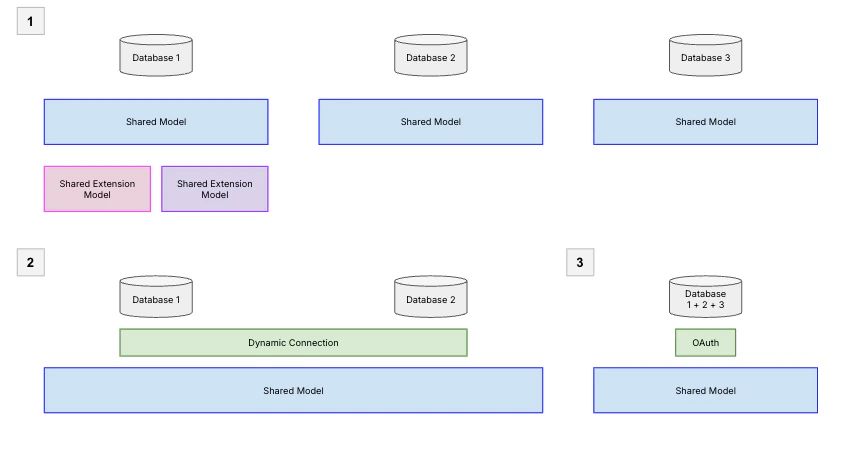
There are two common patterns for connecting databases at scale:

1. **One database per model**: Each database gets its own connection and shared model. This gives you the most isolation — teams can work independently — but it also means managing more models. Use [shared model extensions](#extend-the-shared-model) to let teams customize without duplicating the core model.
2. **Dynamic connections, one model**: Use [dynamic connections](/connect-data/dynamic-environments) to route users to different database connections (e.g., production vs. staging, or region-specific replicas) while sharing a single model definition. Be aware that tables must be structurally consistent across environments, or you'll see validation errors.

Regardless of which pattern you choose, you can also use [OAuth](/connect-data/oauth) to delegate access control to your warehouse. If your database — like Snowflake — already manages user-level permissions, OAuth lets those flow directly into Omni so you don't need to duplicate access controls in the semantic layer. The tradeoff is that OAuth bypasses the shared cache, which means queries will rely solely on the performance of your database.

<img src="https://mintcdn.com/omni-e7402367/HDtmr9jpy498Aisv/guides/modeling/images/multiple-database-connections.png?fit=max&auto=format&n=HDtmr9jpy498Aisv&q=85&s=2835d80aa5d9ae46a73eeb6c5d554cc9" alt="Diagram showing three patterns for connecting multiple databases in Omni" width="843" height="454" data-path="guides/modeling/images/multiple-database-connections.png" />

## Extend the shared model

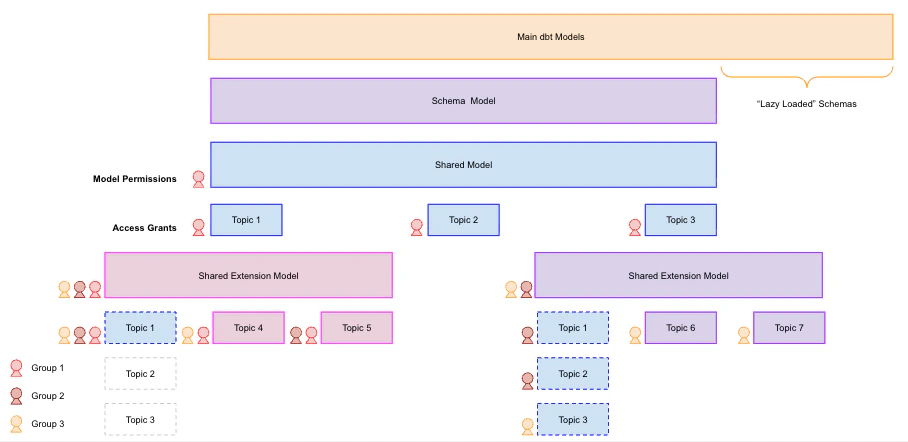
In a distributed organization, your core data team typically governs the **shared model** — the canonical source of truth — while departmental analysts manage [**shared model extensions**](/modeling/develop/shared-extensions). Extensions let teams modify logic in a "forked" environment against the same database connection without affecting the parent model.

Extensions inherit everything from the upstream shared model by default, so they're additive — if you need to exclude specific objects, you'll need to manually hide them. This makes getting started with extensions straightforward, but keep these governance considerations in mind:

* **Upstream logic can be overwritten**: Users with edit permissions to an extension can overwrite any logic from the upstream model, including data access policies. Establish clear ownership and review processes for extension changes.
* **Connection-level access still applies**: Developers can access all views allowed by the underlying connection credentials, regardless of what the model exposes. Keep this in mind when scoping connection permissions.
* **Performance at scale**: As your model grows, use [offloaded schemas](/connect-data/offloading-schemas) to defer loading metadata for specific schemas until they're explicitly needed. This keeps the field browser responsive.
<img src="https://mintcdn.com/omni-e7402367/HDtmr9jpy498Aisv/guides/modeling/images/configure-shared-model-extensions-diagram.png?fit=max&auto=format&n=HDtmr9jpy498Aisv&q=85&s=04a4226e6a7c84bd9f8417ffddb57990" alt="Diagram showing how to configure shared model extensions" width="908" height="442" data-path="guides/modeling/images/configure-shared-model-extensions-diagram.png" />

## Manage version control

<Warning>
  Full Git support for [extension models](/modeling/develop/shared-extensions) is a work in progress. Currently, Git workflows only apply to the base shared model — extensions use Omni's native branching.
</Warning>

If your organization uses Git, you can [integrate it with Omni](/integrations/git) to manage version control for your shared model. When planning your repository structure, there are three common strategies:

| Strategy           | Description                                                                | Best for                                                                              |
| :----------------- | :------------------------------------------------------------------------- | :------------------------------------------------------------------------------------ |
| **Monorepo**       | Parent model and extensions live in one repo; use `CODEOWNERS` for control | Teams that need visibility across models and want to manage dependencies in one place |
| **Isolated repos** | Separate repo per model                                                    | Teams that need strict isolation and independent release cycles                       |
| **Hybrid**         | Sensitive extensions use isolated repos; others use a monorepo             | Organizations balancing security requirements with cross-team collaboration           |

### How Git syncing works

Since Git isn't yet native to extensions, it's important to understand how Omni interacts with your repository:

* **Extensions store diffs, not full models**: Extensions use extension-only mode, recording only changes relative to the parent. This keeps your repo clean but means you can't reconstruct an extension without its parent.
* **Syncs occur only on merge**: Omni monitors for merges to the `main` branch and copies those changes to its internal record. Changes on other branches won't appear until they're merged.
* **Branching may behave differently than expected**: Omni uses its own internal database for version control, so branch behavior may not match standard Git workflows exactly.

## Manage content access

With your shared model and extensions in place, the next step is making sure the right people can access the right content.

### Control document access with folders

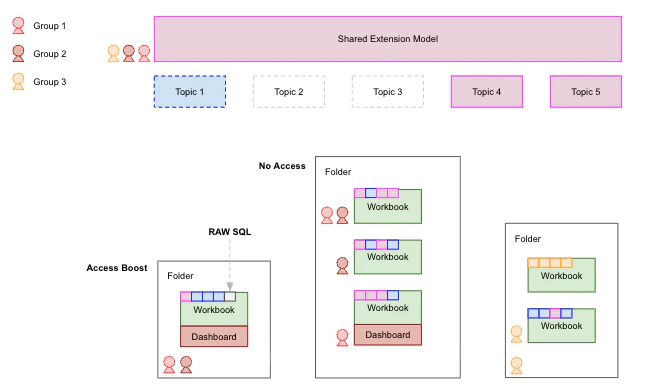
[Folders](/content/organize#folders) are the primary mechanism for controlling who can see and interact with your content. Understanding how permissions cascade from folders to documents will help you design a folder structure that scales with your team.

* **Permissions flow downward**: Workbooks and dashboards inherit permissions from their parent folder. You can grant *broader* access at the document level, but you can't make a document more restrictive than its folder — so plan your folder structure around your most restrictive access needs first.
* **Visibility is model-aware**: Users only see documents associated with models they have permission to access. For workbooks that pull from multiple topics, users will see charts from their authorized topics but get an error for any charts tied to topics they can't access — so avoid mixing broadly-shared and restricted topics in a single workbook when possible.

<img src="https://mintcdn.com/omni-e7402367/HDtmr9jpy498Aisv/guides/modeling/images/shared-model-extension-access-control.png?fit=max&auto=format&n=HDtmr9jpy498Aisv&q=85&s=100ae7a66bda07a6e01ffccc1058a979" alt="Diagram showing shared model extension access control" width="645" height="392" data-path="guides/modeling/images/shared-model-extension-access-control.png" />

### Increase permissions with AccessBoost

In a scaled deployment, you may have dashboards intended for a broad audience — like executives or external stakeholders — who don't need to build their own queries but do need to see results from topics or fields they wouldn't normally have access to.

[AccessBoost](/share#boosting-permissions-with-accessboost) solves this by selectively elevating permissions at the **dashboard** or **folder** level. This allows users with lower-level [connection roles](/administration/users/permissions) - like **Restricted Querier** or **Viewer** — to view all data on a boosted dashboard, even content built with SQL they wouldn't normally have access to.

## Next steps

* [Set up your database connection](/connect-data) and choose a connection pattern
* [Create shared model extensions](/modeling/develop/shared-extensions) for your departmental teams
* [Configure Git integration](/integrations/git) for your shared model
* [Organize content with folders](/content/organize#folders) to manage access across teams