> ## Documentation Index
> Fetch the complete documentation index at: https://docs.omni.co/llms.txt
> Use this file to discover all available pages before exploring further.

<AgentInstructions>

## Submitting Feedback

If you encounter incorrect, outdated, or confusing documentation on this page, submit feedback:

POST https://docs.omni.co/feedback

```json
{
  "path": "/guides/modeling/preview-dbt-changes",
  "feedback": "Description of the issue"
}
```

Only submit feedback when you have something specific and actionable to report.

</AgentInstructions>

# Preview dbt changes in Omni before merging to production

> Preview dbt model changes, including net-new tables and views, in an Omni development environment before merging to production.

export const categoryIcons = {
  'administration': 'lock',
  'api': 'terminal',
  'connections': 'database',
  'dashboards': 'table-columns',
  'embed': 'code',
  'errors': 'exclamation',
  'modeling': 'wrench',
  'patterns': 'plus',
  'schedules & alerts': 'envelope',
  'visualizations': 'chart-column',
  'workbooks': 'book'
};

export const GuideSidebar = ({category, relatedLinks, updatedDate}) => {
  const [progress, setProgress] = React.useState(0);
  React.useEffect(() => {
    const sidebar = document.querySelector('.guide-sidebar');
    if (!sidebar) return;
    let container = sidebar.parentElement;
    while (container && !container.querySelector('.guide-header')) {
      container = container.parentElement;
    }
    if (container && !container.classList.contains('guide-page-layout')) {
      container.classList.add('guide-page-layout');
    }
  }, []);
  React.useEffect(() => {
    const handleScroll = () => {
      const scrollTop = window.scrollY;
      const docHeight = document.documentElement.scrollHeight - window.innerHeight;
      const scrollPercent = docHeight > 0 ? scrollTop / docHeight * 100 : 0;
      setProgress(Math.min(100, Math.max(0, scrollPercent)));
    };
    window.addEventListener('scroll', handleScroll, {
      passive: true
    });
    handleScroll();
    return () => window.removeEventListener('scroll', handleScroll);
  }, []);
  const icon = category ? categoryIcons[category.toLowerCase()] || 'book' : 'book';
  return <aside className="guide-sidebar">
      <div className="guide-sidebar-content">
        <a href="/guides" className="guide-sidebar-back">
          <Icon icon="arrow-left" iconType="solid" size={14} />
          <span>All guides</span>
        </a>

        <div className="guide-sidebar-section">
          <div className="guide-sidebar-label">Progress</div>
          <div className="guide-sidebar-progress">
            <div className="guide-mascot">
              <svg viewBox="0 0 450 450" width="48" height="48">
                <defs>
                  <clipPath id="progressClip">
                    <rect x="0" y={450 - progress * 4.5} width="450" height={progress * 4.5} />
                  </clipPath>
                  <linearGradient id="blobbyGradient" x1="55.9753" y1="0" x2="492.197" y2="169.724" gradientUnits="userSpaceOnUse">
                    <stop stopColor="#BCA2F3" />
                    <stop offset="0.572917" stopColor="#FF7AA2" />
                    <stop offset="1" stopColor="#F3D4A2" />
                  </linearGradient>
                </defs>

                {}
                <circle cx="223.901" cy="223.901" r="213.901" transform="matrix(-0.999988 -0.0049013 0.00491945 -0.999988 447.797 449.992)" fill="#FAFAFA" stroke="#480B38" strokeWidth="20" />

                {}
                <circle cx="223.901" cy="223.901" r="213.901" transform="matrix(-0.999988 -0.0049013 0.00491945 -0.999988 447.797 449.992)" fill="url(#blobbyGradient)" stroke="#480B38" strokeWidth="20" clipPath="url(#progressClip)" />

                {}
                <path d="M310.41 195.084C310.41 200.052 301.362 212.472 284.328 212.472C266.585 212.472 258.246 201.294 258.246 195.912" stroke="#480B38" strokeWidth="17.3883" strokeMiterlimit="1.33344" strokeLinecap="round" />
                <circle cx="21.168" cy="21.168" r="21.168" transform="matrix(-1 0 0 1 388.658 169.001)" fill="#480B38" />
                <circle cx="21.168" cy="21.168" r="21.168" transform="matrix(-1 0 0 1 223.467 169.001)" fill="#480B38" />
              </svg>
            </div>
            <span className="guide-sidebar-progress-text">{Math.round(progress)}%</span>
          </div>
        </div>

        {category && <div className="guide-sidebar-section">
            <div className="guide-sidebar-label">Category</div>
            <div className="guide-sidebar-category">
              <Icon icon={icon} iconType="solid" size={14} />
              <span>{category}</span>
            </div>
          </div>}

        {updatedDate && <div className="guide-sidebar-section">
            <div className="guide-sidebar-label">Last updated</div>
            <div className="guide-sidebar-date">{updatedDate}</div>
          </div>}

        {relatedLinks && relatedLinks.length > 0 && <div className="guide-sidebar-section">
            <div className="guide-sidebar-label">Related</div>
            <ul className="guide-sidebar-links">
              {relatedLinks.map((link, index) => <li key={index}>
                  <a href={link.href}>{link.title}</a>
                </li>)}
            </ul>
          </div>}
      </div>
    </aside>;
};

export const GuideTitle = ({title}) => {
  return <div className="guide-header">
      <h1 className="guide-title">{title}</h1>
    </div>;
};

<GuideSidebar
  categoryIcons={categoryIcons}
  category="modeling"
  updatedDate="April 2026"
  relatedLinks={[
{ title: "Templated filters", href: "/modeling/templated-filters" },
{ title: "Filter-only fields", href: "/modeling/templated-filters/parameters" },
{ title: "Dashboard controls", href: "/visualize-present/dashboards/controls" },
{ title: "Dashboard filters", href: "/visualize-present/dashboards/filters" }
]}
/>

<GuideTitle title="Preview dbt changes in Omni before merging to production" />

This guide explains how to preview dbt model changes, including net-new tables and views, within an Omni development environment. By decoupling the Omni git branch from the dbt branch selector, you can safely validate data and assess downstream impacts before merging changes to your production branch.

## Requirements

To follow the steps in this guide, you'll need:

* A [dbt integration](/integrations/dbt/index) configured on your connection
* A dbt dev environment configured in Omni's dbt settings
* An Omni model branch created for development

## How it works

Omni's model IDE maintains two independent branch controls to help you manage your development workflow:

1. **Omni git branch**: The branch of your Omni model, including field definitions and joins.
2. **dbt branch selector**: Tells Omni which dbt branch's manifest to read from when syncing metadata and resolving schemas.

These are decoupled by design. Switching your Omni git branch doesn't automatically update the dbt branch Omni reads from; you must set both explicitly.

## Steps

<Steps titleSize="h3">
  <Step title="Run your dbt model in dev">
    Execute the model in your dbt development environment and confirm it completes successfully before proceeding.
  </Step>

  <Step title="Commit your dbt changes">
    **Commit** to your dbt branch before continuing, as uncommitted changes are not visible to Omni.
  </Step>

  <Step title="Create or switch to an Omni branch">
    In the model IDE, navigate to **Model > Branch > New branch**. You can also switch to an existing branch.
  </Step>

  <Step title="Activate the dbt dev environment">
    In the Omni model IDE, open the **dbt settings panel** and **Select** your dbt development environment (e.g., `dev`).
  </Step>

  <Step title="Set the dbt branch">
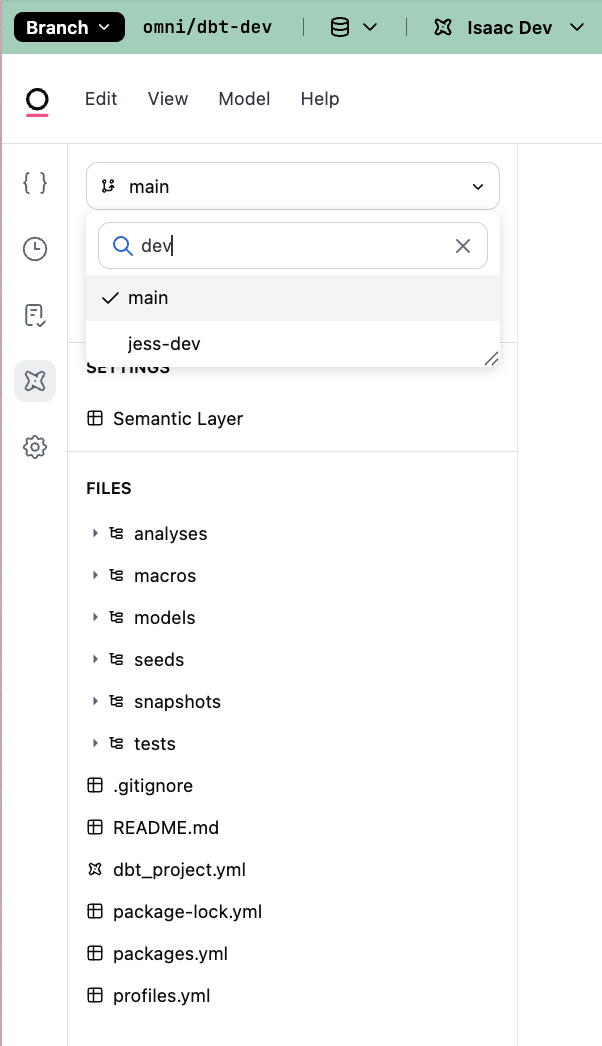
    In the same dbt settings panel, enter the name of your dbt branch. This tells Omni to read the manifest from your feature branch rather than `main`. This step is required for net-new models to appear.

    <Frame>
      <img src="https://mintcdn.com/omni-e7402367/UtFb5h6s9mAXrYg6/images/Screenshot-2026-04-28-at-15.36.35.png?fit=max&auto=format&n=UtFb5h6s9mAXrYg6&q=85&s=f1f453587bed7a07ddeca0315099fd83" alt="Screenshot 2026 04 28 At 15 36 35" width="602" height="1046" data-path="images/Screenshot-2026-04-28-at-15.36.35.png" />
    </Frame>
  </Step>

  <Step title="Refresh the schema">
    In the model IDE, navigate to **Model > Refresh Schema**. Omni will pull the updated manifest and table structures from your dev environment.

    <Tip>
      Omni reads the dbt manifest at the time of schema refresh. If your dbt run hasn't finished when you trigger the refresh, new models may not appear. Wait for the dbt run to complete before refreshing.
    </Tip>
  </Step>

  <Step title="Validate your changes">
    New tables and updated fields should now be visible in the model IDE. Use the [Content Validator](/modeling/develop/content-validator) to check for downstream impacts on existing [dashboards](/visualize-present/dashboards/index).
  </Step>

  <Step title="Merge when ready">
    Once validated, merge your dbt pull request to `main`. Then, merge your [Omni branch](/content/develop/branch-mode) to promote model changes to production.
  </Step>
</Steps>

<Note>
  **New tables vs. field changes**: Field changes to existing models may appear after a schema refresh without setting the dbt branch. However, net-new tables and views require the dbt branch to be explicitly set in step 5.
</Note>

## Next steps

Now that you've validated your dbt changes, you can continue refining your data model:

* **Audit downstream content**: Use the [Content Validator](/modeling/develop/content-validator) to ensure your changes didn't break existing documents.
* **Merge to production**: Once your dbt PR is merged to `main`, update your Omni branch settings to point back to the production dbt branch and merge your Omni changes.

If you run into issues with models not appearing, double-check that your **dbt branch selector** matches your active dbt feature branch exactly.