> ## Documentation Index
> Fetch the complete documentation index at: https://docs.omni.co/llms.txt
> Use this file to discover all available pages before exploring further.

<AgentInstructions>

## Submitting Feedback

If you encounter incorrect, outdated, or confusing documentation on this page, submit feedback:

POST https://docs.omni.co/feedback

```json
{
  "path": "/guides/embed/omni-in-notion",
  "feedback": "Description of the issue"
}
```

Only submit feedback when you have something specific and actionable to report.

</AgentInstructions>

# Embedding Omni in your Notion instance

> Embed Omni dashboards in Notion documents using iframes.

export const categoryIcons = {
  'administration': 'lock',
  'api': 'terminal',
  'connections': 'database',
  'dashboards': 'table-columns',
  'embed': 'code',
  'errors': 'exclamation',
  'modeling': 'wrench',
  'patterns': 'plus',
  'schedules & alerts': 'envelope',
  'visualizations': 'chart-column',
  'workbooks': 'book'
};

export const GuideSidebar = ({category, relatedLinks, updatedDate}) => {
  const [progress, setProgress] = React.useState(0);
  React.useEffect(() => {
    const sidebar = document.querySelector('.guide-sidebar');
    if (!sidebar) return;
    let container = sidebar.parentElement;
    while (container && !container.querySelector('.guide-header')) {
      container = container.parentElement;
    }
    if (container && !container.classList.contains('guide-page-layout')) {
      container.classList.add('guide-page-layout');
    }
  }, []);
  React.useEffect(() => {
    const handleScroll = () => {
      const scrollTop = window.scrollY;
      const docHeight = document.documentElement.scrollHeight - window.innerHeight;
      const scrollPercent = docHeight > 0 ? scrollTop / docHeight * 100 : 0;
      setProgress(Math.min(100, Math.max(0, scrollPercent)));
    };
    window.addEventListener('scroll', handleScroll, {
      passive: true
    });
    handleScroll();
    return () => window.removeEventListener('scroll', handleScroll);
  }, []);
  const icon = category ? categoryIcons[category.toLowerCase()] || 'book' : 'book';
  return <aside className="guide-sidebar">
      <div className="guide-sidebar-content">
        <a href="/guides" className="guide-sidebar-back">
          <Icon icon="arrow-left" iconType="solid" size={14} />
          <span>All guides</span>
        </a>

        <div className="guide-sidebar-section">
          <div className="guide-sidebar-label">Progress</div>
          <div className="guide-sidebar-progress">
            <div className="guide-mascot">
              <svg viewBox="0 0 450 450" width="48" height="48">
                <defs>
                  <clipPath id="progressClip">
                    <rect x="0" y={450 - progress * 4.5} width="450" height={progress * 4.5} />
                  </clipPath>
                  <linearGradient id="blobbyGradient" x1="55.9753" y1="0" x2="492.197" y2="169.724" gradientUnits="userSpaceOnUse">
                    <stop stopColor="#BCA2F3" />
                    <stop offset="0.572917" stopColor="#FF7AA2" />
                    <stop offset="1" stopColor="#F3D4A2" />
                  </linearGradient>
                </defs>

                {}
                <circle cx="223.901" cy="223.901" r="213.901" transform="matrix(-0.999988 -0.0049013 0.00491945 -0.999988 447.797 449.992)" fill="#FAFAFA" stroke="#480B38" strokeWidth="20" />

                {}
                <circle cx="223.901" cy="223.901" r="213.901" transform="matrix(-0.999988 -0.0049013 0.00491945 -0.999988 447.797 449.992)" fill="url(#blobbyGradient)" stroke="#480B38" strokeWidth="20" clipPath="url(#progressClip)" />

                {}
                <path d="M310.41 195.084C310.41 200.052 301.362 212.472 284.328 212.472C266.585 212.472 258.246 201.294 258.246 195.912" stroke="#480B38" strokeWidth="17.3883" strokeMiterlimit="1.33344" strokeLinecap="round" />
                <circle cx="21.168" cy="21.168" r="21.168" transform="matrix(-1 0 0 1 388.658 169.001)" fill="#480B38" />
                <circle cx="21.168" cy="21.168" r="21.168" transform="matrix(-1 0 0 1 223.467 169.001)" fill="#480B38" />
              </svg>
            </div>
            <span className="guide-sidebar-progress-text">{Math.round(progress)}%</span>
          </div>
        </div>

        {category && <div className="guide-sidebar-section">
            <div className="guide-sidebar-label">Category</div>
            <div className="guide-sidebar-category">
              <Icon icon={icon} iconType="solid" size={14} />
              <span>{category}</span>
            </div>
          </div>}

        {updatedDate && <div className="guide-sidebar-section">
            <div className="guide-sidebar-label">Last updated</div>
            <div className="guide-sidebar-date">{updatedDate}</div>
          </div>}

        {relatedLinks && relatedLinks.length > 0 && <div className="guide-sidebar-section">
            <div className="guide-sidebar-label">Related</div>
            <ul className="guide-sidebar-links">
              {relatedLinks.map((link, index) => <li key={index}>
                  <a href={link.href}>{link.title}</a>
                </li>)}
            </ul>
          </div>}
      </div>
    </aside>;
};

export const GuideTitle = ({title}) => {
  return <div className="guide-header">
      <h1 className="guide-title">{title}</h1>
    </div>;
};

<GuideSidebar
  categoryIcons={categoryIcons}
  category="embed"
  updatedDate="April 2026"
  relatedLinks={[
{ title: "Embedding docs", href: "/embed" },
{ title: "Embedding in internal apps", href: "/guides/embed/omni-in-internal-app" },
{ title: "Embedding in Salesforce", href: "/guides/embed/omni-in-salesforce" }
]}
/>

<GuideTitle title="Embedding Omni in your Notion instance" />

If your team runs on Notion - wikis, project docs, team pages - embedding Omni dashboards lets you incorporate live data right alongside the context that explains it. Instead of linking out to a separate BI tool, readers can see the numbers inline as they scroll through a planning doc, team update, or KPI page.

This guide walks through embedding an Omni dashboard in a Notion document using an iframe.

## Limitations

While not required, viewing the Omni iframe in Notion works best on the **web** version of Notion.

## Requirements

To follow this guide, you'll need:

* Permissions in Omni that allow you to access the dashboard you want to embed
* Permissions in Notion that allow you to create and edit documents

Additionally, users who view the Omni iframe in Notion must have permissions in Omni that allow them to view the dashboard being embedded. Viewers of the content will be prompted to log in using the iframe and if they have sufficient permissions, the content will display.

<Steps titleSize="h2">
  <Step title="Retrieve the dashboard's embed URL" id="retrieve-embed-url">
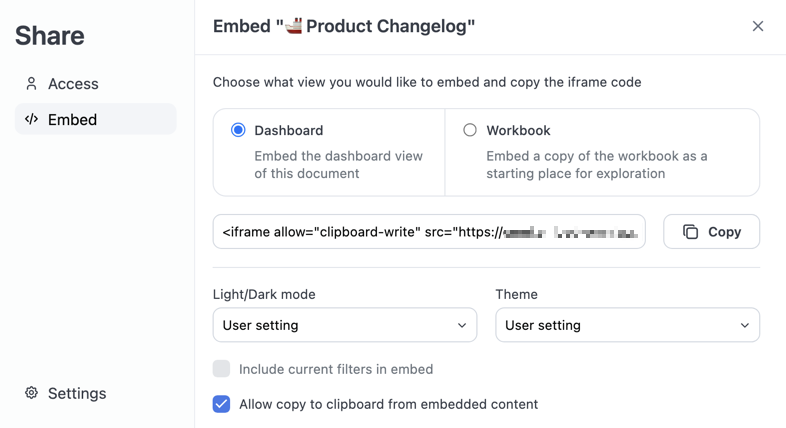
    1. In a [published](/content/develop/drafts#publishing-drafts) Omni workbook or dashboard, click the **Share** button to open the share modal. You can also navigate to **File > Document settings**.

    2. Click **Embed**.

    3. If desired, use the options in this tab to customize what content is embedded and how it displays for users. For example, you could embed a dashboard and only display it in dark mode. See [Customize embedded content](/share#customize-embed-content) for more information.

           <img src="https://mintcdn.com/omni-e7402367/VVbO0N3HRZOXstEa/share/images/dashboard-share-modal.png?fit=max&auto=format&n=VVbO0N3HRZOXstEa&q=85&s=6fb6fc99d3c9453f3bffcbae00974aa0" alt="Omni share modal with embed options" width="786" height="428" data-path="share/images/dashboard-share-modal.png" />

    4. Click the **Copy** button to copy the iframe URL. The example iframe URL below is for an Omni instance named `blobsrus` and includes settings for **Light/dark mode** (`prefersDark`) and **Theme** (`theme`):

       ```html wrap theme={null}
       <iframe src="https://blobsrus.omniapp.co/dashboards/a0554a7e?prefersDark=true&theme=dawn"></iframe>
       ```

    5) In a text editor, only copy the Omni URL. For example, if you copied a string like the following:

       ```html wrap theme={null}
       <iframe src="https://blobsrus.omniapp.co/dashboards/a0554a7e"></iframe>
       ```

       You will only want the URL:

       ```txt wrap theme={null}
       https://blobsrus.omniapp.co/dashboards/a0554a7e
       ```
  </Step>

  <Step title="Create an embed component in Notion" id="notion-component">
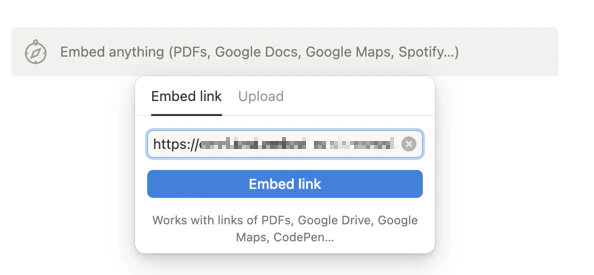
    1. In a Notion document, use the `/embed` command to create an embed component.
    2. Paste the Omni URL into the field:
           <img src="https://mintcdn.com/omni-e7402367/TQmDiBS3ovG-NUT5/guides/embed/images/notion-embed-link.png?fit=max&auto=format&n=TQmDiBS3ovG-NUT5&q=85&s=0abb3088284eb1cb622124f04f460c6e" alt="Notion embed component with the Omni dashboard URL pasted into the link field" width="594" height="275" data-path="guides/embed/images/notion-embed-link.png" />
    3. Click **Embed link**.
  </Step>

  <Step title="Test the iframe" id="test-iframe">
    Your Omni dashboard should now be embedded in Notion! 🎉

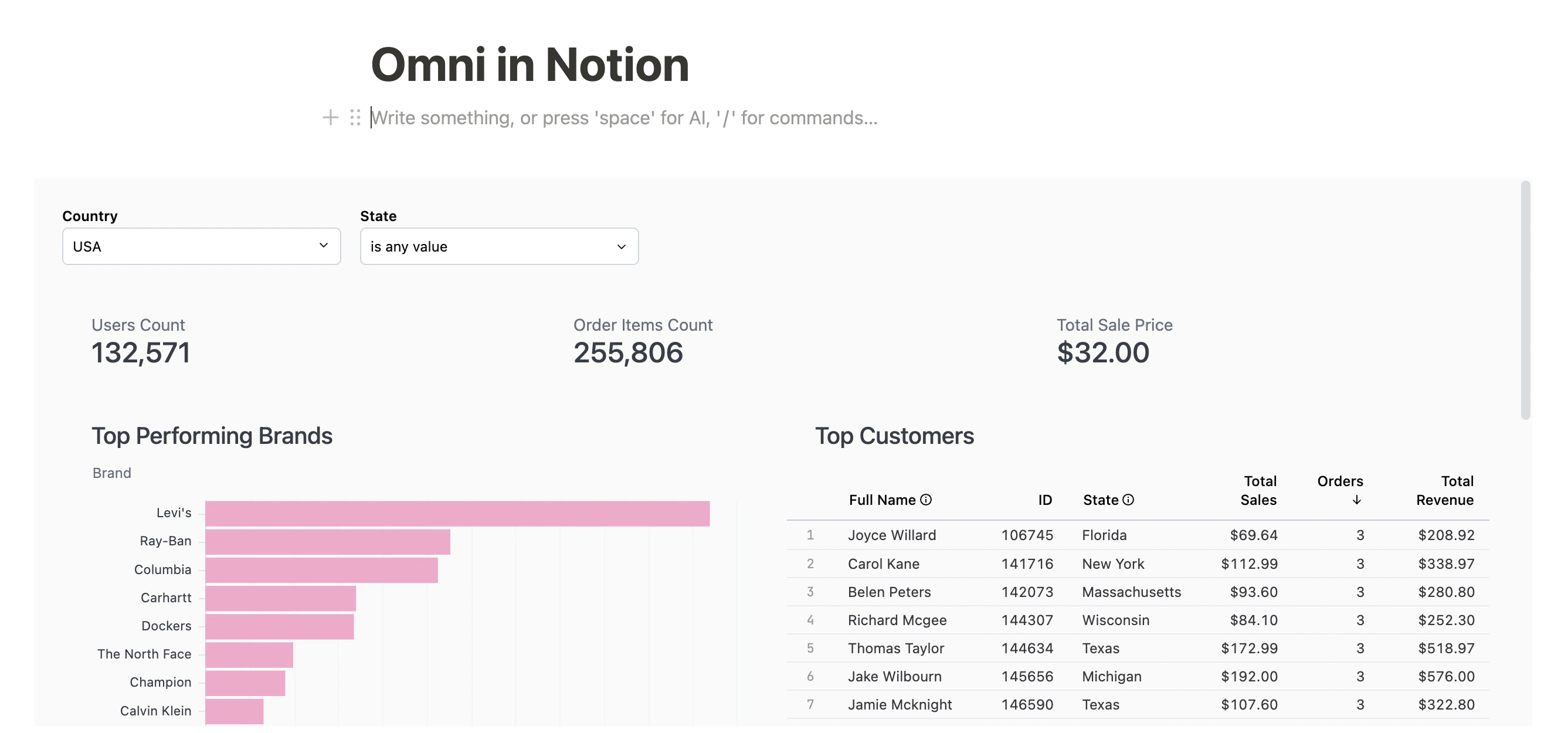
    Before you share the Notion document with other users, use the iframe to log into Omni. This allows you to check that the workbook or dashboard displays correctly after authentication.

    <img src="https://mintcdn.com/omni-e7402367/TQmDiBS3ovG-NUT5/guides/embed/images/notion-dashboard.png?fit=max&auto=format&n=TQmDiBS3ovG-NUT5&q=85&s=a305e76d4a368c825bf4240435fd031a" alt="An Omni dashboard embedded and rendered inside a Notion document" width="2674" height="1250" data-path="guides/embed/images/notion-dashboard.png" />
  </Step>

  <Step title="Share the Notion document" id="share-document">
    Share the Notion document with other users in your Notion instance. **Note**: Users will have to log into Omni with the iframe before they can view the workbook or dashboard content.
  </Step>
</Steps>