> ## Documentation Index
> Fetch the complete documentation index at: https://docs.omni.co/llms.txt
> Use this file to discover all available pages before exploring further.

# Embedding Omni into internal applications

> Embed Omni into internal apps such as wikis, Salesforce, Notion, or any other website that supports iframes.

export const categoryIcons = {
  'administration': 'lock',
  'api': 'terminal',
  'connections': 'database',
  'dashboards': 'table-columns',
  'embed': 'code',
  'errors': 'exclamation',
  'modeling': 'wrench',
  'patterns': 'plus',
  'schedules & alerts': 'envelope',
  'visualizations': 'chart-column',
  'workbooks': 'book'
};

export const GuideSidebar = ({category, relatedLinks, updatedDate}) => {
  const [progress, setProgress] = React.useState(0);
  React.useEffect(() => {
    const sidebar = document.querySelector('.guide-sidebar');
    if (!sidebar) return;
    let container = sidebar.parentElement;
    while (container && !container.querySelector('.guide-header')) {
      container = container.parentElement;
    }
    if (container && !container.classList.contains('guide-page-layout')) {
      container.classList.add('guide-page-layout');
    }
  }, []);
  React.useEffect(() => {
    const handleScroll = () => {
      const scrollTop = window.scrollY;
      const docHeight = document.documentElement.scrollHeight - window.innerHeight;
      const scrollPercent = docHeight > 0 ? scrollTop / docHeight * 100 : 0;
      setProgress(Math.min(100, Math.max(0, scrollPercent)));
    };
    window.addEventListener('scroll', handleScroll, {
      passive: true
    });
    handleScroll();
    return () => window.removeEventListener('scroll', handleScroll);
  }, []);
  const icon = category ? categoryIcons[category.toLowerCase()] || 'book' : 'book';
  return <aside className="guide-sidebar">
      <div className="guide-sidebar-content">
        <a href="/guides" className="guide-sidebar-back">
          <Icon icon="arrow-left" iconType="solid" size={14} />
          <span>All guides</span>
        </a>

        <div className="guide-sidebar-section">
          <div className="guide-sidebar-label">Progress</div>
          <div className="guide-sidebar-progress">
            <div className="guide-mascot">
              <svg viewBox="0 0 450 450" width="48" height="48">
                <defs>
                  <clipPath id="progressClip">
                    <rect x="0" y={450 - progress * 4.5} width="450" height={progress * 4.5} />
                  </clipPath>
                  <linearGradient id="blobbyGradient" x1="55.9753" y1="0" x2="492.197" y2="169.724" gradientUnits="userSpaceOnUse">
                    <stop stopColor="#BCA2F3" />
                    <stop offset="0.572917" stopColor="#FF7AA2" />
                    <stop offset="1" stopColor="#F3D4A2" />
                  </linearGradient>
                </defs>

                {}
                <circle cx="223.901" cy="223.901" r="213.901" transform="matrix(-0.999988 -0.0049013 0.00491945 -0.999988 447.797 449.992)" fill="#FAFAFA" stroke="#480B38" strokeWidth="20" />

                {}
                <circle cx="223.901" cy="223.901" r="213.901" transform="matrix(-0.999988 -0.0049013 0.00491945 -0.999988 447.797 449.992)" fill="url(#blobbyGradient)" stroke="#480B38" strokeWidth="20" clipPath="url(#progressClip)" />

                {}
                <path d="M310.41 195.084C310.41 200.052 301.362 212.472 284.328 212.472C266.585 212.472 258.246 201.294 258.246 195.912" stroke="#480B38" strokeWidth="17.3883" strokeMiterlimit="1.33344" strokeLinecap="round" />
                <circle cx="21.168" cy="21.168" r="21.168" transform="matrix(-1 0 0 1 388.658 169.001)" fill="#480B38" />
                <circle cx="21.168" cy="21.168" r="21.168" transform="matrix(-1 0 0 1 223.467 169.001)" fill="#480B38" />
              </svg>
            </div>
            <span className="guide-sidebar-progress-text">{Math.round(progress)}%</span>
          </div>
        </div>

        {category && <div className="guide-sidebar-section">
            <div className="guide-sidebar-label">Category</div>
            <div className="guide-sidebar-category">
              <Icon icon={icon} iconType="solid" size={14} />
              <span>{category}</span>
            </div>
          </div>}

        {updatedDate && <div className="guide-sidebar-section">
            <div className="guide-sidebar-label">Last updated</div>
            <div className="guide-sidebar-date">{updatedDate}</div>
          </div>}

        {relatedLinks && relatedLinks.length > 0 && <div className="guide-sidebar-section">
            <div className="guide-sidebar-label">Related</div>
            <ul className="guide-sidebar-links">
              {relatedLinks.map((link, index) => <li key={index}>
                  <a href={link.href}>{link.title}</a>
                </li>)}
            </ul>
          </div>}
      </div>
    </aside>;
};

export const GuideTitle = ({title}) => {
  return <div className="guide-header">
      <h1 className="guide-title">{title}</h1>
    </div>;
};

<GuideSidebar
  categoryIcons={categoryIcons}
  category="embed"
  updatedDate="April 2026"
  relatedLinks={[
{ title: "Embedding docs", href: "/embed" },
{ title: "Embedding in Notion", href: "/guides/embed/omni-in-notion" },
{ title: "Embedding in Salesforce", href: "/guides/embed/omni-in-salesforce" }
]}
/>

<GuideTitle title="Embedding Omni into internal applications" />

Your team already has internal tools - wikis, admin panels, CRMs, custom apps - where they spend most of their day. Embedding Omni dashboards into those tools puts live data in front of people where they're already working, so they don't have to bounce between apps to get answers.

This guide covers the general approach to embedding Omni content in any internal application that supports iframes. If you're working with a specific tool, we also have step-by-step guides for:

* [Notion](/guides/embed/omni-in-notion)
* [Salesforce](/guides/embed/omni-in-salesforce)

## Requirements

To follow this guide, you'll need permissions in Omni that allow you to access the workbook or dashboard you want to embed.

Additionally, users who view the Omni iframe in your internal application must have permissions in Omni that allow them to view the dashboard being embedded. Viewers of the content will be prompted to log in using the iframe and if they have sufficient permissions, the content will display.

<Steps titleSize="h2">
  <Step title="Generate an embed URL" id="generate-embed-url">
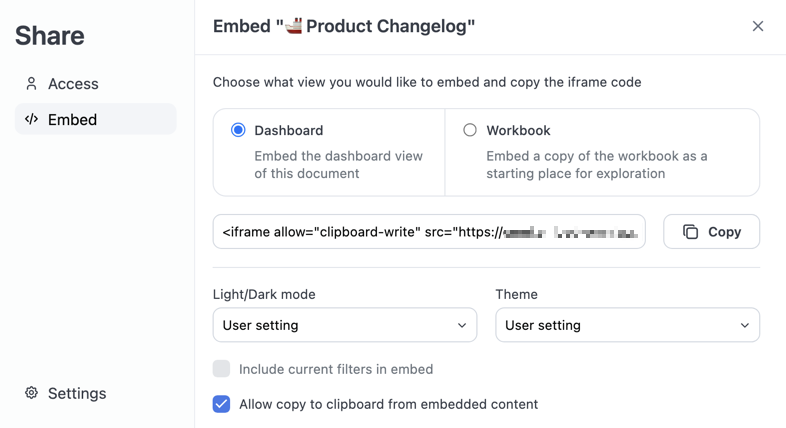
    1. In a [published](/content/develop/drafts#publishing-drafts) Omni workbook or dashboard, click the **Share** button to open the share modal. You can also navigate to **File > Document settings**.

    2. Click **Embed**.

    3. If desired, use the options in this tab to customize what content is embedded and how it displays for users. For example, you could embed a dashboard and only display it in dark mode. See [Customize embedded content](/share#customize-embed-content) for more information.

           <img src="https://mintcdn.com/omni-e7402367/VVbO0N3HRZOXstEa/share/images/dashboard-share-modal.png?fit=max&auto=format&n=VVbO0N3HRZOXstEa&q=85&s=6fb6fc99d3c9453f3bffcbae00974aa0" alt="Omni share modal with embed options" width="786" height="428" data-path="share/images/dashboard-share-modal.png" />

    4. Click the **Copy** button to copy the iframe URL. The example iframe URL below is for an Omni instance named `blobsrus` and includes settings for **Light/dark mode** (`prefersDark`) and **Theme** (`theme`):

       ```html wrap theme={null}
       <iframe src="https://blobsrus.omniapp.co/dashboards/a0554a7e?prefersDark=true&theme=dawn"></iframe>
       ```
  </Step>

  <Step title="Embed and test the iframe" id="test-iframe">
    Add the iframe to your internal application to embed Omni.

    Before you share your work with other users, use the iframe to log into Omni. This allows you to check that the workbook or dashboard displays correctly after authentication.
  </Step>

  <Step title="Share your work" id="share-your-work">
    Share your work with other users in your internal application.

    **Note**: Users will have to log into Omni with the iframe before they can view the workbook or dashboard content.
  </Step>
</Steps>
