> ## Documentation Index
> Fetch the complete documentation index at: https://docs.omni.co/llms.txt
> Use this file to discover all available pages before exploring further.

# Deploying Omni: Single instance with dynamic connections

> Set up and manage Omni in a single instance with dynamic connection environments for development and production database switching

export const categoryIcons = {
  'administration': 'lock',
  'api': 'terminal',
  'connections': 'database',
  'dashboards': 'table-columns',
  'embed': 'code',
  'errors': 'exclamation',
  'migration': 'angles-right',
  'modeling': 'wrench',
  'patterns': 'plus',
  'schedules & alerts': 'envelope',
  'visualizations': 'chart-column',
  'workbooks': 'book'
};

export const GuideSidebar = ({category, relatedLinks, updatedDate}) => {
  const [progress, setProgress] = React.useState(0);
  React.useEffect(() => {
    const sidebar = document.querySelector('.guide-sidebar');
    if (!sidebar) return;
    let container = sidebar.parentElement;
    while (container && !container.querySelector('.guide-header')) {
      container = container.parentElement;
    }
    if (container && !container.classList.contains('guide-page-layout')) {
      container.classList.add('guide-page-layout');
    }
  }, []);
  React.useEffect(() => {
    const handleScroll = () => {
      const scrollTop = window.scrollY;
      const docHeight = document.documentElement.scrollHeight - window.innerHeight;
      const scrollPercent = docHeight > 0 ? scrollTop / docHeight * 100 : 0;
      setProgress(Math.min(100, Math.max(0, scrollPercent)));
    };
    window.addEventListener('scroll', handleScroll, {
      passive: true
    });
    handleScroll();
    return () => window.removeEventListener('scroll', handleScroll);
  }, []);
  const icon = category ? categoryIcons[category.toLowerCase()] || 'book' : 'book';
  return <aside className="guide-sidebar">
      <div className="guide-sidebar-content">
        <a href="/guides" className="guide-sidebar-back">
          <Icon icon="arrow-left" iconType="solid" size={14} />
          <span>All guides</span>
        </a>

        <div className="guide-sidebar-section">
          <div className="guide-sidebar-label">Progress</div>
          <div className="guide-sidebar-progress">
            <div className="guide-mascot">
              <svg viewBox="0 0 688 690" width="48" height="48">
                <defs>
                  <clipPath id="progressClip">
                    <rect x="0" y={0} width="688" height={progress * 6.9} />
                  </clipPath>
                </defs>

                {}
                <path d="M343.67 1.5C542.684 1.5 685.84 149.351 685.84 344.84C685.84 540.328 542.685 688.18 343.67 688.18C144.655 688.18 1.5 540.318 1.5 344.84C1.50007 149.361 144.655 1.50005 343.67 1.5Z" fill="#FCFCF7" stroke="#FF5FA2" strokeWidth="3" />

                {}
                <path d="M343.67 0C143.81 0 0 148.55 0 344.84C0 541.13 143.81 689.68 343.67 689.68C543.53 689.68 687.34 541.14 687.34 344.84C687.34 148.54 543.53 0 343.67 0Z" fill="#FF5FA2" clipPath="url(#progressClip)" />

                {}
                <path d="M337.89 319.29C337.89 336.75 322.49 350.14 302.81 349.83C286.18 349.57 273.89 337.29 274.37 321.45C274.88 304.82 290.91 290.88 309.98 290.44C325.69 290.09 337.88 302.69 337.88 319.29H337.89Z" fill="#4D122C" />
                <path d="M566.17 319.29C566.17 336.75 550.77 350.14 531.09 349.83C514.46 349.57 502.17 337.29 502.65 321.45C503.16 304.82 519.19 290.88 538.26 290.44C553.97 290.09 566.16 302.69 566.16 319.29H566.17Z" fill="#4D122C" />
                <path d="M367.74 342.07C360.22 346.32 359.4 354.9 370.62 366.4C381.85 377.9 399.76 389.56 420.81 389.18C441.88 389.1 460.67 377.72 472.47 363.53C473.83 361.93 478.84 356.88 478.51 351.07C478.32 348.35 476.17 341.19 467.83 341.38C463.46 341.44 461.21 343.68 456.69 347.36C445.2 356.14 432.7 361.21 420.56 361.27C408.43 361.43 395.68 356.17 385.39 347.22C380.32 342.81 375.25 337.82 367.74 342.07Z" fill="#4D122C" />
              </svg>
            </div>
            <span className="guide-sidebar-progress-text">{Math.round(progress)}%</span>
          </div>
        </div>

        {category && <div className="guide-sidebar-section">
            <div className="guide-sidebar-label">Category</div>
            <div className="guide-sidebar-category">
              <Icon icon={icon} iconType="solid" size={14} />
              <span>{category}</span>
            </div>
          </div>}

        {updatedDate && <div className="guide-sidebar-section">
            <div className="guide-sidebar-label">Last updated</div>
            <div className="guide-sidebar-date">{updatedDate}</div>
          </div>}

        {relatedLinks && relatedLinks.length > 0 && <div className="guide-sidebar-section">
            <div className="guide-sidebar-label">Related</div>
            <ul className="guide-sidebar-links">
              {relatedLinks.map((link, index) => <li key={index}>
                  <a href={link.href}>{link.title}</a>
                </li>)}
            </ul>
          </div>}
      </div>
    </aside>;
};

export const GuideTitle = ({title}) => {
  return <div className="guide-header">
      <h1 className="guide-title">{title}</h1>
    </div>;
};

<GuideSidebar
  categoryIcons={categoryIcons}
  category="deployment"
  updatedDate="July 2026"
  relatedLinks={[
{ title: "Dynamic connection environments", href: "/connect-data/dynamic-environments" },
{ title: "Git integration overview", href: "/integrations/git" },
{ title: "Branch Mode", href: "/content/develop/branch-mode" },
{ title: "Content Validator", href: "/modeling/develop/content-validator" }
]}
/>

<GuideTitle title="Deploying Omni: Single instance with dynamic connections" />

This guide covers the single-instance dynamic connections deployment pattern: a single Omni instance that routes developers to separate development and production databases using dynamic connection environments. Use this when your team needs to test model changes against non-production data without maintaining a separate Omni instance.

## When to use this approach

* You have [a single Omni instance](/guides/deployment/single-instance-git-dbt)
* You have separate PROD and DEV/STAGE databases (e.g., `analytics_prod` and `analytics_dev`)
* All developers are allowed to see both databases
* You don't need true environment isolation between developers and production users

For setup, see [dynamic connection environments](/connect-data/dynamic-environments).

## Requirements

Before you begin, make sure you have:

* An existing database connection in Omni with [dynamic connection environments](/connect-data/dynamic-environments) configured
* The [git integration](/integrations/git/setup/github) set up for your Omni instance
* **Organization Admin** permissions in Omni (required for git settings)
* **Connection Admin** permissions in Omni

## Development workflow

<Note>
  With git connected, all model development in Omni happens on [branches](/content/develop/branch-mode). This keeps your shared model stable while changes are built, tested, and reviewed.
</Note>

<Steps>
  <Step title="Open a branch">
    From the Omni model IDE, create a new branch. Give it a descriptive name that matches your work. If you're making dbt changes in parallel, use the same branch name in both repositories to keep them in-sync.
  </Step>

  <Step title="Make your changes">
    On the branch, you can:

    * Add or edit fields, dimensions, measures, and views in the model IDE
    * Update topics and joins
    * Build and edit workbooks and dashboards — these are automatically attached to your branch
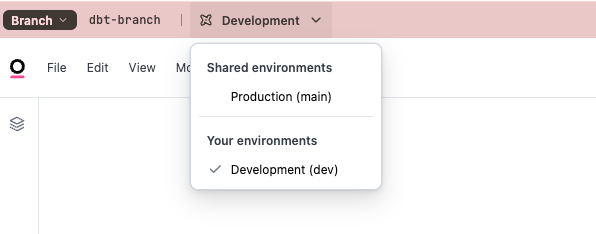
    * With dynamic connections, switch the active connection environment from within the branch: when you create a branch, Omni shows an option to change the environment from the primary (production) connection to your non-production environment. Run and validate queries against non-production data before merging.
          <Frame>
            <img src="https://mintcdn.com/omni-e7402367/54Y28RS_CR3-OSAH/guides/deployment/images/dynamic-connection-switch.png?fit=max&auto=format&n=54Y28RS_CR3-OSAH&q=85&s=c0aaff126695300ddc113c5a2a487ed3" alt="Switching the active database connection from within an Omni branch" width="596" height="234" data-path="guides/deployment/images/dynamic-connection-switch.png" />
          </Frame>

    If your changes depend on a new or updated dbt model, [sync the dbt metadata](/modeling/develop/schema-refreshes) first so the latest fields are available on the branch.
  </Step>

  <Step title="Validate with the Content Validator">
    Before deploying, run the [Content Validator](/modeling/develop/content-validator) to check whether your model changes break any existing content. The Content Validator surfaces broken field references across all workbooks and dashboards and lets you find and replace them in bulk before deploying.

    <Tip>
      Run the Content Validator before opening a pull request, not after. Catching broken references early keeps your PR review focused on model logic, not cleanup.
    </Tip>

    When the validator reports no broken references, your branch is ready to deploy.
  </Step>
</Steps>

## Deploy your changes

When your changes are ready, the deployment path depends on whether you've enabled <img src="https://mintlify.s3.us-west-1.amazonaws.com/omni-e7402367/integrations/git/settings#pull-request-required" alt="Require pull requests" /> in your git settings.

### With pull requests required (recommended)
<Steps>
  <Step title="Add changes to your branch">
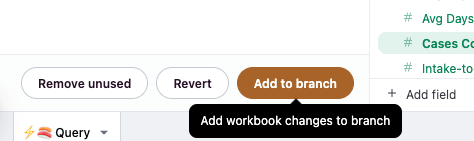
    Click **Add to branch** to stage your shared model changes. Any changes not shared to the branch will remain in the workbook.

    <Frame>
      <img src="https://mintcdn.com/omni-e7402367/Wz8Kk9WTdtyy85Nq/deployment/images/add-to-branch.png?fit=max&auto=format&n=Wz8Kk9WTdtyy85Nq&q=85&s=a088a25912f972af0c935d8a00a3129d" alt="The Add to Branch button in Omni's model IDE" width="474" height="141" data-path="deployment/images/add-to-branch.png" />
    </Frame>
  </Step>

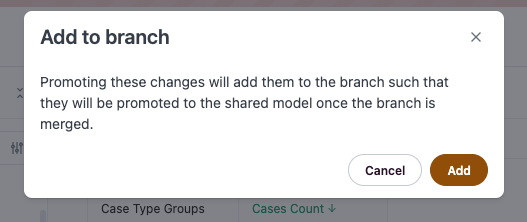
  <Step title="Confirm the impact">
    Review the staged changes in the branch summary and confirm they're ready to promote. These changes affect everyone who accesses the shared model.

    <Frame>
      <img src="https://mintcdn.com/omni-e7402367/Wz8Kk9WTdtyy85Nq/deployment/images/add-to-branch-2.png?fit=max&auto=format&n=Wz8Kk9WTdtyy85Nq&q=85&s=0bb8e0dbdba43a7280f6ab5e62aa1ece" alt="Staged model changes shown in the branch summary" width="527" height="222" data-path="deployment/images/add-to-branch-2.png" />
    </Frame>
  </Step>

  <Step title="Open pull request">
    In your git provider, open a pull request targeting `main` (or your default branch).

    <Frame>
      <img src="https://mintcdn.com/omni-e7402367/Wz8Kk9WTdtyy85Nq/deployment/images/open-pr-from-omni.png?fit=max&auto=format&n=Wz8Kk9WTdtyy85Nq&q=85&s=d2c787e8446290763c551620b38a4dbb" alt="Opening a pull request from Omni" width="679" height="98" data-path="deployment/images/open-pr-from-omni.png" />
    </Frame>
  </Step>

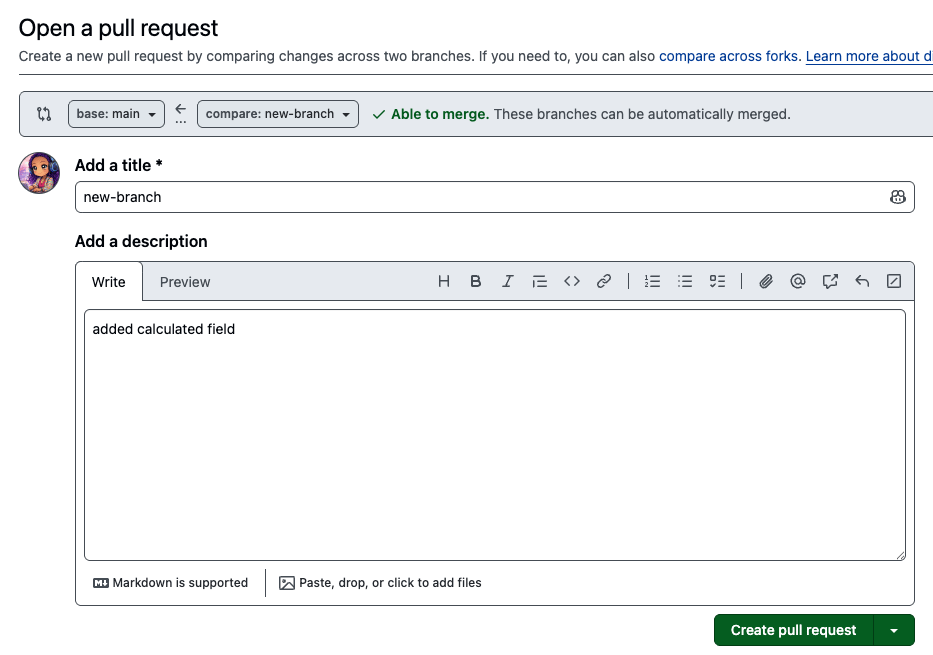
  <Step title="Add details to the pull request">
    Add notes to your pull request and assign reviewers in git as needed.

    <Frame>
      <img src="https://mintcdn.com/omni-e7402367/Wz8Kk9WTdtyy85Nq/deployment/images/open-pull-request-git-screen.png?fit=max&auto=format&n=Wz8Kk9WTdtyy85Nq&q=85&s=6b5c374931f7157e137f9c1ee6c661e7" alt="The open pull request screen in your git provider" width="933" height="655" data-path="deployment/images/open-pull-request-git-screen.png" />
    </Frame>
  </Step>

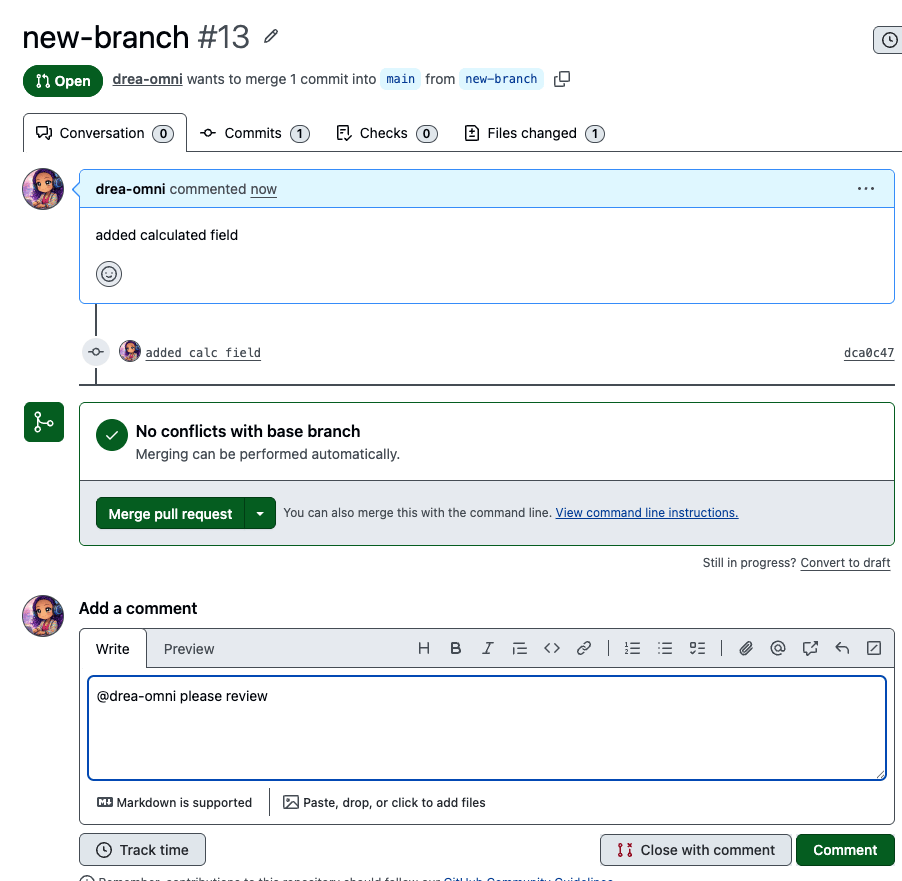
  <Step title="Pull request review">
    Have your changes reviewed and approved in git.

    <Frame>
      <img src="https://mintcdn.com/omni-e7402367/Wz8Kk9WTdtyy85Nq/deployment/images/pr-review-and-approve.png?fit=max&auto=format&n=Wz8Kk9WTdtyy85Nq&q=85&s=ab0bb67c261c28effc1037b2e195a08f" alt="Reviewing and approving the pull request" width="902" height="881" data-path="deployment/images/pr-review-and-approve.png" />
    </Frame>
  </Step>

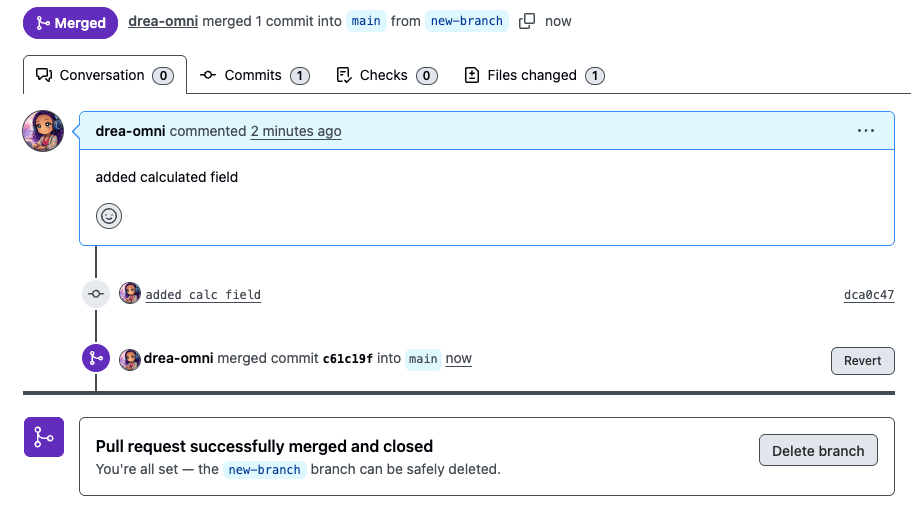
  <Step title="Merge the pull request">
    Merge the pull request and delete the branch (optional).

    <Frame>
      <img src="https://mintcdn.com/omni-e7402367/Wz8Kk9WTdtyy85Nq/deployment/images/pr-merged-and-closed.png?fit=max&auto=format&n=Wz8Kk9WTdtyy85Nq&q=85&s=1738d8348d72d4b67630f558710c55e5" alt="The merged and closed pull request in git" width="911" height="505" data-path="deployment/images/pr-merged-and-closed.png" />
    </Frame>
  </Step>
</Steps>

Merging the PR promotes model changes to the shared model and publishes any content (workbooks, dashboards) that were attached to the branch. Both happen in a single merge.

### Without pull requests required

<Steps>
  <Step title="Add changes to your branch">
    Click **Add to branch** to stage your shared model changes.
  </Step>

  <Step title="Merge to the shared model">
    From the Omni model IDE, merge your branch directly to the shared model. This promotes model changes and publishes attached content in one step.
  </Step>
</Steps>

<Warning>
  Merging directly to the shared model bypasses peer review. For teams where model accuracy and stability matter, enabling **Require pull requests** is strongly recommended.
</Warning>

## Next steps

* [git integration settings reference](/integrations/git/settings) — Full reference for all git configuration options
* [git integration best practices](/integrations/git/best-practices) — Branch protection, monorepo setup, and more
* [dbt integration overview](/integrations/dbt) — Feature overview including dbt Semantic Layer and dynamic schema switching
* [Branch Mode](/content/develop/branch-mode) — How branching works for both model and content changes
* [Content Validator](/modeling/develop/content-validator) — How to validate and repair content after model changes