> ## Documentation Index
> Fetch the complete documentation index at: https://docs.omni.co/llms.txt
> Use this file to discover all available pages before exploring further.

# Improving AI answer quality

> Learn practical steps to improve AI answer quality in Omni by optimizing data modeling, testing AI responses, and monitoring usage patterns.

export const categoryIcons = {
  'administration': 'lock',
  'api': 'terminal',
  'connections': 'database',
  'dashboards': 'table-columns',
  'embed': 'code',
  'errors': 'exclamation',
  'modeling': 'wrench',
  'patterns': 'plus',
  'schedules & alerts': 'envelope',
  'visualizations': 'chart-column',
  'workbooks': 'book'
};

export const GuideSidebar = ({category, relatedLinks, updatedDate}) => {
  const [progress, setProgress] = React.useState(0);
  React.useEffect(() => {
    const sidebar = document.querySelector('.guide-sidebar');
    if (!sidebar) return;
    let container = sidebar.parentElement;
    while (container && !container.querySelector('.guide-header')) {
      container = container.parentElement;
    }
    if (container && !container.classList.contains('guide-page-layout')) {
      container.classList.add('guide-page-layout');
    }
  }, []);
  React.useEffect(() => {
    const handleScroll = () => {
      const scrollTop = window.scrollY;
      const docHeight = document.documentElement.scrollHeight - window.innerHeight;
      const scrollPercent = docHeight > 0 ? scrollTop / docHeight * 100 : 0;
      setProgress(Math.min(100, Math.max(0, scrollPercent)));
    };
    window.addEventListener('scroll', handleScroll, {
      passive: true
    });
    handleScroll();
    return () => window.removeEventListener('scroll', handleScroll);
  }, []);
  const icon = category ? categoryIcons[category.toLowerCase()] || 'book' : 'book';
  return <aside className="guide-sidebar">
      <div className="guide-sidebar-content">
        <a href="/guides" className="guide-sidebar-back">
          <Icon icon="arrow-left" iconType="solid" size={14} />
          <span>All guides</span>
        </a>

        <div className="guide-sidebar-section">
          <div className="guide-sidebar-label">Progress</div>
          <div className="guide-sidebar-progress">
            <div className="guide-mascot">
              <svg viewBox="0 0 450 450" width="48" height="48">
                <defs>
                  <clipPath id="progressClip">
                    <rect x="0" y={450 - progress * 4.5} width="450" height={progress * 4.5} />
                  </clipPath>
                  <linearGradient id="blobbyGradient" x1="55.9753" y1="0" x2="492.197" y2="169.724" gradientUnits="userSpaceOnUse">
                    <stop stopColor="#BCA2F3" />
                    <stop offset="0.572917" stopColor="#FF7AA2" />
                    <stop offset="1" stopColor="#F3D4A2" />
                  </linearGradient>
                </defs>

                {}
                <circle cx="223.901" cy="223.901" r="213.901" transform="matrix(-0.999988 -0.0049013 0.00491945 -0.999988 447.797 449.992)" fill="#FAFAFA" stroke="#480B38" strokeWidth="20" />

                {}
                <circle cx="223.901" cy="223.901" r="213.901" transform="matrix(-0.999988 -0.0049013 0.00491945 -0.999988 447.797 449.992)" fill="url(#blobbyGradient)" stroke="#480B38" strokeWidth="20" clipPath="url(#progressClip)" />

                {}
                <path d="M310.41 195.084C310.41 200.052 301.362 212.472 284.328 212.472C266.585 212.472 258.246 201.294 258.246 195.912" stroke="#480B38" strokeWidth="17.3883" strokeMiterlimit="1.33344" strokeLinecap="round" />
                <circle cx="21.168" cy="21.168" r="21.168" transform="matrix(-1 0 0 1 388.658 169.001)" fill="#480B38" />
                <circle cx="21.168" cy="21.168" r="21.168" transform="matrix(-1 0 0 1 223.467 169.001)" fill="#480B38" />
              </svg>
            </div>
            <span className="guide-sidebar-progress-text">{Math.round(progress)}%</span>
          </div>
        </div>

        {category && <div className="guide-sidebar-section">
            <div className="guide-sidebar-label">Category</div>
            <div className="guide-sidebar-category">
              <Icon icon={icon} iconType="solid" size={14} />
              <span>{category}</span>
            </div>
          </div>}

        {updatedDate && <div className="guide-sidebar-section">
            <div className="guide-sidebar-label">Last updated</div>
            <div className="guide-sidebar-date">{updatedDate}</div>
          </div>}

        {relatedLinks && relatedLinks.length > 0 && <div className="guide-sidebar-section">
            <div className="guide-sidebar-label">Related</div>
            <ul className="guide-sidebar-links">
              {relatedLinks.map((link, index) => <li key={index}>
                  <a href={link.href}>{link.title}</a>
                </li>)}
            </ul>
          </div>}
      </div>
    </aside>;
};

export const GuideTitle = ({title}) => {
  return <div className="guide-header">
      <h1 className="guide-title">{title}</h1>
    </div>;
};

<GuideSidebar
  categoryIcons={categoryIcons}
  category="ai"
  updatedDate="April 2026"
  relatedLinks={[
{ title: "Tuning AI for cost and quality", href: "/guides/ai/tuning-cost-quality" },
]}
/>

<GuideTitle title="Improving AI answer quality" />

Making your datasets AI-ready doesn't require a massive overhaul. Most of the steps are things you're already doing to make data understandable to humans — now you're extending that same clarity to help the AI interpret it.

In this guide, we'll show you how to:

* **Model** your data with small changes
* **Test** and iterate quickly on the changes
* **Monitor** user behavior to identify improvements

## Structure your data like you would for humans

Good AI performance starts with solid, user-friendly data modeling. The goal is to make each dataset clear, focused, and include the most important context and logic - just like you would if you were handing it to a user in your company.

In Omni, that means building well-scoped [**topics**](/modeling/topics). A topic should represent a specific slice of your business logic and include just the fields, filters, and joins needed to answer common questions about that area.

Here’s what that looks like in practice:

* **Create subject-specific datasets.** Keep each dataset focused and scoped to a clear business purpose.
* **Add joins** so users (and the AI) know what tables are accessible.
* **Apply default filters** to remove noise (e.g. exclude deleted records).
* **Set appropriate permissions.** Omni’s AI always respects the user’s data permissions, so make sure row-, column-, or topic-level controls are in place if needed.
* **Hide extraneous fields** like unused columns or foreign keys.
* **Use good field labels.** This means:
  * **Instead of** `scheduled_task_id_count_distinct`, label it `“Number of Schedules”`
  * **Add field descriptions** or pull directly from your warehouse or [dbt](/integrations/dbt/metadata). These help the AI disambiguate fields.
* **Add** `all_values` for [dimensions](/modeling/dimensions/parameters/all-values) and [measures](/modeling/measures/parameters/all-values) that commonly appear in filters. This helps the AI map user-friendly input to the actual values in your data.

  For example, if someone asks for `“users in CA”` but the underlying value in the column is `California`, providing `all_values` ensures the AI knows they’re the same.
* **Define a short overview** of what the dataset is for - this is the `ai_context` parameter and it helps the AI choose the right dataset for each question.

## Test and tune the AI

Once your datasets are modeled well, the next step is to see how the AI performs in practice. Omni recommends collecting 10–20 real questions your users are already asking, and running them through the AI to see how it does.

The best place to do this is in the workbook with the [Workbook Agent](/ai/queries). This allows you to see exactly how the AI is formulating the answer (fields selected, filters applied, SQL), and adjust the answer/re-steer it as needed.

If the AI gets things wrong, you can immediately add some context to improve it, then try the question again. Take a look at some examples:

### Is it getting filter values wrong?

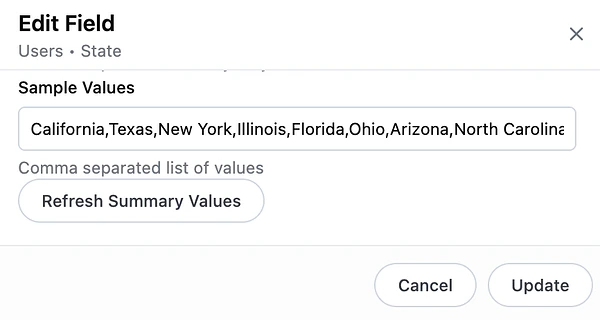
* **Example:** User asked for total orders in CA. AI applied a filter on State = ‘CA’, but the actual values in the database are full state names (e.g. ‘California’)
* **Solve:** Add `all_values` to the State field so it can match the user input to values in the database.

  <img src="https://mintcdn.com/omni-e7402367/EIU4qoMOm-OKAnF4/guides/ai/images/test_tune_ai_edit_field.png?fit=max&auto=format&n=EIU4qoMOm-OKAnF4&q=85&s=0040b22a33a00397a300e879a38112cd" alt="The Edit Field panel for the Users State field, showing sample values like California, Texas, and New York" width="600" height="320" data-path="guides/ai/images/test_tune_ai_edit_field.png" />

### Is it confused between similar fields?

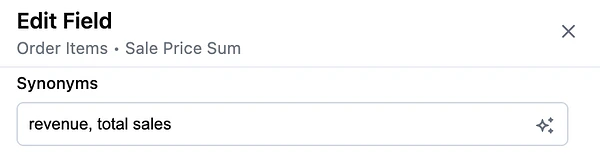
* **Example:** A user asks for “revenue,” and the AI picks the wrong field – maybe it chooses `total_revenue` instead of `net_revenue`.
* **Solve:** Add field [synonyms](/modeling/develop/ai-optimization#curate-views-and-fields) or a more explicit description to help guide selection. If you have duplicative or outdated fields, consider hiding or removing them to simplify the dataset.
  <img src="https://mintcdn.com/omni-e7402367/EIU4qoMOm-OKAnF4/guides/ai/images/ai_answer_quality_synonyms.png?fit=max&auto=format&n=EIU4qoMOm-OKAnF4&q=85&s=f8aab220ed3e32c66b29b6b3274eba2c" alt="The Edit Field panel for Sale Price Sum, showing synonyms set to revenue and total sales" width="600" height="156" data-path="guides/ai/images/ai_answer_quality_synonyms.png" />

### Is it picking the wrong dataset?

* **Example:** A user asks about product inventory, but the AI chooses a marketing dataset because of overlapping field names.
* **Solve:** Add more detail to the `ai_context` parameter on each topic, and include examples of real user questions to help the AI learn when each dataset should be used.

  ```yaml title="product usage topic context" wrap theme={null}
  ai_context: |-
    this topic contains data about our product usage. the core table is queries, which is the primary concept of usage in our business intelligence product. any question about 'usage' or 'queries' or 'activity' should use this topic
  ```

### Is there hidden nuance in your business language?

* **Example:** A user asks about “closed deals.” In your org, folks really mean deals that are both closed and won. But without that context, the AI is going to just filter on `closed=true`.
* **Solve:** Clarify how common business terms are used in your `ai_context`, so the AI can apply your team’s language correctly to the data.

  **Example**: *if asked about closed deals, most often the user means both closed and won.*

  ```yaml title="salesforce opportunity topic context" wrap theme={null}
  ai_context: |-
    we use a fiscal year at our company. when someone mentions 'quarter' or 'year', they typically mean the fiscal quarter or fiscal year

    if asked about closed deals, most often the user means both closed and won
  ```
<Tip>
  You can also use Omni’s built-in tools to help automate this tuning process. The [**Learn from conversation**](/ai/learn-from-conversation) feature can extrapolate business context, field definitions, synonyms, and more from an AI chat conversation. It’s a quick way to capture real user language and feed it back into your AI setup with minimal effort.
</Tip>

## Tune your AI model settings

Modeling and context improvements get you most of the way to good answers, but for complex questions or high-stakes workloads, you can tweak the model's settings. The model-level [`ai_settings`](/modeling/models/ai-settings) parameter lets you set the model tier, thinking level, and self-validation behavior for each AI task type.

For answer quality, the biggest lever is [`analyze_configuration.model`](/modeling/models/ai-settings#param-analyze-configuration) — setting it to `smartest` routes analytical queries to the most capable model for your [model provider](/ai/settings/model-providers).

Changing `analyze_configuration.thinking` to `high` gives the Omni Agent more reasoning budget per turn, and enabling [`validate_analysis`](/modeling/models/ai-settings#param-validate-analysis) has the agent self-check its work before users see the result.

For a walkthrough of how to combine these settings, see the [Max quality profile](/guides/ai/tuning-cost-quality#max-quality) in the cost-and-quality tuning guide.

<Note>
  **Heads up!** Upgrading these settings increases LLM token usage, so they're best reserved for models where answer quality matters more than cost.
</Note>

## Monitor what people are asking

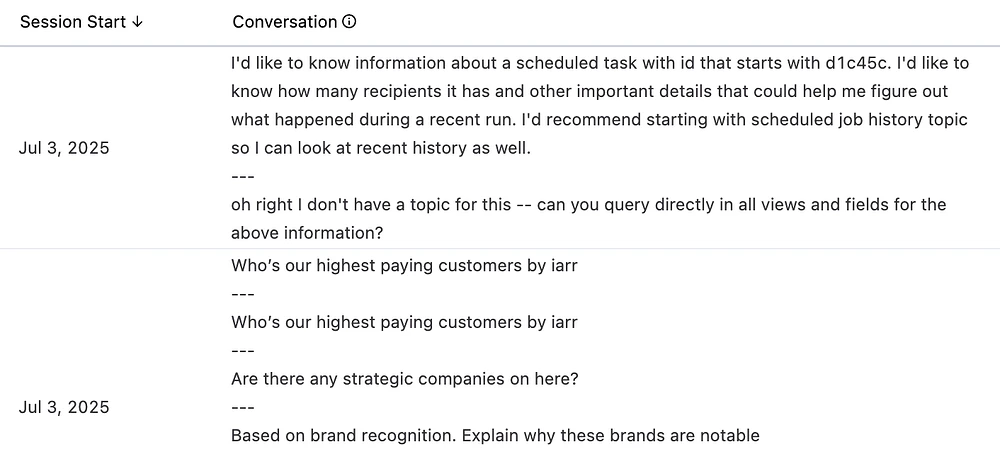
Once you’re up and running, check your prompt logs in the [Analytics section](/administration/analytics) regularly. You’ll learn a lot by seeing how people interact with AI and where it struggles.

Look for:

* **Questions the AI couldn’t answer** - are there data gaps?
* **Repeated follow-ups or corrections** - is the topic or fields missing critical context?
* **Business terms people are using** - are there synonyms or preferences you should capture in your context?

<img src="https://mintcdn.com/omni-e7402367/EIU4qoMOm-OKAnF4/guides/ai/images/ai_answer_quality_session.png?fit=max&auto=format&n=EIU4qoMOm-OKAnF4&q=85&s=e785d69ffcc510c311b6664fe3ff0a78" alt="The Analytics session log showing AI conversation history with user prompts and session dates" width="1000" height="458" data-path="guides/ai/images/ai_answer_quality_session.png" />
