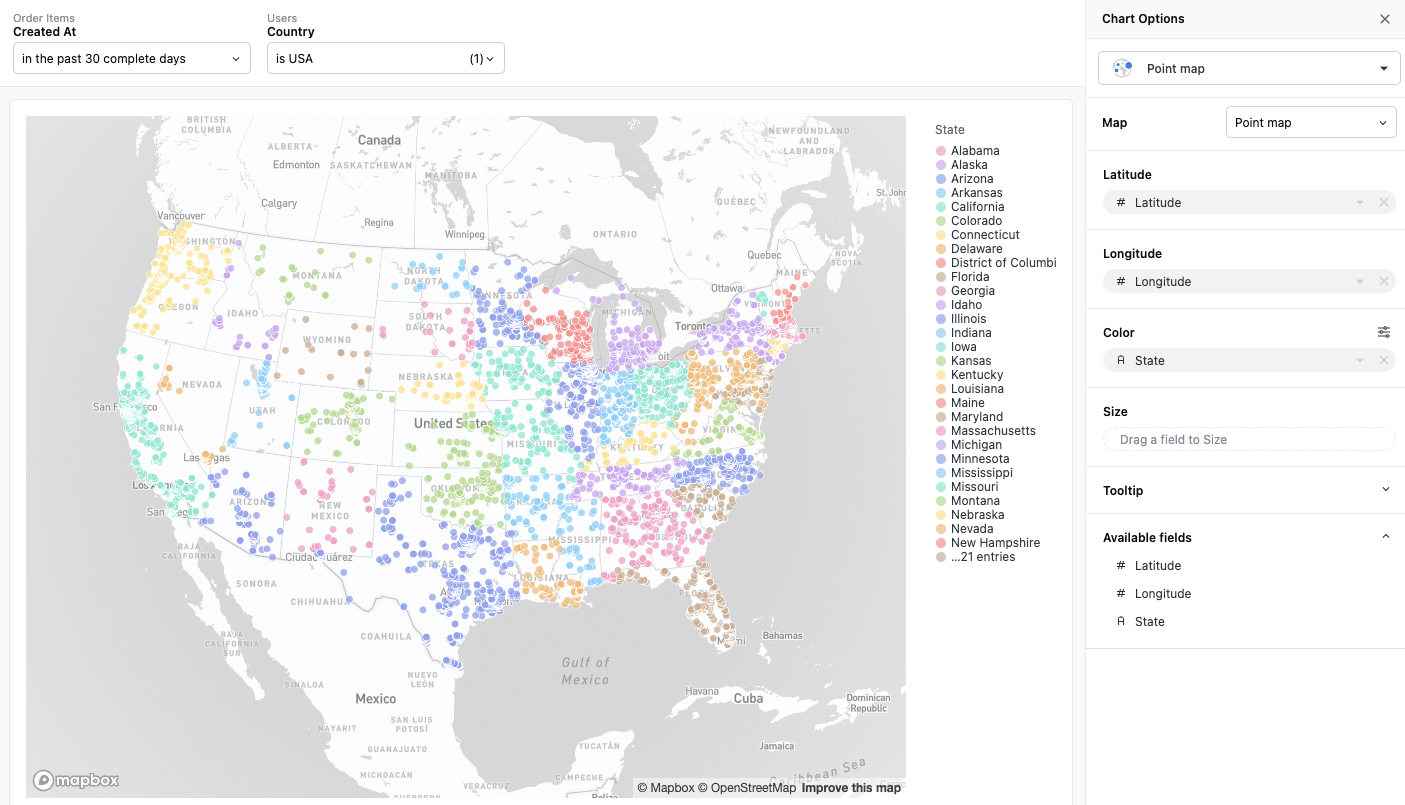
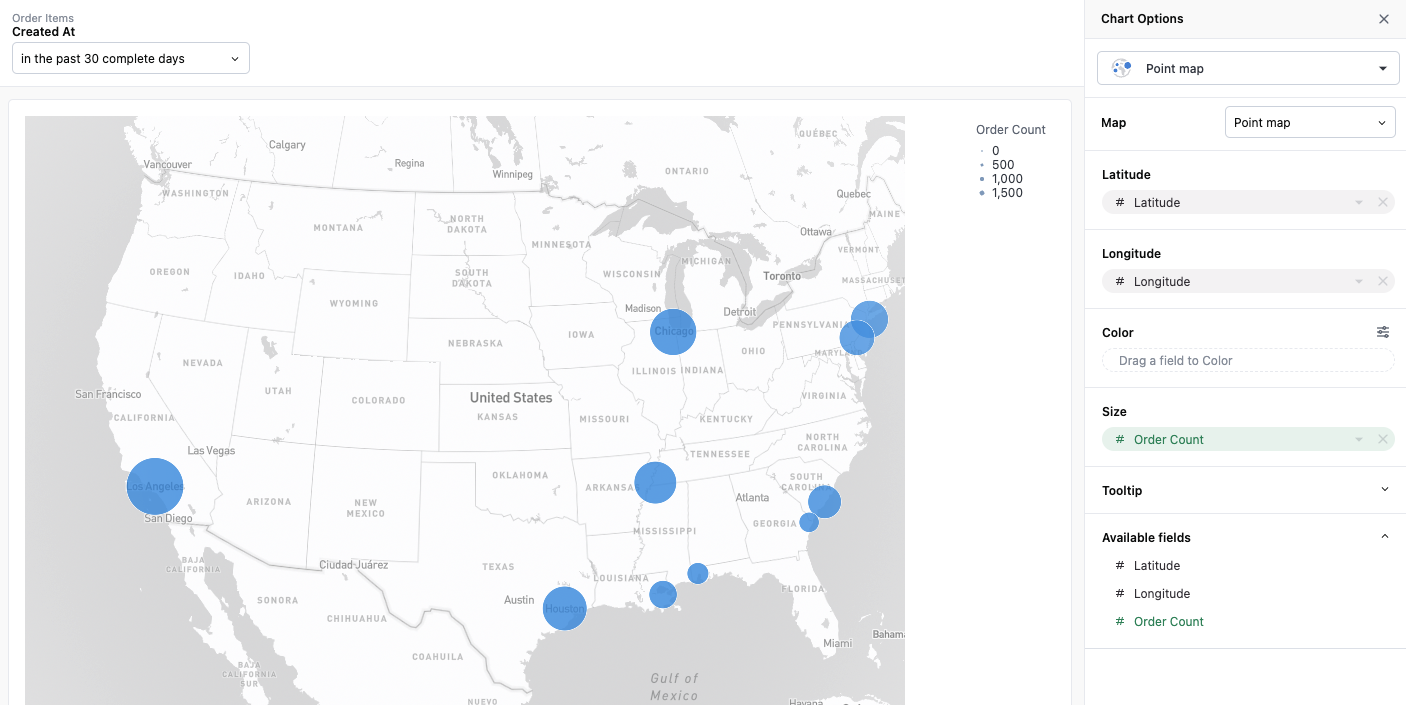
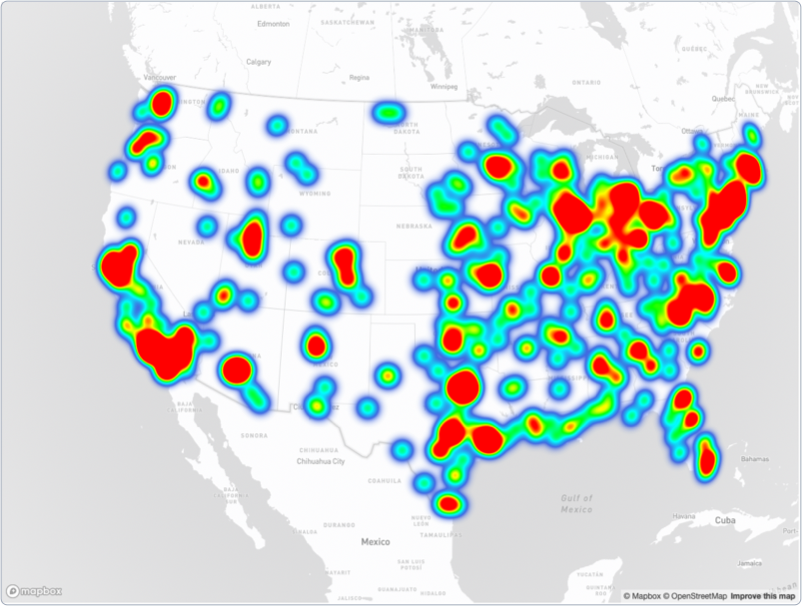
Data with latitude-longitude pairs can be visualized as a point map. Points can be sized and colored by additional properties in the dataset.Map with Color PinsMap with Sized Pins:
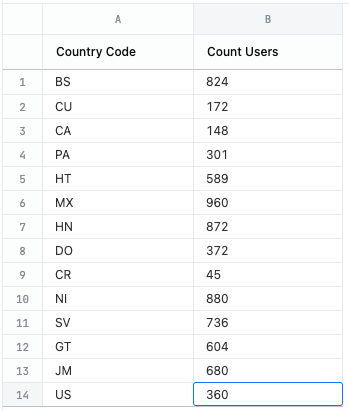
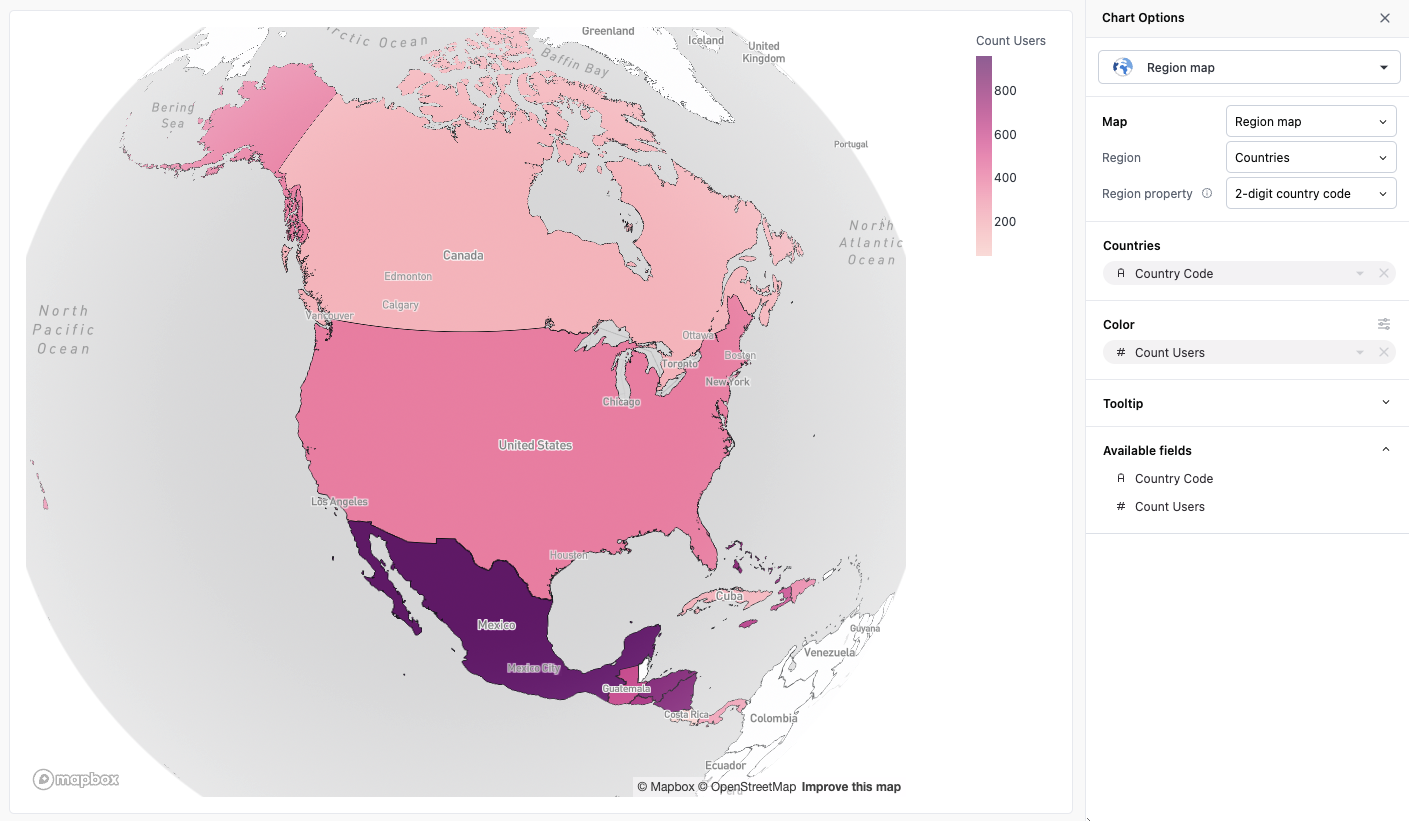
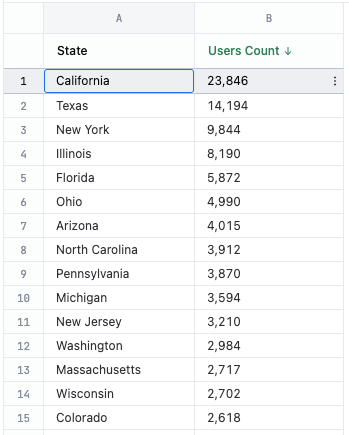
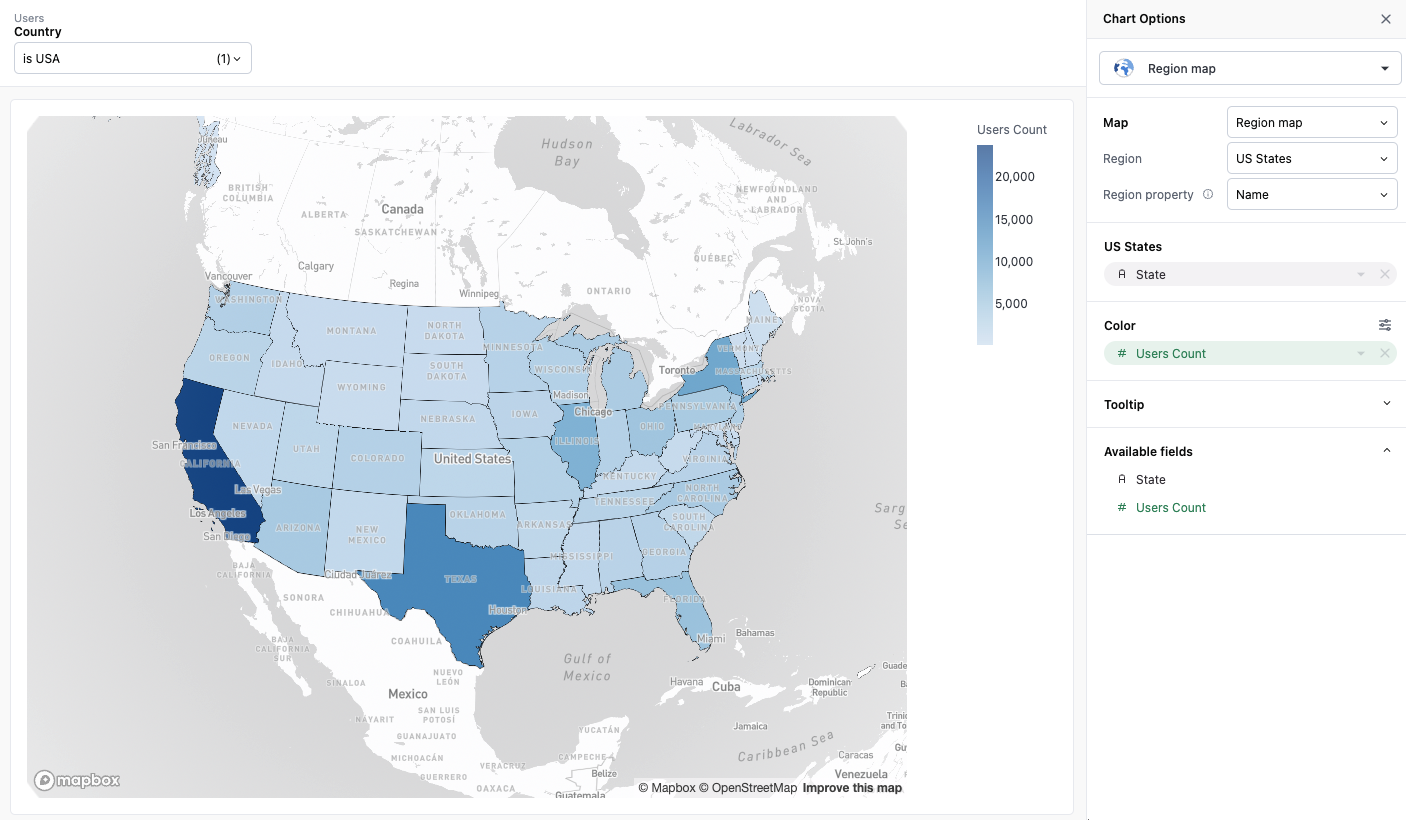
Data with region-based location information can be visualized as a region map. Omni offers region-based mappings for countries and US states out of the box, and offers a custom region option for greater flexibility.
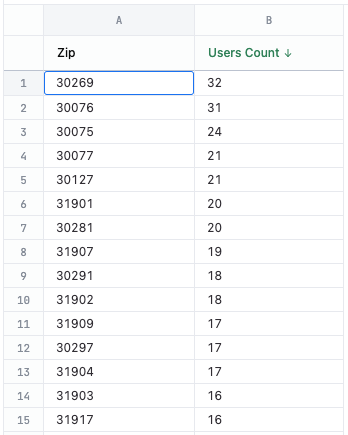
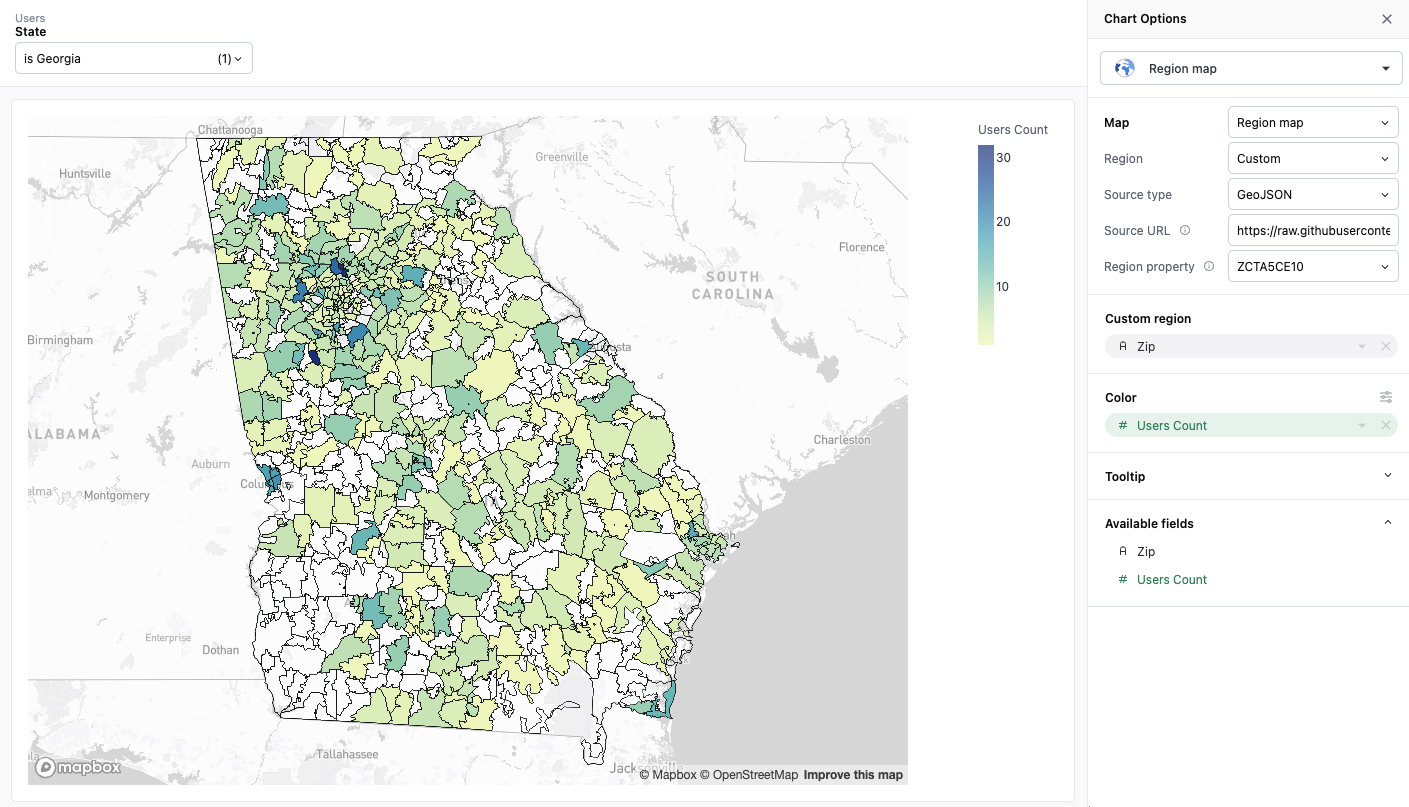
Omni allows you to specify your own region data via URL. You can specify an endpoint that returns region data complying to either the GeoJSON or TileJSON specifications.In order to use custom regions, you’ll need to set your region type to “Custom” and then fill out the following fields:
Source type - specify whether your region source is GeoJSON or TileJSON
Source URL - the URL from which to load your GeoJSON or TileJSON data
Source layer (TileJSON only) - the layer within the TileJSON specification you want to map against
Region property - the property in the GeoJSON or TileJSON data that you want to map against
Both region maps (filled maps) and point maps support gradient color scale value pins when coloring by continuous numeric fields. This allows you to pin specific minimum, midpoint, and maximum values for the color scale instead of always using the automatic data range.For example, if you want to ensure that a specific value always maps to the same color across different time periods or regions, you can pin the min and max values of the color scale to maintain consistent color mapping.For more information about configuring gradient color scales and pinning values, see Gradient color scale values.
When working in the workbook editor, you can save a fixed map viewport (center and zoom level) for both point and region maps. Once saved, the map will maintain your chosen view instead of automatically fitting to the data.To set an initial viewport, pan and zoom the map to your desired view, then click the Set current view as initial view control in the map toolbar. The map will display Fixed view in the visualization settings once a viewport is saved.When an initial viewport is set, the map will maintain that view even when data or filters change. To restore the default auto-fit behavior, click Reset to fit data in the visualization settings, or use the Reset map control on the map itself.
The initial viewport feature is only available in the workbook editor. It is not available on dashboards or in embedded/read-only sessions.
Point and region maps capture the mouse wheel by default, so scrolling the page over a map zooms the map instead. To change this, uncheck Zoom on scroll in the map editor. When this setting is disabled, scrolling over the map scrolls the page, and the zoom buttons in the map toolbar still work.