> ## Documentation Index
> Fetch the complete documentation index at: https://docs.omni.co/llms.txt
> Use this file to discover all available pages before exploring further.
# Developing content with Draft-only mode
> Every Omni document has two states: draft and published.
Drafts are isolated instances of a document, including its workbook and dashboard. When a draft is published, a new, read-only version of the document is created. All users who have access to the document will see this version.
## Document drafts in Omni
A draft is an isolated copy of a document, including its workbook and dashboard. In a draft, you can make changes to the queries in the document, add visualizations, modify the dashboard, and so on without impacting the live - or published - version of the document.
Incorporating drafts into your Omni workflow allows you to:
* **Make incremental progress.** With small, manageable goals, it's easy to show progress without waiting for your work to be perfect.
* **Explore without commitment.** Whether you're working solo or with a team, utilizing drafts lets you iterate on ideas without worrying about the final product.
* **Increase your efficiency.** Drafts enable you and your teammates to view each other's changes and collaborate in a controlled environment, preventing overlap and ensuring that everyone's contributions remain distinct.
Users with the ability to create documents can use drafts. The initial draft for a document is created when the document is saved.
To access or publish drafts for other users' documents, you'll need permissions that allow you to edit the document.
No, models and themes don't work with drafts.
* **Workbook models** - While you can make changes to a workbook model while in a draft, workbook model changes can only be promoted from the [published version of a document](#publishing-drafts). Refer to the [Model management guide](/modeling/develop/model-management#shared-model-promotion) for more information about promoting model changes.
* **Themes** - Themes can only be managed from the published version of a document. The **File > Theming** option will be disabled while viewing a draft. Exit the draft to access and manage themes.
Yes! In a workbook, click **File > Move to branch** to move the current draft to an existing branch. Refer to the [Branch mode guide](/content/develop/branch-mode#moving-drafts-to-branches) for more information.
You can also detach a draft from a branch if you change your mind. While in the branch, click **File > Move to different branch > Detach from branch** to detach the draft.
Branches can have one draft per document per branch. If you move a document draft to a branch that already has a draft for the same document, the draft already on the branch will be overwritten.
## Opening and editing drafts
Analyses must be [saved](/analyze-explore/workbook-basics#saving-a-workbook) as documents before you can create a draft. To create or open a draft, click **File > Edit** or the **Edit** button in the top right corner of the document. **Note**: If a draft already exists for a document, this opens the existing draft.
Changes in a draft - including those to models, queries, or the dashboard - are only visible in the draft, meaning they won't affect the [published version](#publishing-drafts) of the document. This ensures that you can safely iterate without impacting those viewing the published document.
Clicking **Leave draft** saves the changes made to the draft and opens the published version of the document.
### Collaborating in drafts
To collaborate efficiently, Omni recommends:
* **Ensuring only one user at a time edits a draft,** which will reduce the likelihood of authors stepping on each other. This is because, currently, a document can only have one draft at a time, which means authors will 'share' the draft.
* **Working small**. Creating and publishing small changes allows you to work more quickly and make a document's version history easier to follow.
Sometimes, it can be useful to explore a document without creating a draft. For example, when multiple authors want to edit the same document.
There are a few ways to create copies that will allow you to explore without overwriting changes in a draft:
| I want to copy... | Document state | How to |
| ----------------------------------------- | -------------- | ----------------------------------------------------------------------------------------------- |
| An entire document (workbook & dashboard) | Published | **File > Duplicate** |
| Current workbook tab | Any | **Tab > Explore** or the (**Compass**) icon next to **Both** (published) or **Options** (draft) |
| Workbook only | Any | **Explore** button in top right corner of the document |
The ability to duplicate and create new explorations is controlled by the document's settings and your organization's [content permissions](/administration/content-permissions).
### Drafts and branches
Drafts can be [added to or removed from branches](/content/develop/branch-mode#moving-drafts-to-branches) at any time, giving you the flexibility to pick the best workflow as you go. Refer to the [Common publishing workflows guide](/content/develop/workflows) for example workflows.
## Viewing and restoring draft changes
To view all changes made in a draft, click the 🕒 (clock icon) in a draft workbook. The **Draft changes** panel will display a list of all changes made to the draft workbook.
You can revert to an earlier version of the draft by clicking an individual change, then **Restore**.
 ## Archiving drafts
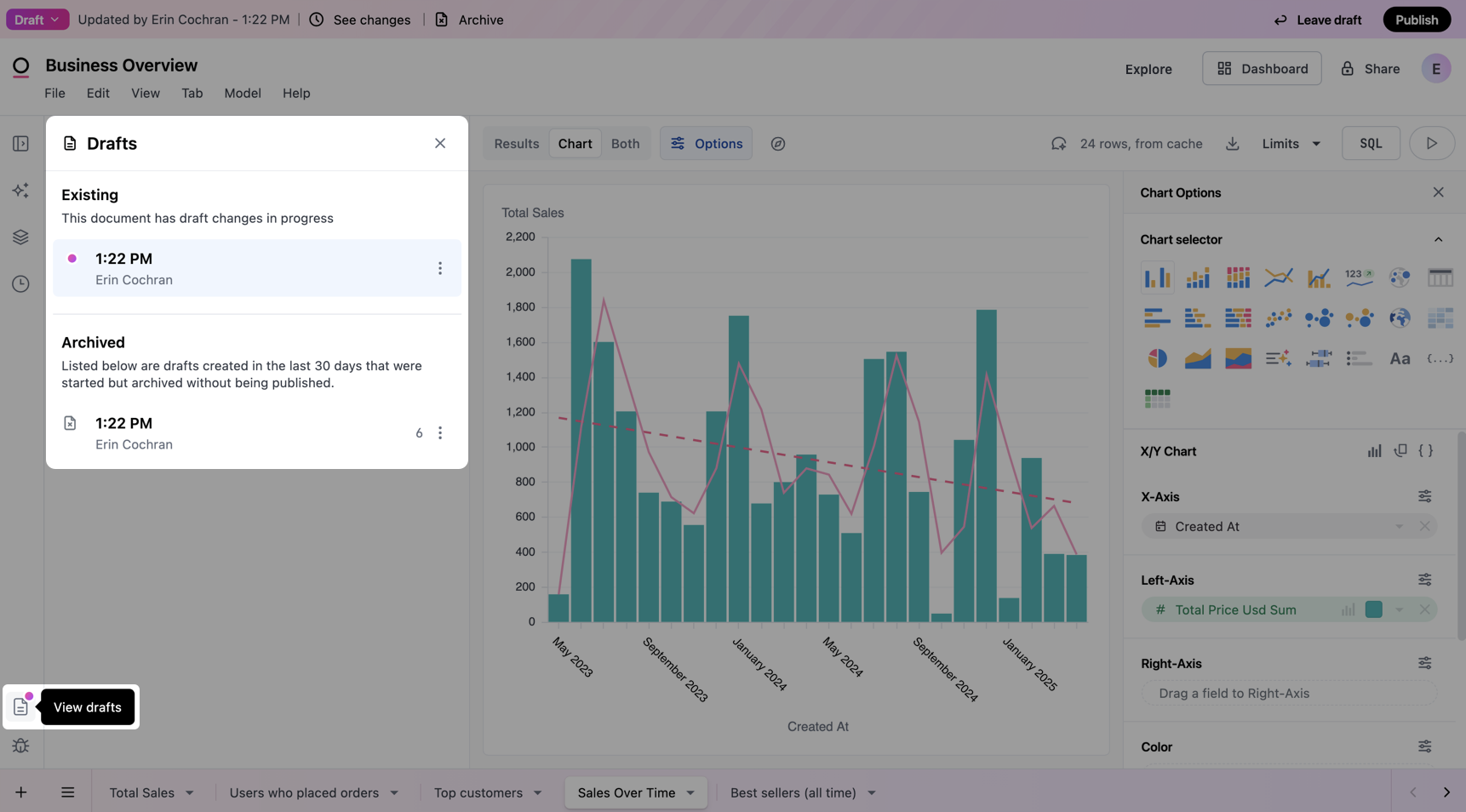
Archiving a draft allows you to remove an existing draft without deleting it. When a draft is archived, the draft is stored in a separate **Archived** section of the workbook. Archived drafts are retained for 30 days.
Any user with edit access to a document can archive or restore an archived draft:
1. Open the document's **Workbook**.
2. Click **View drafts** (document icon) near the bottom left corner of the page.
3. Click an **archived** draft and view it, restore it, or use it to start a new workbook.
**Note**: Restoring an archived draft will replace the document's active draft. Omni will prompt you to confirm the restoration before proceeding.
## Archiving drafts
Archiving a draft allows you to remove an existing draft without deleting it. When a draft is archived, the draft is stored in a separate **Archived** section of the workbook. Archived drafts are retained for 30 days.
Any user with edit access to a document can archive or restore an archived draft:
1. Open the document's **Workbook**.
2. Click **View drafts** (document icon) near the bottom left corner of the page.
3. Click an **archived** draft and view it, restore it, or use it to start a new workbook.
**Note**: Restoring an archived draft will replace the document's active draft. Omni will prompt you to confirm the restoration before proceeding.
 ## Publishing drafts
When a draft is published, the changes in the draft will replace the currently published version of the document. The published version of a document is **read-only**, but you can still drill down and use dashboard filters. To make changes to the workbook or dashboard, [open a draft](#opening-and-editing-drafts) of the document.
You can restore a previously published version of a document using the **File > Version history** option. Refer to the [Workbook documentation](/analyze-explore/workbook-basics#workbook-versions) for more information.
### Viewing published documents
A document's folder location and permissions determine if it's visible to other users. For example, if you saved the document in your **Personal** folder but didn't grant access to anyone, only you will be able to see the document, regardless of whether it's been published.
## Publishing drafts
When a draft is published, the changes in the draft will replace the currently published version of the document. The published version of a document is **read-only**, but you can still drill down and use dashboard filters. To make changes to the workbook or dashboard, [open a draft](#opening-and-editing-drafts) of the document.
You can restore a previously published version of a document using the **File > Version history** option. Refer to the [Workbook documentation](/analyze-explore/workbook-basics#workbook-versions) for more information.
### Viewing published documents
A document's folder location and permissions determine if it's visible to other users. For example, if you saved the document in your **Personal** folder but didn't grant access to anyone, only you will be able to see the document, regardless of whether it's been published.