> ## Documentation Index
> Fetch the complete documentation index at: https://docs.omni.co/llms.txt
> Use this file to discover all available pages before exploring further.
# Archiving and restoring content
> Move documents to the trash and restore them from the Trash page or a direct link.
When you no longer need a workbook or dashboard, you can archive it by moving it to the trash. In Omni, archiving a document means moving it to the trash. Archived documents aren't deleted — they remain recoverable from the **Trash** page, and users with sufficient permissions can also restore them directly when following a link to archived content.
## Requirements
**Editor**, **Manager**, or **Owner** permissions are required to archive and restore archived documents.
## Archiving documents
When you archive a document, the document's workbook and dashboard will also be archived.
In a published document (workbook or dashboard), click **File > Move to trash**.
When prompted, click **Move to trash** to confirm.
## Restoring documents
You can restore an archived document in two ways: from the **Trash** page, or from a direct link to the archived document.
Restoring documents from the trash
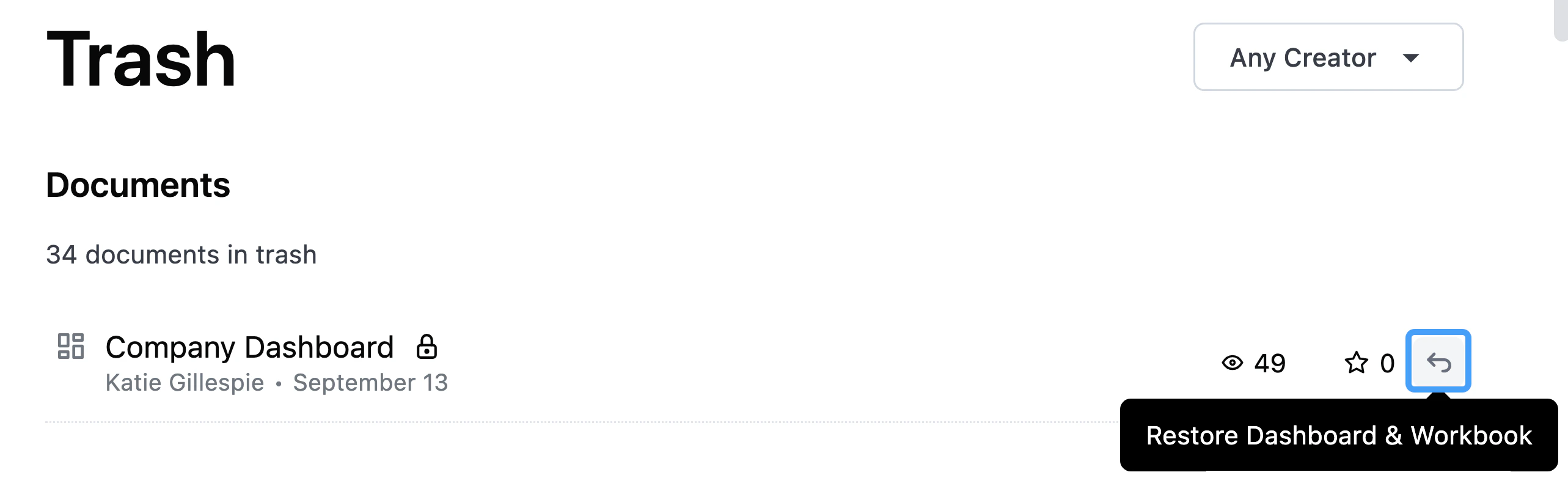
To restore a document from the Trash, click the **restore arrow** (highlighted in the following image) next to the content you want to restore:
Restoring documents from a direct link
If you follow a direct link to an archived document and you have sufficient content permissions, you'll see a page similar to the following:
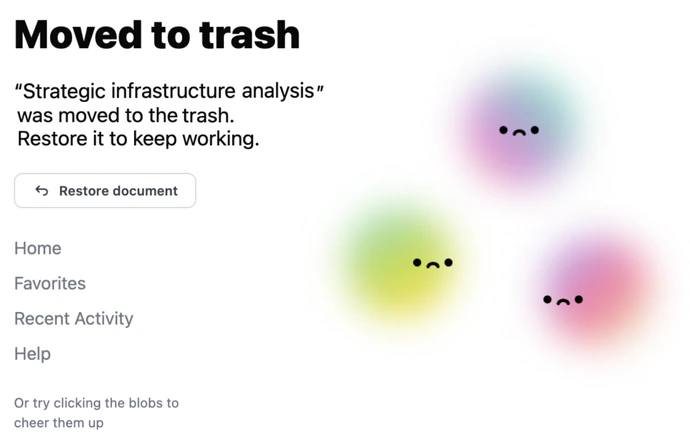 Use the **Restore content** button on this page to restore the document.
If you don't have permission to restore the document, you'll see a message explaining why:
* **Insufficient permissions** - You don't have the required permissions to restore the document
* **Model in trash** - The underlying model has been archived. If you have permission to restore the document, you'll see the model name and ID so you can locate it in the trash.
Users without view access and embed users will see a generic error page when following a direct link to archived content.
## Next steps
* [Navigating content](/content/navigate)
* [Organizing content with folders and labels](/content/organize)
* [Sharing content](/share)
Use the **Restore content** button on this page to restore the document.
If you don't have permission to restore the document, you'll see a message explaining why:
* **Insufficient permissions** - You don't have the required permissions to restore the document
* **Model in trash** - The underlying model has been archived. If you have permission to restore the document, you'll see the model name and ID so you can locate it in the trash.
Users without view access and embed users will see a generic error page when following a direct link to archived content.
## Next steps
* [Navigating content](/content/navigate)
* [Organizing content with folders and labels](/content/organize)
* [Sharing content](/share)