> ## Documentation Index
> Fetch the complete documentation index at: https://docs.omni.co/llms.txt
> Use this file to discover all available pages before exploring further.
## Submitting Feedback
If you encounter incorrect, outdated, or confusing documentation on this page, submit feedback:
POST https://docs.omni.co/feedback
```json
{
"path": "/connect-data/setup/snowflake",
"feedback": "Description of the issue"
}
```
Only submit feedback when you have something specific and actionable to report.
# Connecting Snowflake to Omni
> Learn how to create a database user, grant permissions, and connect your Snowflake data warehouse to Omni.
export const BaseAccess = () => {
return
Select the minimum level of access users should have to models in the connection.
;
};
export const AlwaysScopeViewNames = () => {
return
When enabled, Omni will prefix generated view names with schema and catalog, e.g. my_catalog_public__orders instead of orders. Defaults to enabled. See View name generation for more information.
;
};
export const AutoGenerateRelationshipsAllModes = () => {
return
Controls how Omni infers relationships during schema refreshes. Select from four modes:
- Both - Infer from foreign key constraints and column name matching
- Foreign keys only - Foreign key constraints only
- Column names only - Column name matching only
- None - Skip auto-generation entirely
;
};
export const QueryTimeout = ({defaultValue}) => {
return
Maximum time in seconds before a query times out.
;
};
export const AllowUserSpecificTimezones = () => {
return
When enabled, users can override the connection timezone with their own when querying.
;
};
export const QueryTimezone = () => {
return
The timezone to use for Omni queries. If a timezone is specified, data will be converted from the Database Timezone to the selected timezone.
;
};
export const DatabaseTimezone = () => {
return
The timezone used by the database.
;
};
export const TableUploads = ({label = "Schema for Table Uploads", term = "schema"}) => {
return
The name of the {term} to use for table (CSV) uploads. If left blank, you can upload tables but they won't be pushed to the database or be available for use in joins.
;
};
export const Offloaded = ({term = "Schemas"}) => {
const lower = term.toLowerCase();
return
A comma-separated list of {lower} to include in the connection, which will only load on demand. This setting is good for large {lower} or dbt dev {lower}.
;
};
export const Include = ({term = "Schemas"}) => {
const lower = term.toLowerCase();
return
A comma-separated list of {lower} to include in the connection.
;
};
export const IncludeOther = ({term = "Schemas"}) => {
const lower = term.toLowerCase();
return
A comma-separated list of other {lower} to include in the connection.
;
};
export const Database = () => {
return
The database to connect to.
;
};
export const Port = ({defaultValue}) => {
return
The port number for the database connection.
;
};
export const DisplayName = () => {
return
A user-friendly name for the connection, which will be used throughout Omni.
;
};
## Requirements
To follow the steps in this guide, you'll need:
* **Organization Admin permissions in Omni**
* **Permissions in Snowflake** that allow you to:
* Create database users and grant permissions
* Allowlist IP addresses
* Set up key-pair authentication
## Setup
1. Sign in to your Snowflake account.
2. Create a new worksheet.
3. Run the following to create a role and user for Omni, and grant privileges:
```sql title="Create Omni role & user and grant privileges" theme={null}
use role ACCOUNTADMIN;
create role if not exists omni_role;
create user if not exists omni_user;
grant role omni_role to user omni_user;
alter user omni_user set default_role = omni_role;
alter user omni_user set type = service;
alter user omni_user set default_warehouse = '';
-- grant read only database access - repeat for all database/schemas:
grant usage, monitor on database to role omni_role;
grant usage, monitor on schema . to role omni_role;
grant usage, monitor on warehouse to role omni_role;
-- alternatively, grant read only database access across all schemas:
grant usage, monitor on database to role omni_role;
grant usage, monitor on all schemas IN DATABASE to role omni_role;
grant usage, monitor on future schemas IN DATABASE to role omni_role;
grant usage, monitor on warehouse to role omni_role;
-- grant access to all tables in the schema to omni_role:
grant select on all tables in schema . to role omni_role;
grant select on future tables in schema . to role omni_role;
-- grant access to all views in the schema to omni_role:
grant select on all views in schema . to role omni_role;
grant select on future views in schema . to role omni_role;
-- (optional) grant access to dynamic tables in the schema to omni_role:
grant select on all dynamic tables in schema . to role omni_role;
grant select on future dynamic tables in schema . to role omni_role;
-- (optional) required to use the Model Assistant's "Suggest model from query history" skill
grant imported privileges on database SNOWFLAKE TO ROLE omni_role;
-- grant ownership of omni_role to omni_user:
grant role omni_role to user omni_user;
```
Omni supports [Snowflake semantic views](/connect-data/snowflake-semantic-views), but they require additional connection settings to enable. If you use semantic views, refer to the setup guide after completing your connection.
**This step is optional.** However, we recommend completing it as part of the initial set up or you won't be able to use uploaded files like CSVs in joins.
In this step, you'll create a dedicated schema to use for [table uploads](/analyze-explore/data-input-csvs). This schema can't be used for other modeled tables.
1. Create the schema in Snowflake. This can be in its own database or the same database as other schemas to be used in modeling.
2. Run the following commands to grant the Omni user the required privileges:
```sql title="Grant Omni user permissions to upload schema" theme={null}
grant usage on database to role omni_role;
grant usage, create table on schema . to role omni_role;
```
If access to the Snowflake database is [limited by IP address](https://docs.snowflake.com/en/user-guide/network-policies), you'll need to add Omni's IPs to the allowlist before you create the database connection.
Omni's IP addresses can be found on an individual connection's page, accessed by navigating to **Settings > Connections** and clicking a connection.
1. In Snowflake, click your user icon in the bottom left corner of the page and then hover over **Account**.
2. In the account selector, click the **View account details** link under the account:
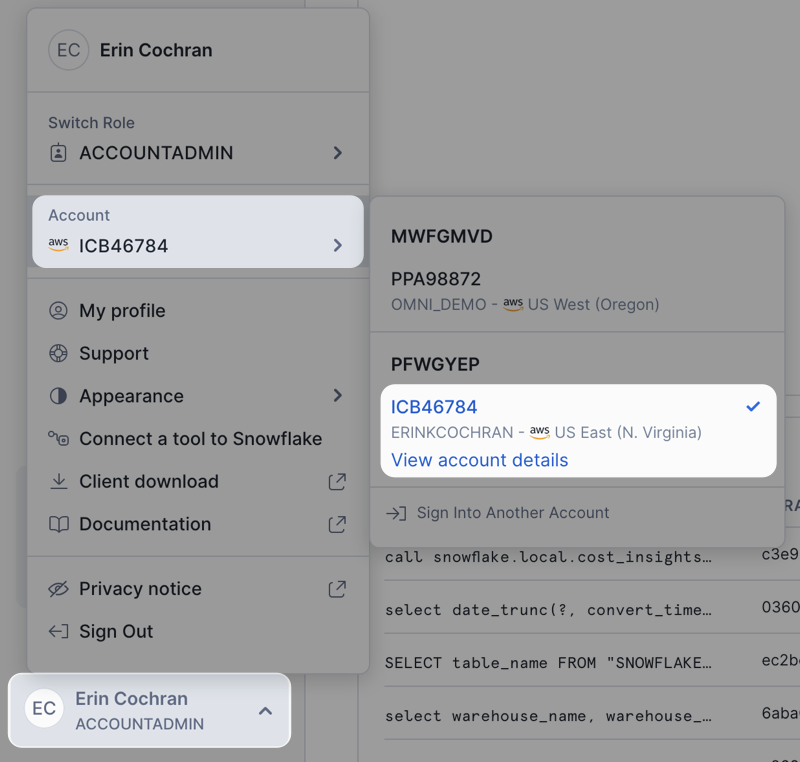 3. In the **Account Details** dialog, locate and copy the **Account Identifier**.
Refer to the [Snowflake documentation](https://docs.snowflake.com/user-guide/admin-account-identifier#finding-the-organization-and-account-name-for-an-account) for information about Snowflake account identifiers.
Snowflake connection parameters can be case sensitive and are often capitalized. If you see errors on connection, confirm your connection parameters match your Snowflake environment exactly.
1. In Omni, click **Settings > Connections**.
2. Click the **Snowflake** option.
3. On the connection setup page, fill in the connection details:
Controls how you provide warehouse information to Omni. Supported options are an **Account Identifier** or a **Host and Port**.
Your Snowflake account identifier. Required if **Host Type** is **Account Identifier**.
The full hostname for your Snowflake instance (e.g., `youraccount.snowflakecomputing.com`). Required if **Host Type** is **Host and Port**.
The Snowflake warehouse to use for queries.
The type of authentication to use.
Snowflake [programmatic access tokens](https://docs.snowflake.com/en/user-guide/programmatic-access-tokens) (PATs) provide a secure, non-interactive way to authenticate to Snowflake without a traditional password.
To use a PAT, select **Password** as the authentication type and enter:
* **Username** - The Omni database user you created in step 1.
* **Password** - Paste the Snowflake PAT value.
No additional configuration is needed — PATs work out of the box in the password field.
To use this authentication type, you'll need to specify a **Username** and set up a key-pair:
* **Username** - This is the Omni database user you created in step 1.
* **Key-pair configuration** - Click the link to set up keys for the connection. Refer to step 6 for more information.
Password authentication uses a **username** and **password** to authenticate to Snowflake.
Snowflake is [phasing out single-factor password authentication](https://docs.snowflake.com/en/user-guide/security-mfa-rollout), with full enforcement expected by October 2026. Use a programmatic access token or key-pair authentication instead to meet their enforcement deadlines.
4. When finished, click **Create connection**.
If you have multiple Snowflake connections, each connection must use a different key-pair. We recommend using a different Snowflake user for each connection, but these users can use the same Snowflake role to simplify permissions administration.
If you selected **Keypair authentication** as the [**Authentication type**](#param-authentication-type), you'll need to configure keys before you can save the connection.
Omni can generate the keypair for you, or you can provide an existing [private key](https://docs.snowflake.com/en/user-guide/key-pair-auth#generate-the-private-key).
1. In the **Keypairs** tab, click **Generate key-pair**.
2. Click **Copy** next to the public key.
3. Navigate back to your Snowflake account and run the following:
```sql theme={null}
alter user omni_user set RSA_PUBLIC_KEY='COPIED_PUBLIC_KEY';
```
4. In the **Keypair** tab in Omni, click the toggle in the **Active** column to enable the keypair.
Omni only supports RSA private keys without passphrases.
1. In the **Keypairs** tab, click **Add existing key**.
2. Paste the private key into the dialog. For example:
```shell theme={null}
-----BEGIN PRIVATE KEY-----
MIIEvgIBADANBgkqhkiG9w0BAQEFAASCBKgwggSkAgEAAoIBAQCXHK07oaqx8fnY
r3UbfUS6HRXQFRvQ0J8qqzgq+UH4ZqtgxV44ciSOwzL65E2aZrixXxB+s7Kbbw1q
...
...
fAPCZRg8vdG8Hp26PwXxybZ/M9u7NaKJ0BT4AwKKtZTUxZVxz/kPhdHT+MpoQqJf
JuzuwXVAAcl1GME2OiqkZhww
-----END PRIVATE KEY-----
```
**Note**: Omni will automatically add `-----BEGIN PRIVATE KEY-----` and `-----END PRIVATE KEY-----` if the key doesn't have them.
3. Click **Add keypair**. Omni will automatically generate the public key and redirect you back to the **Keypairs** tab.
4. Click **Copy** next to the newly-generated public key.
5. Navigate back to your Snowflake account and run the following:
```sql title="Set key for the Omni user" theme={null}
alter user omni_user set RSA_PUBLIC_KEY='COPIED_PUBLIC_KEY';
```
6. In the **Keypair** tab in Omni, click the toggle in the **Active** column to enable the keypair.
## What's next?
Now that your database is set up, you can:
* Use the Omni Agent's [quickstart skill](/modeling/topics/quickstart) to create your first topic from business questions
* Configure user permissions, [schema refreshes](/modeling/develop/schema-refreshes), [environments](/connect-data/dynamic-environments) and [timezone settings](/connect-data/timezones)
* Learn how Omni [generates the model](/modeling/develop/model-generation) associated with the connection
- If you use Snowflake semantic views, refer to [Snowflake semantic views](/connect-data/snowflake-semantic-views) for additional setup steps to import and query them in Omni.
- Use the Model Assistant's [Suggest model from query history skill](/ai/model-assistant#suggest-model-from-query-history) to generate semantic models based on actual SQL query patterns run against the database
3. In the **Account Details** dialog, locate and copy the **Account Identifier**.
Refer to the [Snowflake documentation](https://docs.snowflake.com/user-guide/admin-account-identifier#finding-the-organization-and-account-name-for-an-account) for information about Snowflake account identifiers.
Snowflake connection parameters can be case sensitive and are often capitalized. If you see errors on connection, confirm your connection parameters match your Snowflake environment exactly.
1. In Omni, click **Settings > Connections**.
2. Click the **Snowflake** option.
3. On the connection setup page, fill in the connection details:
Controls how you provide warehouse information to Omni. Supported options are an **Account Identifier** or a **Host and Port**.
Your Snowflake account identifier. Required if **Host Type** is **Account Identifier**.
The full hostname for your Snowflake instance (e.g., `youraccount.snowflakecomputing.com`). Required if **Host Type** is **Host and Port**.
The Snowflake warehouse to use for queries.
The type of authentication to use.
Snowflake [programmatic access tokens](https://docs.snowflake.com/en/user-guide/programmatic-access-tokens) (PATs) provide a secure, non-interactive way to authenticate to Snowflake without a traditional password.
To use a PAT, select **Password** as the authentication type and enter:
* **Username** - The Omni database user you created in step 1.
* **Password** - Paste the Snowflake PAT value.
No additional configuration is needed — PATs work out of the box in the password field.
To use this authentication type, you'll need to specify a **Username** and set up a key-pair:
* **Username** - This is the Omni database user you created in step 1.
* **Key-pair configuration** - Click the link to set up keys for the connection. Refer to step 6 for more information.
Password authentication uses a **username** and **password** to authenticate to Snowflake.
Snowflake is [phasing out single-factor password authentication](https://docs.snowflake.com/en/user-guide/security-mfa-rollout), with full enforcement expected by October 2026. Use a programmatic access token or key-pair authentication instead to meet their enforcement deadlines.
4. When finished, click **Create connection**.
If you have multiple Snowflake connections, each connection must use a different key-pair. We recommend using a different Snowflake user for each connection, but these users can use the same Snowflake role to simplify permissions administration.
If you selected **Keypair authentication** as the [**Authentication type**](#param-authentication-type), you'll need to configure keys before you can save the connection.
Omni can generate the keypair for you, or you can provide an existing [private key](https://docs.snowflake.com/en/user-guide/key-pair-auth#generate-the-private-key).
1. In the **Keypairs** tab, click **Generate key-pair**.
2. Click **Copy** next to the public key.
3. Navigate back to your Snowflake account and run the following:
```sql theme={null}
alter user omni_user set RSA_PUBLIC_KEY='COPIED_PUBLIC_KEY';
```
4. In the **Keypair** tab in Omni, click the toggle in the **Active** column to enable the keypair.
Omni only supports RSA private keys without passphrases.
1. In the **Keypairs** tab, click **Add existing key**.
2. Paste the private key into the dialog. For example:
```shell theme={null}
-----BEGIN PRIVATE KEY-----
MIIEvgIBADANBgkqhkiG9w0BAQEFAASCBKgwggSkAgEAAoIBAQCXHK07oaqx8fnY
r3UbfUS6HRXQFRvQ0J8qqzgq+UH4ZqtgxV44ciSOwzL65E2aZrixXxB+s7Kbbw1q
...
...
fAPCZRg8vdG8Hp26PwXxybZ/M9u7NaKJ0BT4AwKKtZTUxZVxz/kPhdHT+MpoQqJf
JuzuwXVAAcl1GME2OiqkZhww
-----END PRIVATE KEY-----
```
**Note**: Omni will automatically add `-----BEGIN PRIVATE KEY-----` and `-----END PRIVATE KEY-----` if the key doesn't have them.
3. Click **Add keypair**. Omni will automatically generate the public key and redirect you back to the **Keypairs** tab.
4. Click **Copy** next to the newly-generated public key.
5. Navigate back to your Snowflake account and run the following:
```sql title="Set key for the Omni user" theme={null}
alter user omni_user set RSA_PUBLIC_KEY='COPIED_PUBLIC_KEY';
```
6. In the **Keypair** tab in Omni, click the toggle in the **Active** column to enable the keypair.
## What's next?
Now that your database is set up, you can:
* Use the Omni Agent's [quickstart skill](/modeling/topics/quickstart) to create your first topic from business questions
* Configure user permissions, [schema refreshes](/modeling/develop/schema-refreshes), [environments](/connect-data/dynamic-environments) and [timezone settings](/connect-data/timezones)
* Learn how Omni [generates the model](/modeling/develop/model-generation) associated with the connection
- If you use Snowflake semantic views, refer to [Snowflake semantic views](/connect-data/snowflake-semantic-views) for additional setup steps to import and query them in Omni.
- Use the Model Assistant's [Suggest model from query history skill](/ai/model-assistant#suggest-model-from-query-history) to generate semantic models based on actual SQL query patterns run against the database