> ## Documentation Index
> Fetch the complete documentation index at: https://docs.omni.co/llms.txt
> Use this file to discover all available pages before exploring further.
# Connecting Microsoft Fabric to Omni
> Learn how to set up a service principal and connect your Microsoft Fabric warehouse or lakehouse SQL analytics endpoint to Omni.
export const BaseAccess = () => {
return
Select the minimum level of access users should have to models in the connection.
;
};
export const QueryTimeout = ({defaultValue}) => {
return
Maximum time in seconds before a query times out.
;
};
export const AlwaysScopeViewNames = () => {
return
When enabled, Omni will prefix generated view names with schema and catalog, e.g. my_catalog_public__orders instead of orders. Defaults to enabled. See View name generation for more information.
;
};
export const AutoGenerateRelationships = () => {
return
When enabled, Omni will automatically infer relationships between tables based on column name matching during schema refreshes. Defaults to enabled.
;
};
export const AllowUserSpecificTimezones = () => {
return
When enabled, users can override the connection timezone with their own when querying.
;
};
export const QueryTimezone = () => {
return
The timezone to use for Omni queries. If a timezone is specified, data will be converted from the Database Timezone to the selected timezone.
;
};
export const DatabaseTimezone = () => {
return
The timezone used by the database.
;
};
export const Default = ({term = "Schema", required = true, defaultValue}) => {
const lower = term.toLowerCase();
return
The default {lower} for the connection.
;
};
export const TableUploads = ({label = "Schema for Table Uploads", term = "schema", children}) => {
return
The name of the {term} to use for table (CSV) uploads. If left blank, you can upload tables but they won't be pushed to the database or be available for use in joins. {children}
;
};
export const Offloaded = ({term = "Schemas"}) => {
const lower = term.toLowerCase();
return
A comma-separated list of {lower} to include in the connection, which will only load on demand. This setting is good for large {lower} or dbt dev {lower}.
;
};
export const Include = ({term = "Schemas"}) => {
const lower = term.toLowerCase();
return
A comma-separated list of {lower} to include in the connection.
;
};
export const Port = ({defaultValue}) => {
return
The port number for the database connection.
;
};
export const DisplayName = () => {
return
A user-friendly name for the connection, which will be used throughout Omni.
;
};
export const authType_1 = undefined
export const authType_0 = "service-principal"
export const stepCopy_1 = "Select the Entra user you want to use to complete the connection."
export const stepCopy_0 = "Search for the app registration name from step 1."
Microsoft Fabric connections must be enabled for your Omni instance. Reach out to Omni support to have this feature enabled.
Omni supports the following methods for connecting to Microsoft Fabric:
* **Service principal authentication** - **Recommended**. Omni authenticates with a Microsoft Entra ID app registration, also called a service principal.
* **Entra user password** - If you can't use a service principal, you can use this approach instead. Note that this method will fail for accounts that require multi-factor authentication (MFA).
Choose the method that best fits your team's security requirements and preferences.
## Select an authentication method
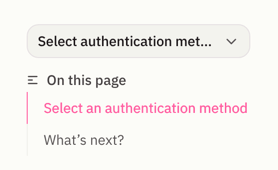
**To view instructions for your authentication method**, select it from the **dropdown menu** on the right side of the page, above the table of contents.
 ## Requirements
To follow the steps in this guide, you'll need:
* **Organization Admin permissions in Omni**
* **Admin or Member permissions on the Fabric workspace**, which are required to give Omni access to the workspace
* **A warehouse or lakehouse in a shared Fabric workspace.** Items in **My workspace** can't be used, because you can't add other identities to that workspace.
**A warehouse is required if you want to use table uploads.** Table uploads require read and write permissions - as lakehouse SQL analytics endpoints are read-only, table uploads will not work with this connection type.
- **Permission to register applications in Microsoft Entra ID**, or an administrator who can register one for you
- **Fabric administrator permissions**, which are required to change tenant settings
## Setup
1. In the [Microsoft Azure Portal](https://portal.azure.com/#home), navigate to **Microsoft Entra ID > App registrations**.
2. Click **New registration**.
3. Enter a recognizable name, for example `omni-fabric`. Keep the default single tenant setting. You don't need a redirect URI.
4. Click **Register**.
5. On the app's **Overview** page, copy the **Application (client) ID**. This is the **Client ID** in Omni.
6. Go to **Certificates & secrets** and click **New client secret**.
7. Select an expiry period and click **Add**.
8. Copy the secret **Value**, not the **Secret ID**. Azure shows the value only once. This is the **Secret** in Omni.
Client secrets expire after a maximum of two years. When the secret expires, the connection will stop working. Record the expiry date and update the secret in Omni before that date.
This step requires Fabric administrator permissions.
In this step, you'll enable the **Service principals can call Fabric public APIs** setting, which allows service principals to connect to Fabric. If this setting is disabled, the connection fails with an error that looks like an incorrect secret. See Microsoft's [Developer admin settings](https://learn.microsoft.com/en-us/fabric/admin/service-admin-portal-developer#service-principals-can-call-fabric-public-apis) documentation for more information.
1. In the Fabric portal, navigate to **Settings > Admin portal > Tenant settings**.
2. In the **Developer settings** section, expand **Service principals can call Fabric public APIs**. In older tenants, this setting is named **Service principals can use Fabric APIs**.
3. Set the toggle to **Enabled**.
4. **Optional**: To limit this setting to specific identities, select **Specific security groups** and add a Microsoft Entra security group. Then, add the Omni service principal to that group.
5. Click **Apply**.
Note that tenant setting changes can take up to 15 minutes to apply.
Fabric maps workspace roles to SQL permissions. You can't run `CREATE USER` in Fabric, so you give Omni access through a workspace role.
1. In Fabric, open the workspace that contains the warehouse or lakehouse.
2. Click **Manage access**.
3. Click **Add people or groups**.
4. {stepCopy_0}
5. Select a role:
* **Contributor** - Allows Omni to query data and create tables. **Required to use table uploads.**
* **Viewer** - Allows Omni to query data. Omni cannot create tables.
## Requirements
To follow the steps in this guide, you'll need:
* **Organization Admin permissions in Omni**
* **Admin or Member permissions on the Fabric workspace**, which are required to give Omni access to the workspace
* **A warehouse or lakehouse in a shared Fabric workspace.** Items in **My workspace** can't be used, because you can't add other identities to that workspace.
**A warehouse is required if you want to use table uploads.** Table uploads require read and write permissions - as lakehouse SQL analytics endpoints are read-only, table uploads will not work with this connection type.
- **Permission to register applications in Microsoft Entra ID**, or an administrator who can register one for you
- **Fabric administrator permissions**, which are required to change tenant settings
## Setup
1. In the [Microsoft Azure Portal](https://portal.azure.com/#home), navigate to **Microsoft Entra ID > App registrations**.
2. Click **New registration**.
3. Enter a recognizable name, for example `omni-fabric`. Keep the default single tenant setting. You don't need a redirect URI.
4. Click **Register**.
5. On the app's **Overview** page, copy the **Application (client) ID**. This is the **Client ID** in Omni.
6. Go to **Certificates & secrets** and click **New client secret**.
7. Select an expiry period and click **Add**.
8. Copy the secret **Value**, not the **Secret ID**. Azure shows the value only once. This is the **Secret** in Omni.
Client secrets expire after a maximum of two years. When the secret expires, the connection will stop working. Record the expiry date and update the secret in Omni before that date.
This step requires Fabric administrator permissions.
In this step, you'll enable the **Service principals can call Fabric public APIs** setting, which allows service principals to connect to Fabric. If this setting is disabled, the connection fails with an error that looks like an incorrect secret. See Microsoft's [Developer admin settings](https://learn.microsoft.com/en-us/fabric/admin/service-admin-portal-developer#service-principals-can-call-fabric-public-apis) documentation for more information.
1. In the Fabric portal, navigate to **Settings > Admin portal > Tenant settings**.
2. In the **Developer settings** section, expand **Service principals can call Fabric public APIs**. In older tenants, this setting is named **Service principals can use Fabric APIs**.
3. Set the toggle to **Enabled**.
4. **Optional**: To limit this setting to specific identities, select **Specific security groups** and add a Microsoft Entra security group. Then, add the Omni service principal to that group.
5. Click **Apply**.
Note that tenant setting changes can take up to 15 minutes to apply.
Fabric maps workspace roles to SQL permissions. You can't run `CREATE USER` in Fabric, so you give Omni access through a workspace role.
1. In Fabric, open the workspace that contains the warehouse or lakehouse.
2. Click **Manage access**.
3. Click **Add people or groups**.
4. {stepCopy_0}
5. Select a role:
* **Contributor** - Allows Omni to query data and create tables. **Required to use table uploads.**
* **Viewer** - Allows Omni to query data. Omni cannot create tables.
 6. Click **Add**.
**This step is optional.** However, we recommend completing it as part of the initial set up or you won't be able to use uploaded files like CSVs in joins.
**A warehouse is required to use table uploads.** A lakehouse SQL analytics endpoint can't store tables. If you are connecting a lakehouse, skip this step.
In this step, you'll create a dedicated schema to use for [table uploads](/analyze-explore/data-input-csvs). This schema can't be used for other modeled tables.
1. In Fabric, open the warehouse and click **New SQL query**.
2. Run the following command to create the schema:
```sql title="Create the upload schema" theme={null}
CREATE SCHEMA omni_uploads;
```
The **Contributor** workspace role gives the service principal or Entra user permission to write to this schema. You don't need to run `GRANT` statements.
If the Fabric workspace limits inbound access by IP address, you'll need to add Omni's IPs to the allowlist before you create the connection.
Omni's IP addresses can be found on an individual connection's page, accessed by navigating to **Settings > Connections** and clicking a connection.
Add a rule for each of Omni's IP addresses. For the steps and requirements, refer to Microsoft's [Set up and use workspace IP firewall rules](https://learn.microsoft.com/en-us/fabric/security/security-workspace-level-firewall-set-up) documentation.
1. In Fabric, open the workspace.
2. Find the warehouse or the lakehouse SQL analytics endpoint in the item list.
3. Next to the warehouse or lakehouse SQL analytics endpoint, click the icon, then **Copy SQL connection string**. You can also find the connection string in the item's **Settings** panel.
6. Click **Add**.
**This step is optional.** However, we recommend completing it as part of the initial set up or you won't be able to use uploaded files like CSVs in joins.
**A warehouse is required to use table uploads.** A lakehouse SQL analytics endpoint can't store tables. If you are connecting a lakehouse, skip this step.
In this step, you'll create a dedicated schema to use for [table uploads](/analyze-explore/data-input-csvs). This schema can't be used for other modeled tables.
1. In Fabric, open the warehouse and click **New SQL query**.
2. Run the following command to create the schema:
```sql title="Create the upload schema" theme={null}
CREATE SCHEMA omni_uploads;
```
The **Contributor** workspace role gives the service principal or Entra user permission to write to this schema. You don't need to run `GRANT` statements.
If the Fabric workspace limits inbound access by IP address, you'll need to add Omni's IPs to the allowlist before you create the connection.
Omni's IP addresses can be found on an individual connection's page, accessed by navigating to **Settings > Connections** and clicking a connection.
Add a rule for each of Omni's IP addresses. For the steps and requirements, refer to Microsoft's [Set up and use workspace IP firewall rules](https://learn.microsoft.com/en-us/fabric/security/security-workspace-level-firewall-set-up) documentation.
1. In Fabric, open the workspace.
2. Find the warehouse or the lakehouse SQL analytics endpoint in the item list.
3. Next to the warehouse or lakehouse SQL analytics endpoint, click the icon, then **Copy SQL connection string**. You can also find the connection string in the item's **Settings** panel.
 The connection string looks like this:
```text theme={null}
.datawarehouse.fabric.microsoft.com
```
4. Copy the name of the warehouse or lakehouse exactly as it shows in the workspace, including spaces and capitalization.
1. In Omni, click **Settings > Connections**.
2. Click the **Microsoft Fabric** option.
3. On the connection setup page, fill in the connection details:
The `.datawarehouse.fabric.microsoft.com` connection string that you copied in the previous step.
The name of the warehouse or lakehouse, as it shows in the Fabric workspace. **A warehouse is required to use table uploads.**
A comma-separated list of other warehouses or lakehouses in the same workspace to generate models for. Wildcards are supported (`sales_*`), and prefixing an entry with `-` excludes it (`sales_*,-sales_dev`). Refer to [Querying warehouses and lakehouses together](#querying-warehouses-and-lakehouses-together) for more information.
**This schema must be in a warehouse**. Leave this blank if connecting a lakehouse SQL analytics endpoint, as this connection type doesn't support table uploads.
{authType_0 === "service-principal" ? (
Select **Service principal**, which will authenticate as the service principal you created in step 1. Then, fill in the following:
- **Client ID** - The **Application (client) ID** of the app registration.
- **Secret** - The client secret **Value**.
) : (
Select **Entra User Password** to authenticate as a Microsoft Entra ID user. Then, fill in the following:
- **Entra Username** - The user's sign-in name, for example `omni@example.com`. **This account cannot require MFA, or the connection will fail.**
- **Entra Password** - The user's password.
)}
4. When finished, click **Create connection**.
## Requirements
To follow the steps in this guide, you'll need:
* **Organization Admin permissions in Omni**
* **Admin or Member permissions on the Fabric workspace**, which are required to give Omni access to the workspace
* **A warehouse or lakehouse in a shared Fabric workspace.** Items in **My workspace** can't be used, because you can't add other identities to that workspace.
**A warehouse is required if you want to use table uploads.** Table uploads require read and write permissions - as lakehouse SQL analytics endpoints are read-only, table uploads will not work with this connection type.
## Setup
Fabric maps workspace roles to SQL permissions. You can't run `CREATE USER` in Fabric, so you give Omni access through a workspace role.
1. In Fabric, open the workspace that contains the warehouse or lakehouse.
2. Click **Manage access**.
3. Click **Add people or groups**.
4. {stepCopy_1}
5. Select a role:
* **Contributor** - Allows Omni to query data and create tables. **Required to use table uploads.**
* **Viewer** - Allows Omni to query data. Omni cannot create tables.
6. Click **Add**.
**This step is optional.** However, we recommend completing it as part of the initial set up or you won't be able to use uploaded files like CSVs in joins.
**A warehouse is required to use table uploads.** A lakehouse SQL analytics endpoint can't store tables. If you are connecting a lakehouse, skip this step.
In this step, you'll create a dedicated schema to use for [table uploads](/analyze-explore/data-input-csvs). This schema can't be used for other modeled tables.
1. In Fabric, open the warehouse and click **New SQL query**.
2. Run the following command to create the schema:
```sql title="Create the upload schema" theme={null}
CREATE SCHEMA omni_uploads;
```
The **Contributor** workspace role gives the service principal or Entra user permission to write to this schema. You don't need to run `GRANT` statements.
If the Fabric workspace limits inbound access by IP address, you'll need to add Omni's IPs to the allowlist before you create the connection.
Omni's IP addresses can be found on an individual connection's page, accessed by navigating to **Settings > Connections** and clicking a connection.
Add a rule for each of Omni's IP addresses. For the steps and requirements, refer to Microsoft's [Set up and use workspace IP firewall rules](https://learn.microsoft.com/en-us/fabric/security/security-workspace-level-firewall-set-up) documentation.
1. In Fabric, open the workspace.
2. Find the warehouse or the lakehouse SQL analytics endpoint in the item list.
3. Next to the warehouse or lakehouse SQL analytics endpoint, click the icon, then **Copy SQL connection string**. You can also find the connection string in the item's **Settings** panel.
The connection string looks like this:
```text theme={null}
.datawarehouse.fabric.microsoft.com
```
4. Copy the name of the warehouse or lakehouse exactly as it shows in the workspace, including spaces and capitalization.
1. In Omni, click **Settings > Connections**.
2. Click the **Microsoft Fabric** option.
3. On the connection setup page, fill in the connection details:
The `.datawarehouse.fabric.microsoft.com` connection string that you copied in the previous step.
The name of the warehouse or lakehouse, as it shows in the Fabric workspace. **A warehouse is required to use table uploads.**
A comma-separated list of other warehouses or lakehouses in the same workspace to generate models for. Wildcards are supported (`sales_*`), and prefixing an entry with `-` excludes it (`sales_*,-sales_dev`). Refer to [Querying warehouses and lakehouses together](#querying-warehouses-and-lakehouses-together) for more information.
**This schema must be in a warehouse**. Leave this blank if connecting a lakehouse SQL analytics endpoint, as this connection type doesn't support table uploads.
{authType_1 === "service-principal" ? (
Select **Service principal**, which will authenticate as the service principal you created in step 1. Then, fill in the following:
- **Client ID** - The **Application (client) ID** of the app registration.
- **Secret** - The client secret **Value**.
) : (
Select **Entra User Password** to authenticate as a Microsoft Entra ID user. Then, fill in the following:
- **Entra Username** - The user's sign-in name, for example `omni@example.com`. **This account cannot require MFA, or the connection will fail.**
- **Entra Password** - The user's password.
)}
4. When finished, click **Create connection**.
## Querying warehouses and lakehouses together
Fabric can query across the warehouses and lakehouses in a workspace. One Omni connection can use this to read from several of them:
1. In **Warehouse or Lakehouse**, enter a **warehouse**. Omni writes table uploads to this item, so it must be writable.
2. In **Include Other Databases**, enter the lakehouses and other warehouses you want to model.
Omni then generates views for each item, and you can join tables across them. When using this approach, note that:
* **The same table can show in more than one item.** Lakehouse shortcuts can point to warehouse tables, so `dbo.orders` can exist in both. Model the table from one item only.
* **New shortcut tables can take a few minutes to show in Omni.** If a [schema refresh](/modeling/develop/schema-refreshes) runs right after someone adds a shortcut, the new table may be missing. Run the refresh again.
## Differences from SQL Server
While Fabric uses T-SQL, it doesn't support all [Microsoft SQL Server](/connect-data/setup/microsoftsql) features. Omni generates SQL that works in Fabric. The differences below affect SQL that you write yourself, and filter results.
| Behavior | What to expect in Omni |
| ------------------------------------ | ------------------------------------------------------------------------------------------------------------------------------------------------------------------------------------------------------------------------------------------------------------------------------ |
| **Case sensitivity** | By default, Fabric warehouses are case-sensitive. Table and column names must match their case in Fabric, and a filter for `usa` doesn't match `USA`. A warehouse can be created case-insensitive, but the setting can't be changed after creation. |
| **Timestamps with timezone offsets** | Fabric tables can't store `datetimeoffset` columns, so timestamps don't include a timezone offset. Set **Database Timezone** to the timezone that your timestamps are stored in. Timezone conversion and **Allow User-Specific Timezones** work the same way as in SQL Server. |
| **Recursive CTEs** | Not supported. SQL queries that use `WITH ... UNION ALL` recursion fail. |
| **Chained table calculations** | Fabric can reject queries that chain four or more table calculations that reference each other. |
For the full list, refer to Microsoft's [T-SQL surface area in Fabric Data Warehouse](https://learn.microsoft.com/en-us/fabric/data-warehouse/tsql-surface-area) documentation.
## Troubleshooting
An error like `Login failed for user ''` means that Fabric couldn't open the warehouse or lakehouse for the service principal. Check that:
* **The Service principals can call Fabric public APIs tenant setting is enabled**. If the setting is limited to security groups, the service principal must be in one of the groups. Changes can take up to 15 minutes to apply.
* The service principal has a role on the workspace.
* The **Warehouse or Lakehouse** field matches the item name in Fabric exactly.
* The **Secret** field contains the secret **Value**, not the **Secret ID**.
* If you use **Entra User Password**, the account doesn't require MFA and has a role on the workspace.
Check whether the client secret expired. To fix it, create a new client secret for the app registration in the Azure Portal. Then, update the **Secret** field on the connection in Omni.
Omni can read data but can't create the table for an upload. Check that:
* The service principal or Entra user has the **Contributor** role, or higher, on the workspace. Sharing the warehouse item gives read permissions only.
* The **Warehouse or Lakehouse** field in Omni contains a warehouse, not a lakehouse.
Fabric warehouses are case-sensitive by default. Change the table and column names in your SQL to match their case in Fabric.
Fabric returns these errors for a short time during a system update, or when the workspace is temporarily unavailable. Run the query again. If the errors continue, check that the Fabric capacity is running and isn't paused.
## What's next?
Now that your database is set up, you can:
* Use the Omni Agent's [quickstart skill](/modeling/topics/quickstart) to create your first topic from business questions
* Configure user permissions, [schema refreshes](/modeling/develop/schema-refreshes), [environments](/connect-data/dynamic-environments) and [timezone settings](/connect-data/timezones)
* Learn how Omni [generates the model](/modeling/develop/model-generation) associated with the connection
The connection string looks like this:
```text theme={null}
.datawarehouse.fabric.microsoft.com
```
4. Copy the name of the warehouse or lakehouse exactly as it shows in the workspace, including spaces and capitalization.
1. In Omni, click **Settings > Connections**.
2. Click the **Microsoft Fabric** option.
3. On the connection setup page, fill in the connection details:
The `.datawarehouse.fabric.microsoft.com` connection string that you copied in the previous step.
The name of the warehouse or lakehouse, as it shows in the Fabric workspace. **A warehouse is required to use table uploads.**
A comma-separated list of other warehouses or lakehouses in the same workspace to generate models for. Wildcards are supported (`sales_*`), and prefixing an entry with `-` excludes it (`sales_*,-sales_dev`). Refer to [Querying warehouses and lakehouses together](#querying-warehouses-and-lakehouses-together) for more information.
**This schema must be in a warehouse**. Leave this blank if connecting a lakehouse SQL analytics endpoint, as this connection type doesn't support table uploads.
{authType_0 === "service-principal" ? (
Select **Service principal**, which will authenticate as the service principal you created in step 1. Then, fill in the following:
- **Client ID** - The **Application (client) ID** of the app registration.
- **Secret** - The client secret **Value**.
) : (
Select **Entra User Password** to authenticate as a Microsoft Entra ID user. Then, fill in the following:
- **Entra Username** - The user's sign-in name, for example `omni@example.com`. **This account cannot require MFA, or the connection will fail.**
- **Entra Password** - The user's password.
)}
4. When finished, click **Create connection**.
## Requirements
To follow the steps in this guide, you'll need:
* **Organization Admin permissions in Omni**
* **Admin or Member permissions on the Fabric workspace**, which are required to give Omni access to the workspace
* **A warehouse or lakehouse in a shared Fabric workspace.** Items in **My workspace** can't be used, because you can't add other identities to that workspace.
**A warehouse is required if you want to use table uploads.** Table uploads require read and write permissions - as lakehouse SQL analytics endpoints are read-only, table uploads will not work with this connection type.
## Setup
Fabric maps workspace roles to SQL permissions. You can't run `CREATE USER` in Fabric, so you give Omni access through a workspace role.
1. In Fabric, open the workspace that contains the warehouse or lakehouse.
2. Click **Manage access**.
3. Click **Add people or groups**.
4. {stepCopy_1}
5. Select a role:
* **Contributor** - Allows Omni to query data and create tables. **Required to use table uploads.**
* **Viewer** - Allows Omni to query data. Omni cannot create tables.
6. Click **Add**.
**This step is optional.** However, we recommend completing it as part of the initial set up or you won't be able to use uploaded files like CSVs in joins.
**A warehouse is required to use table uploads.** A lakehouse SQL analytics endpoint can't store tables. If you are connecting a lakehouse, skip this step.
In this step, you'll create a dedicated schema to use for [table uploads](/analyze-explore/data-input-csvs). This schema can't be used for other modeled tables.
1. In Fabric, open the warehouse and click **New SQL query**.
2. Run the following command to create the schema:
```sql title="Create the upload schema" theme={null}
CREATE SCHEMA omni_uploads;
```
The **Contributor** workspace role gives the service principal or Entra user permission to write to this schema. You don't need to run `GRANT` statements.
If the Fabric workspace limits inbound access by IP address, you'll need to add Omni's IPs to the allowlist before you create the connection.
Omni's IP addresses can be found on an individual connection's page, accessed by navigating to **Settings > Connections** and clicking a connection.
Add a rule for each of Omni's IP addresses. For the steps and requirements, refer to Microsoft's [Set up and use workspace IP firewall rules](https://learn.microsoft.com/en-us/fabric/security/security-workspace-level-firewall-set-up) documentation.
1. In Fabric, open the workspace.
2. Find the warehouse or the lakehouse SQL analytics endpoint in the item list.
3. Next to the warehouse or lakehouse SQL analytics endpoint, click the icon, then **Copy SQL connection string**. You can also find the connection string in the item's **Settings** panel.
The connection string looks like this:
```text theme={null}
.datawarehouse.fabric.microsoft.com
```
4. Copy the name of the warehouse or lakehouse exactly as it shows in the workspace, including spaces and capitalization.
1. In Omni, click **Settings > Connections**.
2. Click the **Microsoft Fabric** option.
3. On the connection setup page, fill in the connection details:
The `.datawarehouse.fabric.microsoft.com` connection string that you copied in the previous step.
The name of the warehouse or lakehouse, as it shows in the Fabric workspace. **A warehouse is required to use table uploads.**
A comma-separated list of other warehouses or lakehouses in the same workspace to generate models for. Wildcards are supported (`sales_*`), and prefixing an entry with `-` excludes it (`sales_*,-sales_dev`). Refer to [Querying warehouses and lakehouses together](#querying-warehouses-and-lakehouses-together) for more information.
**This schema must be in a warehouse**. Leave this blank if connecting a lakehouse SQL analytics endpoint, as this connection type doesn't support table uploads.
{authType_1 === "service-principal" ? (
Select **Service principal**, which will authenticate as the service principal you created in step 1. Then, fill in the following:
- **Client ID** - The **Application (client) ID** of the app registration.
- **Secret** - The client secret **Value**.
) : (
Select **Entra User Password** to authenticate as a Microsoft Entra ID user. Then, fill in the following:
- **Entra Username** - The user's sign-in name, for example `omni@example.com`. **This account cannot require MFA, or the connection will fail.**
- **Entra Password** - The user's password.
)}
4. When finished, click **Create connection**.
## Querying warehouses and lakehouses together
Fabric can query across the warehouses and lakehouses in a workspace. One Omni connection can use this to read from several of them:
1. In **Warehouse or Lakehouse**, enter a **warehouse**. Omni writes table uploads to this item, so it must be writable.
2. In **Include Other Databases**, enter the lakehouses and other warehouses you want to model.
Omni then generates views for each item, and you can join tables across them. When using this approach, note that:
* **The same table can show in more than one item.** Lakehouse shortcuts can point to warehouse tables, so `dbo.orders` can exist in both. Model the table from one item only.
* **New shortcut tables can take a few minutes to show in Omni.** If a [schema refresh](/modeling/develop/schema-refreshes) runs right after someone adds a shortcut, the new table may be missing. Run the refresh again.
## Differences from SQL Server
While Fabric uses T-SQL, it doesn't support all [Microsoft SQL Server](/connect-data/setup/microsoftsql) features. Omni generates SQL that works in Fabric. The differences below affect SQL that you write yourself, and filter results.
| Behavior | What to expect in Omni |
| ------------------------------------ | ------------------------------------------------------------------------------------------------------------------------------------------------------------------------------------------------------------------------------------------------------------------------------ |
| **Case sensitivity** | By default, Fabric warehouses are case-sensitive. Table and column names must match their case in Fabric, and a filter for `usa` doesn't match `USA`. A warehouse can be created case-insensitive, but the setting can't be changed after creation. |
| **Timestamps with timezone offsets** | Fabric tables can't store `datetimeoffset` columns, so timestamps don't include a timezone offset. Set **Database Timezone** to the timezone that your timestamps are stored in. Timezone conversion and **Allow User-Specific Timezones** work the same way as in SQL Server. |
| **Recursive CTEs** | Not supported. SQL queries that use `WITH ... UNION ALL` recursion fail. |
| **Chained table calculations** | Fabric can reject queries that chain four or more table calculations that reference each other. |
For the full list, refer to Microsoft's [T-SQL surface area in Fabric Data Warehouse](https://learn.microsoft.com/en-us/fabric/data-warehouse/tsql-surface-area) documentation.
## Troubleshooting
An error like `Login failed for user ''` means that Fabric couldn't open the warehouse or lakehouse for the service principal. Check that:
* **The Service principals can call Fabric public APIs tenant setting is enabled**. If the setting is limited to security groups, the service principal must be in one of the groups. Changes can take up to 15 minutes to apply.
* The service principal has a role on the workspace.
* The **Warehouse or Lakehouse** field matches the item name in Fabric exactly.
* The **Secret** field contains the secret **Value**, not the **Secret ID**.
* If you use **Entra User Password**, the account doesn't require MFA and has a role on the workspace.
Check whether the client secret expired. To fix it, create a new client secret for the app registration in the Azure Portal. Then, update the **Secret** field on the connection in Omni.
Omni can read data but can't create the table for an upload. Check that:
* The service principal or Entra user has the **Contributor** role, or higher, on the workspace. Sharing the warehouse item gives read permissions only.
* The **Warehouse or Lakehouse** field in Omni contains a warehouse, not a lakehouse.
Fabric warehouses are case-sensitive by default. Change the table and column names in your SQL to match their case in Fabric.
Fabric returns these errors for a short time during a system update, or when the workspace is temporarily unavailable. Run the query again. If the errors continue, check that the Fabric capacity is running and isn't paused.
## What's next?
Now that your database is set up, you can:
* Use the Omni Agent's [quickstart skill](/modeling/topics/quickstart) to create your first topic from business questions
* Configure user permissions, [schema refreshes](/modeling/develop/schema-refreshes), [environments](/connect-data/dynamic-environments) and [timezone settings](/connect-data/timezones)
* Learn how Omni [generates the model](/modeling/develop/model-generation) associated with the connection