> ## Documentation Index
> Fetch the complete documentation index at: https://docs.omni.co/llms.txt
> Use this file to discover all available pages before exploring further.
# Connecting Google BigQuery to Omni with workload identity federation
> Connect BigQuery to Omni using workload identity federation — no service account key to store, upload, or rotate.
export const BaseAccess = () => {
return
Select the minimum level of access users should have to models in the connection.
;
};
export const AlwaysScopeViewNames = () => {
return
When enabled, Omni will prefix generated view names with schema and catalog, e.g. my_catalog_public__orders instead of orders. Defaults to enabled. See View name generation for more information.
;
};
export const AllowUserSpecificTimezones = () => {
return
When enabled, users can override the connection timezone with their own when querying.
;
};
export const QueryTimezone = () => {
return
The timezone to use for Omni queries. If a timezone is specified, data will be converted from the Database Timezone to the selected timezone.
;
};
export const DatabaseTimezone = () => {
return
The timezone used by the database.
;
};
export const TableUploads = ({label = "Schema for Table Uploads", term = "schema"}) => {
return
The name of the {term} to use for table (CSV) uploads. If left blank, you can upload tables but they won't be pushed to the database or be available for use in joins.
;
};
export const Offloaded = ({term = "Schemas"}) => {
const lower = term.toLowerCase();
return
A comma-separated list of {lower} to include in the connection, which will only load on demand. This setting is good for large {lower} or dbt dev {lower}.
;
};
export const IncludeOther = ({term = "Schemas"}) => {
const lower = term.toLowerCase();
return
A comma-separated list of other {lower} to include in the connection.
;
};
export const Include = ({term = "Schemas"}) => {
const lower = term.toLowerCase();
return
A comma-separated list of {lower} to include in the connection.
;
};
export const Default = ({term = "Schema", required = true, defaultValue}) => {
const lower = term.toLowerCase();
return
The default {lower} for the connection.
;
};
export const DisplayName = () => {
return
A user-friendly name for the connection, which will be used throughout Omni.
;
};
export const stepText_1 = "step 1"
export const omniPlaceholder_1 = "OMNI_WORKLOAD_IDENTITY"
export const omniFieldName_1 = "Omni Workload Identity"
export const stepText_0 = "step 1"
export const omniPlaceholder_0 = "OMNI_WORKLOAD_IDENTITY"
export const omniFieldName_0 = "Omni Workload Identity"
export const XCircleIcon = ({label}) => {
return
{label && ` ${label}`}
;
};
export const CheckIcon = ({label}) => {
return
{label && ` ${label}`}
;
};
With workload identity federation, Omni connects to BigQuery using its own cloud identity instead of a stored service account key. Omni exchanges its identity for short-lived Google Cloud credentials through a [workload identity pool](https://cloud.google.com/iam/docs/workload-identity-federation) you control — there's no key to create, upload, or rotate, and you can revoke Omni's access at any time from your Google Cloud project.
## How it works
1. In your Google Cloud project, you create a workload identity pool with an AWS provider that trusts the identity Omni presents.
2. When Omni queries BigQuery or refreshes the connection's schema, it exchanges that role's credentials for a short-lived Google Cloud access token.
3. The token acts either as the federated identity itself, or as a service account you allow Omni to impersonate.
## Requirements
Workload identity federation is currently available for **AWS-hosted Omni deployments only**. Support for Azure-hosted deployments is planned.
To follow the steps in this guide, you'll need:
* **Organization Admin permissions** in Omni
* **Google Cloud admin permissions**, which are required to create workload identity pools and grant IAM roles
* **The `gcloud` CLI**
* **The following details about the default dataset in your BigQuery project:**
* The **name** of the default dataset
* Its **data location**
* Its **timezone**
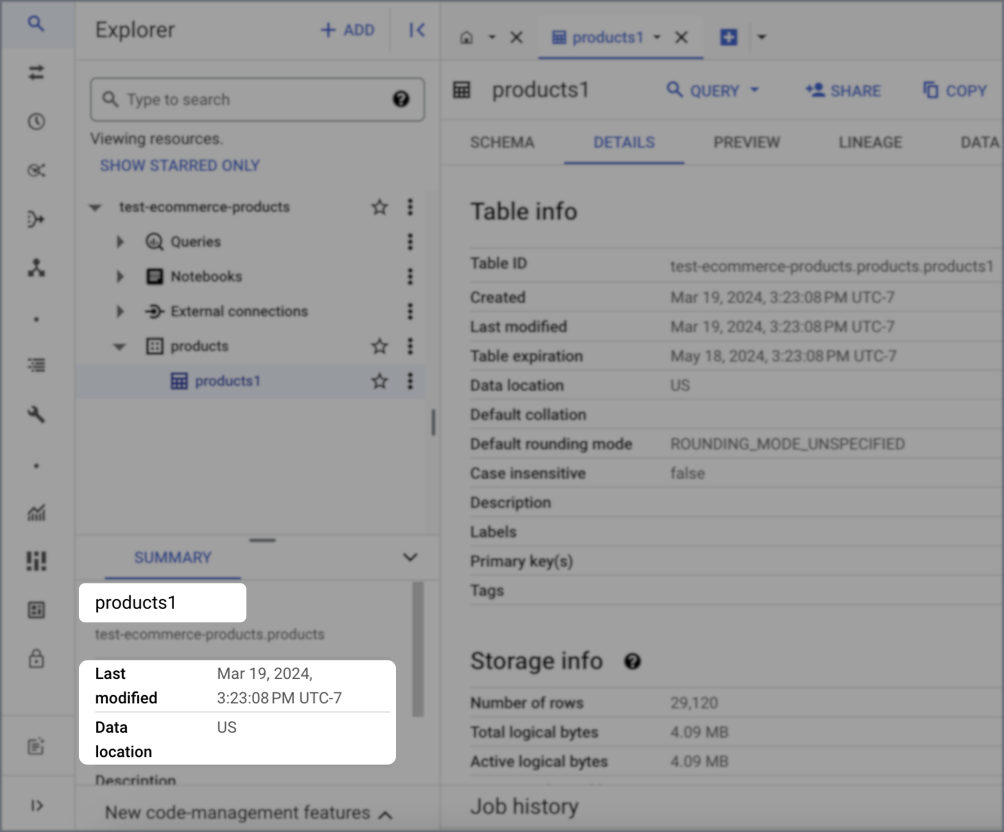
1. Navigate to your BigQuery console.
2. Select the project your dataset resides in. Use the top middle drop-down menu to toggle between projects.
3. Select a dataset and the info will appear in the **Dataset info** menu. In this example:
* The dataset **name** is `products`
* The **Data location** is `US`
* The **timezone** is `UTC-7`, as indicated in the **Last modified** field
 ## Setup
1. In Omni, click **Settings > Connections**.
2. Click the **BigQuery** option.
3. In the **Authentication Type** menu, select **Workload Identity Federation**.
4. Copy the **Omni Workload Identity** value. It will contain a value like the following:
```text theme={null}
arn:aws:iam::123456789012:role/Prod-ProdModelTaskRole
```
This identifies Omni to Google Cloud. Note that:
* **It contains Omni's AWS account ID**. This is the `123456789012` segment. You'll need this when creating the provider in the next step.
* **It contains a prefix, not the full role name.** The actual role has a random suffix appended by Omni's infrastructure, so your attribute condition must use a **starts-with** comparison. An exact-match condition will never match.
1. In the Google Cloud Console, navigate to [**IAM & Admin > Workload Identity Federation**](https://console.cloud.google.com/iam-admin/workload-identity-pools).
2. Click **Create pool**.
3. Enter a name, such as `omni`, and continue.
4. Add a provider to the pool:
* **Provider type** - AWS
* **Provider name** - Enter a name, such as `Omni`
* **AWS account ID** - The account ID from the value you copied in [{stepText_0}](#omni-aws-info)
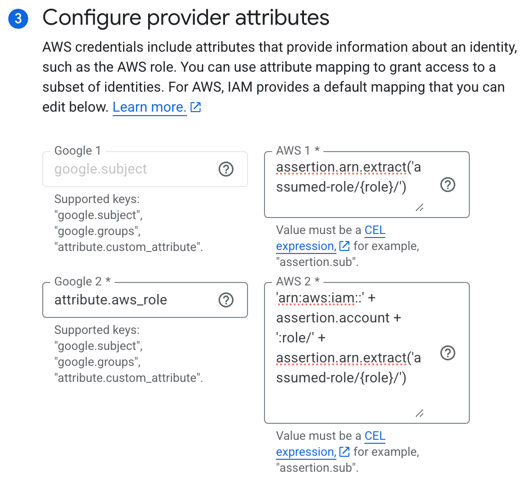
5. Configure the provider attribute mappings. AWS presents Omni's identity in a different format than the value shown in Omni, so the mappings reconstruct the role ARN before comparing it.
1. Click **Edit mapping**.
2. For `google.subject`, paste the following into the corresponding **AWS** field:
```text wrap theme={null}
assertion.arn.extract('assumed-role/{role}/')
```
3. For `attribute.aws_role_arn`, paste the following into the corresponding **AWS** field:
```text wrap theme={null}
'arn:aws:iam::' + assertion.account + ':role/' + assertion.arn.extract('assumed-role/{role}/')
```
The mappings should look like the following when finished:
## Setup
1. In Omni, click **Settings > Connections**.
2. Click the **BigQuery** option.
3. In the **Authentication Type** menu, select **Workload Identity Federation**.
4. Copy the **Omni Workload Identity** value. It will contain a value like the following:
```text theme={null}
arn:aws:iam::123456789012:role/Prod-ProdModelTaskRole
```
This identifies Omni to Google Cloud. Note that:
* **It contains Omni's AWS account ID**. This is the `123456789012` segment. You'll need this when creating the provider in the next step.
* **It contains a prefix, not the full role name.** The actual role has a random suffix appended by Omni's infrastructure, so your attribute condition must use a **starts-with** comparison. An exact-match condition will never match.
1. In the Google Cloud Console, navigate to [**IAM & Admin > Workload Identity Federation**](https://console.cloud.google.com/iam-admin/workload-identity-pools).
2. Click **Create pool**.
3. Enter a name, such as `omni`, and continue.
4. Add a provider to the pool:
* **Provider type** - AWS
* **Provider name** - Enter a name, such as `Omni`
* **AWS account ID** - The account ID from the value you copied in [{stepText_0}](#omni-aws-info)
5. Configure the provider attribute mappings. AWS presents Omni's identity in a different format than the value shown in Omni, so the mappings reconstruct the role ARN before comparing it.
1. Click **Edit mapping**.
2. For `google.subject`, paste the following into the corresponding **AWS** field:
```text wrap theme={null}
assertion.arn.extract('assumed-role/{role}/')
```
3. For `attribute.aws_role_arn`, paste the following into the corresponding **AWS** field:
```text wrap theme={null}
'arn:aws:iam::' + assertion.account + ':role/' + assertion.arn.extract('assumed-role/{role}/')
```
The mappings should look like the following when finished:
 6. Configure the provider attribute conditions:
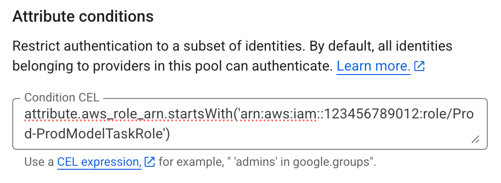
1. Click **Add condition**.
2. In the text field, add the attribute condition. Replace **{omniPlaceholder_0}** with the **{omniFieldName_0}** value you copied from Omni in [{stepText_0}](#omni-aws-info):
```text wrap theme={null}
attribute.aws_role_arn.startsWith('OMNI_WORKLOAD_IDENTITY')
```
For example:
```text wrap theme={null}
attribute.aws_role_arn.startsWith('arn:aws:iam::123456789012:role/Prod-ProdModelTaskRole')
```
The attribute conditions should look like the following when finished:
6. Configure the provider attribute conditions:
1. Click **Add condition**.
2. In the text field, add the attribute condition. Replace **{omniPlaceholder_0}** with the **{omniFieldName_0}** value you copied from Omni in [{stepText_0}](#omni-aws-info):
```text wrap theme={null}
attribute.aws_role_arn.startsWith('OMNI_WORKLOAD_IDENTITY')
```
For example:
```text wrap theme={null}
attribute.aws_role_arn.startsWith('arn:aws:iam::123456789012:role/Prod-ProdModelTaskRole')
```
The attribute conditions should look like the following when finished:
 7. Click **Save**.
Using the `gcloud CLI`, run the following to create a workload identity pool:
```bash highlight={2} theme={null}
gcloud iam workload-identity-pools create omni \
--project=GCP_PROJECT_ID \
--location=global \
--display-name="Omni"
```
Replace **GCP\_PROJECT\_ID** with the ID of your GCP project.
Then, create the provider:
```bash wrap highlight={2,5,7} theme={null}
gcloud iam workload-identity-pools providers create-aws omni-aws \
--project=GCP_PROJECT_ID \
--location=global \
--workload-identity-pool=omni \
--account-id=OMNI_AWS_ACCOUNT_ID \
--attribute-mapping="google.subject=assertion.arn.extract('assumed-role/{role}/'),attribute.aws_role_arn='arn:aws:iam::'+assertion.account+':role/'+assertion.arn.extract('assumed-role/{role}/')" \
--attribute-condition="attribute.aws_role_arn.startsWith('OMNI_WORKLOAD_IDENTITY')"
```
Replace the following values:
| Placeholder | Replace with |
| -------------------------- | ----------------------------------------------------------------------------------- |
| **GCP\_PROJECT\_ID** | The ID of your GCP project |
| **OMNI\_AWS\_ACCOUNT\_ID** | The account ID from the value you copied in [{stepText_1}](#omni-aws-info) |
| **{omniPlaceholder_1}** | The entire **{omniFieldName_1}** value you copied in [{stepText_1}](#omni-aws-info) |
Choose how Omni's federated identity accesses BigQuery:
Grant the BigQuery roles directly to the pool's identities, replacing **GCP\_PROJECT\_ID** with the ID of your GCP project:
```bash theme={null}
gcloud projects add-iam-policy-binding GCP_PROJECT_ID \
--role=roles/bigquery.jobUser \
--member="principalSet://iam.googleapis.com/projects/GCP_PROJECT_ID/locations/global/workloadIdentityPools/omni/*"
gcloud projects add-iam-policy-binding GCP_PROJECT_ID \
--role=roles/bigquery.dataViewer \
--member="principalSet://iam.googleapis.com/projects/GCP_PROJECT_ID/locations/global/workloadIdentityPools/omni/*"
```
**Optional**. Grant the `metadataViewer` role directly to the pool's identities:
```bash theme={null}
gcloud projects add-iam-policy-binding GCP_PROJECT_ID \
--role=roles/bigquery.metadataViewer \
--member="principalSet://iam.googleapis.com/projects/GCP_PROJECT_ID/locations/global/workloadIdentityPools/omni/*"
```
The `metadataViewer` role is only required if you want to give Omni access to all views within a dataset (e.g., `project.*`) when setting up the connection in Omni. If you explicitly list specific datasets without wildcards in the [connection setup step](#create-connection), Omni will skip the project-level metadata scan and work with dataset-level permissions only.
When you configure Omni, leave the **Service account impersonation URL** field blank.
1. Create a service account (for example, `omni-bigquery`) and grant it the following [BigQuery roles](https://cloud.google.com/bigquery/access-control#curated_roles_comparison_matrix) on your project:
* BigQuery Job User
* BigQuery Data Viewer
2. Allow the pool's identities to impersonate the service account by granting the **Workload Identity User** role on the service account to the pool:
```bash theme={null}
gcloud iam service-accounts add-iam-policy-binding omni-bigquery@GCP_PROJECT_ID.iam.gserviceaccount.com \
--project=GCP_PROJECT_ID \
--role=roles/iam.workloadIdentityUser \
--member="principalSet://iam.googleapis.com/projects/GCP_PROJECT_ID/locations/global/workloadIdentityPools/omni/*"
```
Replace **GCP\_PROJECT\_ID** with the ID of your GCP project.
Keep the service account email handy - you'll need it to complete the setup in Omni.
**This step is optional.** However, we recommend completing it as part of the initial set up or you won't be able to use uploaded files like CSVs in joins.
In this step, you'll create a dedicated dataset to use for [table uploads](/analyze-explore/data-input-csvs). Before you create the dataset, note that:
* This dataset can't be used for other modeled tables
* This dataset must be in the same region as other projects and schemas in the connection, or you may encounter cross-region errors
To create a dataset for table uploads:
1. In the Google Cloud Console, navigate to your BigQuery project.
2. Create the dataset.
3. After the dataset is created, open it so that its details display.
4. Click **Share > Manage permissions**, located next to the **Copy** option near the top right corner of the page.
5. In the dialog that displays, click **Add principal**.
6. For the **New principals** field, the value you enter depends on the access method you selected in [step 3](#grant-access):
* **Direct access** - Enter the pool identity, including the `principalSet://`. This is the `member` value from the command in [step 3](#direct-access) and will look like the following:
```text theme={null}
principalSet://iam.googleapis.com/projects/GCP_PROJECT_ID/locations/global/workloadIdentityPools/omni/*
```
* **Service account** - Enter the email address of the service account you created in [step 3](#service-account). This will look like the following:
```text theme={null}
omni-bigquery@GCP_PROJECT_ID.iam.gserviceaccount.com
```
7. Add the **BigQuery Data Editor** role.
8. Click **Save**.
1. In Omni, click **Settings > Connections**.
2. Click the **BigQuery** option.
3. On the connection setup page, fill in the connection details:
When you explicitly list datasets without wildcards (no `*` characters), Omni skips the project-level metadata scan and only requires dataset-level permissions (BigQuery Data Viewer role). Using wildcards or leaving this field empty requires project-level permissions (BigQuery Metadata Viewer role).
The type of authentication to use. Select **Workload Identity Federation**.
The full resource name of the provider you created in [step 2](#pool-provider), prefixed with `//iam.googleapis.com/`. For example:
```text theme={null}
//iam.googleapis.com/projects/YOUR_PROJECT_NUMBER/locations/global/workloadIdentityPools/omni/providers/omni-aws
```
The Google Cloud console doesn't display this value for AWS providers — build it from the pool and provider names, or run `gcloud iam workload-identity-pools providers describe` and prefix the returned `name` with `//iam.googleapis.com/`.
**Required for [service account impersonation](#service-account)**. The service account email from [step 3](#grant-access). Otherwise, leave blank for direct access.
The Google Cloud project queries run in and are billed to. The federated identity or impersonated service account must be able to run BigQuery jobs in it.
The region the dataset resides in. Refer to the [Requirements](#requirements) section if you need help finding this information.
The maximum bytes billed for queries run on this connection.
4. When finished, click **Create connection**.
## Troubleshooting
| Issue | What to check |
| ------------------------------------------ | --------------------------------------------------------------------------------------------------------------------------------------------------------------------------------------------------------------------------------------------------------------------------------------------------------------------------------------------------- |
| **Token exchange fails or is denied** | Verify the attribute condition uses `startsWith` — the value Omni shows is a prefix, and the full role name includes a random suffix. Also confirm the attribute mapping reconstructs the role ARN as shown in step 2; the raw AWS assertion uses the `arn:aws:sts::...:assumed-role/...` format, which won't match the value from Omni without it. |
| **Queries fail with a permission error** | Confirm the roles from step 3 were granted to the right principal: the service account (impersonation) or the pool's `principalSet` (direct access). IAM changes can take a couple of minutes to propagate. |
| **Datasets appear, but contain no tables** | Check the connection's **Default Dataset** field — it must be a dataset name, not a project ID. |
## What's next?
7. Click **Save**.
Using the `gcloud CLI`, run the following to create a workload identity pool:
```bash highlight={2} theme={null}
gcloud iam workload-identity-pools create omni \
--project=GCP_PROJECT_ID \
--location=global \
--display-name="Omni"
```
Replace **GCP\_PROJECT\_ID** with the ID of your GCP project.
Then, create the provider:
```bash wrap highlight={2,5,7} theme={null}
gcloud iam workload-identity-pools providers create-aws omni-aws \
--project=GCP_PROJECT_ID \
--location=global \
--workload-identity-pool=omni \
--account-id=OMNI_AWS_ACCOUNT_ID \
--attribute-mapping="google.subject=assertion.arn.extract('assumed-role/{role}/'),attribute.aws_role_arn='arn:aws:iam::'+assertion.account+':role/'+assertion.arn.extract('assumed-role/{role}/')" \
--attribute-condition="attribute.aws_role_arn.startsWith('OMNI_WORKLOAD_IDENTITY')"
```
Replace the following values:
| Placeholder | Replace with |
| -------------------------- | ----------------------------------------------------------------------------------- |
| **GCP\_PROJECT\_ID** | The ID of your GCP project |
| **OMNI\_AWS\_ACCOUNT\_ID** | The account ID from the value you copied in [{stepText_1}](#omni-aws-info) |
| **{omniPlaceholder_1}** | The entire **{omniFieldName_1}** value you copied in [{stepText_1}](#omni-aws-info) |
Choose how Omni's federated identity accesses BigQuery:
Grant the BigQuery roles directly to the pool's identities, replacing **GCP\_PROJECT\_ID** with the ID of your GCP project:
```bash theme={null}
gcloud projects add-iam-policy-binding GCP_PROJECT_ID \
--role=roles/bigquery.jobUser \
--member="principalSet://iam.googleapis.com/projects/GCP_PROJECT_ID/locations/global/workloadIdentityPools/omni/*"
gcloud projects add-iam-policy-binding GCP_PROJECT_ID \
--role=roles/bigquery.dataViewer \
--member="principalSet://iam.googleapis.com/projects/GCP_PROJECT_ID/locations/global/workloadIdentityPools/omni/*"
```
**Optional**. Grant the `metadataViewer` role directly to the pool's identities:
```bash theme={null}
gcloud projects add-iam-policy-binding GCP_PROJECT_ID \
--role=roles/bigquery.metadataViewer \
--member="principalSet://iam.googleapis.com/projects/GCP_PROJECT_ID/locations/global/workloadIdentityPools/omni/*"
```
The `metadataViewer` role is only required if you want to give Omni access to all views within a dataset (e.g., `project.*`) when setting up the connection in Omni. If you explicitly list specific datasets without wildcards in the [connection setup step](#create-connection), Omni will skip the project-level metadata scan and work with dataset-level permissions only.
When you configure Omni, leave the **Service account impersonation URL** field blank.
1. Create a service account (for example, `omni-bigquery`) and grant it the following [BigQuery roles](https://cloud.google.com/bigquery/access-control#curated_roles_comparison_matrix) on your project:
* BigQuery Job User
* BigQuery Data Viewer
2. Allow the pool's identities to impersonate the service account by granting the **Workload Identity User** role on the service account to the pool:
```bash theme={null}
gcloud iam service-accounts add-iam-policy-binding omni-bigquery@GCP_PROJECT_ID.iam.gserviceaccount.com \
--project=GCP_PROJECT_ID \
--role=roles/iam.workloadIdentityUser \
--member="principalSet://iam.googleapis.com/projects/GCP_PROJECT_ID/locations/global/workloadIdentityPools/omni/*"
```
Replace **GCP\_PROJECT\_ID** with the ID of your GCP project.
Keep the service account email handy - you'll need it to complete the setup in Omni.
**This step is optional.** However, we recommend completing it as part of the initial set up or you won't be able to use uploaded files like CSVs in joins.
In this step, you'll create a dedicated dataset to use for [table uploads](/analyze-explore/data-input-csvs). Before you create the dataset, note that:
* This dataset can't be used for other modeled tables
* This dataset must be in the same region as other projects and schemas in the connection, or you may encounter cross-region errors
To create a dataset for table uploads:
1. In the Google Cloud Console, navigate to your BigQuery project.
2. Create the dataset.
3. After the dataset is created, open it so that its details display.
4. Click **Share > Manage permissions**, located next to the **Copy** option near the top right corner of the page.
5. In the dialog that displays, click **Add principal**.
6. For the **New principals** field, the value you enter depends on the access method you selected in [step 3](#grant-access):
* **Direct access** - Enter the pool identity, including the `principalSet://`. This is the `member` value from the command in [step 3](#direct-access) and will look like the following:
```text theme={null}
principalSet://iam.googleapis.com/projects/GCP_PROJECT_ID/locations/global/workloadIdentityPools/omni/*
```
* **Service account** - Enter the email address of the service account you created in [step 3](#service-account). This will look like the following:
```text theme={null}
omni-bigquery@GCP_PROJECT_ID.iam.gserviceaccount.com
```
7. Add the **BigQuery Data Editor** role.
8. Click **Save**.
1. In Omni, click **Settings > Connections**.
2. Click the **BigQuery** option.
3. On the connection setup page, fill in the connection details:
When you explicitly list datasets without wildcards (no `*` characters), Omni skips the project-level metadata scan and only requires dataset-level permissions (BigQuery Data Viewer role). Using wildcards or leaving this field empty requires project-level permissions (BigQuery Metadata Viewer role).
The type of authentication to use. Select **Workload Identity Federation**.
The full resource name of the provider you created in [step 2](#pool-provider), prefixed with `//iam.googleapis.com/`. For example:
```text theme={null}
//iam.googleapis.com/projects/YOUR_PROJECT_NUMBER/locations/global/workloadIdentityPools/omni/providers/omni-aws
```
The Google Cloud console doesn't display this value for AWS providers — build it from the pool and provider names, or run `gcloud iam workload-identity-pools providers describe` and prefix the returned `name` with `//iam.googleapis.com/`.
**Required for [service account impersonation](#service-account)**. The service account email from [step 3](#grant-access). Otherwise, leave blank for direct access.
The Google Cloud project queries run in and are billed to. The federated identity or impersonated service account must be able to run BigQuery jobs in it.
The region the dataset resides in. Refer to the [Requirements](#requirements) section if you need help finding this information.
The maximum bytes billed for queries run on this connection.
4. When finished, click **Create connection**.
## Troubleshooting
| Issue | What to check |
| ------------------------------------------ | --------------------------------------------------------------------------------------------------------------------------------------------------------------------------------------------------------------------------------------------------------------------------------------------------------------------------------------------------- |
| **Token exchange fails or is denied** | Verify the attribute condition uses `startsWith` — the value Omni shows is a prefix, and the full role name includes a random suffix. Also confirm the attribute mapping reconstructs the role ARN as shown in step 2; the raw AWS assertion uses the `arn:aws:sts::...:assumed-role/...` format, which won't match the value from Omni without it. |
| **Queries fail with a permission error** | Confirm the roles from step 3 were granted to the right principal: the service account (impersonation) or the pool's `principalSet` (direct access). IAM changes can take a couple of minutes to propagate. |
| **Datasets appear, but contain no tables** | Check the connection's **Default Dataset** field — it must be a dataset name, not a project ID. |
## What's next?