> ## Documentation Index
> Fetch the complete documentation index at: https://docs.omni.co/llms.txt
> Use this file to discover all available pages before exploring further.
# Offloading schemas
> Improve model performance by deferring the load of large or infrequently used schemas – like dbt virtual schemas – until they’re needed.
When your data model includes many schemas – or a few very large ones – it can slow down performance. Offloading, or *lazy loading*, helps by deferring the loading of schema metadata until you need it.
This approach is especially useful when working with dbt virtual schemas or other large, infrequently accessed schemas. Offloading keeps your model lean and responsive while still allowing full access to schema metadata on demand.
## Requirements
**Connection Admin** permissions are required to modify connection settings.
## Specifying offloaded schemas
1. Navigate to **Settings > Connections**.
2. Click a connection.
3. Locate the **Offloaded schemas** setting in the connection settings.
In the **Offloaded schemas** setting, use a **comma-separated list** to add the names of the schemas you want to offload. The values in this field:
* **Can use wildcard syntax**, for example `dbt_*`.
* **Are case-sensitive**, meaning the schema name you enter must exactly match the name of the schema in the database. For example, `blob_schema` must match a `blob_schema` in the database.
If the schema is in a database other than the connection default, you need to:
1. **Include the database in the connection's Other databases setting**. This name varies by database type. For example, this setting is named **Include Other Data Catalogs** for an Amazon Athena connection.
2. **Specify the database when adding the schema to Offloaded Schemas**. For example, `NON_DEFAULT_DATABASE.OFFLOADED_SCHEMA`.
1. When finished, click **Update and Test connection**.
2. Trigger a [**schema refresh**](/modeling/develop/schema-refreshes) to apply the changes to your Omni model.
While the changes may not be visible in the connection's shared models, you can verify that the application was successful using the model IDE:
1. Click **Develop** in the left navigation panel.
2. Click one of the connection's models to open it in the model IDE.
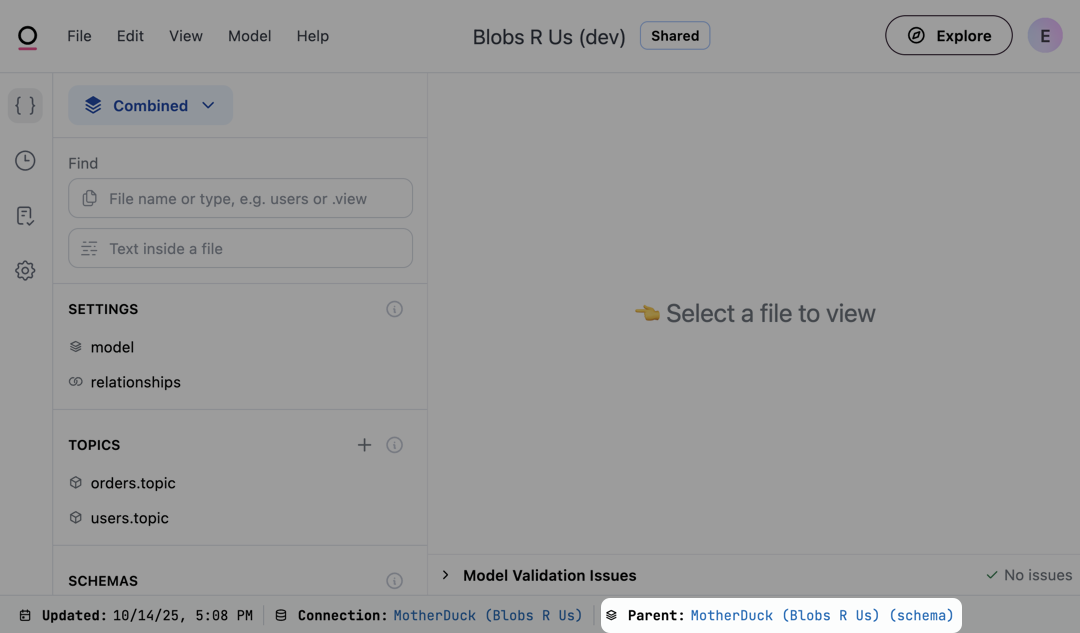
3. In the **Shared** layer of the model, click the link next to **Parent** at the bottom of the page. This opens the schema model.
 4. In this view, change the **Browse mode** to **Model** by using the dropdown near the top left corner of the page:
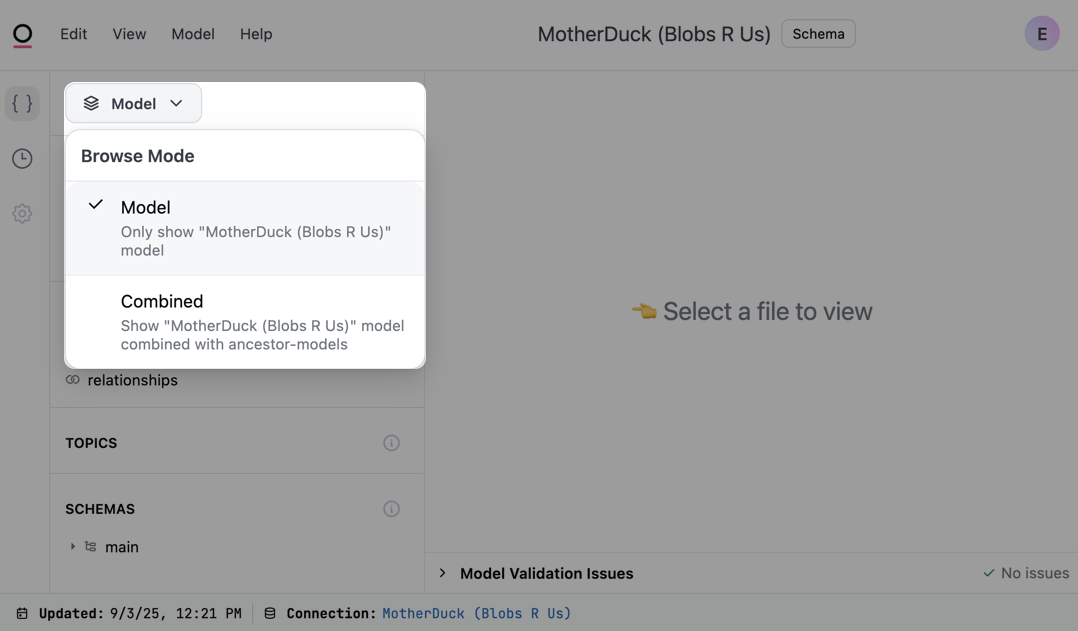 5. The offloaded schemas should **not** be visible in the **Schemas** section.
## Accessing offloaded schemas in workbooks
Offloaded schemas will display in the UI, but the tables and views they contain will display only when requested. Click an offloaded schema in a workbook or the model IDE and Omni will load its contents:
5. The offloaded schemas should **not** be visible in the **Schemas** section.
## Accessing offloaded schemas in workbooks
Offloaded schemas will display in the UI, but the tables and views they contain will display only when requested. Click an offloaded schema in a workbook or the model IDE and Omni will load its contents:
