> ## Documentation Index
> Fetch the complete documentation index at: https://docs.omni.co/llms.txt
> Use this file to discover all available pages before exploring further.
## Submitting Feedback
If you encounter incorrect, outdated, or confusing documentation on this page, submit feedback:
POST https://docs.omni.co/feedback
```json
{
"path": "/analyze-explore/workbook-inspector",
"feedback": "Description of the issue"
}
```
Only submit feedback when you have something specific and actionable to report.
# Workbook inspector
> Inspect query structure, visualization config, and generated SQL in the workbook inspector to debug and copy to your model.
The workbook inspector provides a detailed view of your query and visualization configuration, making it easy to understand how your queries are structured and copy them to your model for reuse.
The inspector is useful for:
* **Understanding query structure**: See exactly how Omni is interpreting your point-and-click query building
* **Creating sample queries**: Quickly copy queries from workbooks to topic files for AI context and example queries
* **Debugging queries**: Compare the query configuration to the generated SQL to troubleshoot issues
* **Learning YAML syntax**: See how your UI actions translate to YAML configuration for modeling
## Opening the inspector
There are two ways to open the inspector in a workbook:
* Click **View > Inspector**
* Click the icon located near the bottom left corner of the page
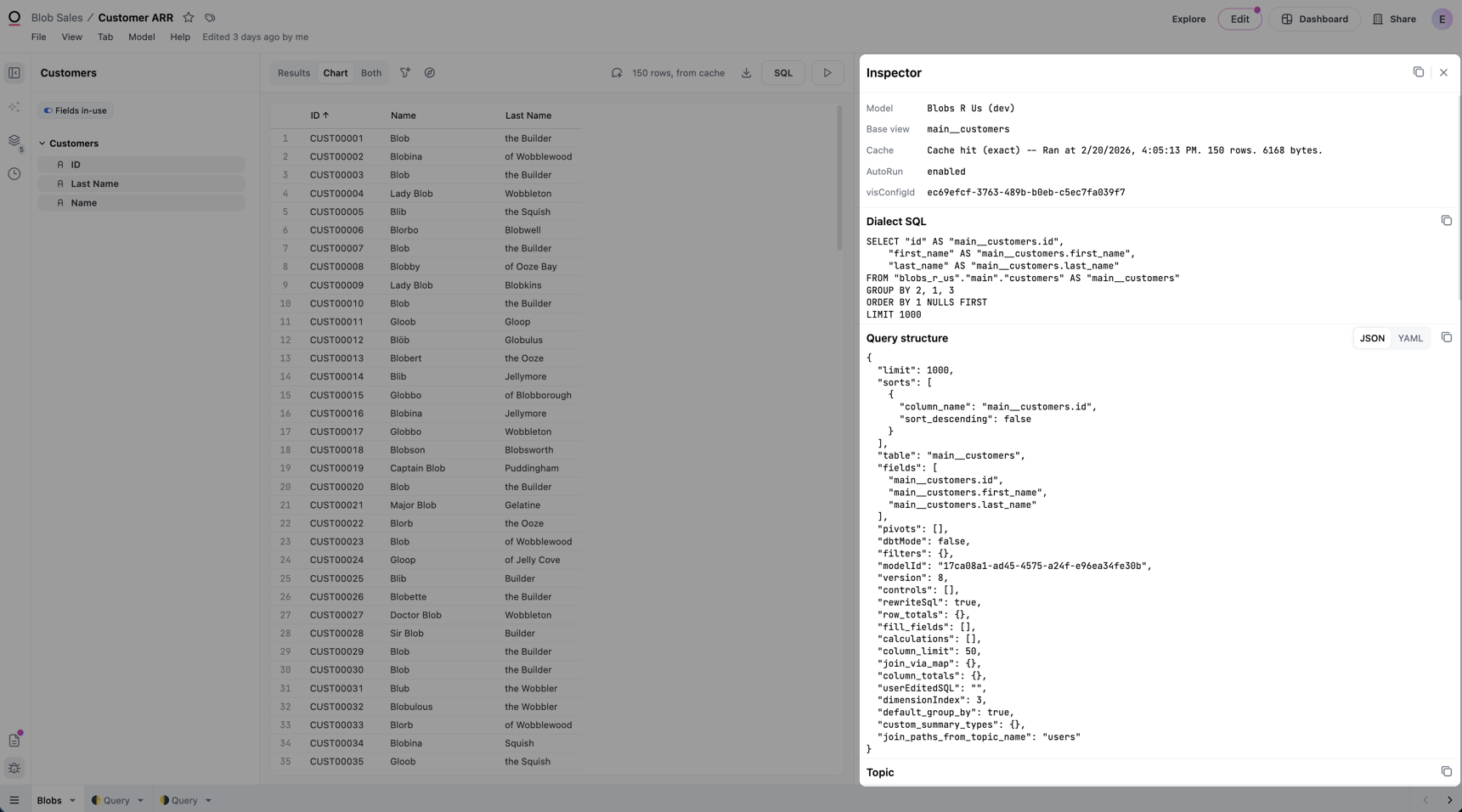
The inspector will open as a side panel showing the configuration for the current query:
 ## Inspector sections
The inspector contains a few sections:
* [**Dialect SQL**](#dialect-sql) - **Requires Querier or higher permissions**. Displays the query written in the SQL dialect of the database backing the connection.
* [**Query structure**](#query-structure) - The query represented in Omni's query language
* [**Vis config**](#visualization-configuration-vis-config) - The configuration of the visualization associated with the query, if any
* \[
### Dialect SQL
**Querier** permissions or higher are required to view dialect SQL.
The **Dialect SQL** section in the inspector displays the query written in the same SQL dialect as the database backing the connection. All field references and Omni functions will be translated to the flavor of SQL used by your database. In fact, you could copy this SQL query and run it in another IDE pointed at the database.
## Inspector sections
The inspector contains a few sections:
* [**Dialect SQL**](#dialect-sql) - **Requires Querier or higher permissions**. Displays the query written in the SQL dialect of the database backing the connection.
* [**Query structure**](#query-structure) - The query represented in Omni's query language
* [**Vis config**](#visualization-configuration-vis-config) - The configuration of the visualization associated with the query, if any
* \[
### Dialect SQL
**Querier** permissions or higher are required to view dialect SQL.
The **Dialect SQL** section in the inspector displays the query written in the same SQL dialect as the database backing the connection. All field references and Omni functions will be translated to the flavor of SQL used by your database. In fact, you could copy this SQL query and run it in another IDE pointed at the database.
 ### Query structure
The **Query structure** section in the inspector displays the complete query configuration:
### Query structure
The **Query structure** section in the inspector displays the complete query configuration:
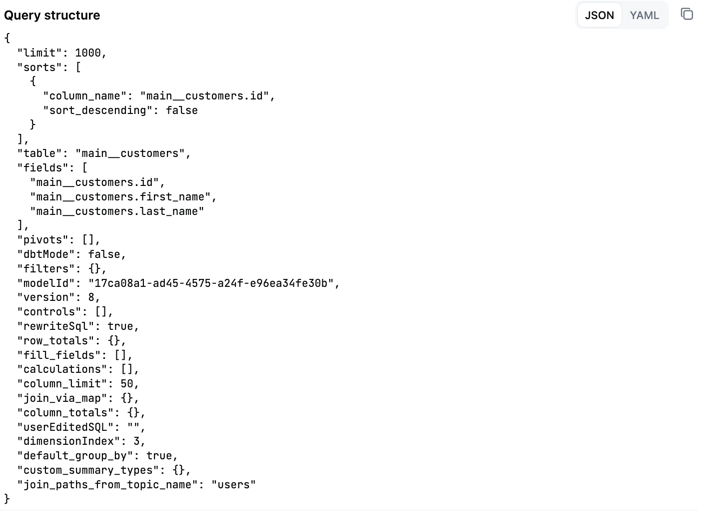 This can include:
* Fields selected in the query
* Base view or topic
* Filters applied to the query
* Sorts and limits
* Calculations
* Pivots
* Period-over-period settings
You can toggle between JSON and YAML formats using the format selector at the top of the section.
### Visualization configuration (vis config)
While the Vis Config section will be present even when viewing the results table, it may not be populated. This section of the inspector will only populate when viewing a visualization.
The **Vis Config** section in the inspector displays the visualization settings for the current chart:
This can include:
* Fields selected in the query
* Base view or topic
* Filters applied to the query
* Sorts and limits
* Calculations
* Pivots
* Period-over-period settings
You can toggle between JSON and YAML formats using the format selector at the top of the section.
### Visualization configuration (vis config)
While the Vis Config section will be present even when viewing the results table, it may not be populated. This section of the inspector will only populate when viewing a visualization.
The **Vis Config** section in the inspector displays the visualization settings for the current chart:
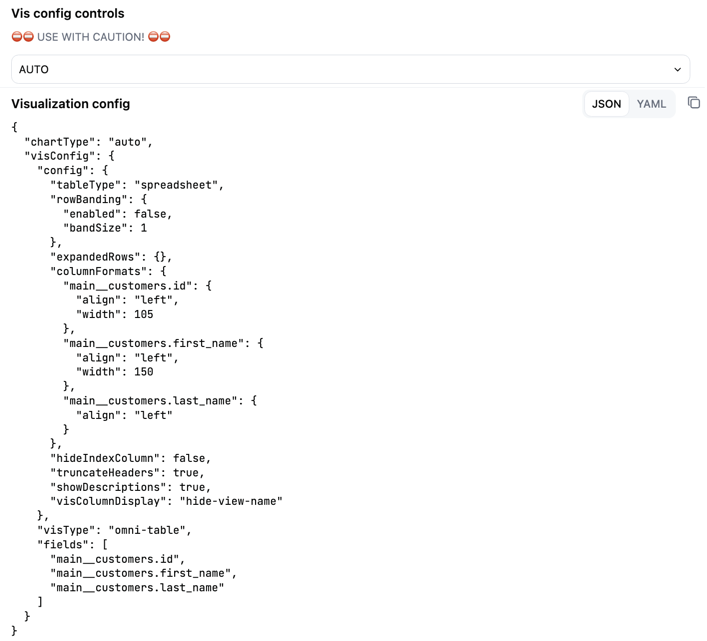 This includes:
* Chart type
* Color configuration
* Axis settings
* Series configuration
* Other visualization-specific settings
You can toggle between JSON and YAML formats using the format selector at the top of the section.
This includes:
* Chart type
* Color configuration
* Axis settings
* Series configuration
* Other visualization-specific settings
You can toggle between JSON and YAML formats using the format selector at the top of the section.
AI messages
The **AI messages** section in the inspector displays information about the current AI session in the workbook, if one is active. If there isn't an active session, this section won't be visible. Along with the final generated query, this section includes:
* **Context passed to the LLM** - Including Omni's system instructions, model-level context, the current topic, and information about the prompting user
* **Conversation transcript** - Including user prompts, responses from the agent, tool calls and inputs, and tool results
Use the information in this section to debug context issues and refine instructions for the agent.
## Copying configuration
Each section in the inspector includes a copy button that allows you to copy the configuration to your clipboard:
* **Query structure copy button**: Copies just the query configuration
* **Visualization config copy button**: Copies just the visualization configuration
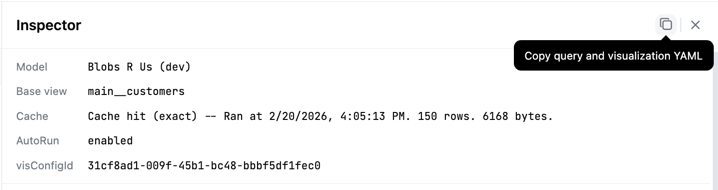
* **Copy query and visualization YAML button** (in inspector header): Copies both the query and visualization configuration in the [sample query format](/modeling/topics/parameters/sample-queries) ready to paste into a topic file:
 ### Copying queries to topics as sample queries
The YAML format in the inspector matches the structure used in topic sample queries. To add a query as a sample query to a topic:
Build your query in a workbook.
Open the inspector and click **Copy query and visualization YAML** in the inspector header.
Open the model IDE and navigate to your topic file.
Paste the copied YAML into the `sample_queries` section of your topic file.
Add a query name and any additional parameters like `description`, `prompt`, or `ai_context`.
## Next steps
* Learn more about [sample queries in topics](/modeling/topics/parameters/sample-queries)
* Read about [building queries in workbooks](/analyze-explore/point-click-queries)
* Explore the [model IDE](/modeling/develop/guides/model-ide)
### Copying queries to topics as sample queries
The YAML format in the inspector matches the structure used in topic sample queries. To add a query as a sample query to a topic:
Build your query in a workbook.
Open the inspector and click **Copy query and visualization YAML** in the inspector header.
Open the model IDE and navigate to your topic file.
Paste the copied YAML into the `sample_queries` section of your topic file.
Add a query name and any additional parameters like `description`, `prompt`, or `ai_context`.
## Next steps
* Learn more about [sample queries in topics](/modeling/topics/parameters/sample-queries)
* Read about [building queries in workbooks](/analyze-explore/point-click-queries)
* Explore the [model IDE](/modeling/develop/guides/model-ide)