> ## Documentation Index
> Fetch the complete documentation index at: https://docs.omni.co/llms.txt
> Use this file to discover all available pages before exploring further.
# Ranking values with Top N fields
> Create a custom field that ranks a text dimension by a measure, keeping only the top or bottom N values.
Top N fields rank the values of a text dimension by a measure and keep only the top (or bottom) N of them, grouping everything else into a remaining bucket. Use them for questions like "what are my 10 best-selling products" or "which 5 regions have the lowest churn."
Top N is a ranking mode of Omni's [Custom Groups](/analyze-explore/custom-fields/bin-group) feature. That page covers how the "remaining values" bucket works in more depth.
## Creating a Top N field
Top N is available for **text-type dimensions only**. Numeric dimensions use [Bin](/analyze-explore/custom-fields/bin-group) instead, and timestamp dimensions use [Duration](/analyze-explore/custom-fields#duration-fields).
In the field picker, find the text field you want to rank, select the three-dot menu, and choose **Top N**.
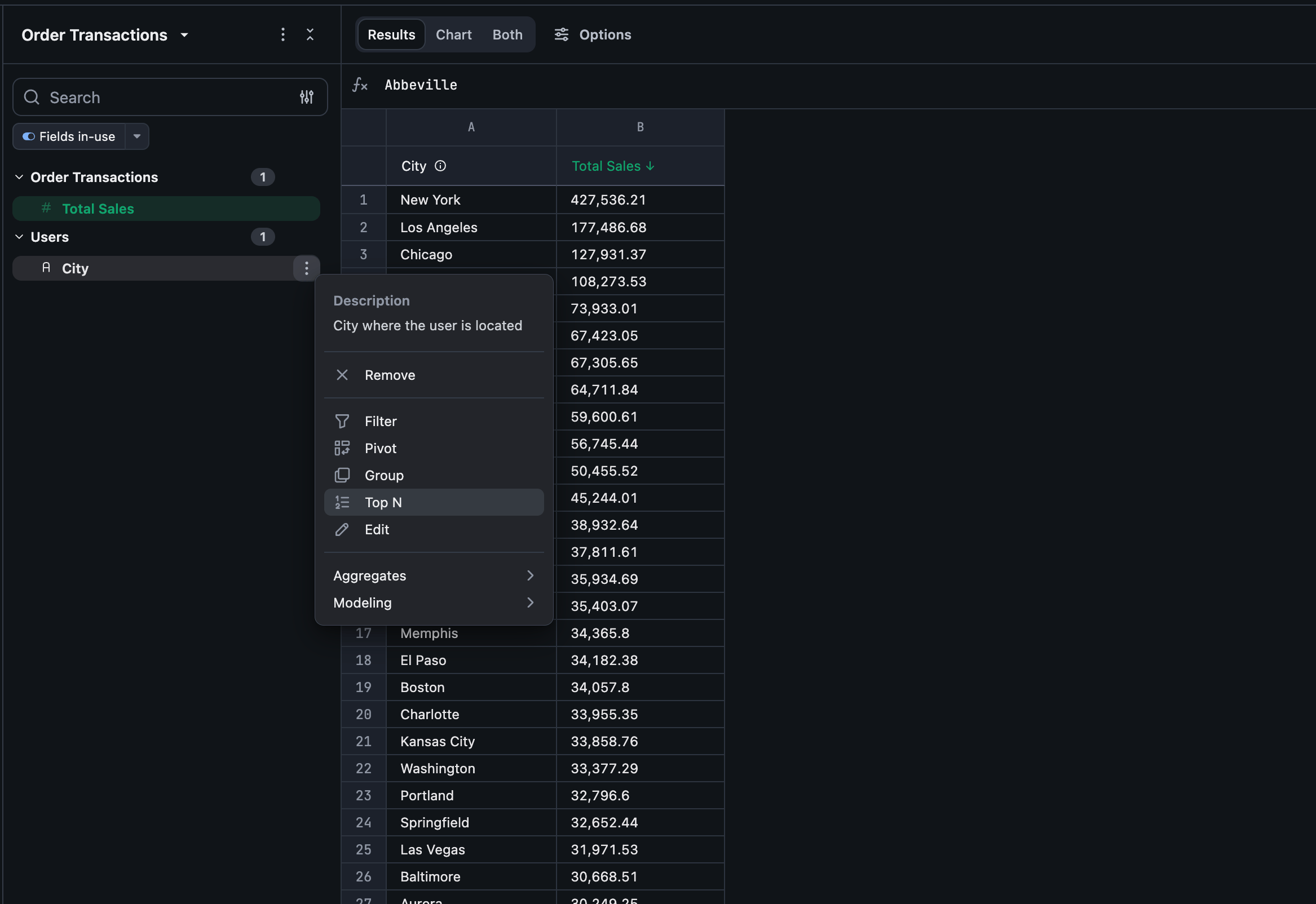 This opens the same configurator used for Custom Groups, pre-set to **Top N values** mode.
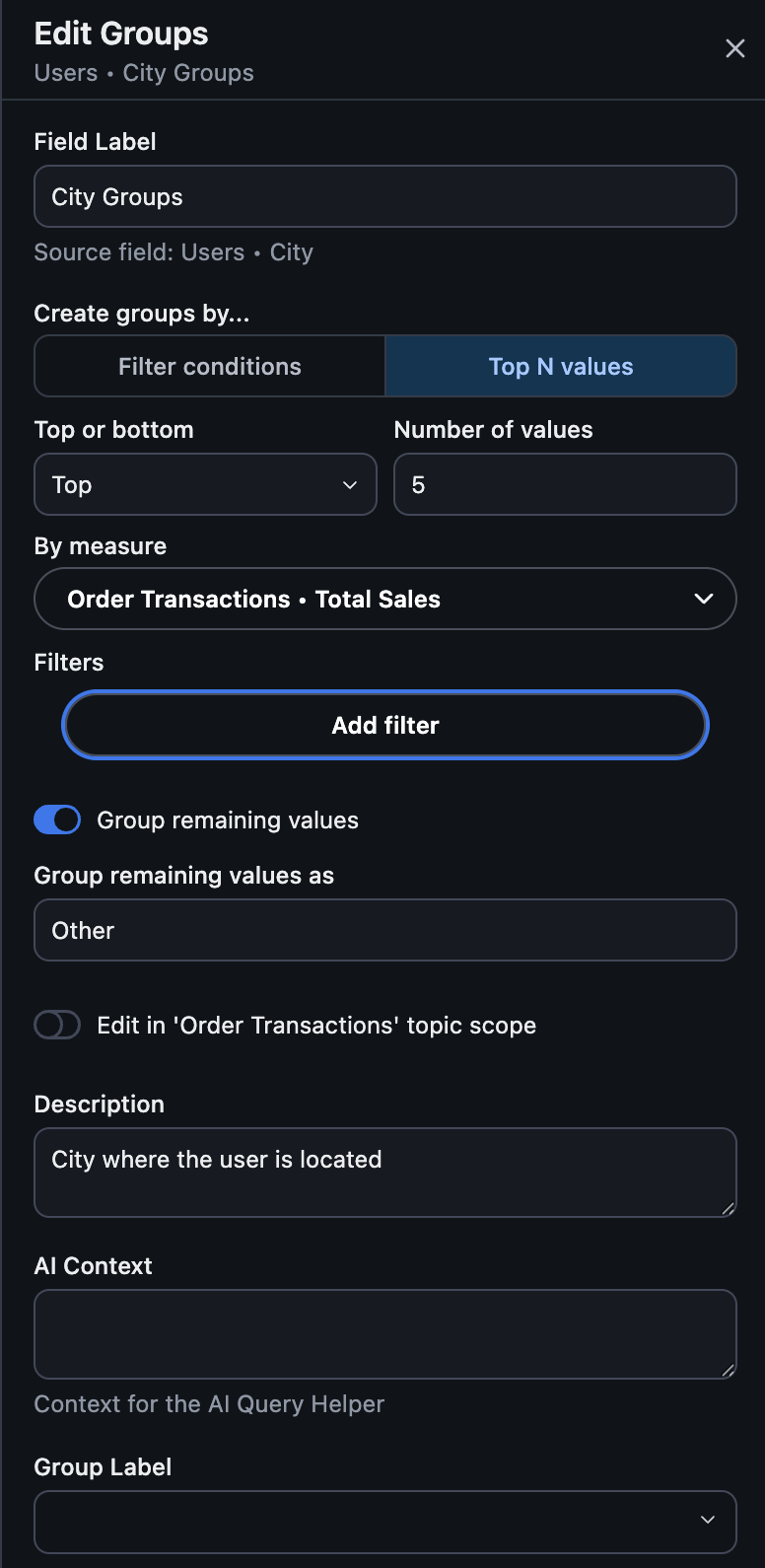 Configure:
* **Top or bottom**: rank by the highest values (**Top**) or lowest values (**Bottom**).
* **Number of values**: how many values (N) to keep.
* **By measure**: the single measure to rank by. Top N ranks by exactly one measure at a time.
* **Filters**: optional field-level filters applied before ranking (e.g. only rank based on this year's orders). Period-over-period and "filter by query" aren't supported here.
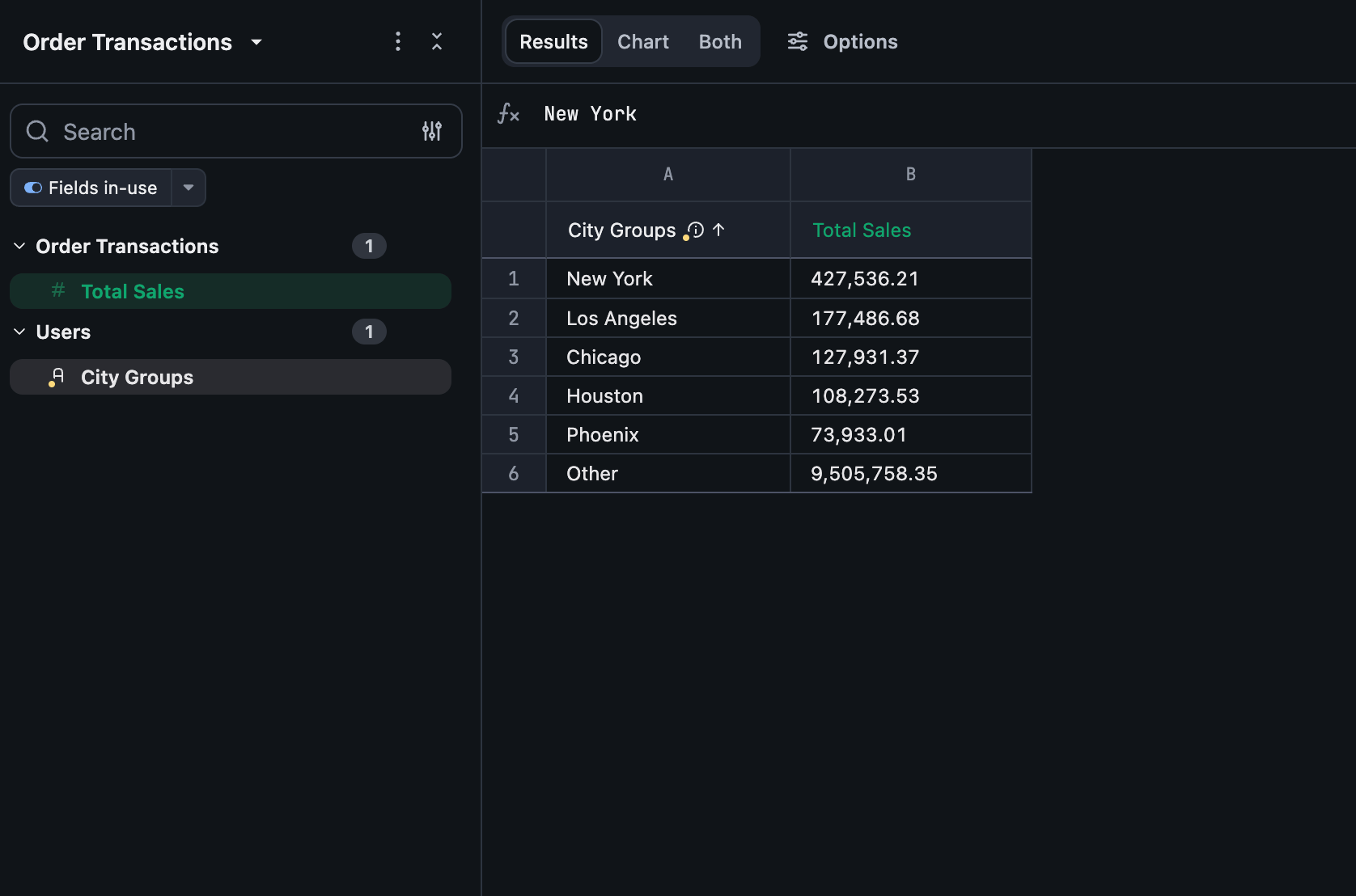
* **Group remaining values**: on by default — every value outside the top/bottom N is grouped into one row, labeled "Other" (rename it under **Group remaining values as**). Turn this off to exclude those values from the result entirely instead of grouping them.
Once saved, the field behaves like any other dimension — add it to a query, chart it, filter by it, and so on.
Configure:
* **Top or bottom**: rank by the highest values (**Top**) or lowest values (**Bottom**).
* **Number of values**: how many values (N) to keep.
* **By measure**: the single measure to rank by. Top N ranks by exactly one measure at a time.
* **Filters**: optional field-level filters applied before ranking (e.g. only rank based on this year's orders). Period-over-period and "filter by query" aren't supported here.
* **Group remaining values**: on by default — every value outside the top/bottom N is grouped into one row, labeled "Other" (rename it under **Group remaining values as**). Turn this off to exclude those values from the result entirely instead of grouping them.
Once saved, the field behaves like any other dimension — add it to a query, chart it, filter by it, and so on.
 ## Limitations
If two values tie for the last spot in the ranking, Omni doesn't guarantee which one is included — ties don't have a deterministic secondary sort. If exact tie-breaking matters, add a secondary field to your query to disambiguate.
* Top N ranks by exactly one measure. To rank by a combination of measures, create a custom measure that combines them first, then rank by that.
* A Top N field can't have its own custom sort order, since it's already sorted by its ranking measure. Other fields can still sort by referencing a Top N field.
* Top N fields can't be created from another Top N field.
## Letting viewers change N on a dashboard
Map a [Top N limit control](/visualize-present/dashboards/controls#control-types) to the field so dashboard viewers can adjust N without editing the underlying query.
## Limitations
If two values tie for the last spot in the ranking, Omni doesn't guarantee which one is included — ties don't have a deterministic secondary sort. If exact tie-breaking matters, add a secondary field to your query to disambiguate.
* Top N ranks by exactly one measure. To rank by a combination of measures, create a custom measure that combines them first, then rank by that.
* A Top N field can't have its own custom sort order, since it's already sorted by its ranking measure. Other fields can still sort by referencing a Top N field.
* Top N fields can't be created from another Top N field.
## Letting viewers change N on a dashboard
Map a [Top N limit control](/visualize-present/dashboards/controls#control-types) to the field so dashboard viewers can adjust N without editing the underlying query.