> ## Documentation Index
> Fetch the complete documentation index at: https://docs.omni.co/llms.txt
> Use this file to discover all available pages before exploring further.
# Binning and grouping custom fields
> Bin and group custom fields with Omni's handy custom calculation accelerators.
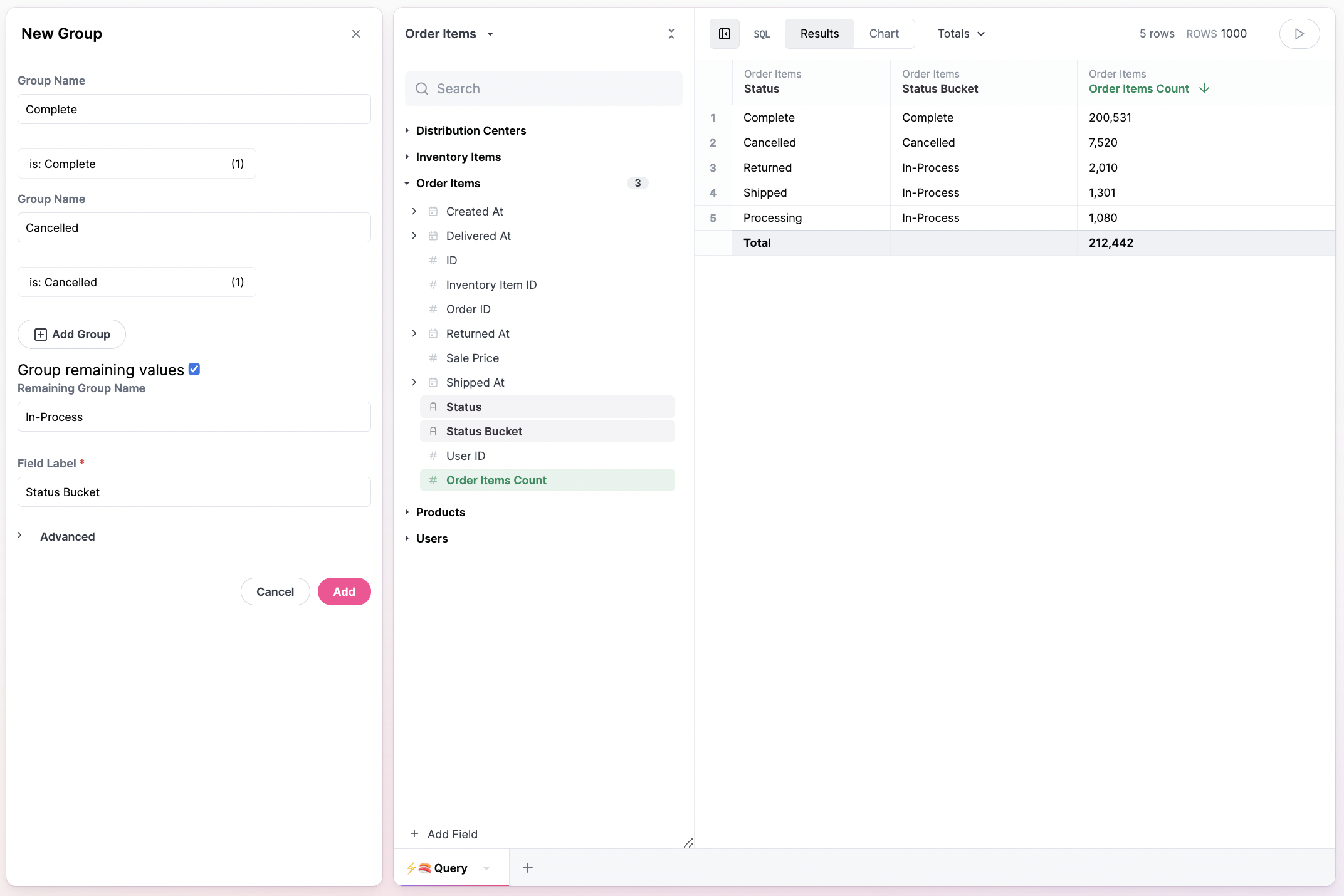
Omni offers some accelerators for common custom calculations. To bin or group strings or values, select "Group" from the field picker menu. String values can be grouped into grouplets, including a left over bucket for remaining values:
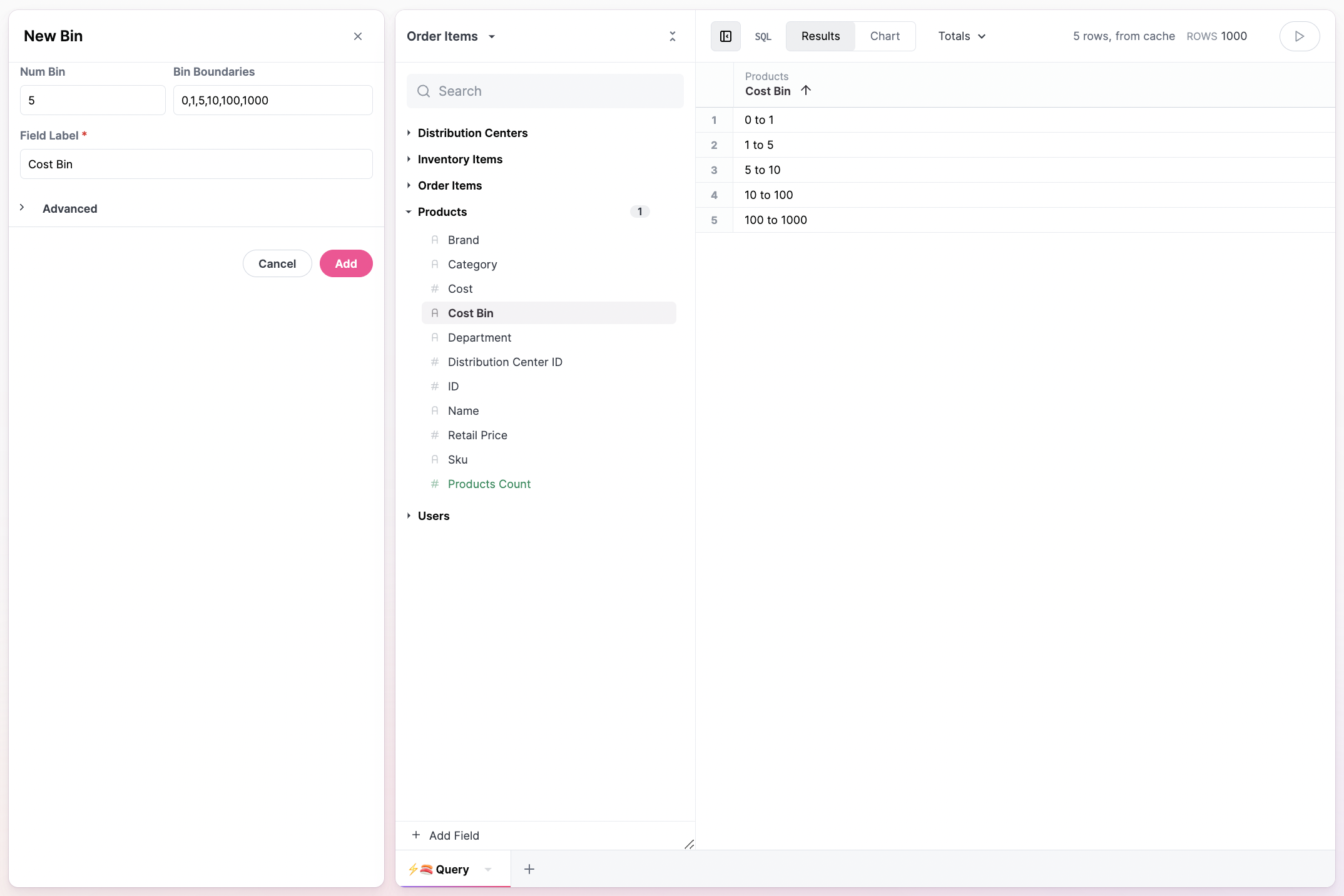
 Numbers can be binned using a comma delimited list of values. Omni will auto-generate bins based upon the max value and a proportional split, but the boundaries can also be applied by hand:
 As with other custom fields, explicit names or views can be applied alongside descriptions.
## Binning and regrouping aggregates
A common workflow is looking at a distribution and then trying to understand patterns in the aggregation - percent of users by lifetime orders; distribution of brands by count of SKUs, distribution of sessions or activities by user.
For these analyses we can use saved views and binning to share distribution of aggregates. We got through the following multi-stage analysis to do this with UI, and we'll share an alternative in SQL.
### Setup
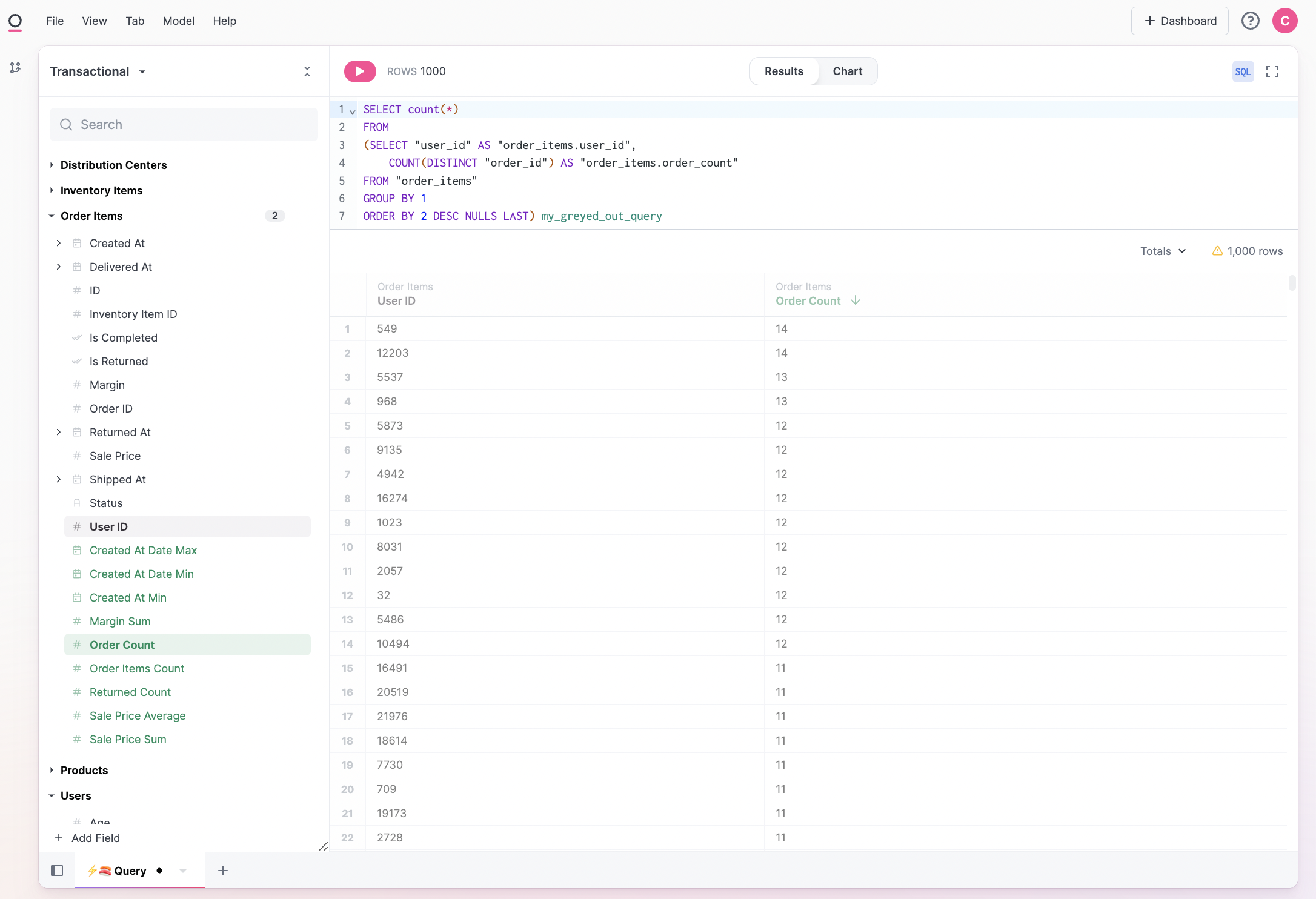
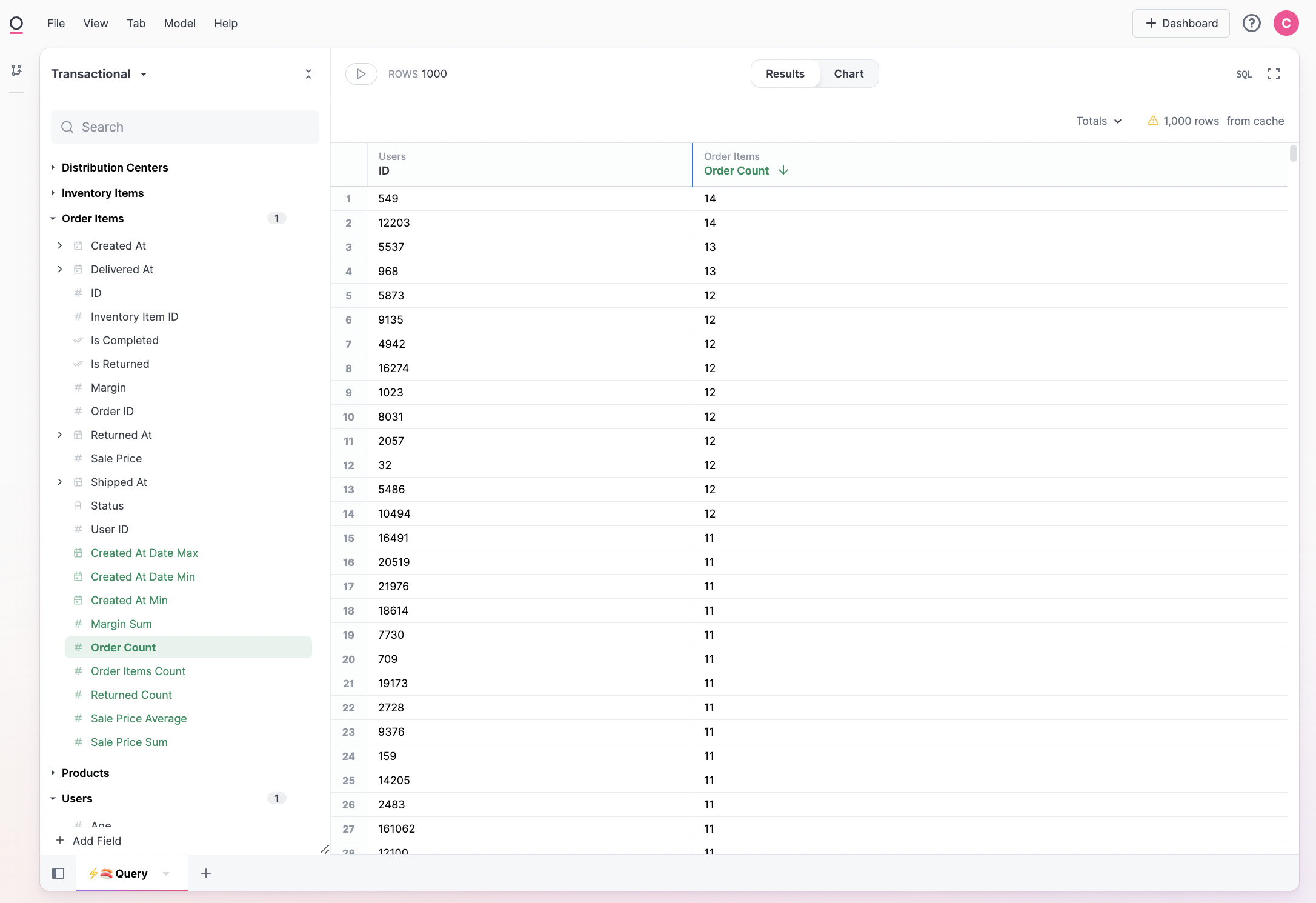
1. Build baseline query where we want to analyze distribution. Here we'll look at lifetime orders per user:
As with other custom fields, explicit names or views can be applied alongside descriptions.
## Binning and regrouping aggregates
A common workflow is looking at a distribution and then trying to understand patterns in the aggregation - percent of users by lifetime orders; distribution of brands by count of SKUs, distribution of sessions or activities by user.
For these analyses we can use saved views and binning to share distribution of aggregates. We got through the following multi-stage analysis to do this with UI, and we'll share an alternative in SQL.
### Setup
1. Build baseline query where we want to analyze distribution. Here we'll look at lifetime orders per user:
 2. Save a [query view](/analyze-explore/saved-views). Note Omni will strip the limit from the query view in order to retain the full data set.
3. Navigate to All Views & Fields to find our new table
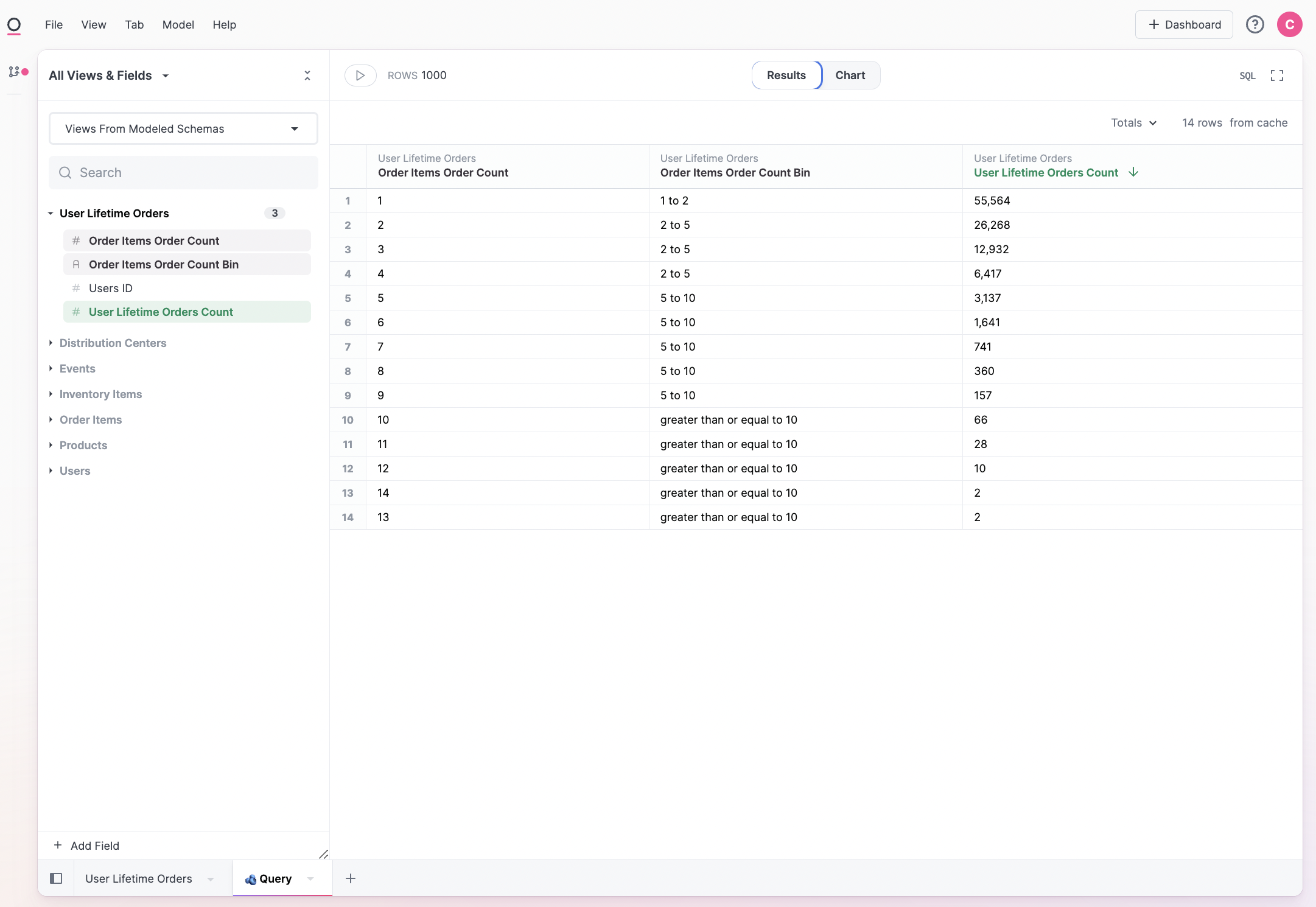
4. Bin our aggregate (per section above)
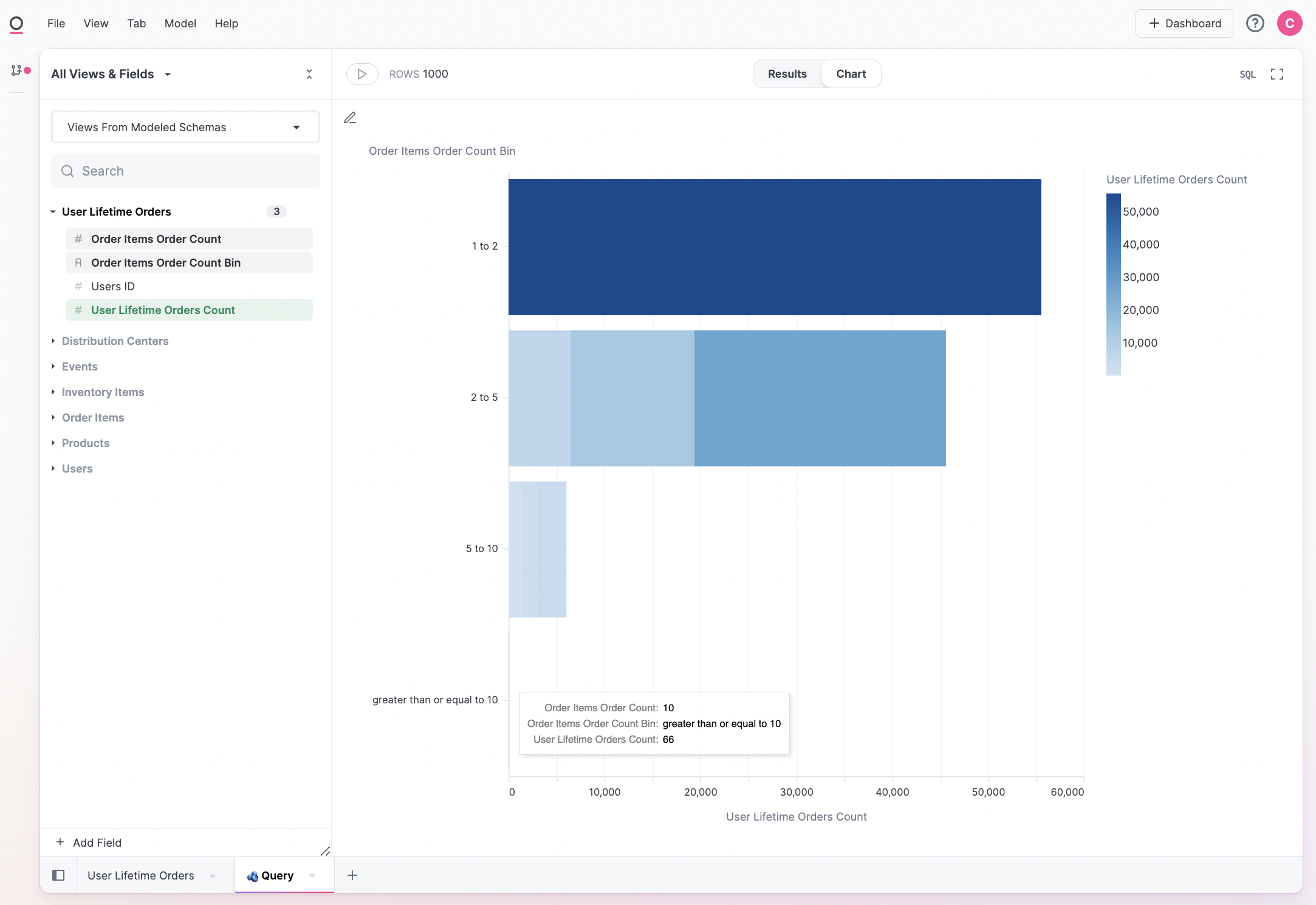
5. Query and visualize:
2. Save a [query view](/analyze-explore/saved-views). Note Omni will strip the limit from the query view in order to retain the full data set.
3. Navigate to All Views & Fields to find our new table
4. Bin our aggregate (per section above)
5. Query and visualize:
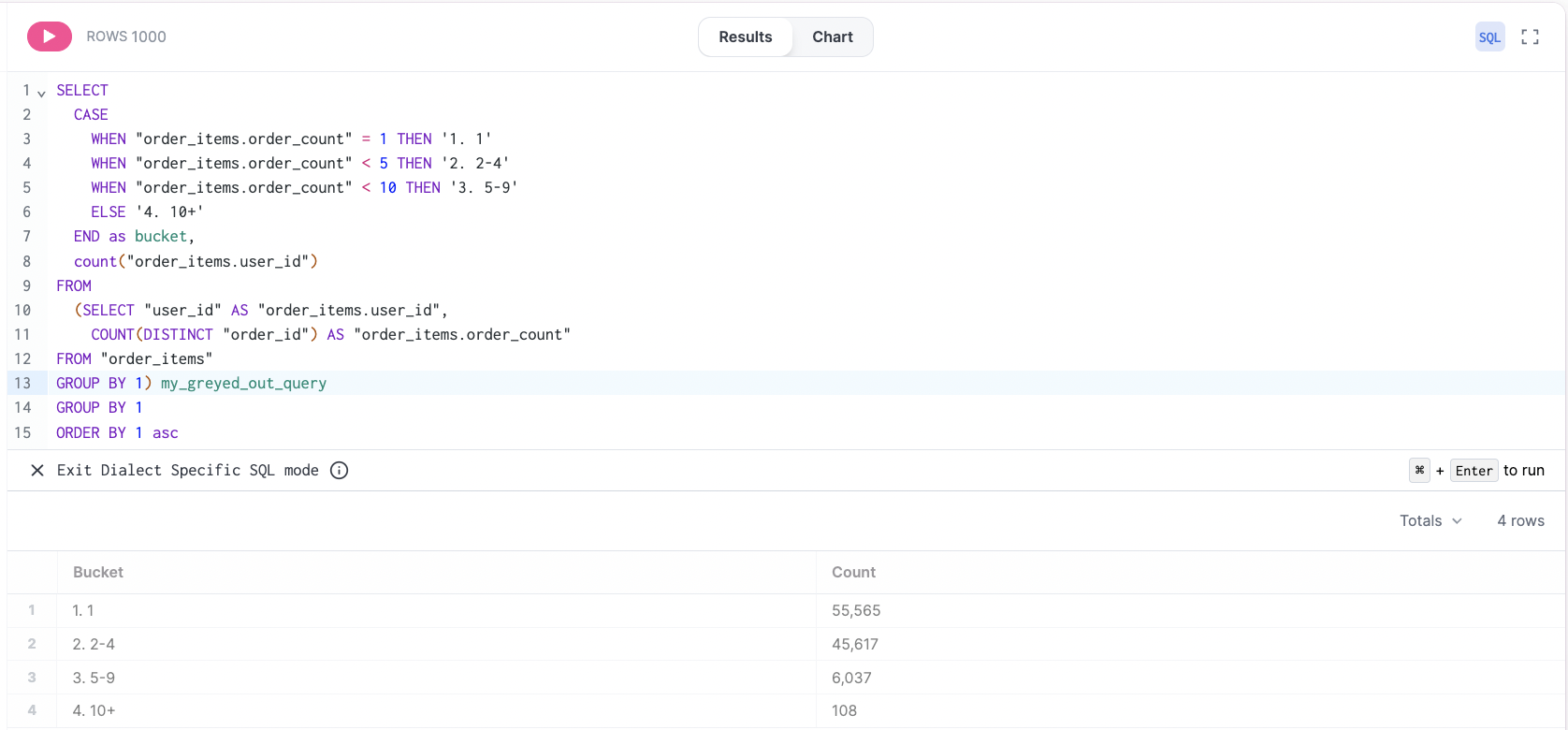
 As alternative path involves simply wrapping our first query in SQL, and inserting our own case statements. This is quicker, but will be more rigid if we need to adjust the underlying query. It is also a very simple approach to single-level re-aggregation (ie. wrap a sub-query in parentheses and count the number of rows).