> ## Documentation Index
> Fetch the complete documentation index at: https://docs.omni.co/llms.txt
> Use this file to discover all available pages before exploring further.
# Managing AI credit usage
> View and manage AI credit usage for your Omni organization.
This guide is not applicable if your organization is using a [custom model provider](/ai/settings/model-providers).
Omni's AI features consume credits each time they process a request. The **Credits** tab in **AI Hub > Setup** allows you to manage and monitor AI credit usage across your account. In this guide, you'll learn what credits are, what drives consumption, how to set limits that control AI usage and cost, and how to monitor usage across your account.
## Requirements
**Organization Admin** permissions are required to access Omni's AI credit controls and monitoring tools.
## What are credits?
Credits are the unit of measurement for AI usage. Every interaction with an AI feature in Omni — such as asking a question, generating a summary, asking AI to make data model changes, or using the [MCP Server](/ai/mcp) — consumes tokens from an LLM provider. Omni rolls those up into credits.
Credit usage varies depending on several factors:
* **Task complexity** — More complex questions, multi-step analysis, or larger datasets use more credits than basic lookups. Each message in a session carries prior context, so long-running sessions can compound.
* **Data model and context size** — Omni sends context from the data model to the LLM to improve answer accuracy (field descriptions, `ai_context`, synonyms, etc.). Larger data models use more credits.
* **LLM model** — More capable models (e.g., Sonnet-class) consume more credits per request than lighter models (e.g., Haiku-class). See [AI model settings](/modeling/models/ai-settings) to configure tiers.
## Managing credit usage
The **Credits** tab in **AI Hub > Setup** includes settings that allow you to limit AI credit consumption once usage reaches a threshold you define.
You can also programatically manage credit controls using the [AI credit controls API](/api/ai-credit-controls).
**Accounts and organizations:** Your Omni **account** represents your company — for example, Blobs R Us. Each account contains one or more **organizations** (also called instances), the individual Omni deployments you sign in to, such as `blobsrus-usa` and `blobsrus-eu`. AI credits are pooled at the account level, but managed per organization.
### Available controls
These settings can be used individually or together:
Disables AI features when the specified credit threshold is reached. Overages are enabled by default; use this setting to limit them.
Requests that are processing when the cap is met will complete, but subsequent requests will be blocked. This means that the hard cap limit may be slightly exceeded to account for in-process requests.
Switches AI features to a less expensive model (Claude Haiku) when the specified credit threshold is reached, reducing credit consumption.
### Defining credit usage thresholds
To create a tiered approach, enable both the hard cap and downgrade settings. Set **Downgrade to a less expensive model** at a lower threshold than **Set a hard cap on AI usage**. As consumption rises, AI features switch to a less expensive model first, then stop entirely once the hard cap is reached.
To set a hard cap or less expensive model:
1. Navigate to **AI Hub > Setup**.
2. Click the **Credits** tab.
3. Toggle the setting to **on**.
4. In the credits field, enter the number of credits where usage should be hard-capped or downgraded.
5. Click **Save**.
## Monitoring credit usage
Omni provides two ways to monitor AI credit usage:
* **The Credits tab** gives you an [at-a-glance view](#simple-usage) of overall usage against your thresholds.
* **The Credit Tracking dashboard** breaks [usage down in detail](#detailed-usage), including over time, by feature, and by user.
Check usage at a glance
The **Credits** tab in **AI Hub > Setup** displays your total credit usage for the current month. The visualization behavior depends on whether your account has a single organization or multiple.
For accounts with only one organization, the usage chart always appears and displays your current usage plotted against your included credit allotment and any thresholds you've configured. This gives you a quick way to see how close you are to downgrading or reaching your hard cap.
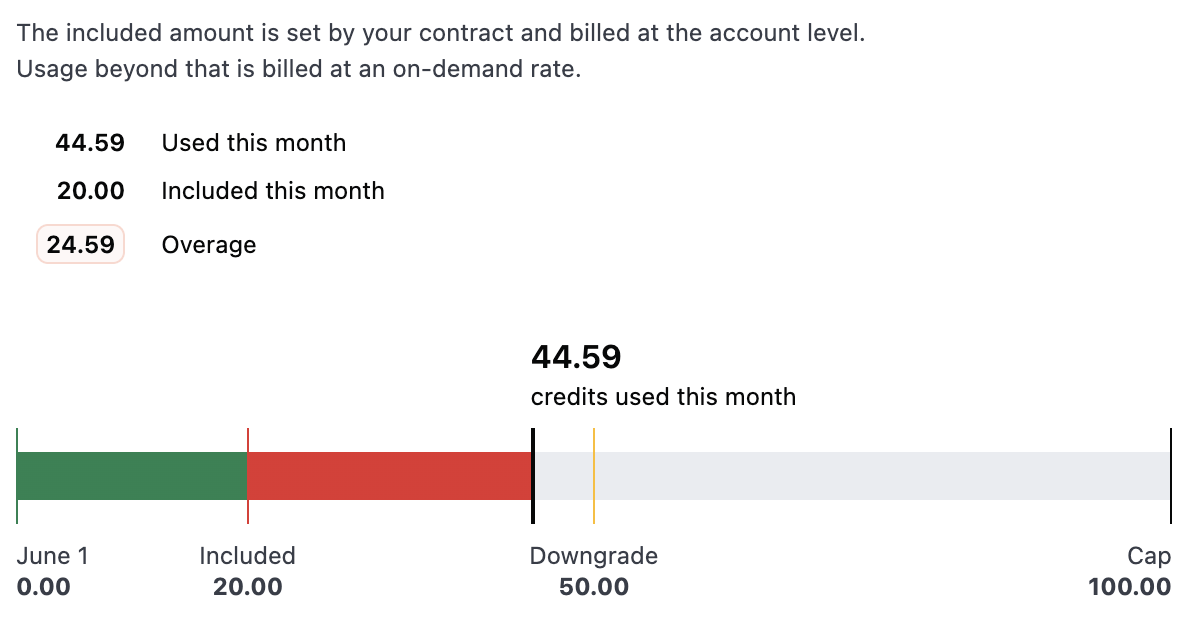 The chart includes:
* **Included** — The credit allotment included with your plan
* **Downgrade** and **Cap** — The thresholds you've set, if any
* **Credits used this month** — The organization's current usage, with color-coded bars that transition from green when you're within limits to red as usage approaches the cap
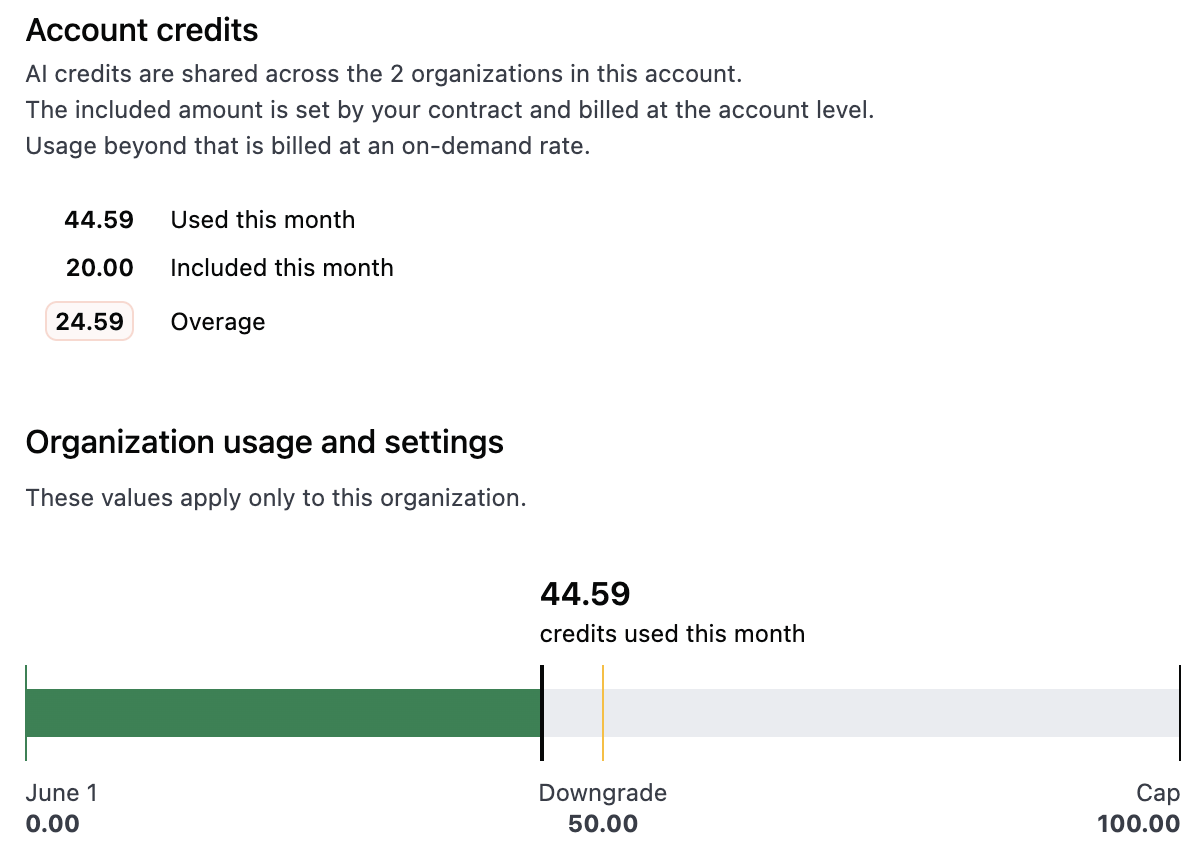
For accounts with multiple organizations, the chart only displays when the organization has a defined downgrade threshold or hard cap.
When thresholds are configured, the chart displays the current organization's usage plotted against the **Downgrade** and **Cap** thresholds you've set, with the same color-coded bars as the single organization view.
The chart includes:
* **Included** — The credit allotment included with your plan
* **Downgrade** and **Cap** — The thresholds you've set, if any
* **Credits used this month** — The organization's current usage, with color-coded bars that transition from green when you're within limits to red as usage approaches the cap
For accounts with multiple organizations, the chart only displays when the organization has a defined downgrade threshold or hard cap.
When thresholds are configured, the chart displays the current organization's usage plotted against the **Downgrade** and **Cap** thresholds you've set, with the same color-coded bars as the single organization view.
Analyze usage in detail
The **Credit Tracking** dashboard, available in the [Analytics](/administration/analytics) section of Omni, helps you understand how credits are being used in greater detail.
To access the dashboard, click **Analytics** in the left navigation of the Omni app and select the **Credit Tracking** dashboard. The dashboard displays credit consumption over time and can break down usage in various ways, such as by feature and user.
## Optimizing credit usage
* **Adjust the LLM model tier**. See [AI model settings](/modeling/models/ai-settings).
* **Trim unused fields, descriptions, or `ai_context` from the data model**. Reducing context may lower per-call credit counts, but can increase the number of turns needed to get a good answer. The goal is optimizing efficiency overall.
* **If using Claude**, use the [`ai_settings.conversation_prune_length` parameter](/modeling/models/ai-settings#param-conversation-prune-length) to control how aggressively conversation context is managed. When conversation context reaches the specified token threshold, older messages are automatically pruned from the conversation history to stay within limits.
See [Tuning Omni AI for cost and quality](/guides/ai/tuning-cost-quality) for additional credit usage optimization tips.
## Common questions
AI usage is calculated on a monthly basis and resets on the first of the month at 12AM UTC.
Omni's AI is an agentic system. For a given prompt or request, it may fire off multiple tool calls to get the answer or complete the task.
For example, asking *"show me revenue by region"* might involve the AI searching the data model for the right fields, building the query, creating a visualization, and summarizing results — each as a separate step. Each of these steps is logged individually in the tracking data, which is why a single user prompt can appear as several rows.
These are "tool calls" — intermediate steps where the AI determines which action to take next. They don't have a user-facing prompt because they are part of the AI's internal reasoning as it works through a request. See the question above for more context on why these occur.
Credit usage can vary between identical prompts due to differences in conversation context (earlier messages in the session) or the AI choosing a different path to arrive at the answer.
Omni caches AI summaries/sub-titles/descriptions so they will only recompute and use credits any time the data changes underneath (e.g., when a filter changes or it's refreshed without cache).
## Next steps
* [AI features](/ai/settings/features) — Configure which AI features are enabled in your organization
* [Custom AI model providers](/ai/settings/model-providers) — Use a different model than the Omni default
* [Tune Omni AI for cost and quality](/guides/ai/tuning-cost-quality) — Use model settings to tune AI behavior based on your query and cost needs
* [Usage analytics](/administration/analytics) — Explore other pre-built analytics dashboards