> ## Documentation Index
> Fetch the complete documentation index at: https://docs.omni.co/llms.txt
> Use this file to discover all available pages before exploring further.
# Using Google Gemini Enterprise Agent Platform (Vertex AI) for Omni AI
> Configure Google Vertex AI as an AI model provider in Omni.
export const stepText_1 = "step 1 of this section"
export const omniPlaceholder_1 = "OMNI_ATTRIBUTION_CONDITION_PREFIX"
export const omniFieldName_1 = "Attribution condition prefix"
export const stepText_0 = "step 1 of this section"
export const omniPlaceholder_0 = "OMNI_ATTRIBUTION_CONDITION_PREFIX"
export const omniFieldName_0 = "Attribution condition prefix"
Google Gemini Enterprise Agent Platform (formerly Vertex AI) provides access to Claude models through Google Cloud Platform (GCP). By connecting Vertex AI to Omni, you can power features like the [Workbook Agent](/ai/queries) and [Dashboard Agent](/ai/dashboard-assistant) using your organization's GCP infrastructure.
Authentication uses workload identity federation (WIF), which federates Omni's ECS task role identity into your GCP project. No long-lived service account keys are stored in Omni.
## Requirements
To follow the steps in this guide, you'll need:
* **In Omni**:
* **An AWS-hosted Omni instance**
* **Organization Admin** permissions
* **In Google Cloud Platform, permissions that allow you to**:
* Create and configure workload identity federation providers
* Configure trust policies for external AWS identities
* Grant IAM permissions for Vertex AI API access
* Enable Vertex AI API in your GCP project
- **The `gcloud` CLI**
## GCP setup
Complete the following setup within your GCP project before configuring Vertex AI in Omni.
Ensure the Vertex AI API is enabled in your GCP project. You can enable it through the [Google Cloud Console](https://console.cloud.google.com/apis/library/aiplatform.googleapis.com) or using the `gcloud` CLI:
```bash wrap theme={null}
gcloud services enable aiplatform.googleapis.com --project=
```
Replace `` with the ID of your GCP project.
Create a workload identity pool and provider to allow Omni's AWS ECS tasks to authenticate to your GCP project.
1. In Omni, navigate to **AI Hub > General** and click the **Model tab**.
2. In the **Provider** dropdown, select **Gemini Enterprise Agent Platform (Claude)**.
3. The fields required to configure the model will display, including a field with **Omni's AWS identity information**. It will contain values similar to the following:
```text Federated Identity example theme={null}
arn:aws:iam::123456789012:role/Prod-ProdModelTaskRole
```
```text Attribution condition prefix example theme={null}
arn:aws:sts::123456789012:assumed-role/Prod-ProdModelTaskRole
```
These values identify Omni to Google Cloud. Note that:
* **It contains Omni's AWS account ID**. This is the `123456789012` segment. You'll need this when creating the provider in the next step.
* **Both values are prefixes, not the full role name.** The actual role has a random suffix appended by Omni's infrastructure, so your attribute condition must use a **starts-with** comparison. An exact-match condition will never match.
In your Google Cloud project, create a workload identity pool and an AWS provider that trusts the identity you copied in the previous step.
1. In the Google Cloud Console, navigate to [**IAM & Admin > Workload Identity Federation**](https://console.cloud.google.com/iam-admin/workload-identity-pools).
2. Click **Create pool**.
3. Enter a name, such as `omni`, and continue.
4. Add a provider to the pool:
* **Provider type** - AWS
* **Provider name** - Enter a name, such as `Omni`
* **AWS account ID** - The account ID from the value you copied in [{stepText_0}](#omni-aws-info)
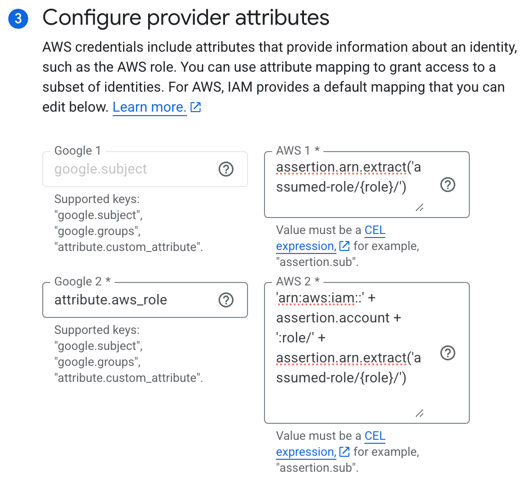
5. Configure the provider attribute mappings. AWS presents Omni's identity in a different format than the value shown in Omni, so the mappings reconstruct the role ARN before comparing it.
1. Click **Edit mapping**.
2. For `google.subject`, paste the following into the corresponding **AWS** field:
```text wrap theme={null}
assertion.arn.extract('assumed-role/{role}/')
```
3. For `attribute.aws_role_arn`, paste the following into the corresponding **AWS** field:
```text wrap theme={null}
'arn:aws:iam::' + assertion.account + ':role/' + assertion.arn.extract('assumed-role/{role}/')
```
The mappings should look like the following when finished:
 6. Configure the provider attribute conditions:
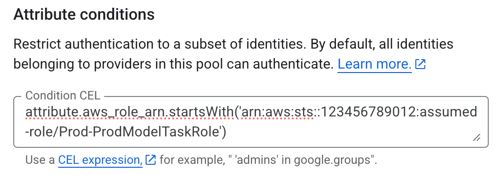
1. Click **Add condition**.
2. In the text field, add the attribute condition. Replace **{omniPlaceholder_0}** with the **{omniFieldName_0}** value you copied from Omni in [{stepText_0}](#omni-aws-info):
```text wrap theme={null}
attribute.aws_role_arn.startsWith('OMNI_ATTRIBUTION_CONDITION_PREFIX')
```
For example:
```text wrap theme={null}
attribute.aws_role_arn.startsWith('arn:aws:sts::123456789012:assumed-role/Prod-ProdModelTaskRole')
```
The attribute conditions should look like the following when finished:
6. Configure the provider attribute conditions:
1. Click **Add condition**.
2. In the text field, add the attribute condition. Replace **{omniPlaceholder_0}** with the **{omniFieldName_0}** value you copied from Omni in [{stepText_0}](#omni-aws-info):
```text wrap theme={null}
attribute.aws_role_arn.startsWith('OMNI_ATTRIBUTION_CONDITION_PREFIX')
```
For example:
```text wrap theme={null}
attribute.aws_role_arn.startsWith('arn:aws:sts::123456789012:assumed-role/Prod-ProdModelTaskRole')
```
The attribute conditions should look like the following when finished:
 7. Click **Save**.
Using the `gcloud CLI`, run the following to create a workload identity pool:
```bash highlight={2} theme={null}
gcloud iam workload-identity-pools create omni \
--project=GCP_PROJECT_ID \
--location=global \
--display-name="Omni"
```
Replace **GCP\_PROJECT\_ID** with the ID of your GCP project.
Then, create the provider:
```bash wrap highlight={2,5,7} theme={null}
gcloud iam workload-identity-pools providers create-aws omni-aws \
--project=GCP_PROJECT_ID \
--location=global \
--workload-identity-pool=omni \
--account-id=OMNI_AWS_ACCOUNT_ID \
--attribute-mapping="google.subject=assertion.arn.extract('assumed-role/{role}/'),attribute.aws_role_arn='arn:aws:iam::'+assertion.account+':role/'+assertion.arn.extract('assumed-role/{role}/')" \
--attribute-condition="attribute.aws_role_arn.startsWith('OMNI_ATTRIBUTION_CONDITION_PREFIX')"
```
Replace the following values:
| Placeholder | Replace with |
| -------------------------- | ----------------------------------------------------------------------------------- |
| **GCP\_PROJECT\_ID** | The ID of your GCP project |
| **OMNI\_AWS\_ACCOUNT\_ID** | The account ID from the value you copied in [{stepText_1}](#omni-aws-info) |
| **{omniPlaceholder_1}** | The entire **{omniFieldName_1}** value you copied in [{stepText_1}](#omni-aws-info) |
Give the workload identity pool permission to call Vertex AI.
Choose one of the following options:
Grant the pool the **Vertex AI User** role (`roles/aiplatform.user`) directly on your project, replacing **GCP\_PROJECT\_ID** with the ID of your GCP project:
```bash wrap title="Grant the pool Vertex AI access" theme={null}
PROJECT_NUMBER=$(gcloud projects describe GCP_PROJECT_ID --format='value(projectNumber)')
gcloud projects add-iam-policy-binding GCP_PROJECT_ID \
--role="roles/aiplatform.user" \
--member="principalSet://iam.googleapis.com/projects/${PROJECT_NUMBER}/locations/global/workloadIdentityPools/omni/*"
```
When you configure Omni, leave the **Service account impersonation URL** field blank.
If your organization requires Vertex AI access to be held by a named service account (for example, to satisfy least-privilege or audit policies), grant the pool permission to impersonate a service account that holds `roles/aiplatform.user`, instead of granting the pool directly.
Run the following, replacing **GCP\_PROJECT\_ID** with the ID of your GCP project:
```bash wrap title="Grant access through a service account" theme={null}
# Create a service account (or use an existing one)
gcloud iam service-accounts create omni-vertex-sa \
--display-name="Omni Vertex AI Service Account" \
--project=GCP_PROJECT_ID
# Grant it the Vertex AI User role
gcloud projects add-iam-policy-binding GCP_PROJECT_ID \
--member="serviceAccount:omni-vertex-sa@GCP_PROJECT_ID.iam.gserviceaccount.com" \
--role="roles/aiplatform.user"
# Allow the pool to impersonate the service account
PROJECT_NUMBER=$(gcloud projects describe GCP_PROJECT_ID --format='value(projectNumber)')
gcloud iam service-accounts add-iam-policy-binding \
omni-vertex-sa@GCP_PROJECT_ID.iam.gserviceaccount.com \
--role="roles/iam.workloadIdentityUser" \
--member="principalSet://iam.googleapis.com/projects/${PROJECT_NUMBER}/locations/global/workloadIdentityPools/omni/*" \
--project=GCP_PROJECT_ID
```
When you configure Omni, set the **Service account impersonation URL** to the following, replacing **GCP\_PROJECT\_ID** with the ID of your GCP project:
```txt wrap theme={null}
https://iamcredentials.googleapis.com/v1/projects/-/serviceAccounts/omni-vertex-sa@GCP_PROJECT_ID.iam.gserviceaccount.com:generateAccessToken
```
Retrieve the audience value for your workload identity provider. This will be used in the Omni configuration:
```bash wrap theme={null}
gcloud iam workload-identity-pools providers describe omni-aws \
--project=GCP_PROJECT_ID \
--location=global \
--workload-identity-pool=omni \
--format="value(name)"
```
The output will be in the format:
```txt wrap theme={null}
//iam.googleapis.com/projects/GCP_PROJECT_ID/locations/global/workloadIdentityPools/omni/providers/omni-aws
```
Before Omni can generate responses, the Claude models you plan to use must be enabled for your GCP project and your region must have quota for them.
1. In the [Vertex AI Model Garden](https://console.cloud.google.com/vertex-ai/model-garden), enable each Claude model you plan to use with Omni and accept its terms. Anthropic models aren't enabled by default.
2. Confirm your project has non-zero quota for those models in the region you'll configure in Omni. You can review and request quota changes under [IAM & Admin > Quotas](https://console.cloud.google.com/iam-admin/quotas) in the Google Cloud console.
See Google's documentation on [using Claude models on Vertex AI](https://cloud.google.com/vertex-ai/generative-ai/docs/partner-models/use-claude) for more information.
## Omni configuration
After you complete the setup in GCP, you can add Google Vertex AI as your AI provider in Omni.
In Omni, navigate to **Settings > General** and ensure **Enable AI** is toggled on.
Navigate to **AI Hub > General** and click the **Model tab**.
In the **Provider** dropdown, select **Gemini Enterprise Agent Platform (Claude)**.
Configure the following fields:
| Field | Description |
| :------------------------------------ | :------------------------------------------------------------------------------------------------------------------------------------------------------------------------------------------------------------------------------------------ |
| **GCP Project** | The ID of the GCP project where Vertex AI is enabled. |
| **Region** | The GCP region where your Vertex AI models are hosted (e.g., `us-east5`). |
| **WIF Provider Audience** | The full [workload identity provider audience path](#wip-audience). |
| **Service Account Impersonation URL** | **Optional**. If using service account impersonation, provide the URL in the format: `https://iamcredentials.googleapis.com/v1/projects/-/serviceAccounts/:generateAccessToken`. Leave blank if using direct access. |
| **Smartest model** | The most capable model for complex reasoning tasks. |
| **Standard model** | The model used for typical query generation. |
| **Fastest model** | The model used for simpler, high-volume tasks. |
Click **Save**.
Model identifiers in Vertex AI may vary by region and project. Omni supports custom model identifiers to accommodate region-specific availability. Refer to the [Google Cloud documentation](https://cloud.google.com/vertex-ai/docs/generative-ai/learn/model-versioning) for available models in your region.
## Troubleshooting
* **Authentication errors (403):** Verify that your workload identity pool trusts all Omni ECS task role ARNs for each region where Omni is deployed. Contact Omni support for the complete list of ARNs.
* **Permission denied errors:** Ensure the service account has the `roles/aiplatform.user` role and that the workload identity pool has permission to impersonate the service account (`roles/iam.workloadIdentityUser`).
* **Model not found errors:** Model availability varies by GCP region. Verify that the model IDs you've configured are available in your selected region, or enable cross-region access in your GCP project.
* **Invalid audience:** Double-check that the WIF Provider Audience matches the full path from the command output in the [Get WIP audience step](#wip-audience).
* **Rate limit or quota errors:** If you receive an error like `Your application has exceeded its allocated rate limit or quota for a specific API`, verify that the models you're using have a positive quota balance.
## Related
* [AI in Omni](/ai)
* [AI settings](/administration/ai-hub)
* [Alternative model providers][model-providers]
[model-providers]: /ai/settings/model-providers
7. Click **Save**.
Using the `gcloud CLI`, run the following to create a workload identity pool:
```bash highlight={2} theme={null}
gcloud iam workload-identity-pools create omni \
--project=GCP_PROJECT_ID \
--location=global \
--display-name="Omni"
```
Replace **GCP\_PROJECT\_ID** with the ID of your GCP project.
Then, create the provider:
```bash wrap highlight={2,5,7} theme={null}
gcloud iam workload-identity-pools providers create-aws omni-aws \
--project=GCP_PROJECT_ID \
--location=global \
--workload-identity-pool=omni \
--account-id=OMNI_AWS_ACCOUNT_ID \
--attribute-mapping="google.subject=assertion.arn.extract('assumed-role/{role}/'),attribute.aws_role_arn='arn:aws:iam::'+assertion.account+':role/'+assertion.arn.extract('assumed-role/{role}/')" \
--attribute-condition="attribute.aws_role_arn.startsWith('OMNI_ATTRIBUTION_CONDITION_PREFIX')"
```
Replace the following values:
| Placeholder | Replace with |
| -------------------------- | ----------------------------------------------------------------------------------- |
| **GCP\_PROJECT\_ID** | The ID of your GCP project |
| **OMNI\_AWS\_ACCOUNT\_ID** | The account ID from the value you copied in [{stepText_1}](#omni-aws-info) |
| **{omniPlaceholder_1}** | The entire **{omniFieldName_1}** value you copied in [{stepText_1}](#omni-aws-info) |
Give the workload identity pool permission to call Vertex AI.
Choose one of the following options:
Grant the pool the **Vertex AI User** role (`roles/aiplatform.user`) directly on your project, replacing **GCP\_PROJECT\_ID** with the ID of your GCP project:
```bash wrap title="Grant the pool Vertex AI access" theme={null}
PROJECT_NUMBER=$(gcloud projects describe GCP_PROJECT_ID --format='value(projectNumber)')
gcloud projects add-iam-policy-binding GCP_PROJECT_ID \
--role="roles/aiplatform.user" \
--member="principalSet://iam.googleapis.com/projects/${PROJECT_NUMBER}/locations/global/workloadIdentityPools/omni/*"
```
When you configure Omni, leave the **Service account impersonation URL** field blank.
If your organization requires Vertex AI access to be held by a named service account (for example, to satisfy least-privilege or audit policies), grant the pool permission to impersonate a service account that holds `roles/aiplatform.user`, instead of granting the pool directly.
Run the following, replacing **GCP\_PROJECT\_ID** with the ID of your GCP project:
```bash wrap title="Grant access through a service account" theme={null}
# Create a service account (or use an existing one)
gcloud iam service-accounts create omni-vertex-sa \
--display-name="Omni Vertex AI Service Account" \
--project=GCP_PROJECT_ID
# Grant it the Vertex AI User role
gcloud projects add-iam-policy-binding GCP_PROJECT_ID \
--member="serviceAccount:omni-vertex-sa@GCP_PROJECT_ID.iam.gserviceaccount.com" \
--role="roles/aiplatform.user"
# Allow the pool to impersonate the service account
PROJECT_NUMBER=$(gcloud projects describe GCP_PROJECT_ID --format='value(projectNumber)')
gcloud iam service-accounts add-iam-policy-binding \
omni-vertex-sa@GCP_PROJECT_ID.iam.gserviceaccount.com \
--role="roles/iam.workloadIdentityUser" \
--member="principalSet://iam.googleapis.com/projects/${PROJECT_NUMBER}/locations/global/workloadIdentityPools/omni/*" \
--project=GCP_PROJECT_ID
```
When you configure Omni, set the **Service account impersonation URL** to the following, replacing **GCP\_PROJECT\_ID** with the ID of your GCP project:
```txt wrap theme={null}
https://iamcredentials.googleapis.com/v1/projects/-/serviceAccounts/omni-vertex-sa@GCP_PROJECT_ID.iam.gserviceaccount.com:generateAccessToken
```
Retrieve the audience value for your workload identity provider. This will be used in the Omni configuration:
```bash wrap theme={null}
gcloud iam workload-identity-pools providers describe omni-aws \
--project=GCP_PROJECT_ID \
--location=global \
--workload-identity-pool=omni \
--format="value(name)"
```
The output will be in the format:
```txt wrap theme={null}
//iam.googleapis.com/projects/GCP_PROJECT_ID/locations/global/workloadIdentityPools/omni/providers/omni-aws
```
Before Omni can generate responses, the Claude models you plan to use must be enabled for your GCP project and your region must have quota for them.
1. In the [Vertex AI Model Garden](https://console.cloud.google.com/vertex-ai/model-garden), enable each Claude model you plan to use with Omni and accept its terms. Anthropic models aren't enabled by default.
2. Confirm your project has non-zero quota for those models in the region you'll configure in Omni. You can review and request quota changes under [IAM & Admin > Quotas](https://console.cloud.google.com/iam-admin/quotas) in the Google Cloud console.
See Google's documentation on [using Claude models on Vertex AI](https://cloud.google.com/vertex-ai/generative-ai/docs/partner-models/use-claude) for more information.
## Omni configuration
After you complete the setup in GCP, you can add Google Vertex AI as your AI provider in Omni.
In Omni, navigate to **Settings > General** and ensure **Enable AI** is toggled on.
Navigate to **AI Hub > General** and click the **Model tab**.
In the **Provider** dropdown, select **Gemini Enterprise Agent Platform (Claude)**.
Configure the following fields:
| Field | Description |
| :------------------------------------ | :------------------------------------------------------------------------------------------------------------------------------------------------------------------------------------------------------------------------------------------ |
| **GCP Project** | The ID of the GCP project where Vertex AI is enabled. |
| **Region** | The GCP region where your Vertex AI models are hosted (e.g., `us-east5`). |
| **WIF Provider Audience** | The full [workload identity provider audience path](#wip-audience). |
| **Service Account Impersonation URL** | **Optional**. If using service account impersonation, provide the URL in the format: `https://iamcredentials.googleapis.com/v1/projects/-/serviceAccounts/:generateAccessToken`. Leave blank if using direct access. |
| **Smartest model** | The most capable model for complex reasoning tasks. |
| **Standard model** | The model used for typical query generation. |
| **Fastest model** | The model used for simpler, high-volume tasks. |
Click **Save**.
Model identifiers in Vertex AI may vary by region and project. Omni supports custom model identifiers to accommodate region-specific availability. Refer to the [Google Cloud documentation](https://cloud.google.com/vertex-ai/docs/generative-ai/learn/model-versioning) for available models in your region.
## Troubleshooting
* **Authentication errors (403):** Verify that your workload identity pool trusts all Omni ECS task role ARNs for each region where Omni is deployed. Contact Omni support for the complete list of ARNs.
* **Permission denied errors:** Ensure the service account has the `roles/aiplatform.user` role and that the workload identity pool has permission to impersonate the service account (`roles/iam.workloadIdentityUser`).
* **Model not found errors:** Model availability varies by GCP region. Verify that the model IDs you've configured are available in your selected region, or enable cross-region access in your GCP project.
* **Invalid audience:** Double-check that the WIF Provider Audience matches the full path from the command output in the [Get WIP audience step](#wip-audience).
* **Rate limit or quota errors:** If you receive an error like `Your application has exceeded its allocated rate limit or quota for a specific API`, verify that the models you're using have a positive quota balance.
## Related
* [AI in Omni](/ai)
* [AI settings](/administration/ai-hub)
* [Alternative model providers][model-providers]
[model-providers]: /ai/settings/model-providers