> ## Documentation Index
> Fetch the complete documentation index at: https://docs.omni.co/llms.txt
> Use this file to discover all available pages before exploring further.
# LLM settings
> Approve the LLMs your organization can use, set the default LLM and thinking level, and control which LLMs users can pick in chat.
export const SideBySide = ({src, alt, media, title, children, reverse = false, height = 220, divider = false}) => {
const classNames = ["side-by-side"];
if (reverse) classNames.push("side-by-side-reverse");
if (divider) classNames.push("side-by-side-divider");
return
{media ||

}
{title &&
{title}
}
{children}
;
};
**Organization Admin** permissions are required to access and modify LLM settings.
The **AI Hub > General > LLM settings** tab controls which large language models (LLMs) power Omni's AI features in your organization. Use it to:
* **Approve providers and LLMs** — Decide which LLMs your organization can run on
* **Mark an LLM as test only** — Try an LLM before your users see it
* **Set the organization default** — Choose the LLM and thinking level that new chats and background AI features use
* **Describe each LLM** — Add a short description that users see in the [chat LLM picker](/ai/chat#selecting-an-ai-model-tier)
How LLM selection works
An LLM provider is the service that runs the LLMs for Omni's AI features. Omni supports two provider types:
* **Omni managed** — Omni hosts the LLMs and bills their use through [AI credits](/ai/settings/usage). The default Omni managed provider is always available. This is Amazon Bedrock for AWS deployments and Microsoft Foundry for Azure deployments.
* **Your own key** — With [Bring Your Own Key (BYOK)](/ai/settings/model-providers), Omni runs AI requests on your organization's account with a provider such as Anthropic or OpenAI.
Your organization can use both types at the same time. Users can pick any [approved LLM](#llm-approval), from any provider.
LLMs for requests
Omni selects the LLM for each AI request in this order:
Users can [select any approved LLM](/ai/chat#selecting-an-ai-model-tier) in the chat input, which remains in effect until users pick another LLM or select **Default AI**.
The LLM picker only selects the LLM, not the thinking level. The chat uses the organization's default thinking level.
If users don't select an LLM, the chat uses the [default LLM and thinking level](#organization-defaults).
Features that don't have an LLM picker also use the default. See [Setting organization defaults](#organization-defaults) for more information.
If you don't set an organization default, Omni uses the deployment default, which is the LLM that Omni selects for your deployment. This LLM has a **Default** badge in the LLM picker.
**For Omni managed providers, a credit downgrade overrides this order.** When an organization or user reaches a [credit downgrade threshold](/ai/settings/usage#downgrade), AI features run on the lowest-cost LLM in the default LLM's family. While the downgrade applies, the chat LLM picker shows only that LLM.
LLMs for light tasks
Light tasks always run on a lower-cost LLM with no thinking. These tasks include naming a chat, autocomplete, documentation search, and generating field metadata. The LLM that Omni uses depends on the provider:
* **Omni managed providers** — Omni uses the lowest-cost LLM from the same family as the LLM that the chat runs on. For example, a chat using a Claude LLM uses the lowest-cost Claude LLM for light tasks. This LLM doesn't need to be approved.
* **Providers on your own key** — Omni uses the provider's **Simple-task model** setting. See [Bring Your Own Key (BYOK)](/ai/settings/model-providers) for more information.
## Providers
The **Providers** section lists the LLM providers available to your organization:
* **Omni managed** — Settings for providers that Omni hosts and bills through [AI credits](/ai/settings/usage).
* **Your API Keys** — **Displays only if BYOK is enabled for your organization.** Settings for providers that run on your organization's own key. See [BYOK](/ai/settings/model-providers) for more information.
Controlling provider approval
Users can only pick LLMs from an approved provider, and the organization default LLM must also be from an approved provider.
* **The default Omni managed provider** is always available. This is Amazon Bedrock for AWS deployments and Microsoft Foundry for Azure deployments. You can't turn the provider off, but you can [choose which of its LLMs are approved](#llm-approval).
* **A provider on your own key** needs credentials and a **Simple-task model** before you can approve it. You enter them in the provider's row and click **Save and approve**. See [Bring Your Own Key (BYOK)](/ai/settings/model-providers) for the steps.
To approve or remove approval from a provider, use the toggle in the provider's row:
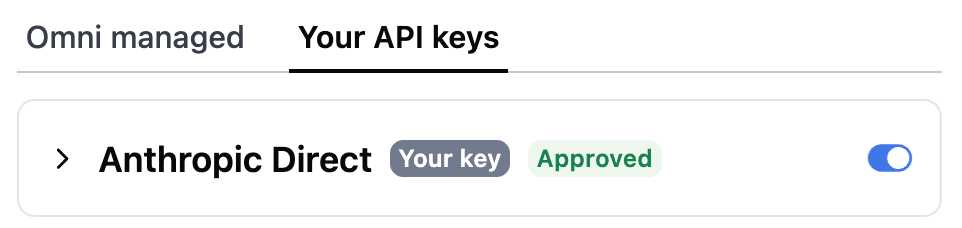 When you approve a provider, Omni approves all its LLMs by default, but you can [remove approval on a per-LLM basis](#llm-approval).
Controlling LLM approval
The steps in this section apply to the Omni managed provider and BYOK providers, if you have any configured.
1. Click an approved provider to expand it and display its LLMs.
2. In the list of LLMs:
* **To approve an LLM**, select the checkbox next to it. Users in your organization can use this LLM after you save.
* **To remove approval from an LLM**, deselect the checkbox next to it.
You can't remove approval from the organization's default LLM. Set a different default first.
You can also use the checkbox in the table header to select or deselect every LLM for the provider.
3. Click **Save models**.
Marking test-only LLMs
When **Test only** is enabled for an approved LLM, you can assess the LLM before allowing users in your organization to use it. When an LLM is marked as **Test only**, it:
* Shows in the chat LLM picker for Organization Admins only
* Is available to all [eval runs](/ai/evals#evaluating-an-llm), so you can measure its accuracy first
* Can't be the organization default
To make an approved LLM test only, select the **Test only** checkbox next to it and click **Save models**. Deselect the checkbox and save your changes when you're ready to release the LLM to users.
Adding LLM picker descriptions
The **Description** field next to an approved LLM sets the line of text (up to 60 characters) that shows below the LLM's name in the chat LLM picker. Click **Save models** to apply the changes.
If the description is empty:
* **For an Omni managed LLM**, a default description displays, such as **Balanced speed and capability**
* **For an LLM on your own key**, no description displays
**Descriptions** are useful for telling users when to pick the LLM.
Setting organization defaults
The **Defaults for new chats** section sets the LLM and thinking level that Omni uses when a user doesn't pick an LLM. These settings apply to:
* New chats, after which users can switch to any approved LLM
* [Slack Agent](/integrations/omni-slack-agent)
* [AI APIs](/api/ai)
* [Routines](/ai/routines)
* [AI summary visualizations](/visualize-present/visualizations/types/ai-summary)
**Make sure you save your changes!** Click **Save default** to apply any changes you make.
Default LLM
Defines the default LLM for new chats and the [features listed above](#organization-defaults).
The dropdown contains approved LLMs that aren't marked as [test only](#test-only). To use the deployment default, select the **Deployment default** option.
Thinking
Defines how much the LLM reasons before it answers a prompt. Higher levels use more credits, but they can improve accuracy on complex tasks.
| Option | Description |
| - | - |
| **Default** | Omni's setting for the LLM. For some LLMs, this is off. For others, it is the lowest level the LLM supports. |
| **Off** | The LLM doesn't reason before it answers. **Note**: This option isn't offered for LLMs that always reason, such as Claude Sonnet 5.5. |
| **Low**, **Medium**, **High** | The LLM reasons before it answers. **High** uses the most credits. |
## Audit trail
Omni records each change to LLM settings in the [audit log](/administration/audit-logs). This includes provider approvals, LLM approvals, and changes to the organization default.
## Common questions
Yes. Before LLM settings, the `ai_settings` parameter in a semantic model's file selected the LLM tier and thinking level for each type of task. LLM settings replace these parameters:
* [`analyze_configuration`](/modeling/models/parameters/ai-settings/analyze-configuration)
* [`build_configuration`](/modeling/models/parameters/ai-settings/build-configuration)
* [`simple_summarize_configuration`](/modeling/models/parameters/ai-settings/simple-summarize-configuration)
Model files that contain these parameters are still valid, but the `build_configuration` and `simple_summarize_configuration` parameters have no effect.
The `analyze_configuration` parameter is deprecated. After **October 12, 2026**, it has no effect.
Until this date, you'll see a notice in the [**Defaults for new chats** section](#organization-defaults) with a list of models that use this parameter. See [Migrating to LLM settings](/modeling/models/parameters/ai-settings/analyze-configuration#migrating-to-llm-settings) for how to remove it.
Before LLM settings, the **LLM provider** tab let you choose a **Smartest**, **Standard**, and **Fastest model**. Omni moved those choices into LLM settings as follows:
* **Omni managed providers** — If you selected a **Standard model**, that LLM is now the [organization's default](#org-default-llm).
Otherwise, your organization uses the [deployment default](#llm-requests).
* **A provider on your own key** — Omni keeps the provider approved with all its LLMs:
* The **Standard model** is the [organization default](#org-default-llm).
* The **Fastest model** is the provider's **Simple-task model**.
* The LLMs that Omni hosts aren't approved until you [approve them](#llm-approval).
The **Smartest model** setting has no effect. Tasks that used it, such as dashboard creation and semantic model changes, run on the same LLM as the rest of the chat.
## Next steps
* [Bring Your Own Key (BYOK)](/ai/settings/model-providers) — Run Omni AI on your own provider key
* [Select an LLM in chat](/ai/chat#selecting-an-ai-model-tier) — See what your users see in the chat LLM picker
* [Evals](/ai/evals#evaluating-an-llm) — Measure the accuracy of an LLM before you release it to users
* [AI credit tracking](/ai/settings/usage) — Monitor and limit AI usage
This documentation is built and hosted on [Mintlify](https://mintlify.com), a developer documentation platform.