> ## Documentation Index
> Fetch the complete documentation index at: https://docs.omni.co/llms.txt
> Use this file to discover all available pages before exploring further.
# AI MCP Server
> Unlock new ways to analyze & explore your data by connecting external AI tools to your Omni model with Omni's MCP Server.
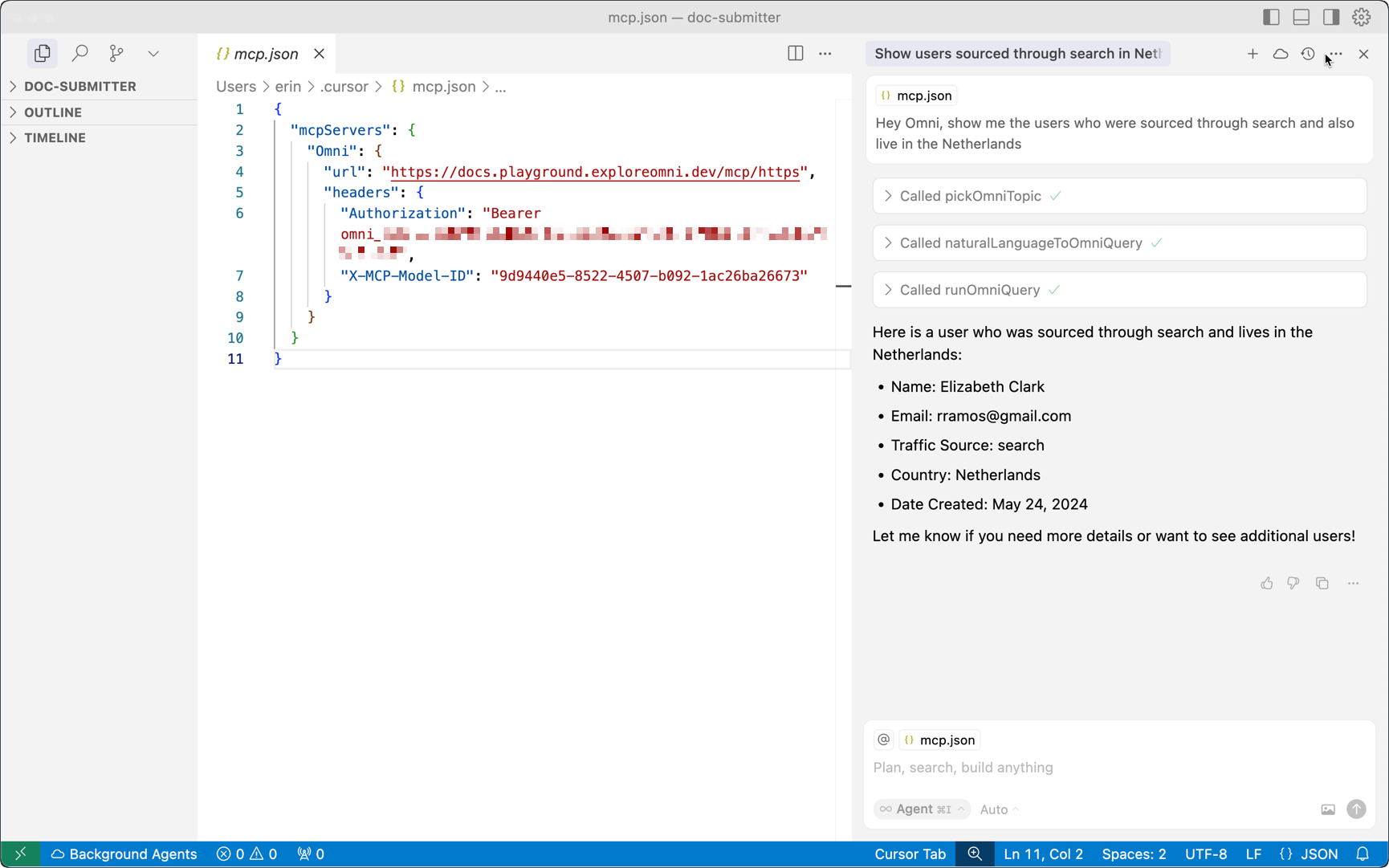
The Omni MCP Server enables natural language querying across your datasets, similar to how you’d interact with Omni, while taking advantage of the enhanced context, reasoning, or memory capabilities of external AI tools.
For example, you could include the results of a web search as additional context to the MCP before running an Omni query.
 ## Features
* **Natural language querying** – Ask questions using natural language and let Omni translate it into a query
* **Iterative, multi-step analysis** – Chain queries together, retain results in memory, and perform deeper analysis across steps
* **Flexible integration** - Connect to a variety of compatible AI clients to expand beyond Omni's native chat experience
* **Dynamic model selection** - Switch between Omni models during a session without reconfiguring the MCP Server
* **Scoped, secure data access** – Interactions are scoped only to the model (and topic, if provided) provided to the MCP, preventing unauthorized data access when querying
* **User level permissioning** - MCP queries can be scoped to the permissions of a given user to pass through security from Omni's semantic layer
## Tools
The MCP Server includes tools for querying Omni data and searching the official Omni docs for product and *"How do I..."*-type questions. See [MCP server tools](/ai/mcp/tools) for more information.
## Authentication
The Omni MCP Server supports two authentication methods:
* **OAuth 2.1** - **Recommended**. Streamlined setup through your browser. Omni creates API keys on your behalf automatically. Requires [**Personal Access Tokens (PATs)**](/api/authentication#token-types) to be enabled for your organization.
* **API key** - Manual key creation for centralized management or automated workflows.
See the [MCP authentication guide](/ai/mcp/authentication) for more information.
## Data access and security
* **Data access** - Interactions are scoped only to the model (and topic, if provided) provided to the MCP, preventing unauthorized data access when querying
* **User permissions** - All MCP queries use the permissions of the authenticated user, ensuring proper data access controls
* **Data handling & security** - Data returned from queries run by the MCP is handled the same way it is for [Omni's other AI features](/ai/security). **Note**: By using the MCP Server, your data will be in the tool where you use the MCP Server. For example, if you use Cursor with the MCP Server, your data would be in Cursor.
## Getting started
Ready to get started? Check out the setup guides for the clients we've tested for compatibility:
OpenAI's AI assistant with developer mode
Command-line based version of Anthropic Claude
App version of Anthropic Claude
OpenAI's agentic coding tool
AI-powered IDE designed for fast, agentic programming
Microsoft's AI assistant, configured through Copilot Studio
Popular open-source IDE with powerful AI features
## Improving results
To get the best results, we recommend:
1. Optimizing your Omni models for AI. Refer to [this guide](/modeling/develop/ai-optimization) to learn how to curate your models and include context.
2. Rating the results that the AI returns
## Features
* **Natural language querying** – Ask questions using natural language and let Omni translate it into a query
* **Iterative, multi-step analysis** – Chain queries together, retain results in memory, and perform deeper analysis across steps
* **Flexible integration** - Connect to a variety of compatible AI clients to expand beyond Omni's native chat experience
* **Dynamic model selection** - Switch between Omni models during a session without reconfiguring the MCP Server
* **Scoped, secure data access** – Interactions are scoped only to the model (and topic, if provided) provided to the MCP, preventing unauthorized data access when querying
* **User level permissioning** - MCP queries can be scoped to the permissions of a given user to pass through security from Omni's semantic layer
## Tools
The MCP Server includes tools for querying Omni data and searching the official Omni docs for product and *"How do I..."*-type questions. See [MCP server tools](/ai/mcp/tools) for more information.
## Authentication
The Omni MCP Server supports two authentication methods:
* **OAuth 2.1** - **Recommended**. Streamlined setup through your browser. Omni creates API keys on your behalf automatically. Requires [**Personal Access Tokens (PATs)**](/api/authentication#token-types) to be enabled for your organization.
* **API key** - Manual key creation for centralized management or automated workflows.
See the [MCP authentication guide](/ai/mcp/authentication) for more information.
## Data access and security
* **Data access** - Interactions are scoped only to the model (and topic, if provided) provided to the MCP, preventing unauthorized data access when querying
* **User permissions** - All MCP queries use the permissions of the authenticated user, ensuring proper data access controls
* **Data handling & security** - Data returned from queries run by the MCP is handled the same way it is for [Omni's other AI features](/ai/security). **Note**: By using the MCP Server, your data will be in the tool where you use the MCP Server. For example, if you use Cursor with the MCP Server, your data would be in Cursor.
## Getting started
Ready to get started? Check out the setup guides for the clients we've tested for compatibility:
OpenAI's AI assistant with developer mode
Command-line based version of Anthropic Claude
App version of Anthropic Claude
OpenAI's agentic coding tool
AI-powered IDE designed for fast, agentic programming
Microsoft's AI assistant, configured through Copilot Studio
Popular open-source IDE with powerful AI features
## Improving results
To get the best results, we recommend:
1. Optimizing your Omni models for AI. Refer to [this guide](/modeling/develop/ai-optimization) to learn how to curate your models and include context.
2. Rating the results that the AI returns