> ## Documentation Index
> Fetch the complete documentation index at: https://docs.omni.co/llms.txt
> Use this file to discover all available pages before exploring further.
# Using the MCP Server in Claude Desktop
> Connect your Omni data to Claude Desktop with Omni's MCP Server.
Claude Desktop is the app version of Anthropic's AI assistant, Claude. Once successfully connected to Omni, you can interact with your Omni data right in the Claude Desktop interface.
**Looking for Claude Code?** Check out the [Claude Code guide](/ai/mcp/claude-code).
## Requirements
Every person who wants to use the MCP Server must complete the setup.
To follow the steps in this guide, you'll need:
* The latest version of [Claude Desktop](https://claude.ai/download) installed
* **The MCP Server AI setting** enabled in your Omni instance. An Organization Admin can enable this setting by navigating to [**AI Hub > Setup > General**](/ai/settings/features#mcp-server).
* **For API key setup only**: [npm and Node.js](https://docs.npmjs.com/downloading-and-installing-node-js-and-npm) installed. Check with:
```bash theme={null}
node -v
npm -v
```
## Setup
Choose your setup method. See the [MCP authentication guide](/ai/mcp/authentication) if you need help selecting a method.
The official Omni connector for Claude provides the fastest setup experience with no manual configuration required.
Visit the [Omni Analytics connector](https://claude.com/connectors/omni-analytics) page and click **Add to Claude** to install the connector.
1. Claude will redirect you to an Omni authorization page.
2. Review the requested permissions and click **Authorize**.
Omni will automatically create a [Personal access token](/api/authentication#token-types) and link it to your Omni user account.
At this point, you should be able to use the Omni MCP server in your Claude Desktop chats.
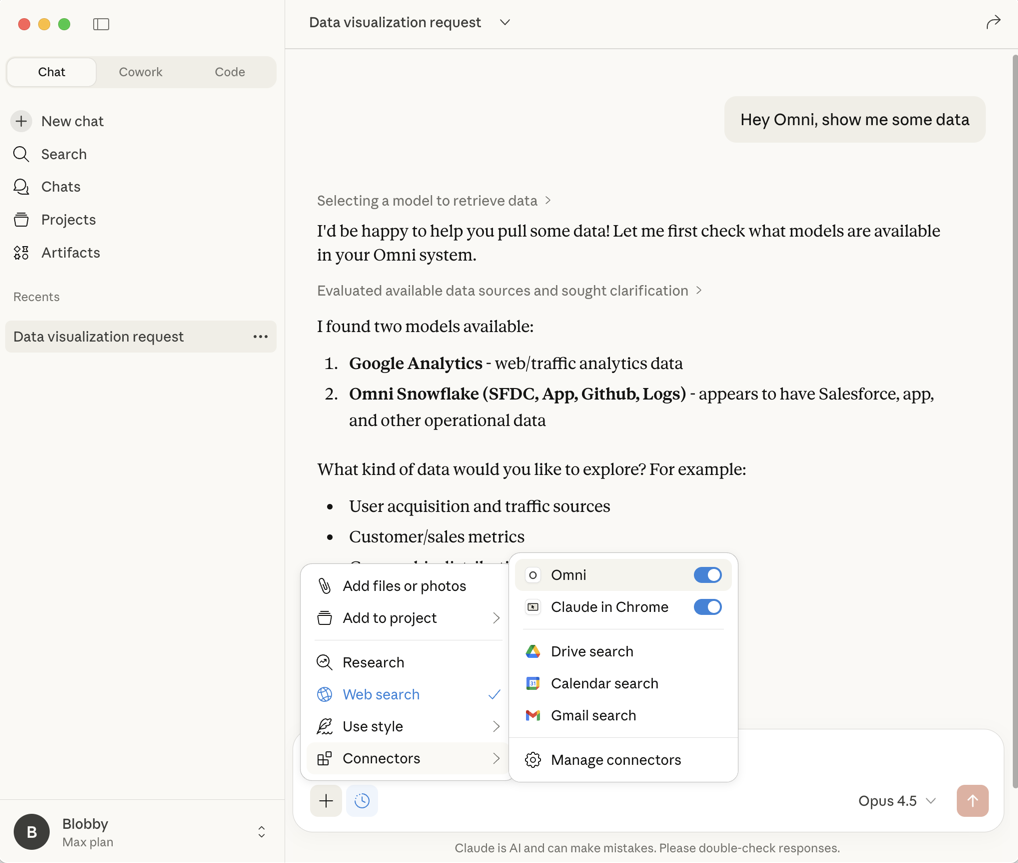
In a chat, click the (plus) icon, then **Connectors**. Your Omni MCP connection should be enabled:
 OAuth provides streamlined setup without manually managing API keys. Use this method if you need to configure the connector manually.
In Claude Desktop, navigate to **Settings > Connectors**.
Click **Add custom connector**.
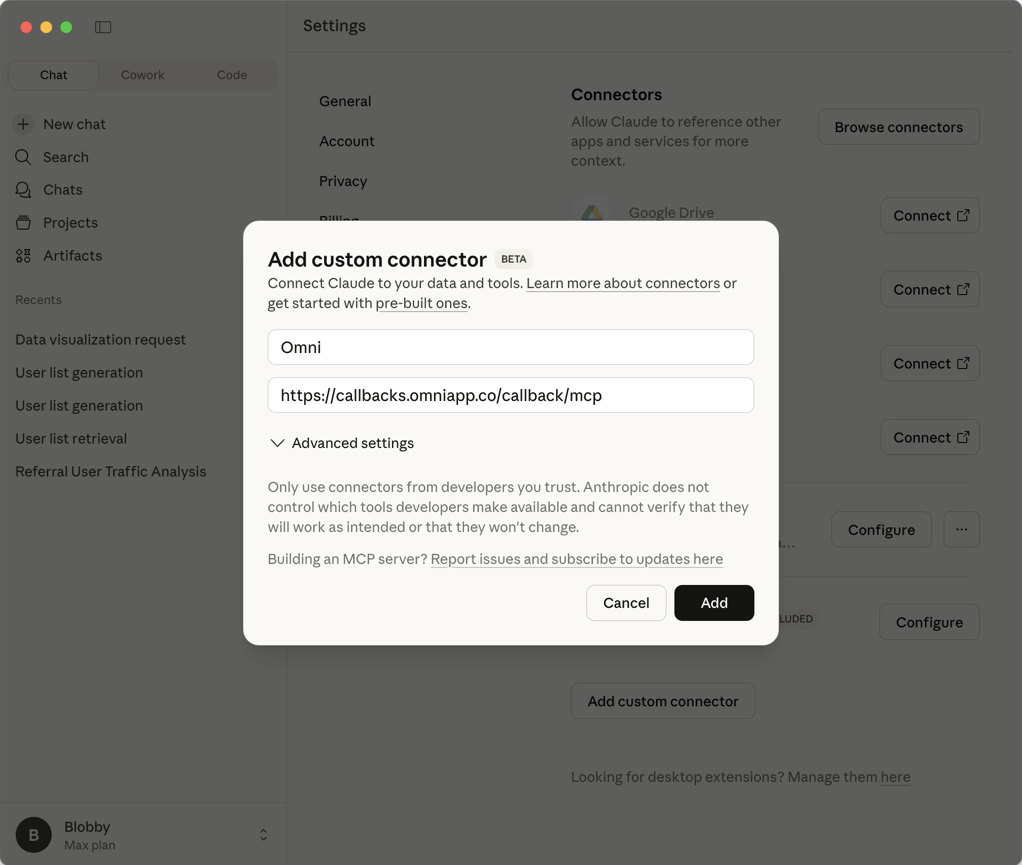
In the dialog that displays, fill in the following:
* **Name** - Enter a name for the connector, such as `Omni`
* **Remote MCP Server URL** - Paste the following URL:
```text theme={null}
https://callbacks.omniapp.co/callback/mcp
```
Your configuration should look like this:
OAuth provides streamlined setup without manually managing API keys. Use this method if you need to configure the connector manually.
In Claude Desktop, navigate to **Settings > Connectors**.
Click **Add custom connector**.
In the dialog that displays, fill in the following:
* **Name** - Enter a name for the connector, such as `Omni`
* **Remote MCP Server URL** - Paste the following URL:
```text theme={null}
https://callbacks.omniapp.co/callback/mcp
```
Your configuration should look like this:
 Click **Add** to create the connector.
Claude Desktop will add the connector to the connector list.
1. Click the **Connect** button next to the Omni connector you just created.
2. Your browser will open and redirect you to an Omni authorization page.
3. Review the requested permissions and click **Authorize**.
Omni will automatically create a [Personal access token](/api/authentication#token-types) and link it to your Omni user account.
At this point, you should be able to use the Omni MCP server in your Claude Desktop chats.
In a chat, click the (plus) icon, then **Connectors**. Your Omni MCP connection should be enabled:
API key authentication gives you direct control over key management.
If you don't have an Omni API key, [create one](/api/authentication) before continuing.
In Claude Desktop, navigate to **Settings > Developer**.
Click **Edit Config**. This opens (or creates) `claude_desktop_config.json`.
Add the following to the `mcpServers` key:
```json title="claude_desktop_config.json" theme={null}
{
"mcpServers": {
"Omni MCP": {
"command": "npx",
"args": ["@omni-co/mcp"],
"env": {
"DEBUG": "true",
"MCP_SERVER_URL": "https:///mcp/https",
"MCP_API_KEY": "",
"MCP_MODEL_ID": "",
"MCP_TOPIC_NAME": "",
"MCP_USER_REQUIRED": "",
"MCP_USER_ID": "",
"MCP_QUERY_ALL_VIEWS": ""
}
}
}
}
```
Replace the placeholder values:
* `` - **Required**. Your Omni URL (e.g., `acme.omniapp.co`)
* `` - **Required**. Your [Omni API key](/api/authentication)
* `` - **Optional**. Scope the MCP to a specific model. Find the model ID in the URL when viewing the model:
```txt wrap theme={null}
https://acme.omniapp.co/models/9d9440e5-8522-4507-b092-1ac26ba26673/ide/model
```
* `` - **Optional**. Scope the MCP to a specific topic
* `` - **Optional**. Require a User ID to execute queries with that user's permissions (default: false)
* `` - **Optional**. Execute queries as this user. Get IDs from the [List Users API](/api/users/list-users)
* `` for `MCP_QUERY_ALL_VIEWS` - **Optional**. Set to `true` to allow the AI to query any view in the model instead of only topics. Requires the model's [`query_all_views_and_fields`](/modeling/models/ai-settings#param-query-all-views-and-fields) setting to be enabled. Defaults to `false`.
Save the file and restart Claude Desktop.
Navigate to **Settings > Developer** and click **Omni MCP**. You should see a `running` badge:
Click **Add** to create the connector.
Claude Desktop will add the connector to the connector list.
1. Click the **Connect** button next to the Omni connector you just created.
2. Your browser will open and redirect you to an Omni authorization page.
3. Review the requested permissions and click **Authorize**.
Omni will automatically create a [Personal access token](/api/authentication#token-types) and link it to your Omni user account.
At this point, you should be able to use the Omni MCP server in your Claude Desktop chats.
In a chat, click the (plus) icon, then **Connectors**. Your Omni MCP connection should be enabled:
API key authentication gives you direct control over key management.
If you don't have an Omni API key, [create one](/api/authentication) before continuing.
In Claude Desktop, navigate to **Settings > Developer**.
Click **Edit Config**. This opens (or creates) `claude_desktop_config.json`.
Add the following to the `mcpServers` key:
```json title="claude_desktop_config.json" theme={null}
{
"mcpServers": {
"Omni MCP": {
"command": "npx",
"args": ["@omni-co/mcp"],
"env": {
"DEBUG": "true",
"MCP_SERVER_URL": "https:///mcp/https",
"MCP_API_KEY": "",
"MCP_MODEL_ID": "",
"MCP_TOPIC_NAME": "",
"MCP_USER_REQUIRED": "",
"MCP_USER_ID": "",
"MCP_QUERY_ALL_VIEWS": ""
}
}
}
}
```
Replace the placeholder values:
* `` - **Required**. Your Omni URL (e.g., `acme.omniapp.co`)
* `` - **Required**. Your [Omni API key](/api/authentication)
* `` - **Optional**. Scope the MCP to a specific model. Find the model ID in the URL when viewing the model:
```txt wrap theme={null}
https://acme.omniapp.co/models/9d9440e5-8522-4507-b092-1ac26ba26673/ide/model
```
* `` - **Optional**. Scope the MCP to a specific topic
* `` - **Optional**. Require a User ID to execute queries with that user's permissions (default: false)
* `` - **Optional**. Execute queries as this user. Get IDs from the [List Users API](/api/users/list-users)
* `` for `MCP_QUERY_ALL_VIEWS` - **Optional**. Set to `true` to allow the AI to query any view in the model instead of only topics. Requires the model's [`query_all_views_and_fields`](/modeling/models/ai-settings#param-query-all-views-and-fields) setting to be enabled. Defaults to `false`.
Save the file and restart Claude Desktop.
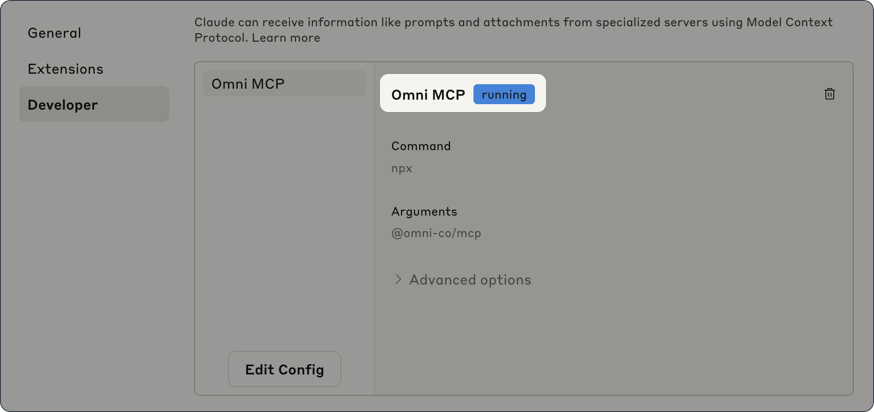
Navigate to **Settings > Developer** and click **Omni MCP**. You should see a `running` badge:
 ## Using the MCP
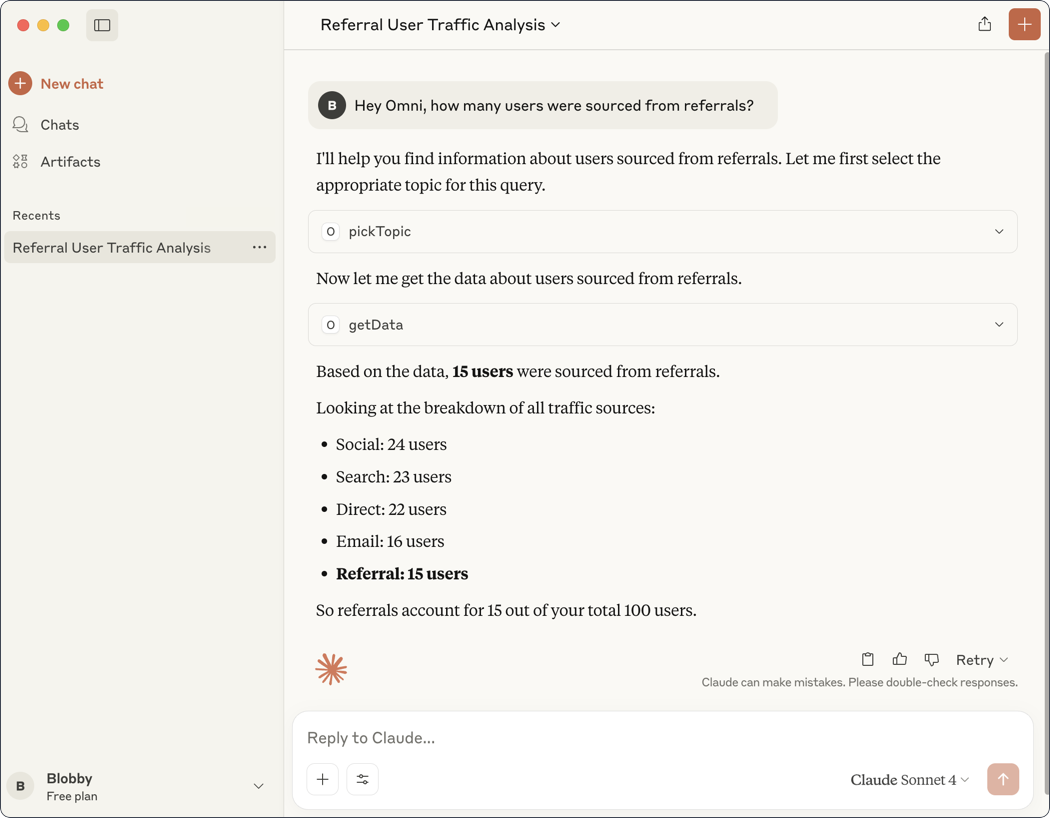
Once the MCP Server is connected, Claude Desktop automatically uses it when you ask questions about your data. You can prompt Claude to use Omni by referring to it by name or description.
1. Enter a prompt in the chat panel, such as `Hey Omni, tell me how many users have been sourced by referrals`.
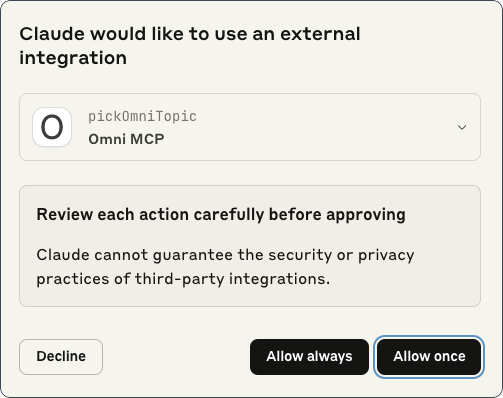
2. Each time Claude uses an MCP tool, you'll be prompted to approve its usage. Click **Allow once** or **Allow always** to proceed:
## Using the MCP
Once the MCP Server is connected, Claude Desktop automatically uses it when you ask questions about your data. You can prompt Claude to use Omni by referring to it by name or description.
1. Enter a prompt in the chat panel, such as `Hey Omni, tell me how many users have been sourced by referrals`.
2. Each time Claude uses an MCP tool, you'll be prompted to approve its usage. Click **Allow once** or **Allow always** to proceed:
 3. The MCP Server will pick a model (if not configured) and topic, then run a query to retrieve the data: