> ## Documentation Index
> Fetch the complete documentation index at: https://docs.omni.co/llms.txt
> Use this file to discover all available pages before exploring further.
## Submitting Feedback
If you encounter incorrect, outdated, or confusing documentation on this page, submit feedback:
POST https://docs.omni.co/feedback
```json
{
"path": "/ai/dashboard-assistant",
"feedback": "Description of the issue"
}
```
Only submit feedback when you have something specific and actionable to report.
# Dashboard Agent
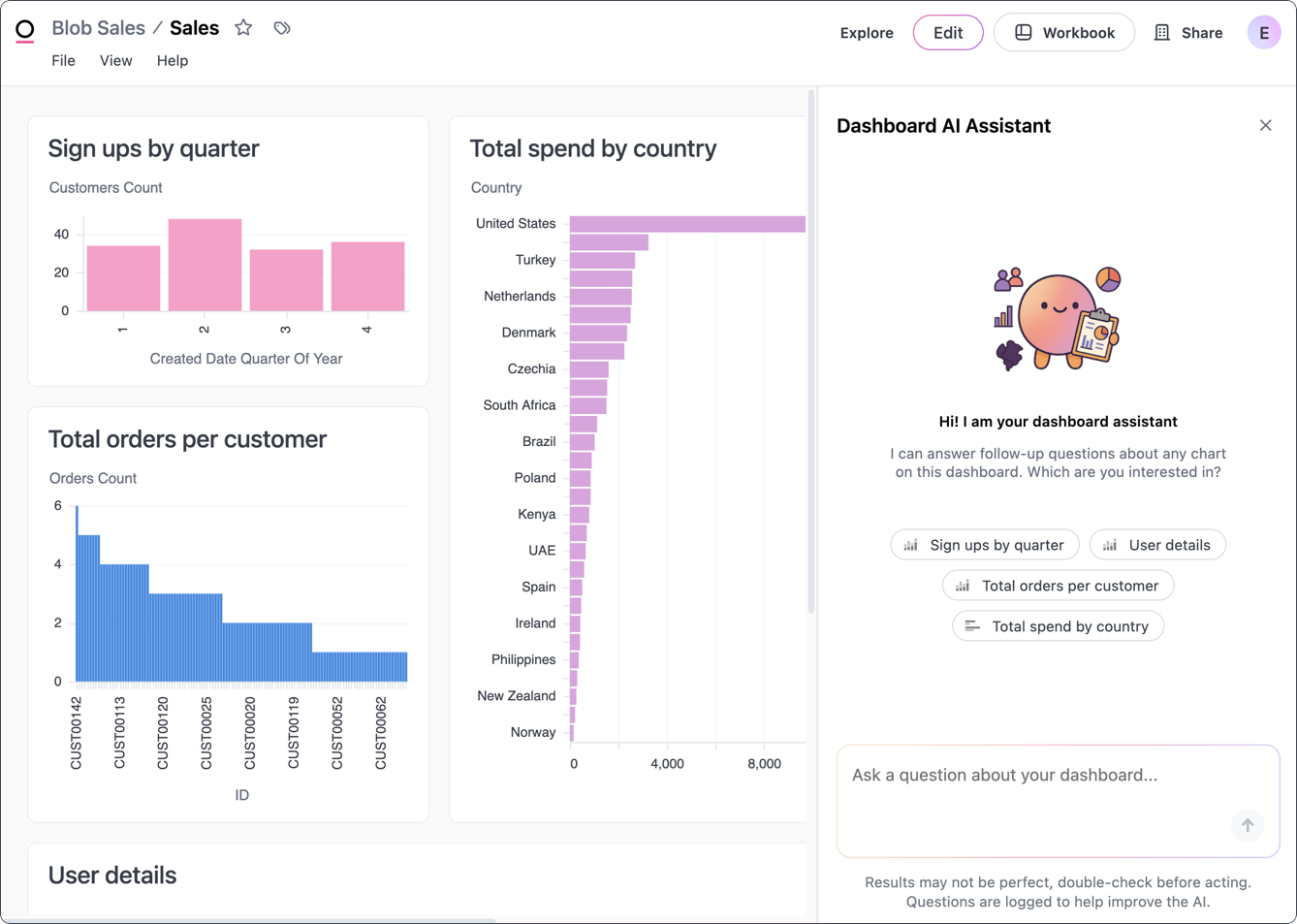
> The Dashboard Agent brings Omni's conversational analytics directly into your dashboards.
The Dashboard Agent allows you to interact with dashboard tiles using natural language. Ask follow-up questions, drill into subsets, re-aggregate results, or request summaries, all without leaving the dashboard.
 ## Requirements
To use the Dashboard Agent, you'll need **Restricted Querier**, **Querier**, **Modeler**, or **Connection Admin** permissions for the model the dashboard is built on.
## Limitations
Before you get started, note that the Dashboard Agent:
* **Can't edit the dashboard.** To make changes to a tile or visualization, enter a draft of the document and edit as you normally would.
* **Is limited to topics that are**:
* Used in the current dashboard, or
* Included in the model's [`ai_chat_topics`](/modeling/models/ai-chat-topics)
## Enabling the Dashboard Agent
**Organization Admin** permissions are required to modify AI & content permissions settings.
The Dashboard Agent requires two settings to be enabled:
1. **Read data result** in [**Settings > AI**](/ai/settings/features#read-result-data). This allows the AI to read query results to perform tasks like data summarization, anomaly detection, and highlighting insights.
2. The **AI on dashboard** document ability:
* **To enable the Dashboard Agent globally**, navigate to [**Settings > General > Content permissions tab**](/administration/settings#general). This will enable the Dashboard Agent by default, but you can disable it on a document-by-document basis.
* **To enable the Dashboard Agent on individual documents**, navigate to [**File > Document Settings > AI on dashboard**](/share#controlling-document-interactivity) in the document
## Using the Dashboard Agent
Want to customize the look of your Dashboard Agent? Use the [AI branding settings](/ai/settings/branding) to add your own icon, change the agent's name, and more!
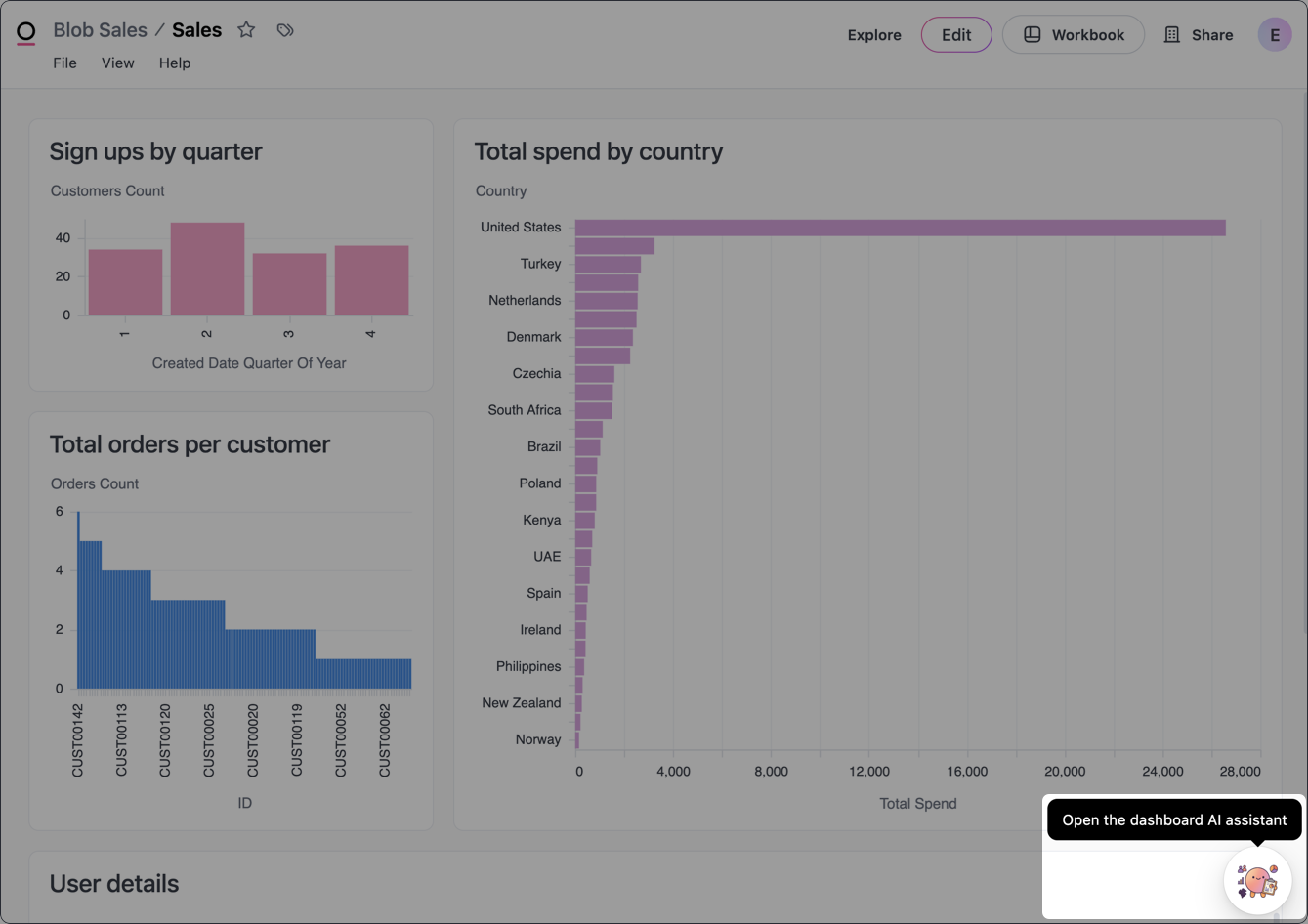
Once enabled, the Dashboard Agent icon will display in the bottom right corner of **published** dashboards. Click this icon to open the Dashboard Agent and begin chatting!
## Requirements
To use the Dashboard Agent, you'll need **Restricted Querier**, **Querier**, **Modeler**, or **Connection Admin** permissions for the model the dashboard is built on.
## Limitations
Before you get started, note that the Dashboard Agent:
* **Can't edit the dashboard.** To make changes to a tile or visualization, enter a draft of the document and edit as you normally would.
* **Is limited to topics that are**:
* Used in the current dashboard, or
* Included in the model's [`ai_chat_topics`](/modeling/models/ai-chat-topics)
## Enabling the Dashboard Agent
**Organization Admin** permissions are required to modify AI & content permissions settings.
The Dashboard Agent requires two settings to be enabled:
1. **Read data result** in [**Settings > AI**](/ai/settings/features#read-result-data). This allows the AI to read query results to perform tasks like data summarization, anomaly detection, and highlighting insights.
2. The **AI on dashboard** document ability:
* **To enable the Dashboard Agent globally**, navigate to [**Settings > General > Content permissions tab**](/administration/settings#general). This will enable the Dashboard Agent by default, but you can disable it on a document-by-document basis.
* **To enable the Dashboard Agent on individual documents**, navigate to [**File > Document Settings > AI on dashboard**](/share#controlling-document-interactivity) in the document
## Using the Dashboard Agent
Want to customize the look of your Dashboard Agent? Use the [AI branding settings](/ai/settings/branding) to add your own icon, change the agent's name, and more!
Once enabled, the Dashboard Agent icon will display in the bottom right corner of **published** dashboards. Click this icon to open the Dashboard Agent and begin chatting!
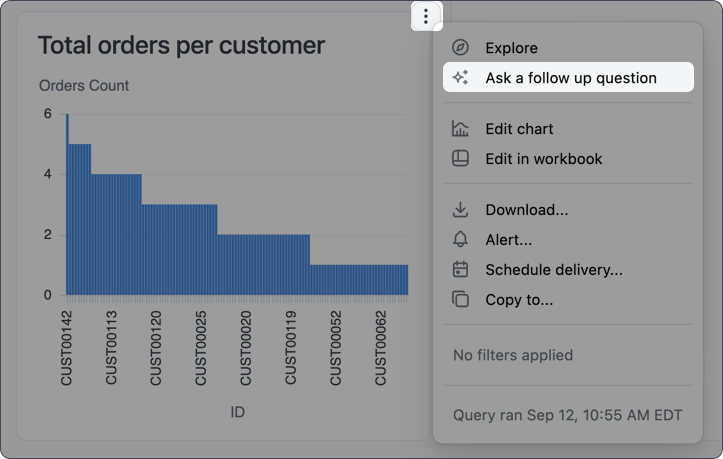
 You can scope the Dashboard Agent to specific charts by:
* Clicking a specific chart in the chat, or
* Clicking on a tile's (three dot icon) and selecting **Ask a follow up question**:
You can scope the Dashboard Agent to specific charts by:
* Clicking a specific chart in the chat, or
* Clicking on a tile's (three dot icon) and selecting **Ask a follow up question**:
 The Dashboard Agent will focus on the selected chart until you remove the focus or close the chat panel.
To unfocus the Dashboard Agent from a specific chart, click the **X** on the chart chip in the chat input. You can also close the chat panel entirely, though this will remove the chat history.
The **Use Omni Agent > File uploads** [AI setting](/ai/settings/features#file-uploads) must be enabled to use this feature.
You can paste images directly from your clipboard into the Dashboard Agent chat input to provide visual context alongside your questions. Copy an image to your clipboard and paste it into the chat input using your system's paste command (`Cmd+V` on Mac, `Ctrl+V` on Windows/Linux).
The image appears as a file chip in the chat input, indicating it's ready to be sent with your message.
Image pasting is supported in Chrome and Safari. Firefox does not currently support pasting images into textarea elements due to browser limitations.
## Getting help
If you're stuck and can't remember how to do something in Omni, just ask Blobby. Questions like *"How do I do \[thing]?"* will prompt Blobby to search the official Omni docs and provide you with an answer, all without leaving your Omni workflow.
You can also directly tell Blobby to search the docs when researching the answer to your question.
**Working in an embedded context?** If you have the **Hide Omni watermark** setting enabled to provide a fully white-labeled experience, the AI doc search feature will respect it. Omni doc links will not be returned in chat, even if explicitly requested.
The Dashboard Agent will focus on the selected chart until you remove the focus or close the chat panel.
To unfocus the Dashboard Agent from a specific chart, click the **X** on the chart chip in the chat input. You can also close the chat panel entirely, though this will remove the chat history.
The **Use Omni Agent > File uploads** [AI setting](/ai/settings/features#file-uploads) must be enabled to use this feature.
You can paste images directly from your clipboard into the Dashboard Agent chat input to provide visual context alongside your questions. Copy an image to your clipboard and paste it into the chat input using your system's paste command (`Cmd+V` on Mac, `Ctrl+V` on Windows/Linux).
The image appears as a file chip in the chat input, indicating it's ready to be sent with your message.
Image pasting is supported in Chrome and Safari. Firefox does not currently support pasting images into textarea elements due to browser limitations.
## Getting help
If you're stuck and can't remember how to do something in Omni, just ask Blobby. Questions like *"How do I do \[thing]?"* will prompt Blobby to search the official Omni docs and provide you with an answer, all without leaving your Omni workflow.
You can also directly tell Blobby to search the docs when researching the answer to your question.
**Working in an embedded context?** If you have the **Hide Omni watermark** setting enabled to provide a fully white-labeled experience, the AI doc search feature will respect it. Omni doc links will not be returned in chat, even if explicitly requested.