> ## Documentation Index
> Fetch the complete documentation index at: https://docs.omni.co/llms.txt
> Use this file to discover all available pages before exploring further.
# Managing a user's settings
> Learn how to access the settings for individual users and test data access through impersonation.
Looking to change settings for your *own* account? See [Your account](/administration/users/your-account) for the self-service settings available from the profile menu.
## Accessing user settings
To access the settings for an individual user:
1. Navigate to **Settings > Users**.
2. In the user list, hover over the user you want to modify.
3. Click the **Manage** button that appears.
On the user's profile page, you'll be able to assign permissions to the user, set the user's locale and query timezone, and set user attribute values.
### Organization role
**Organization Admin** permissions are required to modify a user's organization role.
The **Organization role** setting controls the user's permissions to manage the organization. This includes the ability to invite and manage other users, manage database connections, and modify [organization settings](/administration/settings).
**Not sure what permissions to set?** Check out the [Common permissions scenarios guide](/administration/users/permissions-scenarios) to learn what permissions to set in specific scenarios, such as restricting access to datasets based on team.
### Locale
The **Locale** setting defines the language of the Omni app interface for this user.
* If a user-level locale is set, it controls the language this user sees in the app.
* If no user-level locale is set, the user inherits the organization's default locale.
For more information about organization and user-level localization, see [Localization settings](/administration/localization).
### Query timezone
The **Query timezone** setting defines the timezone used for query conversion, if user-specific timezones are enabled for a connection. Refer to the [Timezone settings guide](/connect-data/timezones) for more information.
### Personal content
When enabled, the **Allow personal content** setting allows users to save content to their [personal **My documents** folder](/content/navigate#personal). This setting is enabled by default.
When disabled, **My documents** will be hidden in the user's navigation and content operations will default to the organization scope.
### User attributes
User attributes, managed in the user's **Attributes** tab, allow you to map user-specific variables to operations in Omni, such as querying, dashboards, and controlling data access. Refer to the [User attributes guide](/administration/users/attributes) for more information and examples.
### Groups
The **Groups** tab lists the [user groups](/administration/users/groups) that the user is a member of. To modify a user's group membership, navigate to **Settings > Groups**.
### Model Access
[Model permissions](/administration/users/permissions) determine the level of access the user has to individual models. Click on a model in the list to view more information about the user's role and abilities:
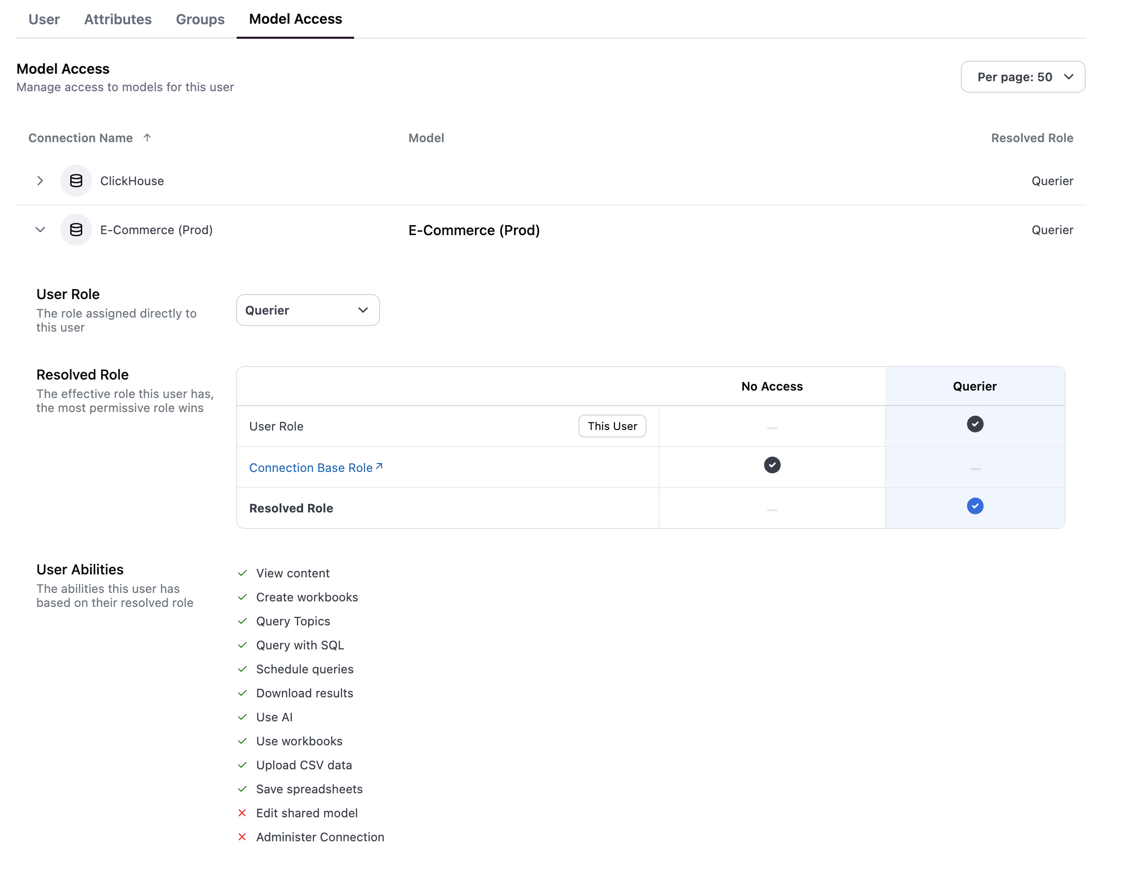 Use the **User role** dropdown to change the user's model role. If [custom roles](/administration/users/custom-roles) are defined, they will also appear in the dropdown list. The **Resolved Role** and **User Abilities** sections will automatically update based on your selection.
## Impersonating a user
See [Impersonating users](/administration/users/impersonate) for more information.
## Resetting introductions
If a user needs a refresher on Omni's latest features, you can use the **Reset introductions** button at the bottom of their settings page.
This will reactivate any previously dismissed feature introductions - specifically, the tooltips that highlight updates - that display in the app:
Use the **User role** dropdown to change the user's model role. If [custom roles](/administration/users/custom-roles) are defined, they will also appear in the dropdown list. The **Resolved Role** and **User Abilities** sections will automatically update based on your selection.
## Impersonating a user
See [Impersonating users](/administration/users/impersonate) for more information.
## Resetting introductions
If a user needs a refresher on Omni's latest features, you can use the **Reset introductions** button at the bottom of their settings page.
This will reactivate any previously dismissed feature introductions - specifically, the tooltips that highlight updates - that display in the app: