> ## Documentation Index
> Fetch the complete documentation index at: https://docs.omni.co/llms.txt
> Use this file to discover all available pages before exploring further.
# Common user access scenarios
> Learn how to implement user permissions to achieve different levels of access in Omni.
Omni's user roles and the permissions they contain control your users' entire experience in Omni, from what they see in the app to the data they can access and build upon.
In this guide, we'll show you how to implement permissions to achieve different levels of access in your own Omni instance.
If there's a scenario you want to see here, reach out to Omni support.
## Requirements
To follow this guide, you'll need familiarity with user roles in Omni, including [content roles](/share#content-access-permissions) and [connection roles](/administration/users/permissions).
## Before you begin
Before you dive in, we recommend aligning with your team on what levels of access different groups should have in Omni - both for dashboards and for the data behind them.
Think about the sensitivity of the data in your connected databases. If it includes things like employee details or other PII, you’ll want to make sure only the right people can directly query that data.
Also consider whether your team will be building dashboards that include sensitive or internal-only information. If so, it’s important to map out folder and document permissions early so you can keep content access aligned with your organization’s needs.
## Fully locked down
In this scenario, users shouldn't:
* Be able to view existing dashboards and/or workbooks
* Have access to data in your connections (databases)
This type of setup is common when [externally embedding Omni](/embed), as it ensures that data access is tightly controlled.
To achieve this, set the [organization's **default content access role**](/administration/content-permissions) and each [connection's **base access role**](/administration/users/permissions#defining-permissions-for-a-connection) to **No access**. This approach ensures that your users won’t have access to any data by default and anything they need access to would be granted explicitly after they were provisioned.
## Limited access
In some cases you may want to allow users to only access specific datasets. There are a few ways to accomplish this:
This will limit users to data in the connection that has been pre-joined and curated into topics.
[Access grants](/modeling/develop/data-access-control) allow you to granularly restrict access to specific fields, topics, or views using [user attributes](/administration/users/attributes). Only users with the required user attribute value will be able to access the restricted data.
When using this approach, you'll also need to set the users' **connection role** to **Restricted Querier** or below to limit the ability to query raw SQL, as this would allow users to bypass `access_grants` restrictions.
In this scenario, you want your users to only be able to access content in the folders you specify. They won't be able to access any existing dashboards or workbooks outside these folders.
To achieve this, you should:
* **Set the [organization's default content role](/administration/content-permissions) to No access**. This ensures that, by default, users won't have access to content unless it's directly shared with them.
* **Utilize [user groups](/administration/users/groups) to manage folder and document access**. This approach allows you to share folders and documents with the group instead of individual users. You can easily add and remove members as needed, ensuring each user always has the correct level of access.
In this scenario, you want to grant different teams or users varying levels of access to a table or a topic. This can be accomplished in a few ways:
* **Utilize [user groups](/administration/users/groups) to define different access levels**. For example:
* `Group A` has **Querier** permissions, giving them access to all views and fields in the connection's models
* `Group B` has **Restricted Querier** permissions, giving them access only to topics in the connection's models
* **Individually define [connection roles](/administration/users/permissions#defining-permissions-for-a-connection) at the user level**. If you set the connection's base access role to something more restrictive - like **No Access** or **Viewer** - you can then individually grant users less restrictive permissions. For example, `User A` could have **Querier** permissions while `User B` has **Restricted Querier** permissions.
* **Define [access grants](/modeling/develop/data-access-control) for topics and views**. Access grants allow you to apply additional restrictions to individual topics and views. This can be implemented with [user attributes](/administration/users/attributes) or through [user groups](/administration/users/groups), which can be more straightforward to maintain.
* **Hide topics or views in workbooks.** When a topic or view's [`hidden` parameter](/modeling/topics/parameters/hidden) is set to `true`, it will no longer be visible to users in the workbook. The topic or view can still be referenced by the model, but users will be unable to select it.
When a tile on a dashboard is backed by raw SQL - that is, the underlying query was built with SQL using the [Advanced Editor](/analyze-explore/sql) - users with the **Viewer** connection role may run into issues when trying to view the dashboard. These users will see something like this:
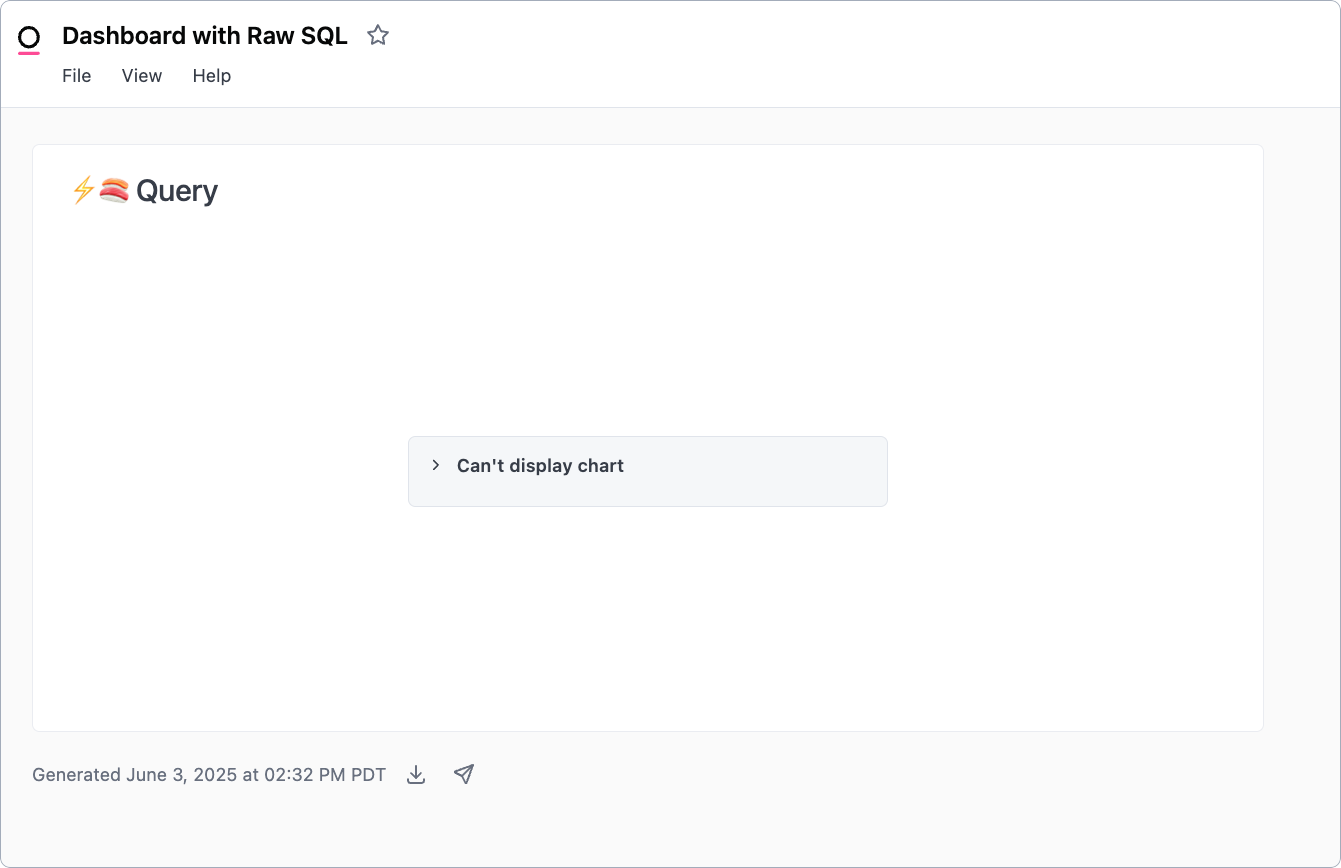 This occurs because, despite having the **Content role** needed to view the dashboard, the query is built on data outside of their **Connection role** permissions. Connection **Viewers** can't view data built outside of topics, which limits their ability to inadvertently view data in the connection they're not supposed to have access to.
**In this scenario, you can enable [AccessBoost](/share#boosting-permissions-with-accessboost) for the document or folder**. This will allow connection **Viewers** to view the raw SQL content. You can then manage access to the dashboard using the [document's content permission settings](/share#assigning-access-roles-to-content).
**Before using AccessBoost**, refer to the [AccessBoost guide](/share#boosting-permissions-with-accessboost) to make sure you understand how this feature works and the impact it can have.
This occurs because, despite having the **Content role** needed to view the dashboard, the query is built on data outside of their **Connection role** permissions. Connection **Viewers** can't view data built outside of topics, which limits their ability to inadvertently view data in the connection they're not supposed to have access to.
**In this scenario, you can enable [AccessBoost](/share#boosting-permissions-with-accessboost) for the document or folder**. This will allow connection **Viewers** to view the raw SQL content. You can then manage access to the dashboard using the [document's content permission settings](/share#assigning-access-roles-to-content).
**Before using AccessBoost**, refer to the [AccessBoost guide](/share#boosting-permissions-with-accessboost) to make sure you understand how this feature works and the impact it can have.