> ## Documentation Index
> Fetch the complete documentation index at: https://docs.omni.co/llms.txt
> Use this file to discover all available pages before exploring further.
# Inviting users
> Send invitations, manage invitation requests, and re-invite users with expired invitations.
## Requirements
**Organization Admin** permissions are required to invite users.
## User invitation requests
If the [**New user invitations**](/administration/settings#general) setting is enabled, users can request an invitation from your organization's login page.
### Stale invitation requests
If you see invitation requests from users who are already active members of your organization, you can safely dismiss these requests. These stale requests can occur when a user submits an invitation request and then joins the organization through SSO or SCIM provisioning before an Organization Admin acts on the request.
To dismiss a stale invitation request:
1. Navigate to **Settings > Users**.
2. Click the **Invitation requests** tab.
3. Find the request from the user who is already a member.
4. Click **Dismiss** next to the request.
If you attempt to invite a user who is already an active member, you'll receive an error indicating the user already exists in the organization.
## Inviting users
Once an invite is sent, new users have 7 days to log into Omni. The invite will automatically expire after this time and the user will have to be [re-invited](#re-inviting-users).
If the **New user invitations** setting isn't enabled or you need to send a one-off invite, you can manually invite new users.
1. Navigate to **Settings > Users**.
2. Click **Invite**.
3. In the **Email** field, add the emails of the users you want to invite as a comma-separated list. For example:
```txt theme={null}
blobby@blobsrus.com,blob.ross@blobsrus.com
```
4. Click **Send invitations**.
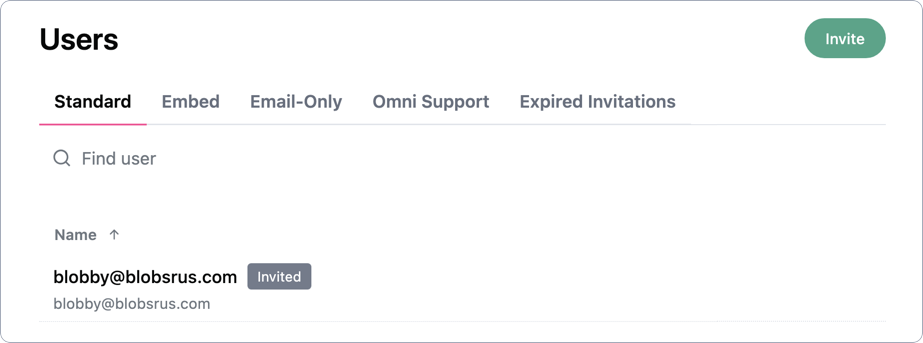
After the invitation is sent, the user will appear in the **Users** list with an **Invited** badge and you'll be able to [assign permissions](/administration/users/settings) to the user:
 ## Re-inviting users
If a user hasn’t accepted their invitation by logging in to Omni or needs a new one, you can revoke and re-send their invite:
1. Navigate to **Settings > Users**.
2. In the **Users** list, find the user with the **Invited** badge.
3. Click **Manage** next to their name.
4. At the bottom of the user's profile page, click **Revoke invitation**.
5. Return to **Settings > Users** and click **Invite**.
6. In the **Email** field, add the user's email address.
7. Click **Send invitations**.
The user will receive a new invite email and appear in the **Users** list with a refreshed **Invited** badge.
## Re-inviting users
If a user hasn’t accepted their invitation by logging in to Omni or needs a new one, you can revoke and re-send their invite:
1. Navigate to **Settings > Users**.
2. In the **Users** list, find the user with the **Invited** badge.
3. Click **Manage** next to their name.
4. At the bottom of the user's profile page, click **Revoke invitation**.
5. Return to **Settings > Users** and click **Invite**.
6. In the **Email** field, add the user's email address.
7. Click **Send invitations**.
The user will receive a new invite email and appear in the **Users** list with a refreshed **Invited** badge.