> ## Documentation Index
> Fetch the complete documentation index at: https://docs.omni.co/llms.txt
> Use this file to discover all available pages before exploring further.
# Defining custom model roles
> Define custom roles with specific permission restrictions that can be assigned to users, groups, and connections.
**Organization Admin** permissions are required to manage custom model roles.
Custom roles allow organizations to define variations of existing base roles, such as **Viewer No Download** or **Querier No CSV Upload**. These custom roles inherit the core capabilities of a base role while enabling restrictions on specific granular permissions. This structure avoids the need to create entirely new base role tiers for minor capability adjustments.
## Custom role basics
Omni organizes permissions into a hierarchy of role tiers, where each tier builds on the one below it:
| Tier | Core capability |
| ---------------------- | ------------------------------------------------- |
| **No Access** | No access to the organization |
| **Viewer** | View content |
| **Restricted Querier** | Create topic-based queries |
| **Querier** | Create all views and fields queries and write SQL |
| **Modeler** | Edit the shared data model |
| **Connection Admin** | Manage connections and model permissions |
Each tier includes all the capabilities of the tiers below it. Custom roles are variations within a tier — they inherit the tier's core capability but can restrict specific granular permissions.
See the [Permissions reference](/administration/users/permissions-reference) for more information on the specific abilities each tier has.
Granular permissions are optional capabilities within a role tier that can be individually enabled or disabled. These are what custom roles customize.
Examples include:
* **Download** (Viewer)
* **Schedule / alert** (Viewer)
* **Use Omni Agent** (Restricted Querier)
* **Upload data** (Restricted Querier)
* **Create spreadsheets** (Restricted Querier)
Some granular permissions are nested under a parent permission in the UI — for example, **Upload data** falls under **Use workbooks**. See [Creating custom roles](#creating-custom-roles) for details on how parent and child permissions work.
A custom role keeps the tier's core capability but can restrict any combination of these granular permissions. For example, a **Querier No Upload** role has full **Querier** capabilities but with the **Upload data** permission disabled.
**Organization Admin** users can create, edit, and delete custom roles.
Custom roles can be:
* Assigned to [users](/administration/users)
* Assigned to [user groups](/administration/users/groups)
* Set as the **Base access** on a connection
When a user or group has multiple roles assigned, Omni uses **role priority** to determine which role takes effect. The higher-priority role wins.
* **Across tiers** - Higher base role tiers (e.g., **Modeler**) always take precedence over lower tiers (e.g., **Viewer**), regardless of custom role priority.
* **Within a tier** - Priority is determined by the order roles appear in the list, starting from the top. For example, in the screenshot below, the base **Querier** role has the highest priority because it appears first:
 You can change the priority of roles within a tier by clicking the icon on a role and dragging it to re-order the list. Role tiers cannot be reordered, only the roles defined in the tier itself.
Yes - custom roles with a **resolved role** of **Restricted Querier** or **Viewer** may be used in [embedded contexts](/embed).
Use the role's **name** when passing the custom role using [`connectionRoles`](/embed/setup/url-parameters/connectionRoles) and [`modelRoles`](/embed/setup/url-parameters/modelRoles), for example:
```json title="Example modelRoles object with custom role" highlight={3} theme={null}
{
"model-id-1":"RESTRICTED_QUERIER",
"model-id-2":"VIEWER_NO_DOWNLOAD"
}
```
## Creating custom roles
Navigate to **Settings > Roles**.
Click **+ Create custom role**.
Fill in the following:
* **Name** - **Required**. Enter a unique name for the custom role, such as `querier_no_upload`. Names can only contain letters, numbers, underscores, and hyphens.
* **Display Name** - **Required**. Enter a human-readable display name for the role. This is shown in the UI.
* **Description** - Enter a description of the custom role. This will display in the **Description** column on the **Roles** page.
Next, choose the granular permissions you want the custom role to have. Permissions are hierarchical at two levels:
* **Across role tiers** - Each role tier builds on the tiers below it. To grant a permission from a higher tier, the base permission for each lower tier must also be selected.
For example, to grant **Create all views and fields queries and write SQL** (Querier), you must also select **Create topic based queries** (Restricted Querier):
You can change the priority of roles within a tier by clicking the icon on a role and dragging it to re-order the list. Role tiers cannot be reordered, only the roles defined in the tier itself.
Yes - custom roles with a **resolved role** of **Restricted Querier** or **Viewer** may be used in [embedded contexts](/embed).
Use the role's **name** when passing the custom role using [`connectionRoles`](/embed/setup/url-parameters/connectionRoles) and [`modelRoles`](/embed/setup/url-parameters/modelRoles), for example:
```json title="Example modelRoles object with custom role" highlight={3} theme={null}
{
"model-id-1":"RESTRICTED_QUERIER",
"model-id-2":"VIEWER_NO_DOWNLOAD"
}
```
## Creating custom roles
Navigate to **Settings > Roles**.
Click **+ Create custom role**.
Fill in the following:
* **Name** - **Required**. Enter a unique name for the custom role, such as `querier_no_upload`. Names can only contain letters, numbers, underscores, and hyphens.
* **Display Name** - **Required**. Enter a human-readable display name for the role. This is shown in the UI.
* **Description** - Enter a description of the custom role. This will display in the **Description** column on the **Roles** page.
Next, choose the granular permissions you want the custom role to have. Permissions are hierarchical at two levels:
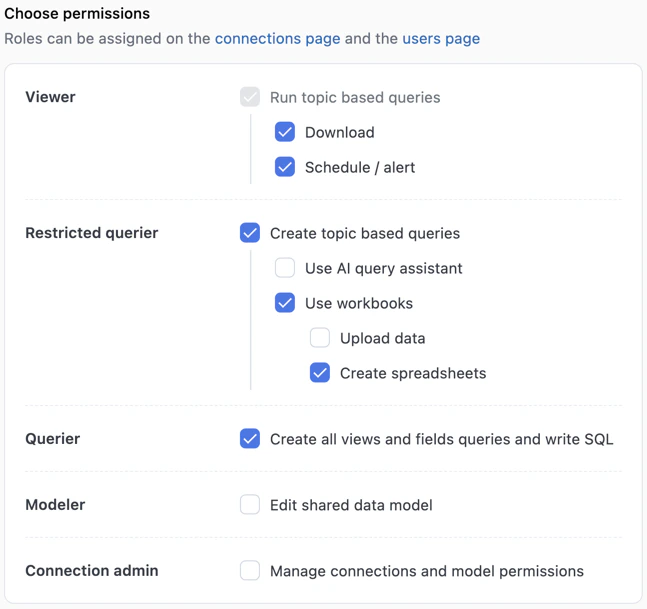
* **Across role tiers** - Each role tier builds on the tiers below it. To grant a permission from a higher tier, the base permission for each lower tier must also be selected.
For example, to grant **Create all views and fields queries and write SQL** (Querier), you must also select **Create topic based queries** (Restricted Querier):
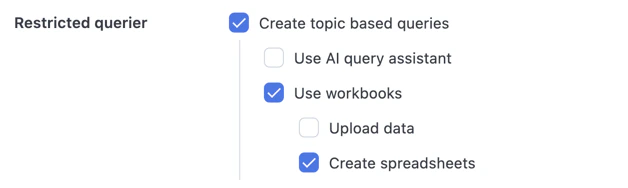
 * **Within a role tier** - Some permissions are nested under a parent permission. The parent must be selected before you can grant any of its children, but you can deselect individual child permissions.
For example, **Create spreadsheets** requires **Use workbooks** to be selected, but you can deselect **Upload data** independently:
* **Within a role tier** - Some permissions are nested under a parent permission. The parent must be selected before you can grant any of its children, but you can deselect individual child permissions.
For example, **Create spreadsheets** requires **Use workbooks** to be selected, but you can deselect **Upload data** independently:
 As you select and deselect permissions, the **Resolved Role** and **Exceptions** sections on the left side will update:
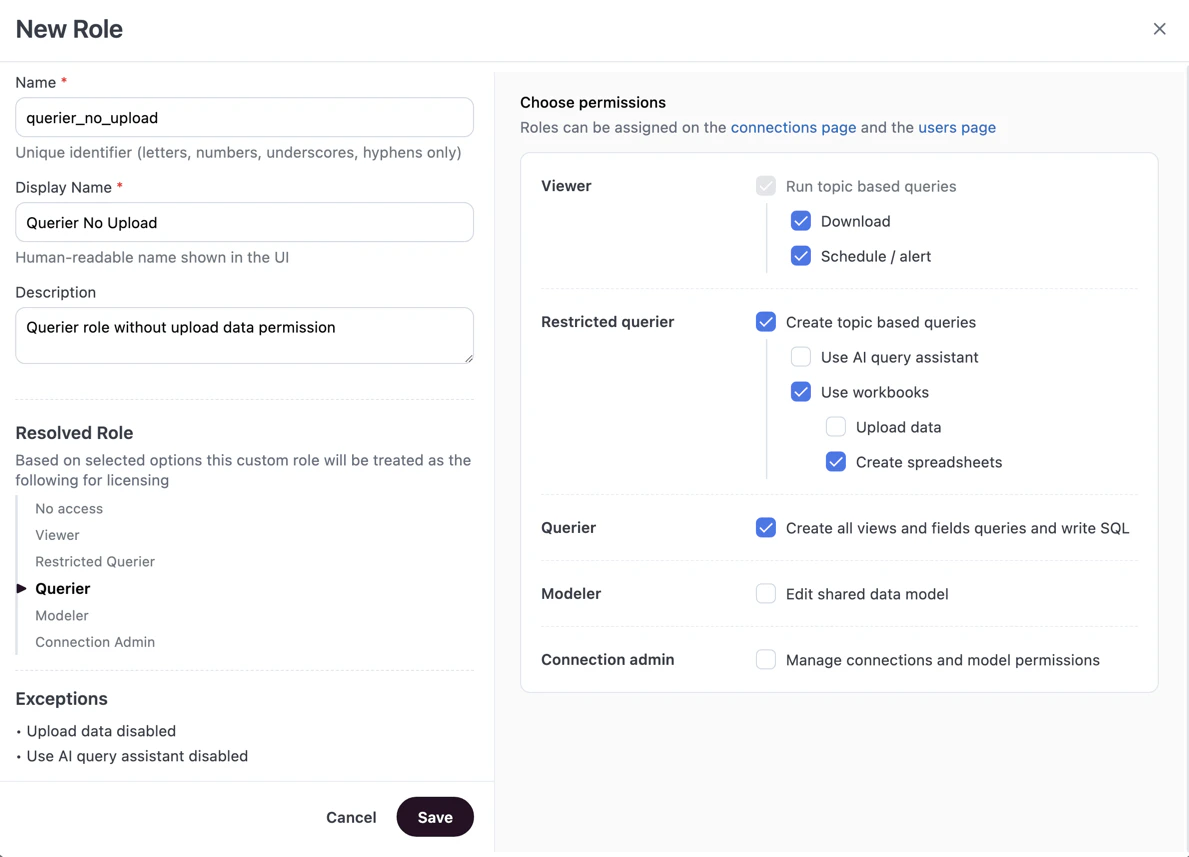 The **Resolved Role** shows the base role tier that your custom role maps to based on the permissions you've selected, which determines how the role is treated for [licensing](/administration/users/permissions#license-types). The **Exceptions** section lists any permissions that are different when compared to the base version of that role tier.
Click **Save** when finished to create the role.
Once created, the role will display in the **Roles** page within its resolved role tier, along with any restrictions and the date it was created:
## Changing role priority in a role tier
Priority is determined by the order roles appear in the list, starting from the top. For example, in the screenshot below, the base **Querier** role has the highest priority because it appears first:
You can change the priority of roles within a tier by clicking the icon on a role and dragging it to re-order the list.
Role tiers cannot be reordered, but the base role within the tier can be moved. For example, the **Querier** role in the above screenshot could be moved, but the **Querier** tier that contains the **Querier** and **Querier No Download** roles can't.
## Editing custom roles
Base roles - **Viewer**, **Restricted Querier**, **Querier**, **Modeler**, and **Connection Admin** - can't be edited.
1. Navigate to **Settings > Roles**.
2. Click the icon in the same row as the custom role and select **Edit**.
3. Make your changes.
4. Click **Save** when finished.
## Duplicating custom roles
1. Navigate to **Settings > Roles**.
2. Click the icon in the same row as the custom role and select **Duplicate**.
3. Give the role a name and choose the permissions it should have.
4. Click **Save** when finished.
## Deleting custom roles
Base roles - **Viewer**, **Restricted Querier**, **Querier**, **Modeler**, and **Connection Admin** - can't be deleted.
Deleting a custom role reassigns all affected users and groups to the tier's base role. For example, deleting a custom role that resolves to **Querier** will revert all assignees to the **Querier** base role.
1. Navigate to **Settings > Roles**.
2. Click the icon in the same row as the custom role and select **Delete**.
3. When prompted, click **Delete**.
## Assigning custom roles
Custom roles can be assigned:
* **As the [Base Access](/administration/users/permissions#defining-permissions-for-a-connection)** level for a connection
* **To individual users** in the user's [**Model Access**](/administration/users/settings#model-access) tab
* **To [user groups](/administration/users/groups#assigning-connection-roles)** in a connection's **Permissions > Connection Roles** section
## Next steps
* [User groups](/administration/users/groups) - Assign custom roles to groups of users
* [Permissions](/administration/users/permissions) - Understand the full permissions model
* [Content sharing](/share) - Learn how content access works alongside connection roles
The **Resolved Role** shows the base role tier that your custom role maps to based on the permissions you've selected, which determines how the role is treated for [licensing](/administration/users/permissions#license-types). The **Exceptions** section lists any permissions that are different when compared to the base version of that role tier.
Click **Save** when finished to create the role.
Once created, the role will display in the **Roles** page within its resolved role tier, along with any restrictions and the date it was created:
## Changing role priority in a role tier
Priority is determined by the order roles appear in the list, starting from the top. For example, in the screenshot below, the base **Querier** role has the highest priority because it appears first:
You can change the priority of roles within a tier by clicking the icon on a role and dragging it to re-order the list.
Role tiers cannot be reordered, but the base role within the tier can be moved. For example, the **Querier** role in the above screenshot could be moved, but the **Querier** tier that contains the **Querier** and **Querier No Download** roles can't.
## Editing custom roles
Base roles - **Viewer**, **Restricted Querier**, **Querier**, **Modeler**, and **Connection Admin** - can't be edited.
1. Navigate to **Settings > Roles**.
2. Click the icon in the same row as the custom role and select **Edit**.
3. Make your changes.
4. Click **Save** when finished.
## Duplicating custom roles
1. Navigate to **Settings > Roles**.
2. Click the icon in the same row as the custom role and select **Duplicate**.
3. Give the role a name and choose the permissions it should have.
4. Click **Save** when finished.
## Deleting custom roles
Base roles - **Viewer**, **Restricted Querier**, **Querier**, **Modeler**, and **Connection Admin** - can't be deleted.
Deleting a custom role reassigns all affected users and groups to the tier's base role. For example, deleting a custom role that resolves to **Querier** will revert all assignees to the **Querier** base role.
1. Navigate to **Settings > Roles**.
2. Click the icon in the same row as the custom role and select **Delete**.
3. When prompted, click **Delete**.
## Assigning custom roles
Custom roles can be assigned:
* **As the [Base Access](/administration/users/permissions#defining-permissions-for-a-connection)** level for a connection
* **To individual users** in the user's [**Model Access**](/administration/users/settings#model-access) tab
* **To [user groups](/administration/users/groups#assigning-connection-roles)** in a connection's **Permissions > Connection Roles** section
## Next steps
* [User groups](/administration/users/groups) - Assign custom roles to groups of users
* [Permissions](/administration/users/permissions) - Understand the full permissions model
* [Content sharing](/share) - Learn how content access works alongside connection roles