> ## Documentation Index
> Fetch the complete documentation index at: https://docs.omni.co/llms.txt
> Use this file to discover all available pages before exploring further.
# User attributes
> Utilize user-specific variables to create dynamic content and control data access.
**Organization Admin** permissions are required to create and modify user attributes, including assigning them to users.
User attributes allow you to map user-specific variables to Omni operations, such as querying, dashboarding, and data access. These attributes can be used in dashboard filters or workbooks or to filter embedded content.
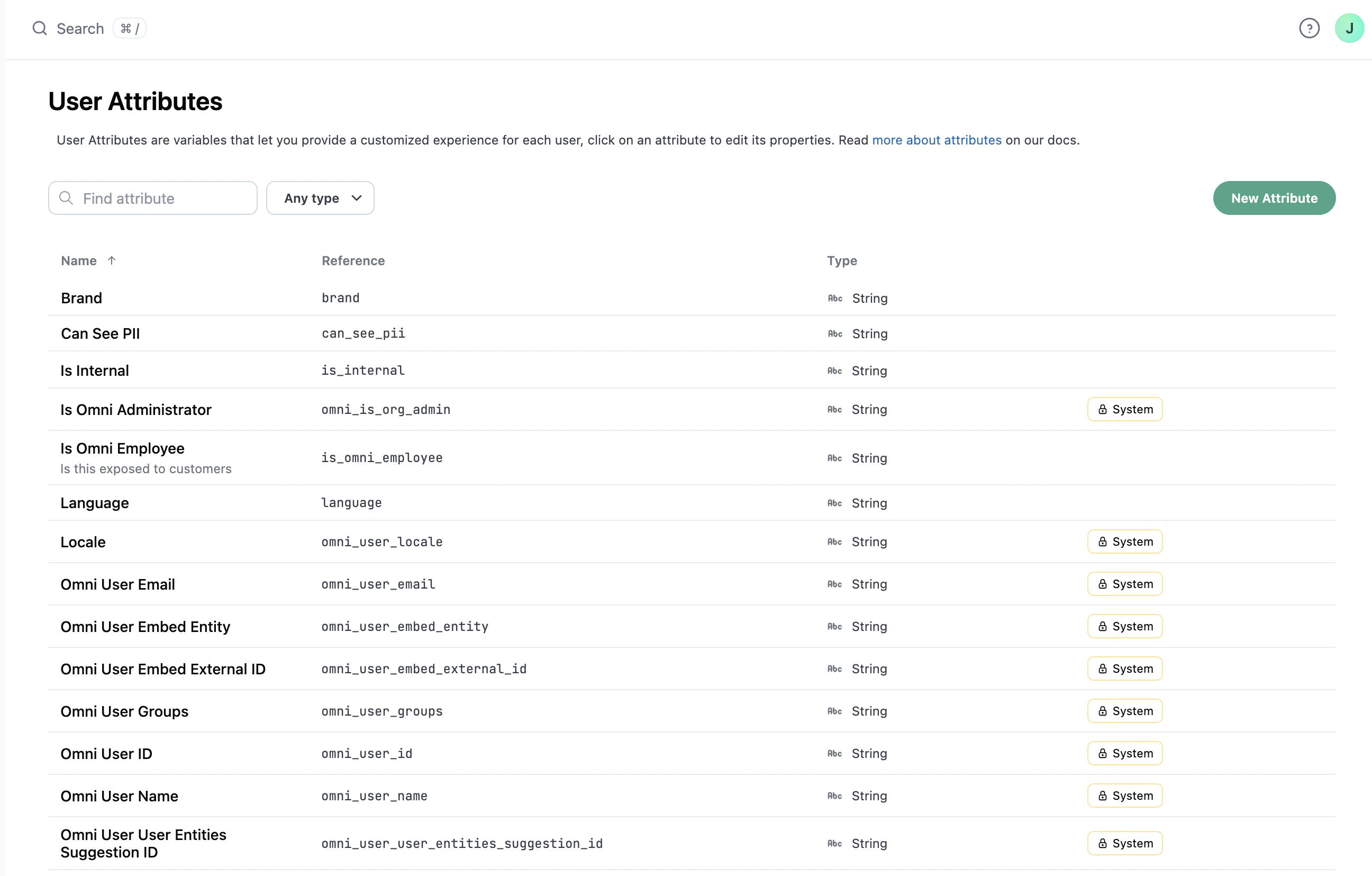 ## User attribute basics
Yes. User attributes can be used in a few ways to control data access:
* [**Access filters**](/modeling/topics/parameters/access-filters), which allow you to restrict the rows of data a user can access within a topic. Access filters apply the values assigned on a user attribute to the `WHERE` clause of every SQL query a user runs, filtering out to only the data designated to that user:
```yaml title="Filter by brand_name" theme={null}
access_filters:
- field: products.brand
user_attribute: brand_name
values_for_unfiltered: [all_brands]
enable_sql_like_wildcards: true
```
* [**Access grants**](/modeling/models/access-grants), which define topic- and field-level permissions. Omni will map a user's attribute value to a corresponding allowed value and determine if the user has the necessary permissions to access that topic or field:
```yaml title="Grant access for user group" theme={null}
access_grants:
blob_sales_access:
user_attribute: "omni_user_groups"
allowed_values: ["Blob Sales"]
access_boostable: false
```
* **Fields**. User attributes can be referenced in fields using Mustache syntax, for example: `{{ omni_attributes. }}`. This construct can be used to:
* Provide conditional access to a field, or
* To hash a field based on a user attribute. This can be done by using a `CASE` statement in the SQL definition for a field. For example, the following `name_hidden` and `name_hashed` examples demonstrate how to use user attributes to hide or hash a name field as an alternative to using access grants to remove access entirely:
```yaml title="Hide or hash field based on user attribute" theme={null}
name:
sql: ${users.full_name}
name_hidden:
sql: |+
CASE
WHEN {{omni_attributes.see_names}} = 'true'
THEN ${users.name}
ELSE 'No Access'
END
name_hashed:
sql: |+
CASE
WHEN {{omni_attributes.see_names}} = 'true'
THEN ${users.name}
ELSE MD5(${users.name})
END
```
Yes. User attributes can be used to parameterize the connection queries run against while in an Omni branch. Refer to the [Dynamically switching database environments guide](/connect-data/dynamic-environments) for more information and setup steps.
Yes. [Shared extension models](/modeling/develop/shared-extensions) use user attributes to route users to the correct model extension. You define a mapping in the parent model's `dynamic_shared_extensions` parameter that links user attribute values to specific extensions.
Yes. There are a few ways to do this:
* **Dashboard Markdown tiles**. You can use user attributes in dashboard Markdown tiles with [Mustache syntax](/visualize-present/mustache-reference). For example, `{{metadata.userAttributes..values}}` would return the value of the specified user attribute.
* **Dashboard deliveries**. User attributes can be used to [personalize deliveries](/share/deliveries/dynamic-content), including messages (where supported) and the data included in the delivery.
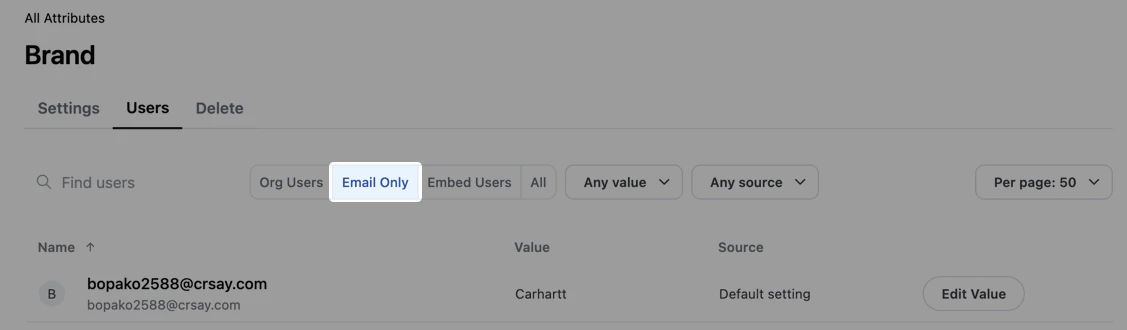
Yes. The steps for [assigning a user attribute](#assigning-attributes-to-users) are the same regardless of user type. To view [email-only users](/administration/users/email-only) when working with a specific attribute, click the **Email Only** toggle in the attribute's **Users** tab:
## User attribute basics
Yes. User attributes can be used in a few ways to control data access:
* [**Access filters**](/modeling/topics/parameters/access-filters), which allow you to restrict the rows of data a user can access within a topic. Access filters apply the values assigned on a user attribute to the `WHERE` clause of every SQL query a user runs, filtering out to only the data designated to that user:
```yaml title="Filter by brand_name" theme={null}
access_filters:
- field: products.brand
user_attribute: brand_name
values_for_unfiltered: [all_brands]
enable_sql_like_wildcards: true
```
* [**Access grants**](/modeling/models/access-grants), which define topic- and field-level permissions. Omni will map a user's attribute value to a corresponding allowed value and determine if the user has the necessary permissions to access that topic or field:
```yaml title="Grant access for user group" theme={null}
access_grants:
blob_sales_access:
user_attribute: "omni_user_groups"
allowed_values: ["Blob Sales"]
access_boostable: false
```
* **Fields**. User attributes can be referenced in fields using Mustache syntax, for example: `{{ omni_attributes. }}`. This construct can be used to:
* Provide conditional access to a field, or
* To hash a field based on a user attribute. This can be done by using a `CASE` statement in the SQL definition for a field. For example, the following `name_hidden` and `name_hashed` examples demonstrate how to use user attributes to hide or hash a name field as an alternative to using access grants to remove access entirely:
```yaml title="Hide or hash field based on user attribute" theme={null}
name:
sql: ${users.full_name}
name_hidden:
sql: |+
CASE
WHEN {{omni_attributes.see_names}} = 'true'
THEN ${users.name}
ELSE 'No Access'
END
name_hashed:
sql: |+
CASE
WHEN {{omni_attributes.see_names}} = 'true'
THEN ${users.name}
ELSE MD5(${users.name})
END
```
Yes. User attributes can be used to parameterize the connection queries run against while in an Omni branch. Refer to the [Dynamically switching database environments guide](/connect-data/dynamic-environments) for more information and setup steps.
Yes. [Shared extension models](/modeling/develop/shared-extensions) use user attributes to route users to the correct model extension. You define a mapping in the parent model's `dynamic_shared_extensions` parameter that links user attribute values to specific extensions.
Yes. There are a few ways to do this:
* **Dashboard Markdown tiles**. You can use user attributes in dashboard Markdown tiles with [Mustache syntax](/visualize-present/mustache-reference). For example, `{{metadata.userAttributes..values}}` would return the value of the specified user attribute.
* **Dashboard deliveries**. User attributes can be used to [personalize deliveries](/share/deliveries/dynamic-content), including messages (where supported) and the data included in the delivery.
Yes. The steps for [assigning a user attribute](#assigning-attributes-to-users) are the same regardless of user type. To view [email-only users](/administration/users/email-only) when working with a specific attribute, click the **Email Only** toggle in the attribute's **Users** tab:
 Yes. Refer to the [Default system attributes section](#default-system-user-attributes) for more information.
## Creating user attributes
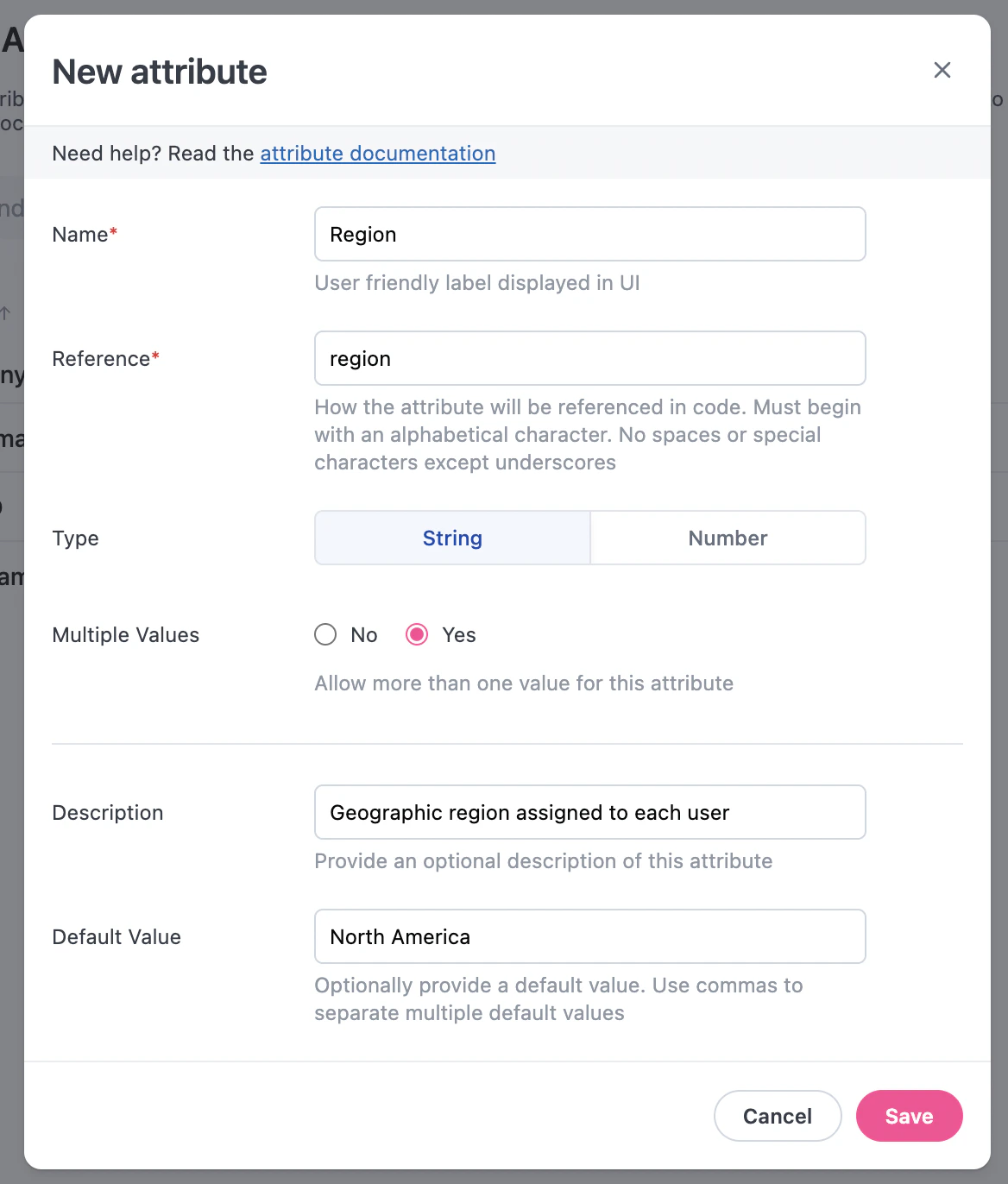
To define a new user attribute, navigate to **Settings > Attributes** and click the **New Attribute** button.
Each user attribute has the following settings:
* **Name**: The name of the user attribute, how it will be displayed in the UI
* **Reference**: How the attribute will be referenced in code, such as in the model
* **Type**: Used to check that valid values are assigned to users. String and Number data types are allowed.
* **Multiple values**: Specifies whether multiple values can be assigned to a user for this attribute
* **Description**: Explanation of the attribute or how it will be used
* **Default value**: **Optional**. Set a default value that all users will inherit if a value is not directly assigned to them.
**Do not set a default value for attributes used in access filters or access grants.** Omni assigns the default value to all users immediately upon account creation. If the default value matches a [`values_for_unfiltered`](/modeling/topics/parameters/access-filters#properties) value, those users will receive unfiltered data.
Leave the default blank to get fail-closed behavior: users without an assigned value receive an error or no rows, which is visible and fixable. If you use `values_for_unfiltered`, do not set its value as the attribute default.
Yes. Refer to the [Default system attributes section](#default-system-user-attributes) for more information.
## Creating user attributes
To define a new user attribute, navigate to **Settings > Attributes** and click the **New Attribute** button.
Each user attribute has the following settings:
* **Name**: The name of the user attribute, how it will be displayed in the UI
* **Reference**: How the attribute will be referenced in code, such as in the model
* **Type**: Used to check that valid values are assigned to users. String and Number data types are allowed.
* **Multiple values**: Specifies whether multiple values can be assigned to a user for this attribute
* **Description**: Explanation of the attribute or how it will be used
* **Default value**: **Optional**. Set a default value that all users will inherit if a value is not directly assigned to them.
**Do not set a default value for attributes used in access filters or access grants.** Omni assigns the default value to all users immediately upon account creation. If the default value matches a [`values_for_unfiltered`](/modeling/topics/parameters/access-filters#properties) value, those users will receive unfiltered data.
Leave the default blank to get fail-closed behavior: users without an assigned value receive an error or no rows, which is visible and fixable. If you use `values_for_unfiltered`, do not set its value as the attribute default.
 ## Assigning attributes to users
The steps in this section apply to all user types, including [email-only](/administration/users/email-only) and [embed](/embed).
After defining a user attribute, you can assign values to individual users.
Navigate to **Settings > Attributes**.
Click the attribute you want to set.
In the attribute's page, click the **Users** tab.
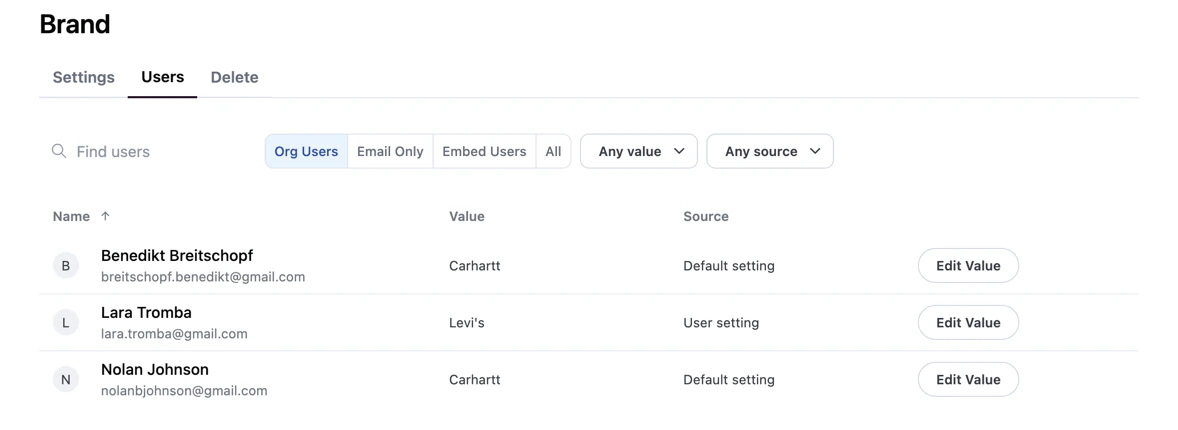
In the list of users, locate the user you want to work with. Use the toggles above the table to filter the list to a specific user type:
* **Org Users** - View only standard users that can log into Omni
* **Email Only** - View only email only users
* **Embed Users** - View only embed users
* **All** - View all users, regardless of type
This allows you to quickly locate and define attributes for specific user types, such as email-only users.
## Assigning attributes to users
The steps in this section apply to all user types, including [email-only](/administration/users/email-only) and [embed](/embed).
After defining a user attribute, you can assign values to individual users.
Navigate to **Settings > Attributes**.
Click the attribute you want to set.
In the attribute's page, click the **Users** tab.
In the list of users, locate the user you want to work with. Use the toggles above the table to filter the list to a specific user type:
* **Org Users** - View only standard users that can log into Omni
* **Email Only** - View only email only users
* **Embed Users** - View only embed users
* **All** - View all users, regardless of type
This allows you to quickly locate and define attributes for specific user types, such as email-only users.
 In the dialog that displays, enter the value for the user.
Click **Save**.
After updating, the **Source** field will show whether the value is the default value or if it was set specifically for the user.
## Default system user attributes
System attributes are read-only.
Omni's default user attributes will be marked with a **System** badge in the **Settings > Attributes** page.
If `true`, the user can create, save, or move content in their [personal **My documents** folder](/content/navigate#personal). When `false`, **My documents** is hidden in navigation and content operations default to the organization scope. Controlled with the **Personal content access** setting in each [user's settings page](/administration/users/settings#personal-content).
If `true`, the user is an **Organization Admin**.
The user's email address.
The user's embedded entity name. For example, `Blobs R Us`
The [user groups](/administration/users/groups) that the user is a member of. The value will be a comma-separated list of user group names, for example `Blob Sales, Blob Marketing`
A unique identifier for the user. For example, `91abbe19-b0de-4537-bc62-cec1d95420c9`
The user's locale code. Possible values are:
| Locale code | Language |
| ----------- | --------------------- |
| `en-US` | English (default) |
| `de-DE` | Deutsch (Deutschland) |
| `es-CL` | Español (Chile) |
| `es-ES` | Español (España) |
| `fr-FR` | Français (France) |
| `he-IL` | עברית (ישראל) |
| `it-IT` | Italiano (Italia) |
| `ja-JP` | 日本語 (日本) |
| `nb-NO` | Norsk bokmål (Norge) |
| `pt-BR` | Português (Brasil) |
| `pt-PT` | Português (Portugal) |
| `sv-SE` | Svenska (Sverige) |
| `vi-VN` | Tiếng Việt (Việt Nam) |
See the [Localization guide](/administration/localization) for more information.
The user's name. For example, `Blob Ross` or `Blobby Parton`
The user's timezone, which is set using the **Query timezone** setting on the user's profile. For example, `UTC` or `America/Los_Angeles`
In the dialog that displays, enter the value for the user.
Click **Save**.
After updating, the **Source** field will show whether the value is the default value or if it was set specifically for the user.
## Default system user attributes
System attributes are read-only.
Omni's default user attributes will be marked with a **System** badge in the **Settings > Attributes** page.
If `true`, the user can create, save, or move content in their [personal **My documents** folder](/content/navigate#personal). When `false`, **My documents** is hidden in navigation and content operations default to the organization scope. Controlled with the **Personal content access** setting in each [user's settings page](/administration/users/settings#personal-content).
If `true`, the user is an **Organization Admin**.
The user's email address.
The user's embedded entity name. For example, `Blobs R Us`
The [user groups](/administration/users/groups) that the user is a member of. The value will be a comma-separated list of user group names, for example `Blob Sales, Blob Marketing`
A unique identifier for the user. For example, `91abbe19-b0de-4537-bc62-cec1d95420c9`
The user's locale code. Possible values are:
| Locale code | Language |
| ----------- | --------------------- |
| `en-US` | English (default) |
| `de-DE` | Deutsch (Deutschland) |
| `es-CL` | Español (Chile) |
| `es-ES` | Español (España) |
| `fr-FR` | Français (France) |
| `he-IL` | עברית (ישראל) |
| `it-IT` | Italiano (Italia) |
| `ja-JP` | 日本語 (日本) |
| `nb-NO` | Norsk bokmål (Norge) |
| `pt-BR` | Português (Brasil) |
| `pt-PT` | Português (Portugal) |
| `sv-SE` | Svenska (Sverige) |
| `vi-VN` | Tiếng Việt (Việt Nam) |
See the [Localization guide](/administration/localization) for more information.
The user's name. For example, `Blob Ross` or `Blobby Parton`
The user's timezone, which is set using the **Query timezone** setting on the user's profile. For example, `UTC` or `America/Los_Angeles`