> ## Documentation Index
> Fetch the complete documentation index at: https://docs.omni.co/llms.txt
> Use this file to discover all available pages before exploring further.
# Setting a default chart palette for your organization
> Set a default chart color palette for your Omni organization, applied automatically to new charts based on chart type and data.
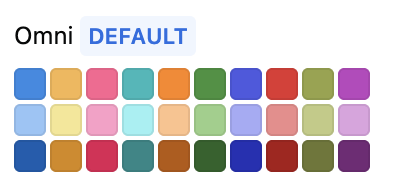
The current default will have a blue DEFAULT badge next to its name:
 ## Requirements
**Organization Admin** permissions are required to set a default chart palette.
## Setting the default palette
To set a new default palette, click the (three dots icon) next to the palette and select **Set as default**.
Existing charts that use the default color palette will be updated to the new default.
## Requirements
**Organization Admin** permissions are required to set a default chart palette.
## Setting the default palette
To set a new default palette, click the (three dots icon) next to the palette and select **Set as default**.
Existing charts that use the default color palette will be updated to the new default.