> ## Documentation Index
> Fetch the complete documentation index at: https://docs.omni.co/llms.txt
> Use this file to discover all available pages before exploring further.
# Managing custom chart palettes
> Create custom palettes with your company colors, ensuring your workbooks, charts, and dashboards are always consistent and on-brand.
## Requirements
**Organization Admin** permissions are required to create and modify custom color palettes.
## Creating custom chart palettes
1. Navigate to **Settings > Chart palettes.**
2. Click **Add**.
3. Customize by adding, editing and removing colors. Use the color picker control or select **Open hex code editor** and paste in a list of comma-separated hex codes:
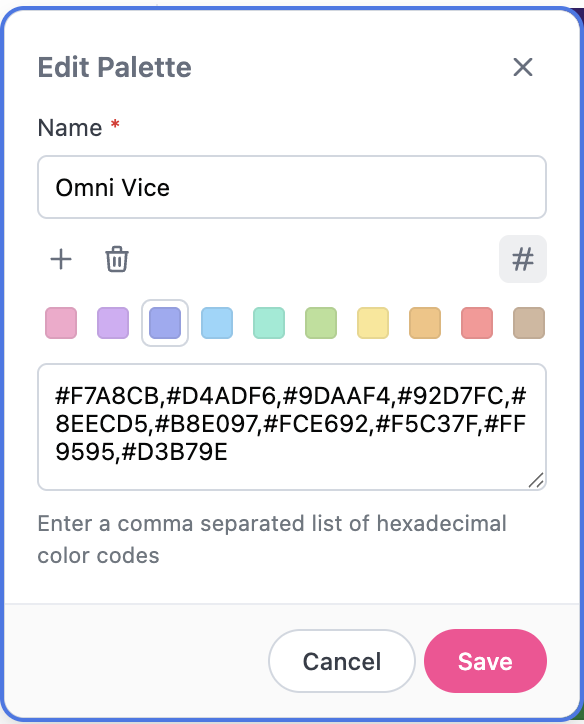 4. When finished, click **Save**.
Once created, you can identify custom palettes using the asterisk (`*`) next to their name in the **Chart palettes** page:
4. When finished, click **Save**.
Once created, you can identify custom palettes using the asterisk (`*`) next to their name in the **Chart palettes** page:
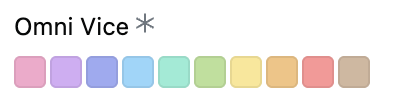 Custom palettes will be listed in the chart editor palette picker in alphabetical order before any of the [built-in palettes](/administration/chart-palettes/omni).
## Editing custom chart palettes
1. Navigate to **Settings > Chart palettes**.
2. Click the (three dots icon) next to a custom palette and select **Edit**.
3. Make your changes.
4. Click **Save** when finished. Existing charts that use the palette will be updated with the changes.
## Deleting custom palettes
If deleting the default palette, set a new [default palette](/administration/chart-palettes/default) first.
1. Navigate to **Settings > Chart palettes**.
2. Click the (three dots icon) next to a custom palette and select **Delete**.
Any existing charts using the palette will be updated to use the organization's default palette.
Custom palettes will be listed in the chart editor palette picker in alphabetical order before any of the [built-in palettes](/administration/chart-palettes/omni).
## Editing custom chart palettes
1. Navigate to **Settings > Chart palettes**.
2. Click the (three dots icon) next to a custom palette and select **Edit**.
3. Make your changes.
4. Click **Save** when finished. Existing charts that use the palette will be updated with the changes.
## Deleting custom palettes
If deleting the default palette, set a new [default palette](/administration/chart-palettes/default) first.
1. Navigate to **Settings > Chart palettes**.
2. Click the (three dots icon) next to a custom palette and select **Delete**.
Any existing charts using the palette will be updated to use the organization's default palette.